
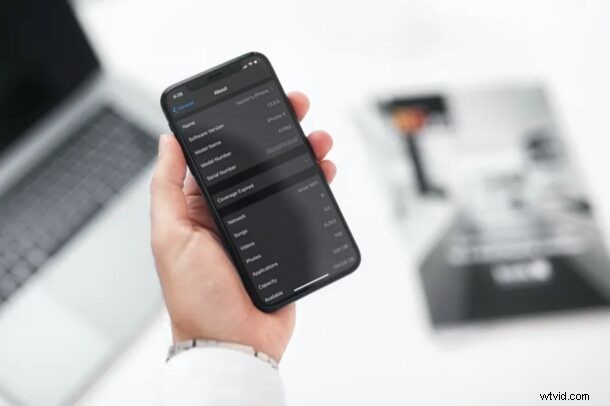
Are you trying to figure out the model number of the iPhone you own? Well, you don’t necessarily have to find the box your iPhone came in just to get the model number, as you can check it right on your device.
Model numbers are usually printed on the back of your iPhone’s packaging, close to the “Designed by Apple in California” text. However, the problem is that not everyone keeps these boxes around after unboxing their devices. On the other hand, if you own an older iPhone like the iPhone 7 or iPhone SE, you could find the model number printed on its back, but that requires you to remove your phone’s case.
Thankfully, the method we’re going to discuss today requires neither of that. In this article, we’ll be discussing how you can identify the model number of the iPhone you currently own.
How to Identify Which iPhone Model You Have
Checking your iPhone’s model number is a fairly simple and straightforward procedure on iOS. Just follow the steps below to learn how you can find yours.
- Head over to “Settings” on your iPhone.

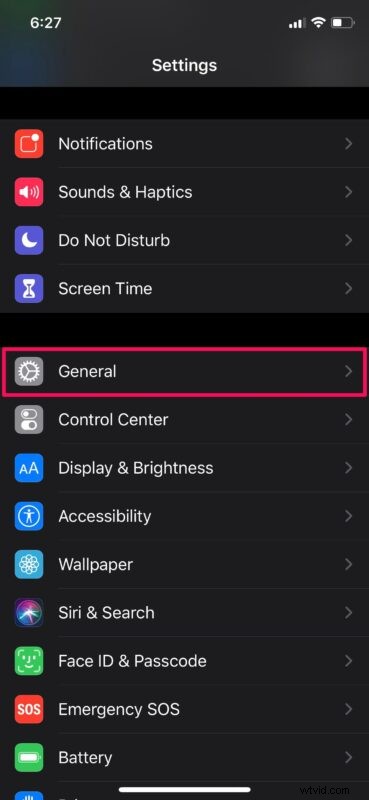
- In the settings menu, scroll down and tap on “General”.
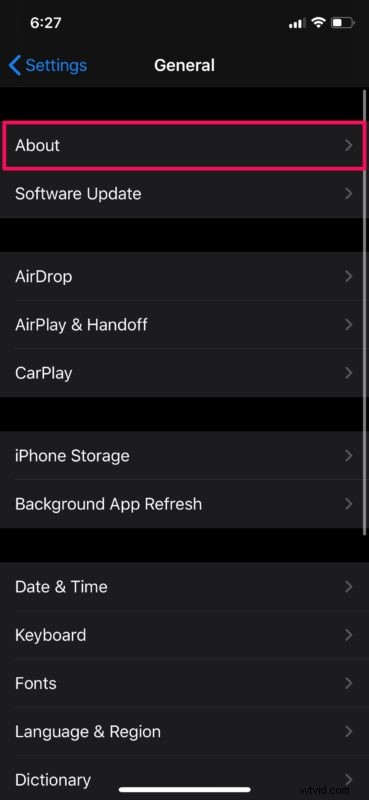
- Next, tap on “About” which is the first option in the general settings.
- Here, you’ll see the model number located right below your iPhone’s model name. However, this is not actually the model number you’re looking for. This is your iPhone’s SKU, which describes a specific configuration of that iPhone model, let’s say iPhone X with 256 GB of storage in this instance. To view the model number, simply tap on “Model Number”.
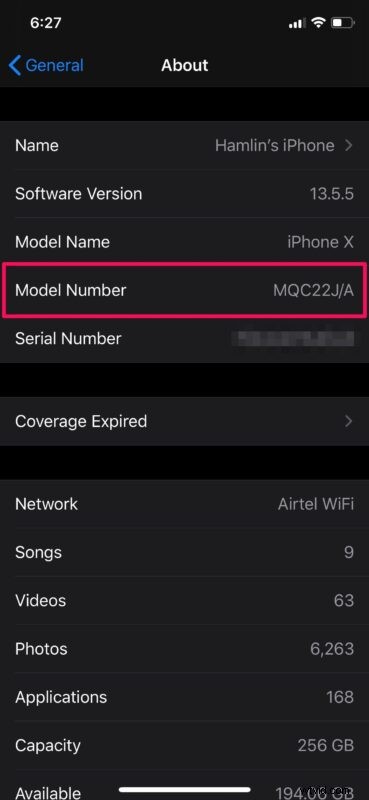
- You’ll see that the model number changes, as shown in the screenshot below. The model number that starts with the letter A is what you’re looking for. This is the number that’s usually printed on the box of your device.
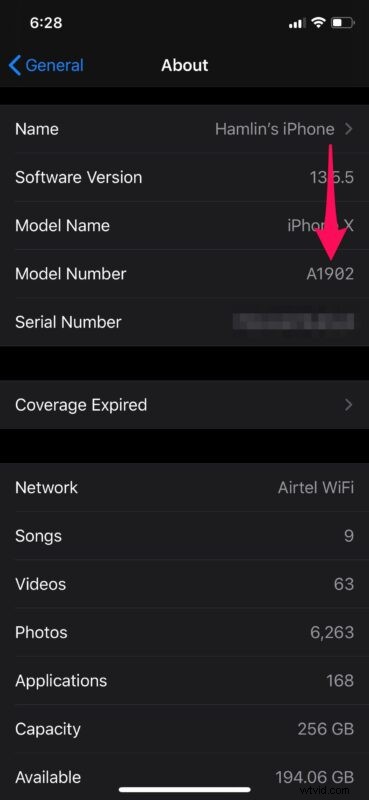
There you go. Now you know how easy it is to find which iPhone model you have.
Now what if you have the model number of the iPhone, but you aren’t sure of the marketing name to accompany it? For example, let’s say you found your iPhone is A2160, but you’re not sure if that’s an iPhone 11 Pro or and iPhone 11 or iPhone XS? You can find that information up to date on Apple.com where you can match model numbers to marketing names here.
Every single iPhone that has been released to date has a model number that starts with the letter A, so make sure you don’t confuse it with the SKU number. Apple, for reasons unclear, refers to both of them as model numbers.
Although we were focusing on the iPhones, you can follow the exact same steps to find the model number of your iPad too. Just like iPhones, model numbers for iPads start with the letter A as well. Model numbers vary with the region you purchase your iPhone from, and can be useful for determining the mobile carriers your device may or may not support.
Likewise, you can also find the serial number of your iPhone or iPad. This can be helpful to determine the warranty status, unlock status, or to claim AppleCare service for your device. If you own a Mac, you can easily find its serial number in macOS too.
All of this information can be helpful for many reasons, whether for tech support, hardware service, troubleshooting, inventory, amongst other reasons.
We hope you were able to determine the iPhone model you own without needing to find the box it came in. What are your overall thoughts on this handy trick to check the model and serial numbers of your Apple devices? Do share your valuable opinions and experience in the comments section down below.