
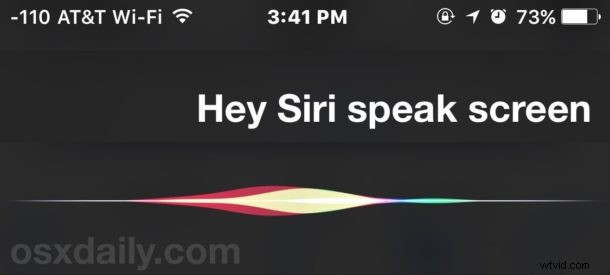
Siri has the ability to read anything on the screen of an iPhone or iPad to you. And yes, that means Siri will quite literally read aloud whatever is open and on the display of an iOS device, whether it’s a web page, an article, an email, a text message, anything on the screen will be read out loud by Siri, and you’ll even have controls for speeding up and slowing down speech, as well as pausing and skipping sections.
To get the excellent Siri Speak Screen ability working on your iPad or iPhone, you will need to enable a little appreciated accessibility feature called speak screen, and then it’s just a matter of initiating the proper request with Siri.
How to Have Siri Read Screen Text to You on iPhone, iPad
First we’ll enable the Speak Screen feature and then use Siri to access it in iOS, here’s how it works:
- Open the ‘Settings’ app and go to ‘General’ and then to “Accessibility”
- Go to “Speech” and flip the switch for “Speak Screen” to the ON position
- Exit Settings
- Now from just about any screen in iOS, whether settings, a webpage, messages, email, summon Siri and say “Speak Screen” to have Siri read the screen and all screen contents to you
- Use the onscreen controls to stop reading or adjust the reading speed, section, or stop (or ask Siri to stop reading)
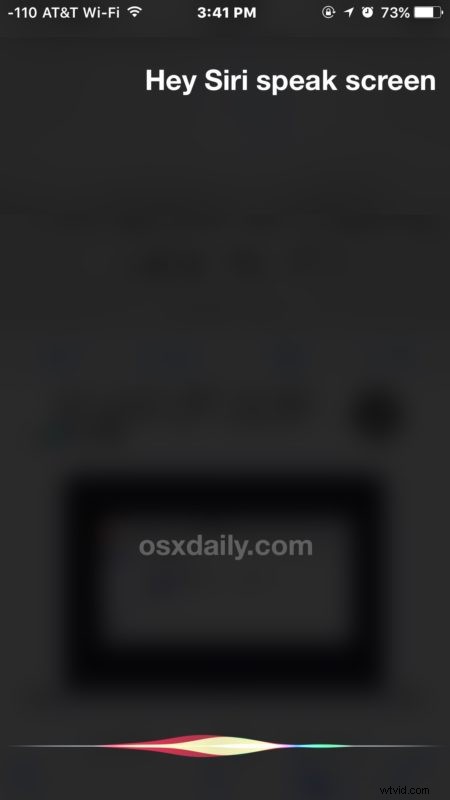

For a practical example of how this can work, let’s imagine you have found a great article on the web and you’d like it read to you aloud. All you need to do is load up the web page in Safari (or another browser of iOS) and then summon Siri and say “Speak Screen” and Siri will start reading the text of the article to you.
Using the onscreen controls you can skip slow down Siri speech, skip backwards to a section to have it re-read, pause the speech, skip forward a section you don’t want read, or speed up the Siri voice reading.
This trick pairs really well with either the iPad or iPhone if you have the volume turned up enough to hear the reading out of the built-in speakers, but it also works wonderfully with headphones or speakers. Using this trick you could have Siri read you an article, an email, a web page, anything on screen, while you commute, or are out and about, or even just laying around.
You can even use this trick with the Hey Siri voice activation feature, making it one of the better accessibility features available in iOS.
Have any other screen speaking tips or ideas for how to use this great tip? Let us know in the comments.