
If you’re a keen photographer, chances are that you publish some of your photos to Flickr for sharing with friends and family. One of the disadvantages of Lightroom 2 is that it does not come with a built in tool for publishing direct to Flickr although this has been addressed in Lightroom 3 which does offer this ability.
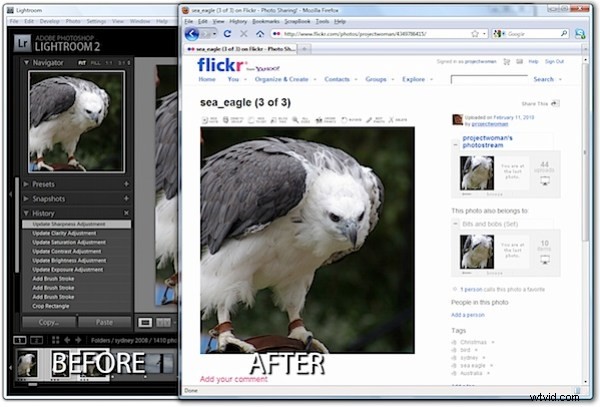
There are, however, tools like Jeffrey Friedl’s Lightroom plug-in that you can use to do the job. Here’s how it works:
Step 1
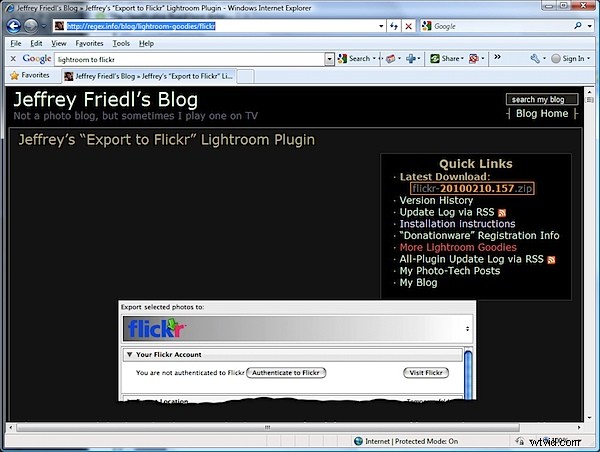
To download the tool, visit http://regex.info/blog/lightroom-goodies/flickr and locate the tool for your version of Lightroom. There are different downloads for Lightroom 1 and Lightroom 2 so get the right one.
Step 2
Download the zip file which, if you are using Lightroom 2 is via a link in the top right hand corner of the screen.
Unzip the downloaded file and, when you do, you will see a .LRPlugin folder inside the zip file.
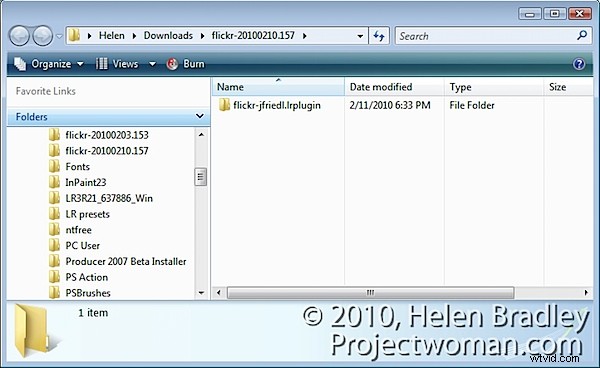
You need the entire contents of this folder so drag and drop the entire folder from your Downloads folder into the place where you plan to keep it long term.
Lightroom isn’t fussy about where you place your plug-ins but it makes good sense to place them all in a central location where it is easy for you to find them. I suggest you place it nearby your Lightroom folder or in your Documents folder where it will be included in your regular system backup.
Step 3
Now return to Lightroom and choose File > Plug-in Manager. This opens the Plug-in Manager dialog where you install your Lightroom plug-ins. Click Add and navigate to the folder that you stored the .lrplugin folder. Click the folder to select it and click Ok.
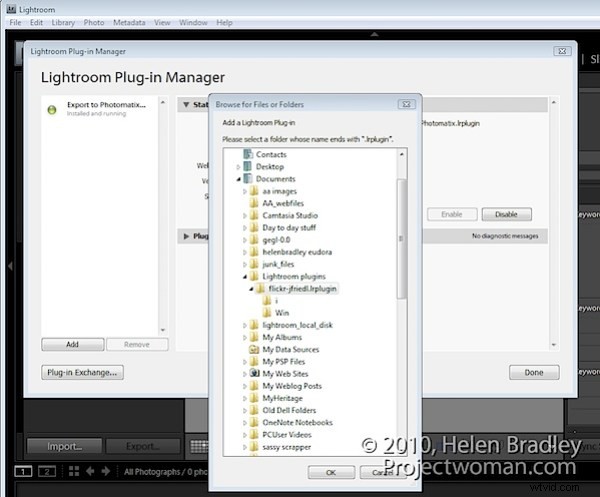
Click Update if prompted to update your catalog to support the plug-in. A dialog will appear with more instructions in it. Read the information and click Ok when you are done.
Step 4
The Plug-in will be listed in the plug-in list so click Done to exit the dialog.
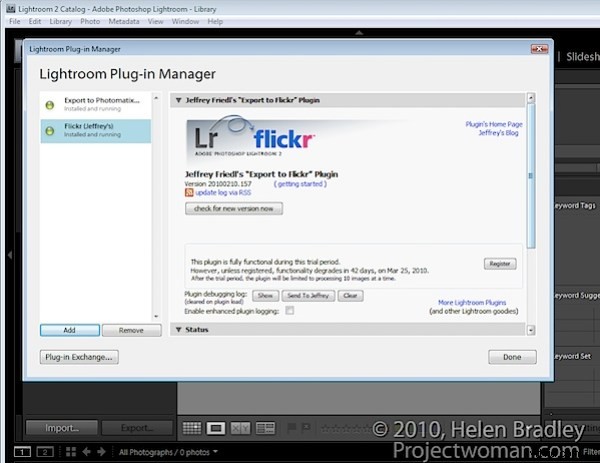
Step 5
Now select a few images to upload to Flickr. Right click one of the selected images and choose Export > Export.
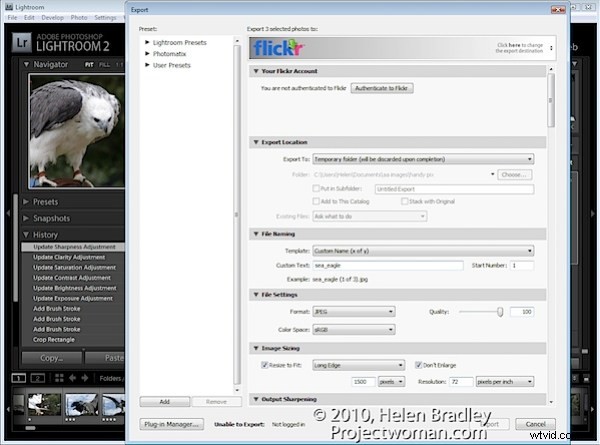
At the very top of the dialog you will see the Files on disk heading, click this panel and locate the Flickr (Jeffrey’s) option in the list.
Go ahead and (ignoring the Export Location settings) complete the other areas of the Export dialog as you would for any export task.
Pay particular attention to the file names, file format and quality because, when you click to Export the files they are sent direct to Flickr.
If you plan to resize the images select the Image Sizing options and choose the desired option.
Step 6
Click the Authenticate to Flickr button at the top of the dialog. You only need do this the first time you upload images. Your browser will open and you should sign in using your Flickr log-in and password.
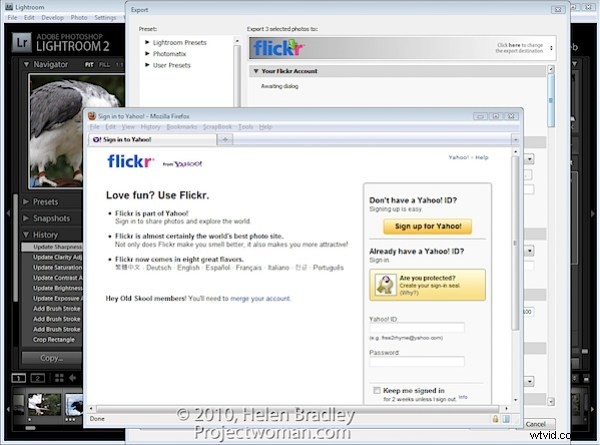
Step 7
When prompted, click the second Next button to authenticate the connection then click Ok, I’ll authorize it if you are happy with the conditions displayed.
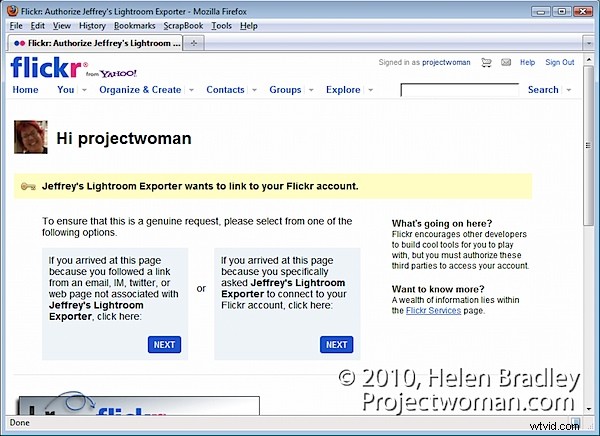
Once you have done this, close your browser, return to Lightroom and click the I’ve authenticated at Flickr.com button to confirm you have done so.
Step 8
Once you are authenticated, additional options are available in the Export dialog. You can, for example, select the photosets for the images and ask to view the Flickr photoset when uploading is complete.
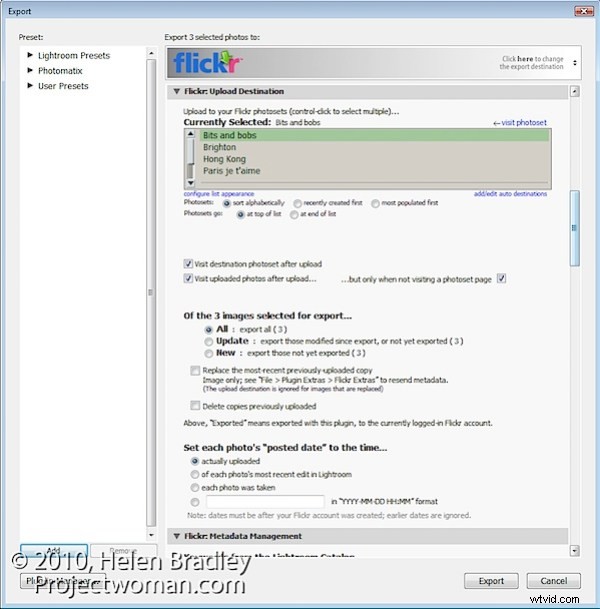
step 9
You can also set Licence types for the images, add keywords and configure a range of options for uploading.
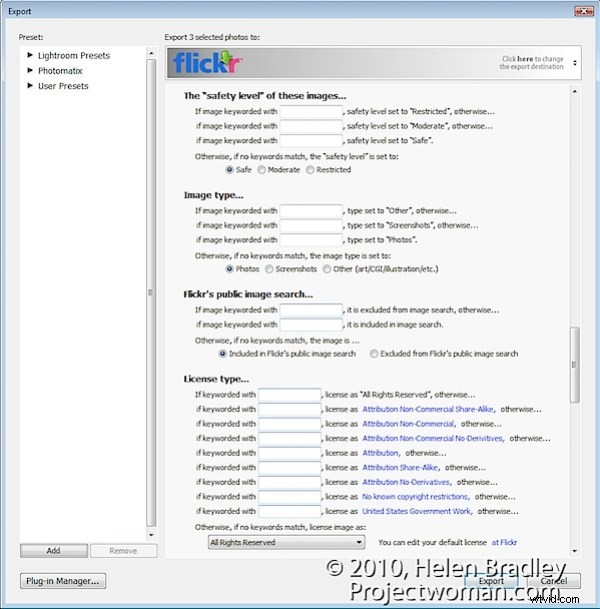
step 10
When you are done, click the Export button to export your images to Flickr.
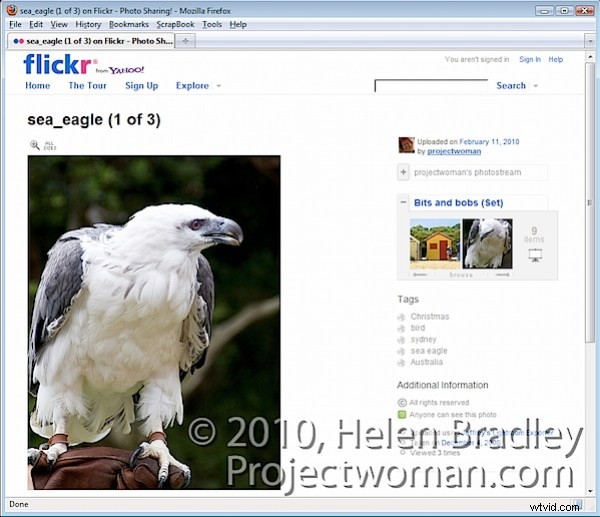
This Lightroom plug-in is, what is called, donation ware. It is functional for six week and then you’re asked to register and make a donation one cent is the minimum PayPal fee. If you don’t register then functionality is reduced to uploading ten images at a time.
This plug-in works well and, until Lightroom 3 is released and you shell out the cost of upgrading to that version it is a smart addition to your Lightroom toolkit. For my money it makes the upload process seamless. And, because it saves me an entire step by rolling Export from Lightroom and upload to Flickr into a single step it represents the difference between things being left on my to do list and tasks getting a big black line drawn through them – and I like that!