
Often when you’re working in Lightroom you will want the images to be sorted in the order that you want to see them, not in as order such as capture date which is one of the Lightroom sort options.
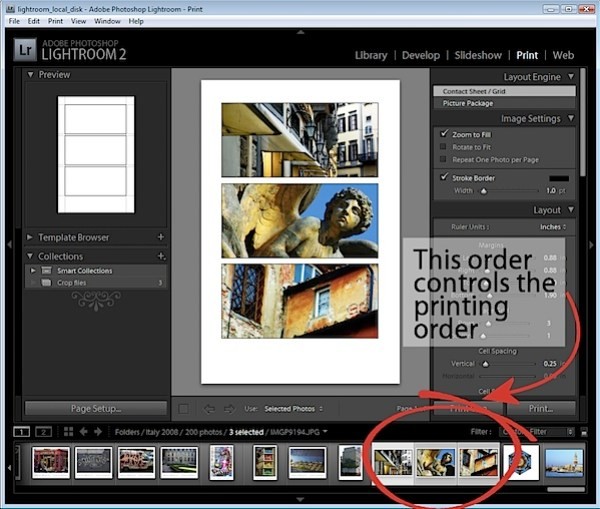
You may want to do this when assembling images for a slide show or for printing, for example as the order of the images in the filmstrip will affect how the images appear in a print template and in the slideshow.
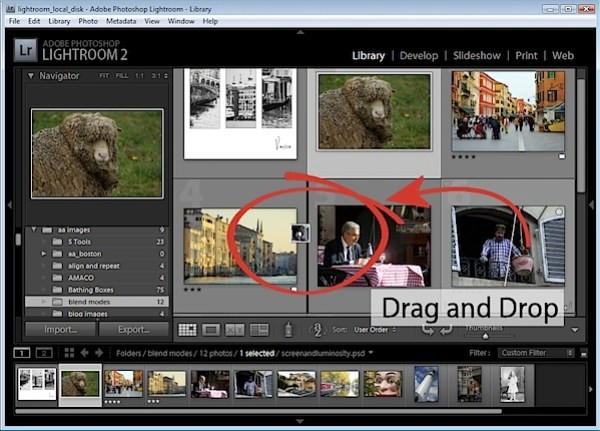
You can control the order of images in a Lightroom folder by dragging and dropping an image from one place to the other in the filmstrip view. To do this, grab the image in the middle and drag on it until you see a black bar appear between two images. If you let go the image it will drop into the indicated position.
This drag and drop process works in most instances but there are some exceptions to be aware of.
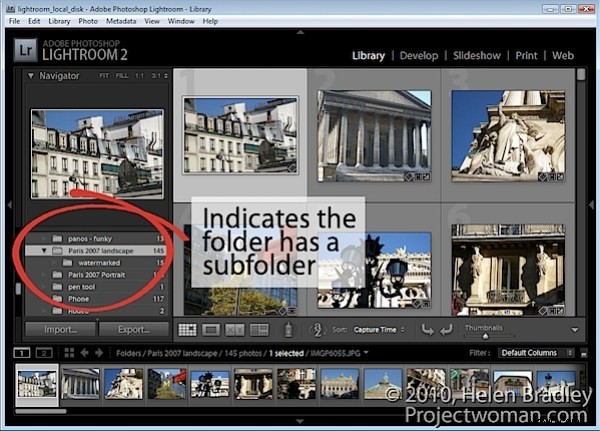
The first is that this will not work if you are in a folder where there are images in a subfolder below it which are also visible. You can see if this is likely if you open the fly-out for the folder in the Folders panel in the library. If there is another folder the one you are working on, chances are that the images in the subfolder are included in the filmstrip and so you cannot arrange the images by dragging them into position if this is the case.
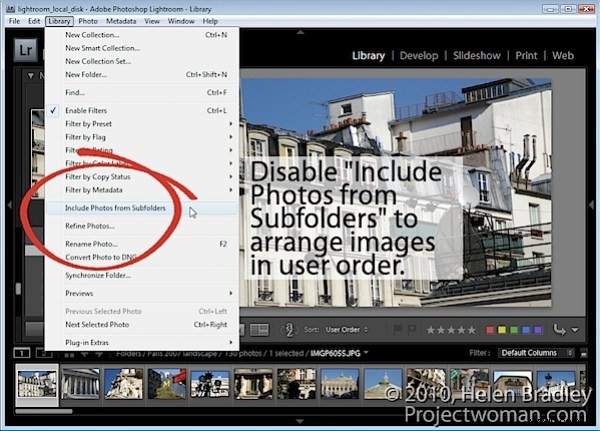
To workaround this limitation you can remove the photos in the subfolder from view – this just removes them from the grid and filmstrip and not from Lightroom or your disk. To do this, click Library in the menu and disable the Include Photos from Subfolders option.
With this disabled, you can now move images by dragging and dropping them into position.
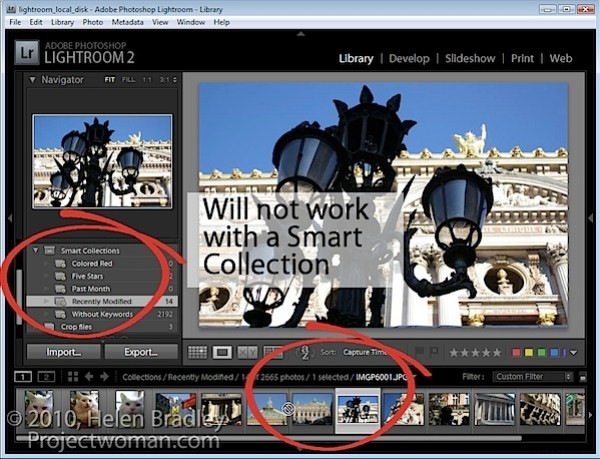
Another exception is when you are working with a Smart Collection. While images can be located in a regular collection and rearranged in order to suit, they cannot be rearranged if they are in a Smart Collection. If you have images in a Smart Collection that you want to be in a specific order, you will need to create a regular collection for them and add them to it to do so.
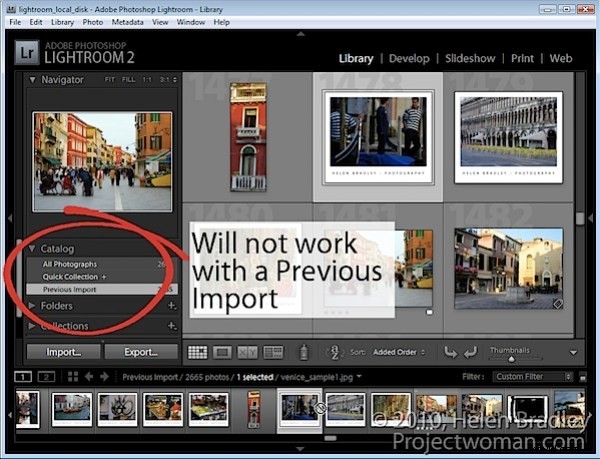
Another situation where you cannot reorder images to your own preference is when you are working on the images in the Catalog such as Previous Import. You must, instead, locate the folder or collection in which the images are stored and rearrange them there.
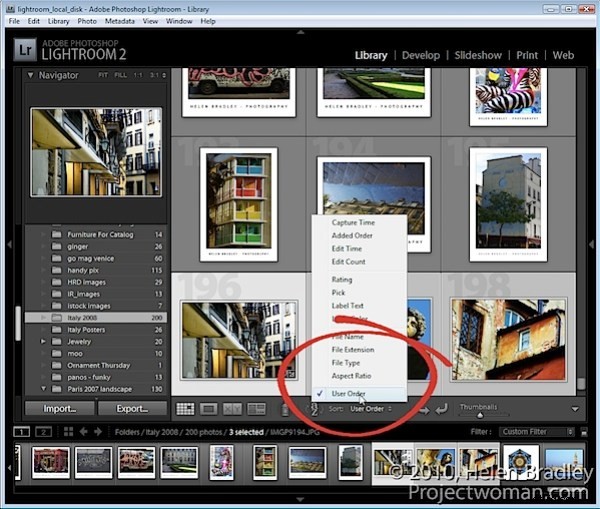
Once you have arranged the images as you want them to appear, Lightroom stores your ordering so it is as accessible as, for example, any other sort order options for that folder or collection. So, you can return to your preferred sort order at any time by selecting User Order from the Sort dropdown list.