
VirtualDub is a free video capture/processing tool for Windows platforms (2000/XP/Vista/7). And VirtualDub MPEG-2 is a modified version of VirtualDub that supports MPEG-2 import originally. However, just as the author said "This software is obsolete and will no longer be updated. For MPEG-2 and WMV support in the latest VirtualDub, try my plugins (MPEG-2 plugin for VirtualDub 1.8.1 or above - by editor)".
Download and Install VirtualDub MPEG-2
You could download VirtualDub MPEG-2 here and extract files to a folder. Now you get a video processing software with MPEG-2 video import supported. To run VirtualDub MPEG-2, double click the VirtualDub.exe.
How to Use VirtualDub MPEG-2 to Compress Large MPEG-2 Videos
VirtualDub-MPEG2 is designed to work with mpeg2 video, such as Digital TV shows, un-encrypted DVD files (*.vob) and these video files are usually in big size. Now you can compress them using VirtualDub MPEG-2.
Step 1: Set Up Video Compression
Open your MPEG-2 video file through File/Open video file..., then go to Video/Compression to bring up the following dialog.
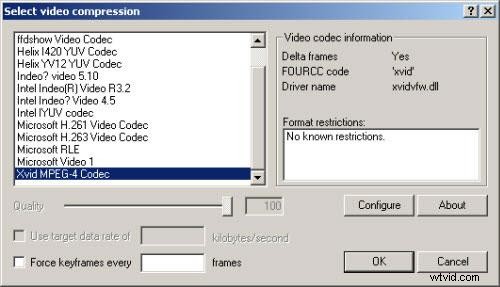
As shown above, select the XVID MPEG-4 codec and click Configure button to make Xvid settings.
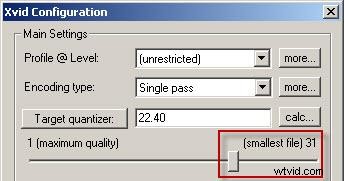
Note: If Compression is disable, switch to Full processing mode first in the Video menu.
Step 2: Set Up Audio Compression
Audio compression setup is similar to video compression, go to Audio/Full processing mode, and again Audio/Compression to open the dialog, where MPEG Layer-3 is recommended.
Step 3: Start Compressing
Now it's the time to start processing your video, here is how:
- Go to the File Menu
- Select Save as AVI...
- Select where you want to save the AVI and name it.
- Click Save.
Conclusion
The VirtualDub MPEG-2 needs some time to compress your video. The larger the video file is, the longer. But VirtualDub MPEG2 is a fast video processing software. Take a cup of coffee and relax. Once finished, use your favorite video player to see the compressing result.
If you don't like VirtualDub MPEG-2 and would like to find some more powerful editors, you can try Wondershare Filmora, which supports Windows and Mac OS with high compatibility of input and output formats. Wizard-style interface and intuitive design will help you to compress video or any other editing operation easily and smoothly. Try it today by downloading the free trial version below.