
It can get overwhelming searching for the perfect video editor to fit your needs, skill level, and budget. Video editing shouldn’t cost a fortune or be overly technical. Beginners often become overwhelmed by learning new video tools. They spend all their time reading on how to get things done and where to find them. In the end, they spend less time creating their videos.
Video creation platforms like Screencast-O-Matic’s Video Editor do a brilliant job of making editing tools accessible and easy to use for anyone. A hassle-free video editor gives you all the tools you need without much guesswork. Here are four easy tools to make video editing a seamless process.
1. Easily Cut Silence With This Video Tool
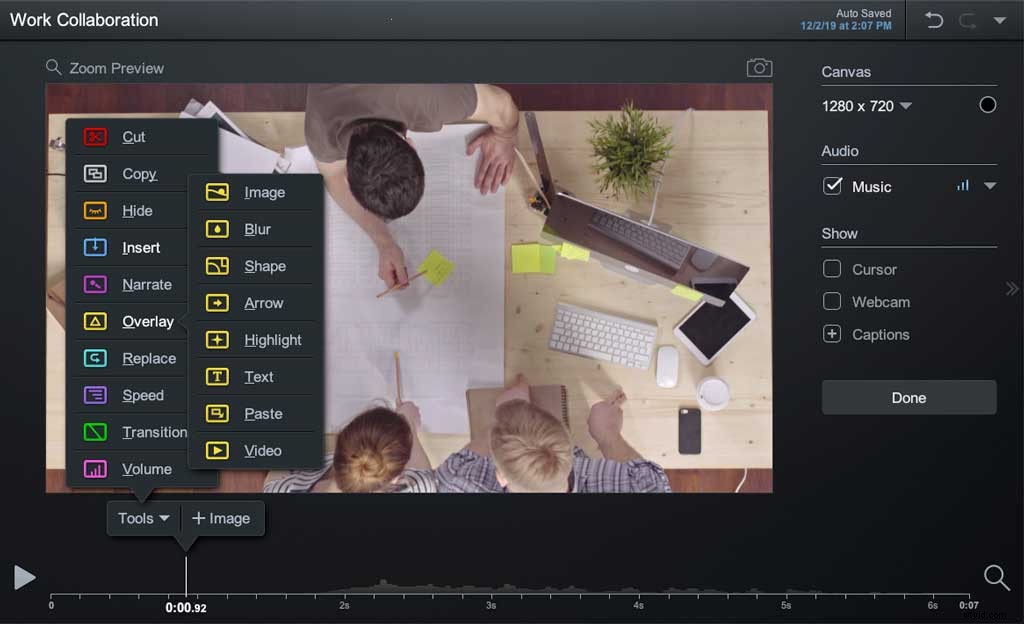
Have an awkward pause or silence in your video? Fear not! Screencast-O-Matic automatically detects silences so you don’t have to. The Cut Tool detects pauses and will make a suggested cut on your timeline. With a few simple clicks, you can remove the silence without much hassle and you can fine-tune the cut as needed.
Made an error with the cut? It’s easy to remove it, too.
The Video Editor is laid out in a simple way, designed specifically to make the tools stand out. You can easily find the Cut tool in the tools menu.
2. Text–the way you want it
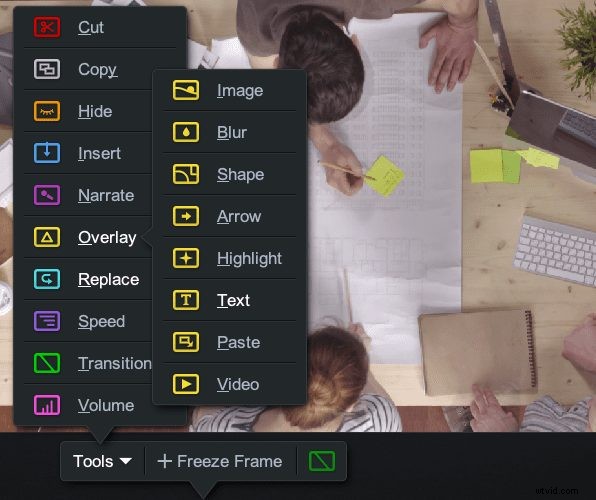 If you need to emphasize a point by adding text to your video, you can do that with Screencast-O-Matic’s Overlay Text tool. Type your text and style with the rich text editor.
You can style the text by changing the color of words or whole sentences, selecting a font, adjusting the size, and customizing the background color of text boxes.
With Auto Size options, you can automatically scale the font size just by dragging the text box area.
3. Add an Image or Video Overlay
Editing a video can be complicated, but it doesn’t have to be. Finding a hassle-free video editor that makes the process quick and easy is important no matter how many videos you are creating.
In Screencast-O-Matic, users can enhance their videos by overlaying images and videos. It’s easy to mix and match content from multiple sources.
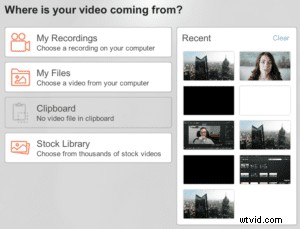 For instance, you can add an image from a files folder on your computer or grab an image from the clipboard.
If you need more inspiration, try searching through Screencast-O-Matic’s Stock Library. The stock library offers images and videos to enhance any video project.
It’s easy to use the stock library. Once you have the stock content that you want, you can send it directly to the video editor with just one click. Premier users can use as many images or videos as they want. Plus, the entire gallery is royalty-free. That means there are no restrictions on how you use the images or video.
4. Video Tools to Automate Captioning
To be a truly hassle-free video editor, the tools need to be easy to use. Screencast-O-Matic has made it as simple as possible to automate captioning so you don’t have to do all the work.
With speech-to-text, the video editor can easily pick up narrated portions of your video and turn them into captions.
There’s more! Along with speech-to-text, users can choose to type in captions or upload a text file. It’s that easy!
Video Tutorials To Enhance Skill Level
 Great video editing software makes it easy to customize videos, get the support you need, and learn new techniques. The process shouldn’t be stressful though. Look for video editors that go beyond the basic help section.
Top-ranking video editing software offer cheat sheets, step-by-step guides or video tutorials to help users. Screencast-O-Matic offers help in all three forms.
The website has an extensive ‘Tutorials’ section filled with video tutorials to enhance editing skills. It covers basic how-to topics to more advanced techniques like using edit points to create animations. There’s also an in-depth blog that has cheat sheets and guides to help users.
If you’re a beginner, consider video editors aimed at helping grow your skillset at no additional cost.
The Best Advice For Video Tools
A video editor shouldn’t break the bank. A full-service video editor can cost as little as $1.65 a month. Screencast-O-Matic’s pricing plan drops even lower for a longer subscription which includes its entire video editing platform. The features include speech-to-text captioning, green screen filters, and the ability to mix and match videos from multiple devices.
Smart shoppers should also look for freebies before paying upfront. Many editing programs offer free trials. With Screencast-O-Matic, you can launch our free video editor and take advantage of all the robust video tools, no login or registration is needed.
Finding an affordable video editing platform is easy. You just need the right tools to make editing hassle-free.