
REC

Recommended: Video Production, Editing & Gear Maintenance Guide

 WTVID >> WTVID >  >> Video Editing >> Adobe Audition

Premiere Pro: Mastering Audio Volume Control for Voiceovers

To adjust volume in Premiere Pro, follow these steps:

  • Select the audio track you want to adjust
  • Go to the Effect Controls menu
  • Go to the Volume section
  • Adjust Level by increasing or decreasing the dB
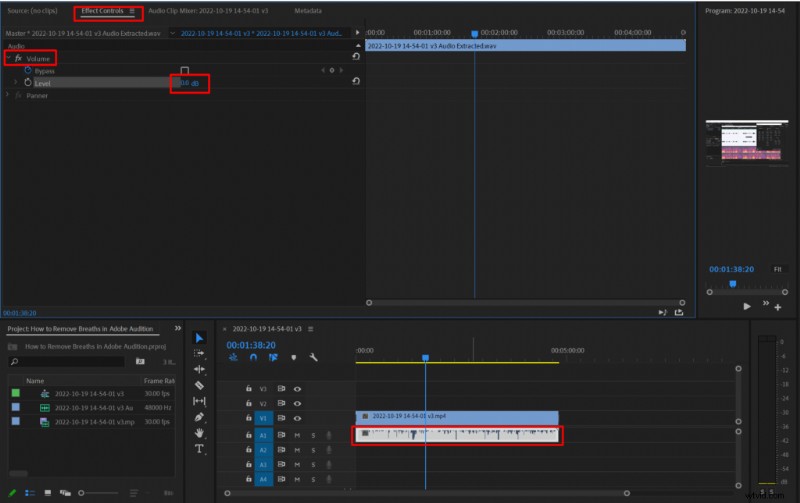
Premiere Pro: Mastering Audio Volume Control for VoiceoversAdjusting audio level in Adobe Premiere Pro.

If you want to, you also have an option to gradually adjust the audio level of your recording within Premiere Pro.

Follow these steps to do so:

  • In Effect Controls->Volume menu section click the white chronograph icon (Toggle animation) next to Level
  • In the timeline on the right select the starting point from which you want to adjust volume
  • Click the Add/Remove Keyframe dot next to Level
  • Select another point on the timeline and input a new value in Level section
  • Add as many keyframes with different Levels as you want

Doing this will gradually change your audio level in the timeline from one keyframe to the other.
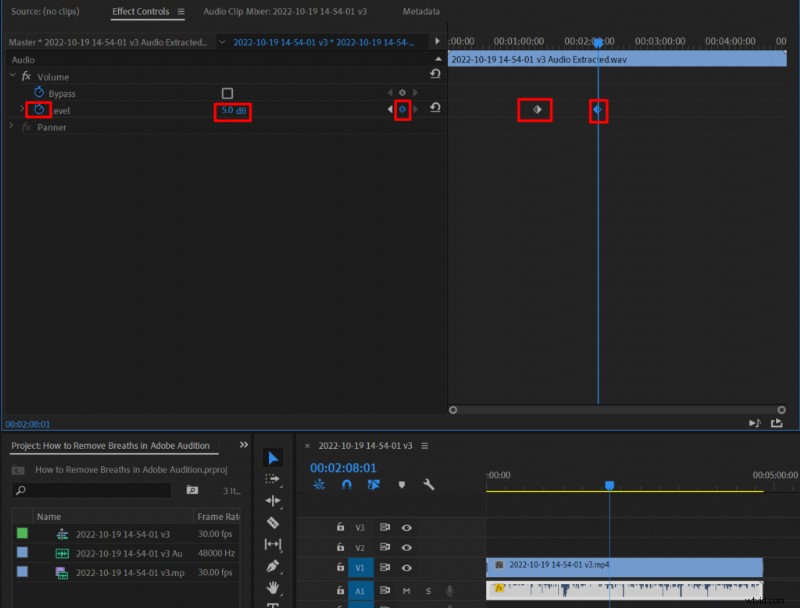
Premiere Pro: Mastering Audio Volume Control for VoiceoversGradually adjusting audio level in Premiere Pro.
  1. How to Add Echo Effects in Audacity: Step-by-Step Guide

  2. Capture Professional-Quality Audio on Your Smartphone: Expert Tips

  3. Arc Pro Plan: Free Professional Screenwriting Software for Students

  4. Adjust Audio Speed in Adobe Audition: A Quick Guide

  5. How to Make Your Voice Sound Professional in Audacity: 3 Easy Steps

Adobe Audition
  1. Adobe Creative Cloud Guide: Every App Explained + Pricing Breakdown

  2. Master Photoshop's Levels Tool: Beginner's Guide to Pro Photo Adjustments

  3. Reclaim Your Authority: Embrace Your Expertise as a Professional Photographer

  4. Professional Guide: Editing Corporate Headshots in Lightroom

  5. Capture Architecture as Sculpture: Expert Photography Guide

  6. Transform Your Portraits: How to Use a Small Softbox with Flash

  7. Master Photoshop Blending Modes for Stunning Fine Art Portraits

  8. Master If/Else Statements in After Effects Expressions: Complete Guide