
The best way to quickly remove keyboard clicks from your audio using Audacity is with the Noise Reduction tool.
Audio before applying noise reduction:
Audio after applying noise reduction:
Follow these steps to remove the keyboard noise from your audio:
- Open your audio in Multi-view mode
- Find a part of your audio where it’s only the keyboard clicks audible and select it
- Go to Effect->Noise Reduction and click Get Noise Profile
- Select your whole audio recording (CTRL+A)
- Again go to Effect->Noise Reduction and click OK to apply the effect to your audio recording
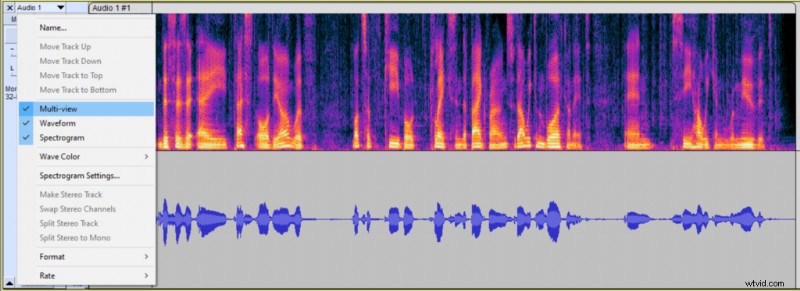 Switching to Multi-view in Audacity.
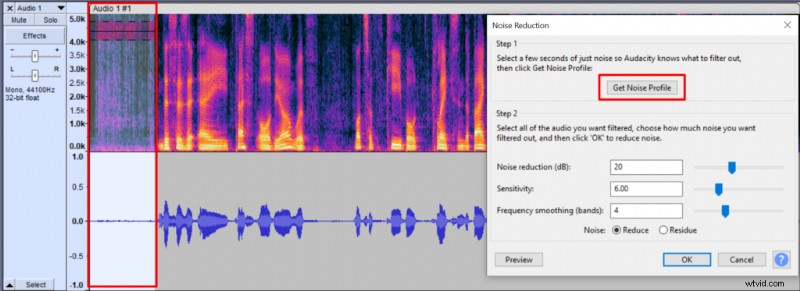 Selecting keyboard noise and getting a Noise Profile in Audacity
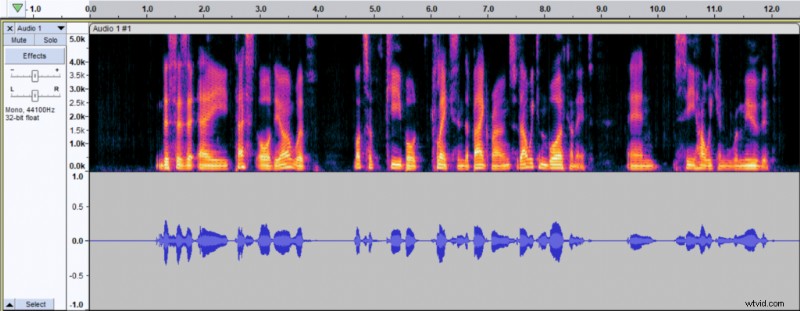 Audio track after cleaning keyboard noise with Audacity’s Noise Reduction tool.
Once you applied noise reduction, it’ll make your audio free of keyboard noise.
You can also make the keyboard noise less noticeable by speaking louder and closer into your microphone. By speaking loud into the microphone, you’ll make a more significant difference between the keyboard noise and your voice. This will help to hide the unwanted background noise created by your keyboard.
After applying the noise reduction tool, your audio might sound thin. To combat that, you can use EQ to add some warmth.