
When you upload videos to social media, the pitfalls of soft subtitles—mis‑timed text, inconsistent appearance, or sudden disappearance—can frustrate viewers and hurt engagement. Hardcoded subtitles, also known as burned‑in captions or open captions, eliminate these issues by embedding the text directly into the video frames. This ensures every viewer, on any device or platform, sees the same captions without needing a separate subtitle file.
What Are Hardcoded Subtitles?
Hardcoded subtitles are captions permanently written into the video’s pixels. Once burned in, they cannot be toggled off, edited, or removed. Think of them as a watermark or logo that’s part of the image itself.
Hardcoded vs. Softcoded Subtitles
Understanding the key differences helps you choose the right approach for your content.
| Feature | Hardcoded Subtitles | Softcoded Subtitles |
|---|---|---|
| Location | Embedded in video frames | Stored in a separate file (SRT, VTT, ASS) |
| Toggle | No on/off switch | Yes (e.g., CC button on YouTube) |
| Editable after export | No | Yes (by editing the subtitle file) |
| Multiple languages | One language per video | Multiple language tracks possible |
| Display compatibility | Universal—appears in every player | Depends on player and platform support |
| File size | Same as the original video | Slightly larger |
| Best use case | Social media, ads, hardcoded translations | Streaming, accessibility, multilingual videos |
Choosing a Hardcoding Method
Two approaches stand out for their balance of ease, control, and speed: an online AI tool and a powerful desktop encoder.
| Method | Description | Best For | Difficulty | Speed | Cost |
|---|---|---|---|---|---|
| SubtitleBee | AI‑driven transcription and hardcoding in the cloud | Content creators, social media teams, and anyone needing quick results | Easy | Minutes | Free trial available |
| HandBrake | Open‑source desktop encoder with full output control | Long videos, batch processing, advanced users | Medium | 10–60 min per video | Free |
Method 1: Hardcoding Subtitles with SubtitleBee
SubtitleBee allows you to upload a video, generate subtitles automatically, edit them, and export a final file—all in your browser.
Step 1: Upload Your Video
Sign in or create a free account, select the video’s language, and upload from your computer or a URL.
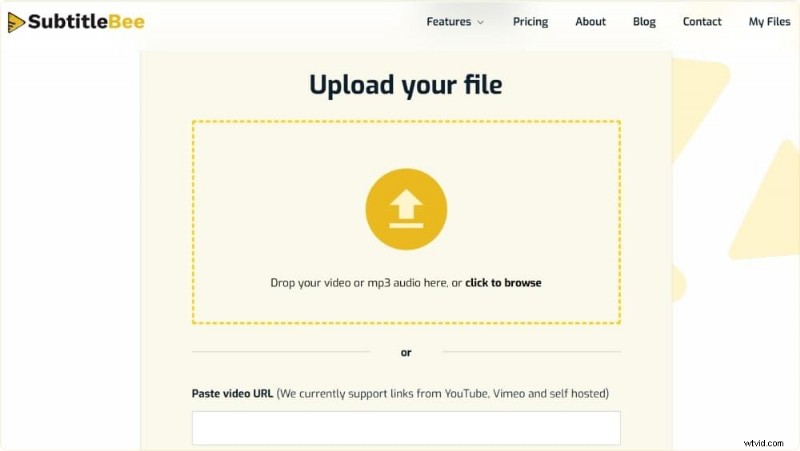
Step 2: Generate Subtitles Automatically
The AI transcribes the audio, producing 99% accurate, time‑aligned captions in over 120 languages—even for lengthy footage.
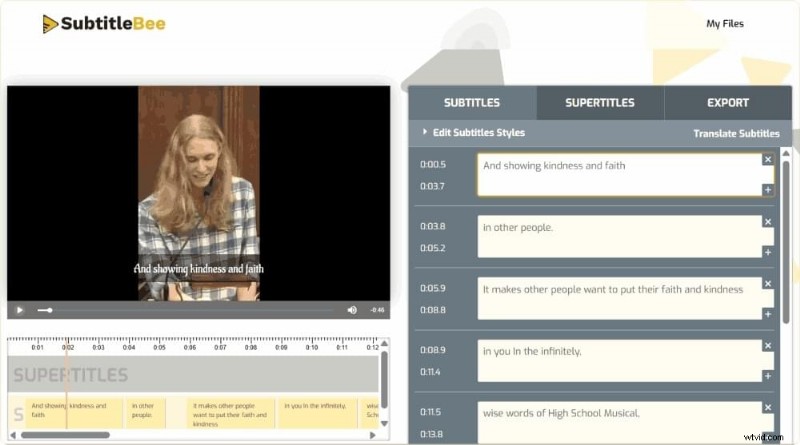
Step 3: Edit and Style Your Captions
Review the draft, correct any errors, and customize font, color, size, position, and background highlights to match your brand.
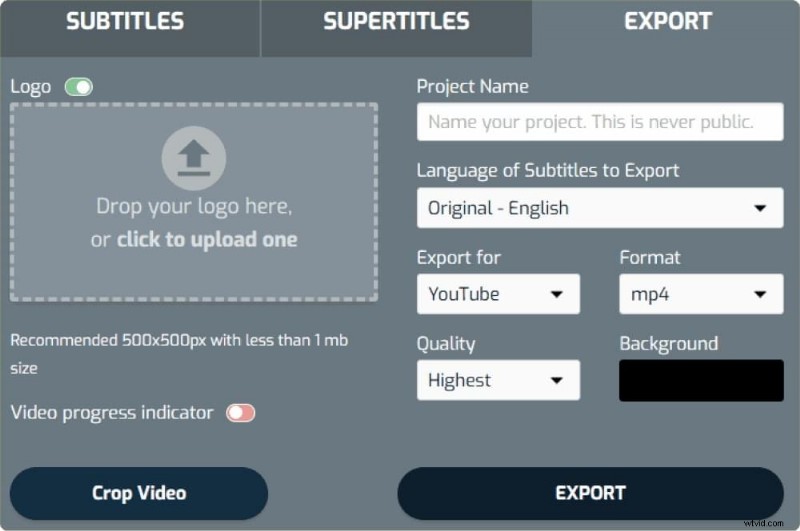
Step 4: Export with Hardcoded Subtitles
Click Export to render the video with captions baked into each frame. Download the file in a format optimized for any major social platform.
Method 2: Hardcoding Subtitles with HandBrake
HandBrake is a free, cross‑platform encoder that offers granular control over output settings.
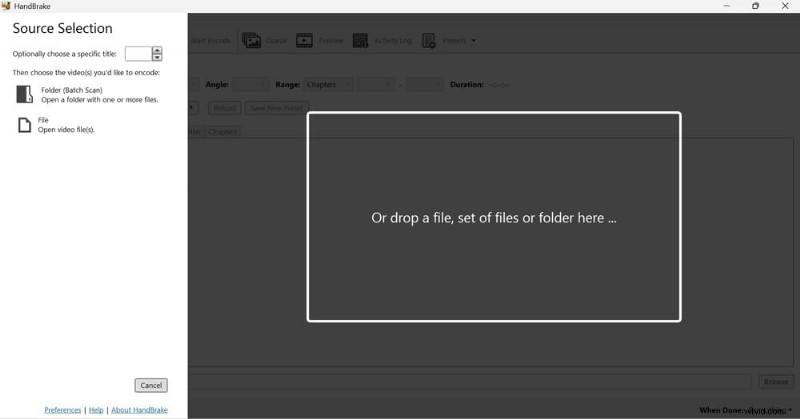
Step 1: Install and Load Your Video
Download from the official site, launch the app, and click Open Source to load your file.
Step 2: Import Your Subtitle File
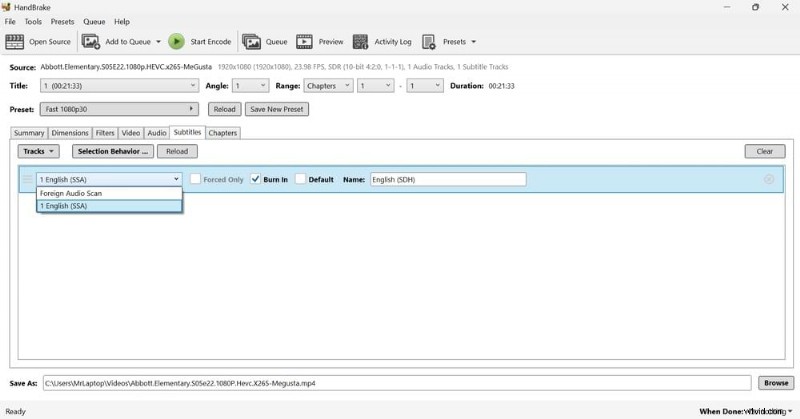
Navigate to the Subtitles tab, select your .srt file from the Tracks dropdown, and ensure the language matches the audio.
Step 3: Enable Burn‑In
Check the Burn In box next to the subtitle track. This guarantees the captions are permanently rendered onto the video.
Step 4: Encode and Save
Choose a destination folder, then click Start Encode. The time required depends on the video length and your computer’s performance.
Conclusion
Hardcoding subtitles ensures consistent captioning across every device and platform, making your content universally accessible. For speed and simplicity, SubtitleBee is ideal—no separate subtitle file needed. If you prefer full technical control, HandBrake remains a reliable choice. Try SubtitleBee’s free trial today and add perfectly synchronized, hardcoded captions in just minutes.
Frequently Asked Questions
What does hardcoding subtitles mean?
It refers to permanently embedding the caption text into each frame of the video, making it an integral part of the image.
Are hardcoded subtitles the same as burned‑in captions?
Yes, the terms are interchangeable. All denote captions that cannot be toggled off.
Can I hardcode subtitles for free?
Absolutely. Free tools like HandBrake, VLC, and FFmpeg allow you to burn subtitles if you already have an SRT file. SubtitleBee offers a free trial for the complete generation and hardcoding workflow.
What’s the best way to hardcode subtitles into MP4?
Using an AI subtitle generator such as SubtitleBee to create captions and burn them in offers the fastest, most accurate workflow.
Can hardcoded subtitles be removed?
They are permanent. While cropping the video may hide them, it will not cleanly remove the text.