
Turn Off Netflix Subtitles on Any Device—Step‑by‑Step Guide
Netflix offers an expansive library of international titles, making subtitles a crucial feature for millions of viewers. Yet, there are moments when captions become a distraction—whether you’ve accidentally enabled them or a previous user left them on. Knowing how to disable subtitles across every device ensures a seamless, personalized viewing experience.
What Are Netflix Subtitles and Closed Captions?
Subtitles translate spoken dialogue into text, while Closed Captions (CC) add descriptions of background sounds and sound effects for the hearing impaired. Although they share the same menu, turning them off follows device‑specific steps.
How to Disable Subtitles on Every Platform
The process varies by device, but Netflix consistently remembers your last setting for each profile.
Desktop & Web Browsers (Chrome, Safari, Firefox, Edge)
- Open Netflix and start a title.
- Hover the cursor over the player to reveal the control overlay.
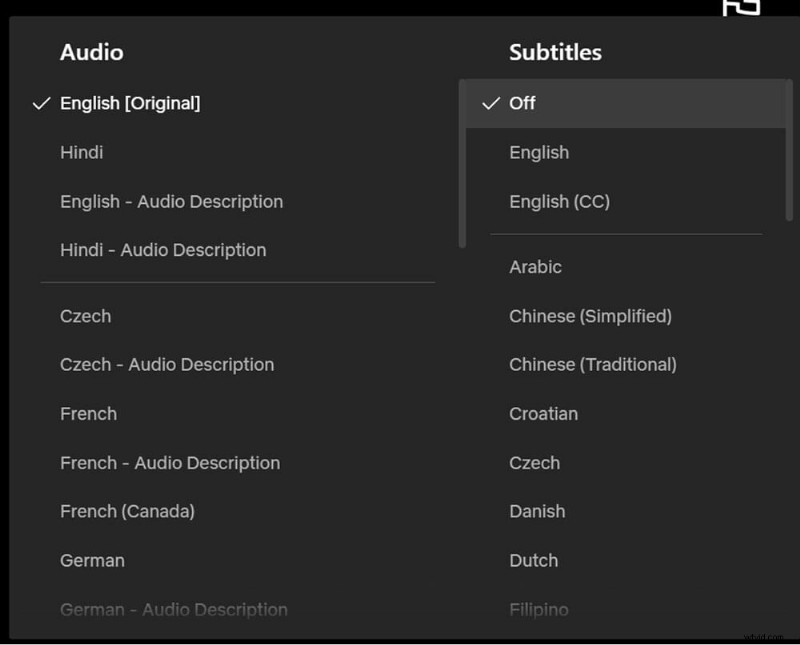
- Click the speech‑bubble icon in the lower‑right corner to open Audio & Subtitles.
- In the Subtitles column, select Off and the captions will vanish instantly.

iOS & Android Mobile Apps
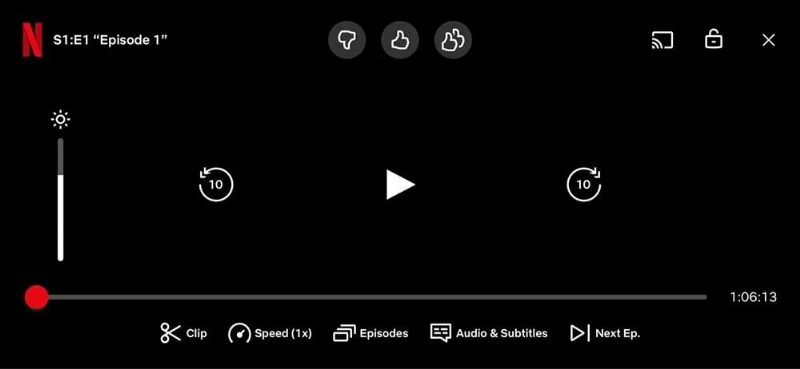
- Tap anywhere on the screen to display playback controls.
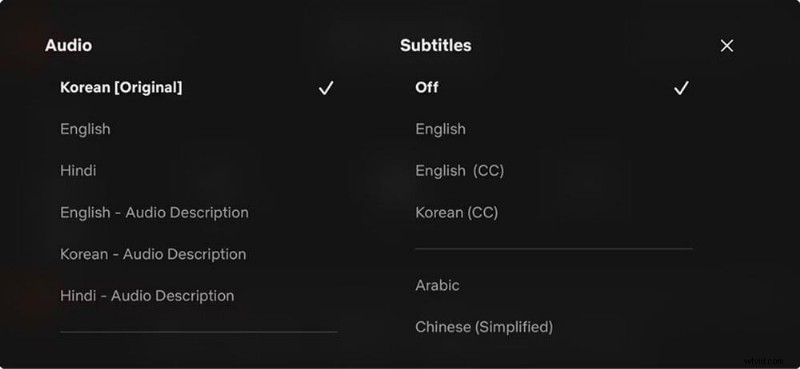
- Select Audio & Subtitles at the bottom center.
- In the popup, tap Off under the Subtitles section.
- Tap Apply or the X to return to the video.
Smart TVs & Gaming Consoles (Samsung, LG, Sony, Vizio, Xbox, PlayStation)
- Press the up/down arrow on your remote or controller to bring up the playback menu.
- Choose the Audio & Subtitles icon (sometimes under Other or a gear icon).
- Set Subtitles to Off and exit the menu.
Press Back or Play to resume watching without captions.
Apple TV (2nd Gen – 4K)
- With a Siri Remote (2nd Gen or later): press the Up button or swipe up on the clickpad, then navigate to Subtitles → Off.
- With a Siri Remote (1st Gen): swipe down to reveal Info & Subtitles, then tap Off.
- With older Apple TVs: press and hold the center button on the Apple Remote to access subtitle settings directly.
Why Might Subtitles Stay On?
Hard‑Coded (Burn‑In) Subtitles
Some foreign‑language titles embed subtitles directly into the video file. These hard‑coded captions cannot be turned off and often appear even after selecting Off. Tools like SubtitleBee or forced narrative scenes may create such videos.

Profile‑Level Settings
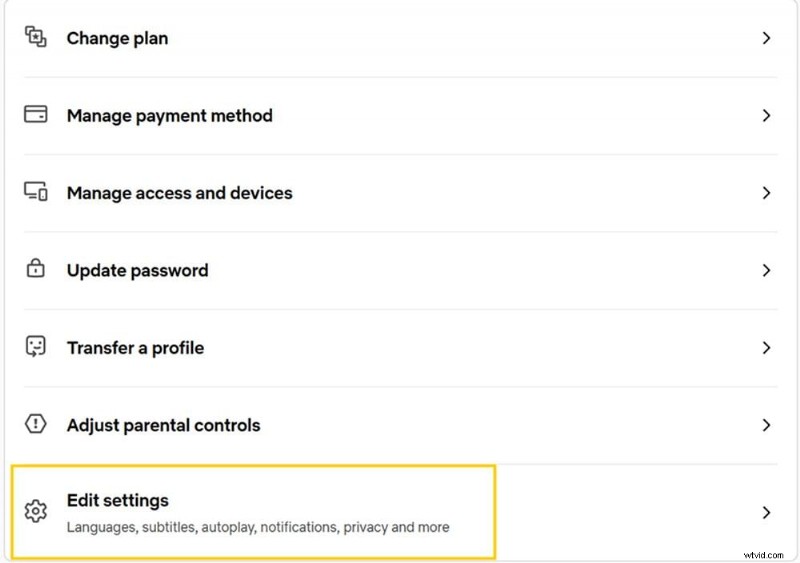
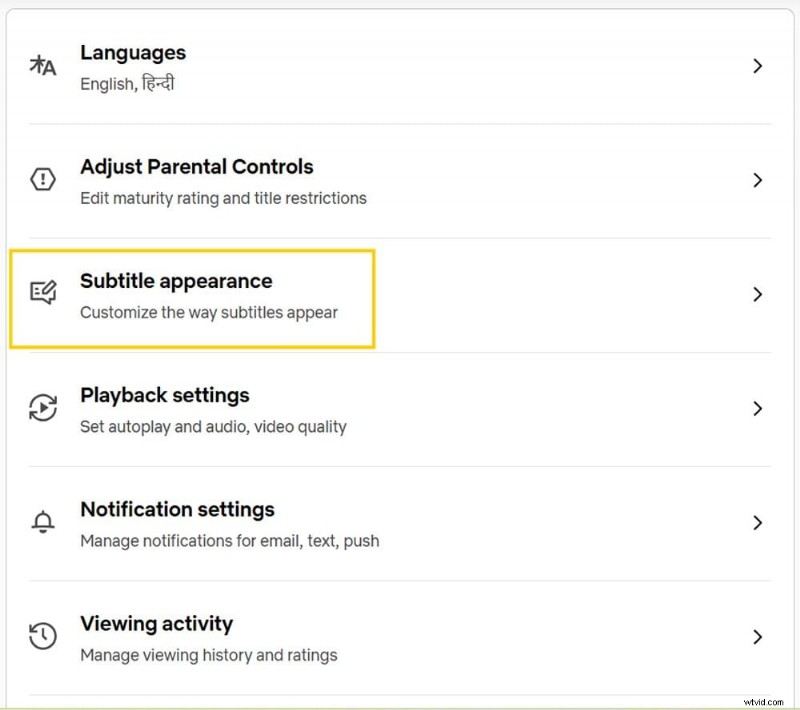
Subtitles may be enabled at the account level. To check, log in via a web browser, navigate to Account → Edit Settings → Profile, and review the Subtitle Appearance section for any forced overrides.
App Caching Issues on Smart TVs
When settings don’t sync, use the Get Help → Reload Netflix option within the app. This refreshes the app without signing out and often resolves lingering subtitle displays.
Why Does Netflix Keep Turning On Subtitles?
Accidental remote clicks, forced narrative subtitles, language mismatches, or app glitches can cause subtitles to reappear. If the issue persists, try:
- Replaying from the main menu.
- Refreshing via Get Help → Refresh Netflix.
- Updating the app or performing a reload.
- Checking system settings on devices like Xbox or Apple TV.
Customize Instead of Disabling?
If captions are visually distracting, adjust their appearance in Account Settings → Subtitle Appearance on the web. You can change font style, size, color, and background transparency. These changes sync across all devices tied to that profile.
For device‑specific customization, click here.
Conclusion
By mastering subtitle controls, you can tailor your Netflix experience to your preference—whether you prefer a distraction‑free screen or just need captions for clarity.
FAQs
How to get rid of stuck subtitles on Netflix?
Use the Audio & Subtitles menu or Settings to toggle them off. If the option is unavailable, you’re likely watching a foreign‑language title with default subtitles in your region’s primary language.
How do I turn off subtitles permanently?
Netflix remembers the last setting for each profile. Ensure your Default audio/subtitle language matches your preference in Profile Settings on a web browser.
Can I turn off subtitles using voice commands?
Yes—on devices like Fire TV (Alexa) or Apple TV (Siri), say, “Turn off subtitles” while the video is playing.
How to turn off subtitles on Netflix from remote?
Press any directional button to bring up the menu, then select Audio & Subtitles → Subtitles → Off.