
In every feed you’ve scrolled past, you’ve seen it: a headline, a quote, or a call‑to‑action boldly layered over a moving image. That is a text overlay, and it’s one of the simplest ways to turn passive viewers into engaged audiences.
Did you know that 85 % of videos on social platforms are watched without sound? When people scroll on mute, your visuals and on‑screen text become the primary communication channel. That’s why mastering text overlays is essential for any creator.
This guide walks you through everything you need to know: what a text overlay is, how it differs from subtitles and captions, the most common types, why it matters, best‑practice tips, and the fastest ways to add them—plus platform‑specific advice.
Table of Contents
- What does text overlay mean?
- Text overlay vs. subtitles vs. captions: what’s the difference?
- Common types of text overlays
- Why text overlays matter for video content
- Best practices for using text overlay
- Top methods to add text overlay to a video
- Tips for adding text overlays on different social media platforms
- FAQs
What does text overlay mean?
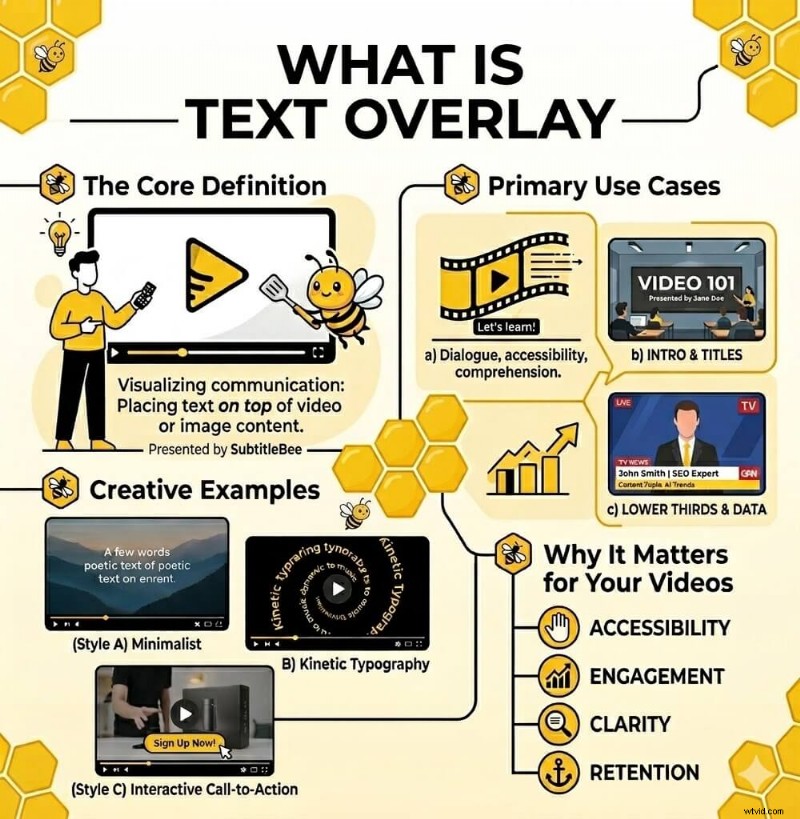
A text overlay is any word or phrase that appears directly on top of a video or image. Think of it as a front‑row layer that the viewer reads while the original footage plays in the background. Whether it’s a headline, a quote, a statistic, a call‑to‑action, or a brief description of on‑screen action, the overlay communicates key information without relying on audio.
In editing terms, an overlay can be text, an image, a logo, or any graphic placed over the base footage. When the overlay is specifically text, we refer to it as a text overlay.
Text overlay vs. subtitles vs. captions: what’s the difference?
| Feature | Text overlay | Subtitles | Captions |
|---|---|---|---|
| Purpose | Highlights key messages, adds context, or creates visual impact | Translates or transcribes spoken dialogue | Provides a word‑for‑word transcription of all audio, including sound effects and speaker cues |
| Timing | Can appear at any point | Synced with speech | Synced with all audio |
| Content | Headlines, quotes, CTAs, labels, statistics | Dialogue translation | Dialogue + sound effects + speaker identification |
| Style | Highly customizable (fonts, colors, animations) | Standardized, readable formatting | Standardized formatting with additional audio cues |
| Audience | General viewers | Viewers who speak a different language | Deaf or hard‑of‑hearing viewers, or anyone watching on mute |
Common types of text overlays
Depending on your goal and platform, choose from these overlay styles:
Title and headline overlays
Placed at the start of a video or a new section, these set the context and tell viewers what to expect within the first few seconds.
Lower third overlays
A classic graphic positioned at the bottom third of the frame, commonly used in news, interviews, and professional videos to display a speaker’s name, title, or location.
Subtitle and caption overlays
These are specialized text overlays that transcribe spoken dialogue in sync with the audio, improving accessibility.
Informational overlays
Statistics, facts, labels, definitions, or step numbers that help viewers follow complex information—essential for tutorials and how‑to videos.
Call‑to‑action (CTA) overlays
Direct the audience to a specific action—visiting a website, subscribing, sharing, or purchasing. Keep them concise, prominent, and timed with peak engagement.
Animated text overlays
Motion effects such as fade, slide, or bounce can energize a video, but use them sparingly so the core message stays front and center.
Why text overlays matter for video content
They work without sound
With most viewers scrolling on mute, text overlays ensure your message still lands. You retain audience attention even when the volume is off.
Boost engagement and watch time
Studies show videos with on‑screen text outperform those without. By giving viewers two ways to receive information—visual and textual—you increase retention and interaction.
Improve accessibility
Text overlays make content usable for deaf and hard‑of‑hearing viewers and for non‑native speakers who rely on visual cues. Many accessibility guidelines recommend this practice.
Drive action
Strategically placed CTAs can significantly raise conversion rates. Phrases like “Shop now,” “Link in bio,” or “Subscribe for more” guide viewers toward the next step.
Reinforce brand identity
Consistent fonts, colors, and styles across all overlays build brand recognition. Viewers will recognize your videos even before the logo appears.
Best practices for using text overlays
Keep it short and readable
Use brief phrases instead of full sentences. If you need more detail, split the text into multiple on‑screen segments so viewers grasp the message at a glance.
Choose the right fonts
Stick to clean, sans‑serif fonts such as Arial, Helvetica, Montserrat, or Open Sans. Font sizes between 12 pt and 16 pt usually read well on mobile devices.
Make text stand out
Contrast is key: white text over dark footage or dark text over light backgrounds typically offers the highest readability.
Mind the safe zones
Platform UI elements—like Instagram’s comment bar or TikTok’s like icon—can obscure text. Keep overlays within the central 80 % of the frame and preview on the target platform before publishing.
Time it right
A short phrase should stay on screen for about 1.5–2 seconds; longer text needs at least 3 seconds to ensure comprehension.
Maintain consistent branding
Use the same visual style for every video to strengthen brand identity. A simple style guide—defining fonts, colors, and placement—can save time and keep your content cohesive.
Top methods to add text overlay to a video
Below are two practical approaches, from beginner‑friendly AI tools to professional editing software.
Method 1: AI‑powered video text tools
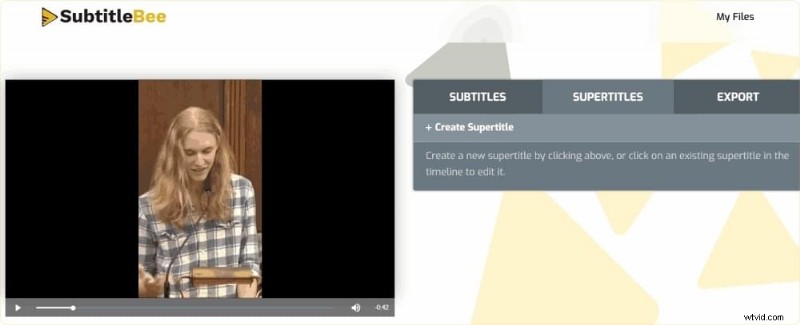
Leverage tools like SubtitleBee to add text overlays with minimal effort. Upload your video, choose the “supertitles” option, and let AI generate accurate subtitles and overlay styles.
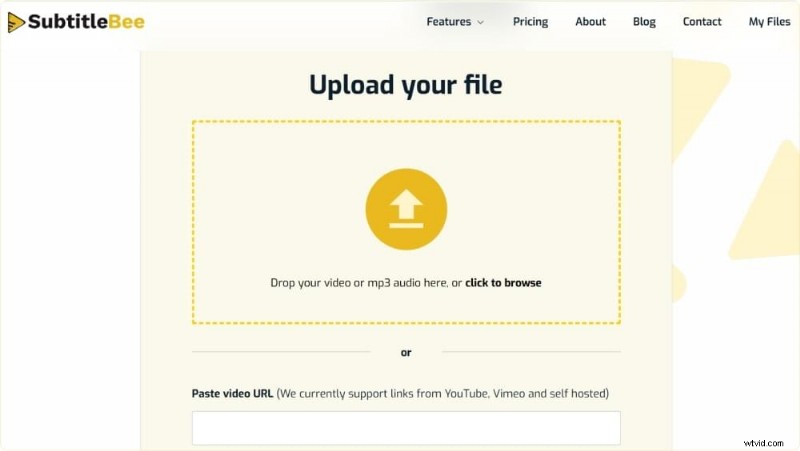
Step 1: Upload your video
Open SubtitleBee, sign in, and upload your footage. The platform supports all common video formats and online links.
Step 2: Generate subtitles and add overlays
SubtitleBee’s AI delivers subtitles in 120+ languages with 99 % accuracy and offers a “supertitles” feature for overlay creation.
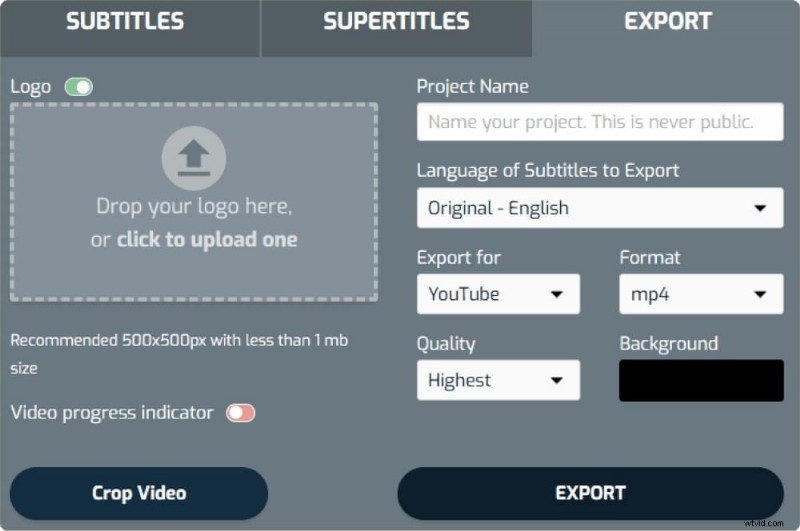
Step 3: Customize and export
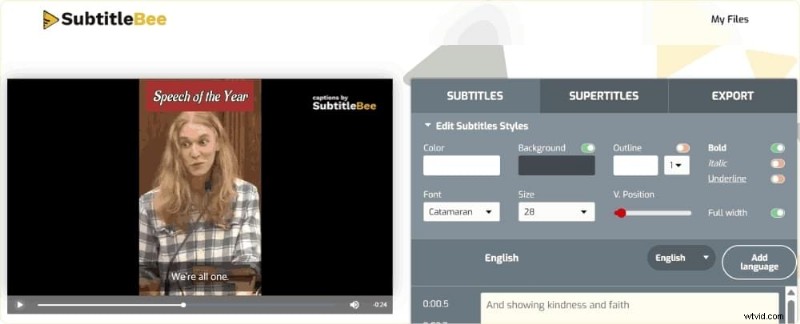
Adjust font, color, size, and position to match your brand. Export the finished video with overlays embedded.
Method 2: Professional video editing software
For complete creative control, use Adobe Premiere Pro, Final Cut Pro, DaVinci Resolve, or iMovie. These tools offer advanced animation, layering, and precise timing—ideal for experienced editors.
Platform‑specific tips for text overlays
Instagram Reels and Stories
Keep text bold, concise, and centrally positioned to avoid UI interference. Quick, punchy phrases resonate with short attention spans.
TikTok
Vertical screens mean limited space. Place text away from edges to prevent it from being obscured by likes, comments, or captions.
YouTube
With more horizontal space, you can add section titles, key points, or memorable quotes. Use overlays to guide viewers through longer videos.
Since most viewers watch on mute, overlay your main message in the first frame with high‑contrast text to capture attention immediately.
FAQs
What is a text overlay in video editing?
Any text placed over a video—whether it’s a headline, subtitle, caption, or label—counts as a text overlay.
How does a text overlay differ from subtitles?
Subtitles are a specific type of overlay that transcribes spoken dialogue in sync with the audio, whereas a text overlay can be any on‑screen text.
Can I add text overlay for free?
Yes. Tools like SubtitleBee offer free tiers that let you add overlays and generate subtitles with AI.
How long should text stay on screen?
Short phrases: 1.5–2 seconds; longer text: at least 3 seconds.
Which fonts work best for overlays?
Arial, Helvetica, Montserrat, and Open Sans are reliable choices because they remain clear on all devices.
Do text overlays help with video SEO?
While they don’t directly affect search rankings, better engagement and watch time—boosted by overlays—can improve algorithmic placement on platforms like YouTube and TikTok.
What’s the best tool for adding text overlay?
SubtitleBee offers a quick, user‑friendly workflow and simultaneous subtitle generation. For more complex projects, Adobe Premiere Pro or DaVinci Resolve provide advanced customization.