
Instagram has evolved into a truly global platform—profiles can feature English bios, Spanish captions, multilingual comments, and videos tailored for an international audience. To keep pace with this diversity, Instagram rolled out advanced automatic translation tools that let creators and viewers communicate without leaving the app.
Why Translation Matters on Instagram
With over 1 billion monthly users, language can be a barrier to engagement. Instagram’s translation features help you connect with a broader audience, improve accessibility, and expand your brand’s reach.
How to Translate Instagram Direct Messages
Since February 2025, the Instagram app lets you translate DMs directly on mobile. Desktop does not yet support this function.
Step 1: Open Your DM Thread
Navigate to the conversation that contains the foreign message.
Step 2: Long‑Press the Message
Hold the message until a menu appears.
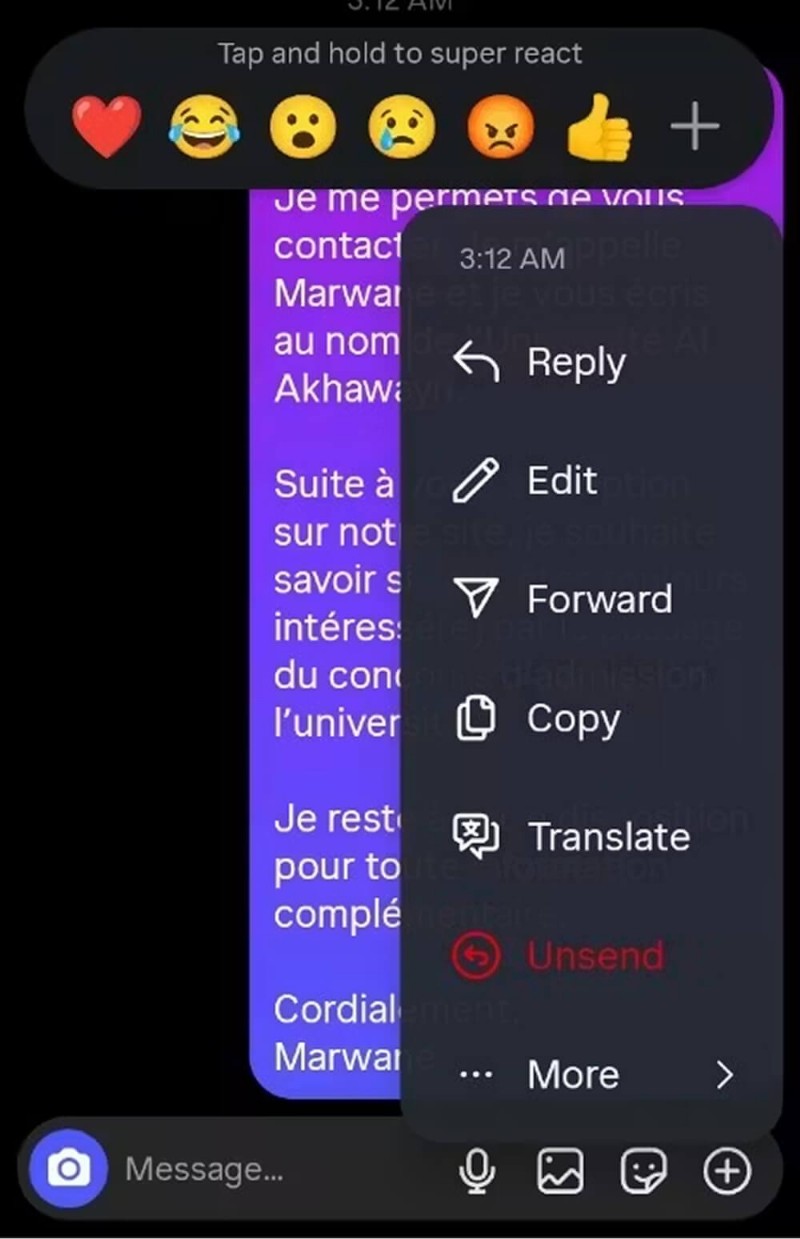
Step 3: Select “Translate”
Choose the translate option. If this is your first time, you’ll see a prompt: “Read messages in your preferred language” and a note that “Text from messages you translate will be shared with Meta to provide translations.” Tap OK.
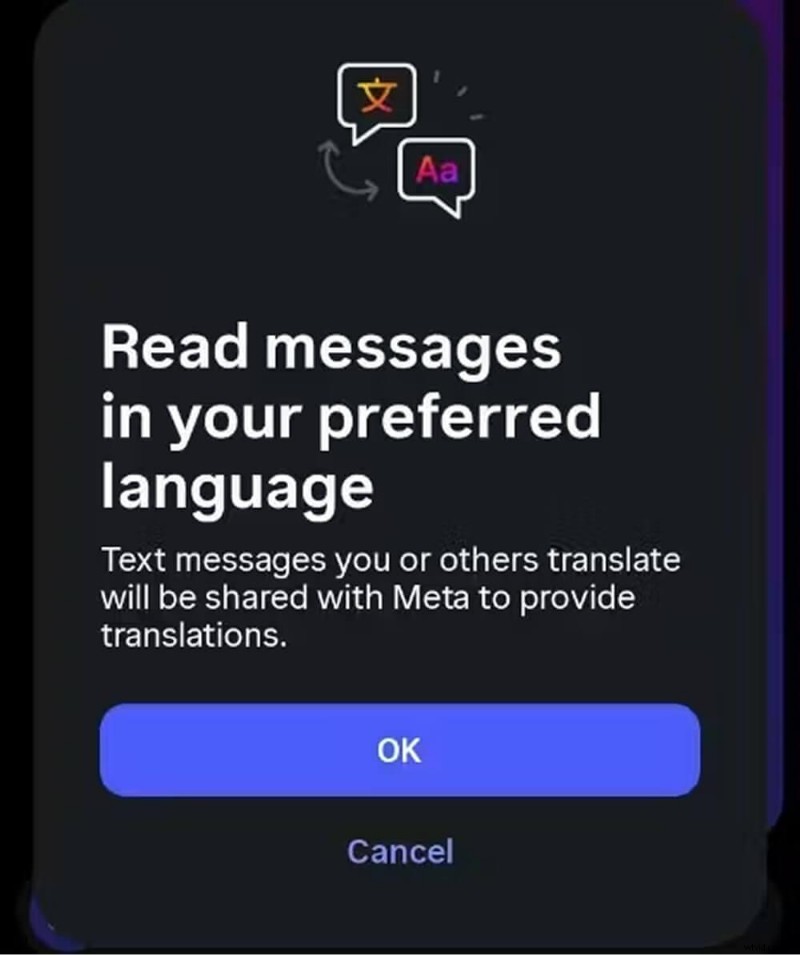
The translated text appears beneath the original message, rendered in the default language of your device.
How to Translate Instagram Reels
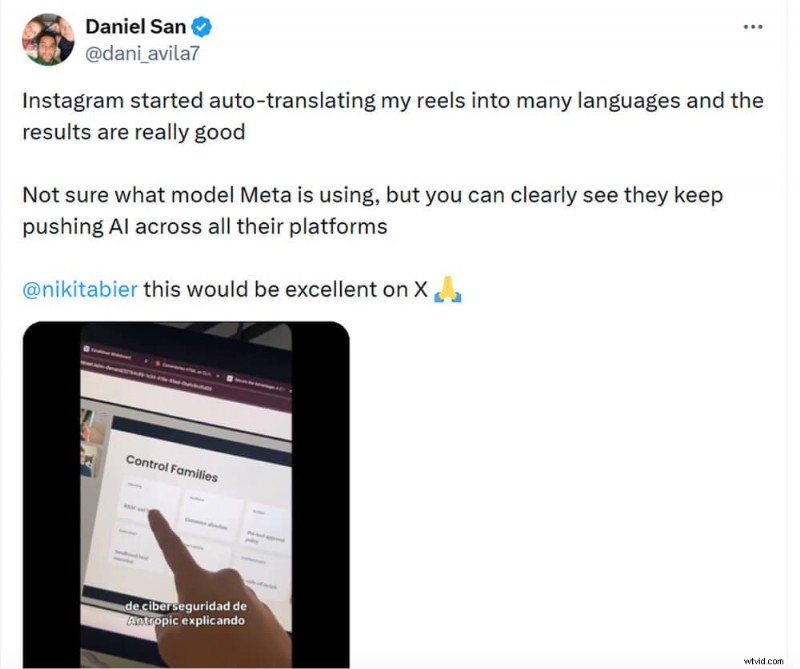
Instagram’s AI voice translation, launched in August 2025, automatically dubs Reels into English, Spanish, Portuguese, Hindi, and several Indian languages (Bengali, Tamil, Telugu, Kannada, Marathi). This feature lets creators speak in their native language while global viewers hear the content in their own language.
Enabling AI Voice Translation for Your Reel
- Record or upload your Reel as usual.
- On the final share screen, tap More options.
- Navigate to Accessibility and translation.
- Turn on Translate voice with Meta AI and select Allow translations.
- Check Lip synchronization so the AI aligns the new audio with your lip movements.
- Publish.
Viewers will see a “See Translation” button at the bottom‑left of the Reel. Tapping it switches the audio to an AI‑generated voiceover in their chosen language.
Common Reasons the “See Translation” Button Might Not Appear
- The creator didn’t enable Allow translations.
- Instagram couldn’t detect the spoken language.
- Text uses heavily stylized fonts or special characters.
- Text is embedded directly in the video rather than typed into the caption field.
Translating Reel Subtitles with SubtitleBee
Instagram’s native tools don’t let you download or edit subtitles for accuracy. For professional use, SubtitleBee offers a robust AI platform that can transcribe, translate, and hard‑code subtitles in over 120 languages.
1. Sign In
Open SubtitleBee, log in or create a free account.
2. Upload Your Video
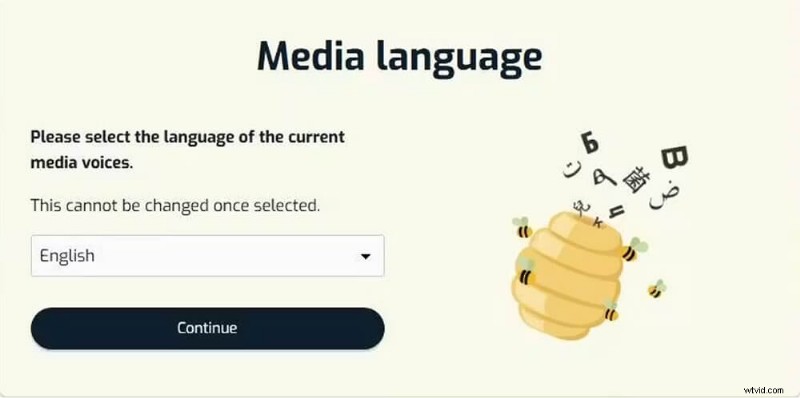
Choose the source language from the dropdown, then upload the downloaded Reel.
3. Review the Auto‑Generated Transcript
Use the editor to correct any errors before translating.
4. Translate Subtitles
Select your target language and add subtitles. The system will hard‑code them into the video.
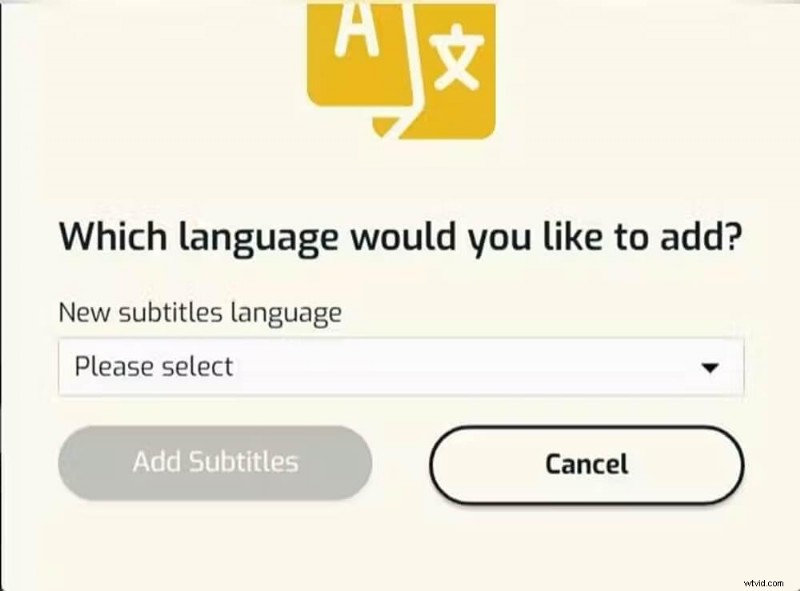
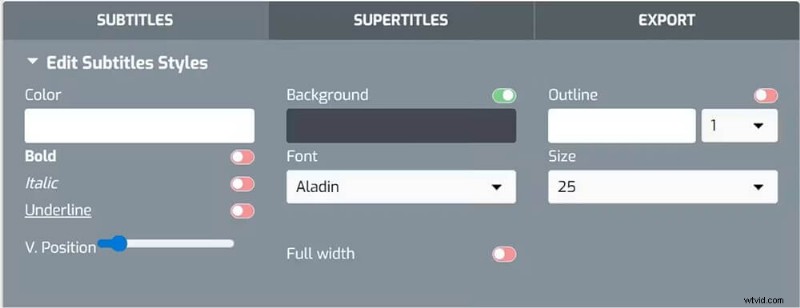
Adjust font, color, and placement to avoid UI overlap.
5. Export
Choose a project name, select the subtitle language, and export. You’ll receive a video with burned‑in subtitles or a separate SRT/TXT/ASS/VTT file for manual upload.
How to Translate Instagram Images
Unlike videos, images lack audio, and Instagram’s translation tool cannot read text embedded in JPEG or PNG posts. Use OCR on mobile or a browser extension on desktop.
- Take a screenshot, open it in Google Lens or Apple Photos Live Text, and tap Translate to overlay the translation.
- On desktop, install a context‑aware extension like Immersive Translate to see side‑by‑side translations directly in the feed.
Adjusting Your Translation Settings
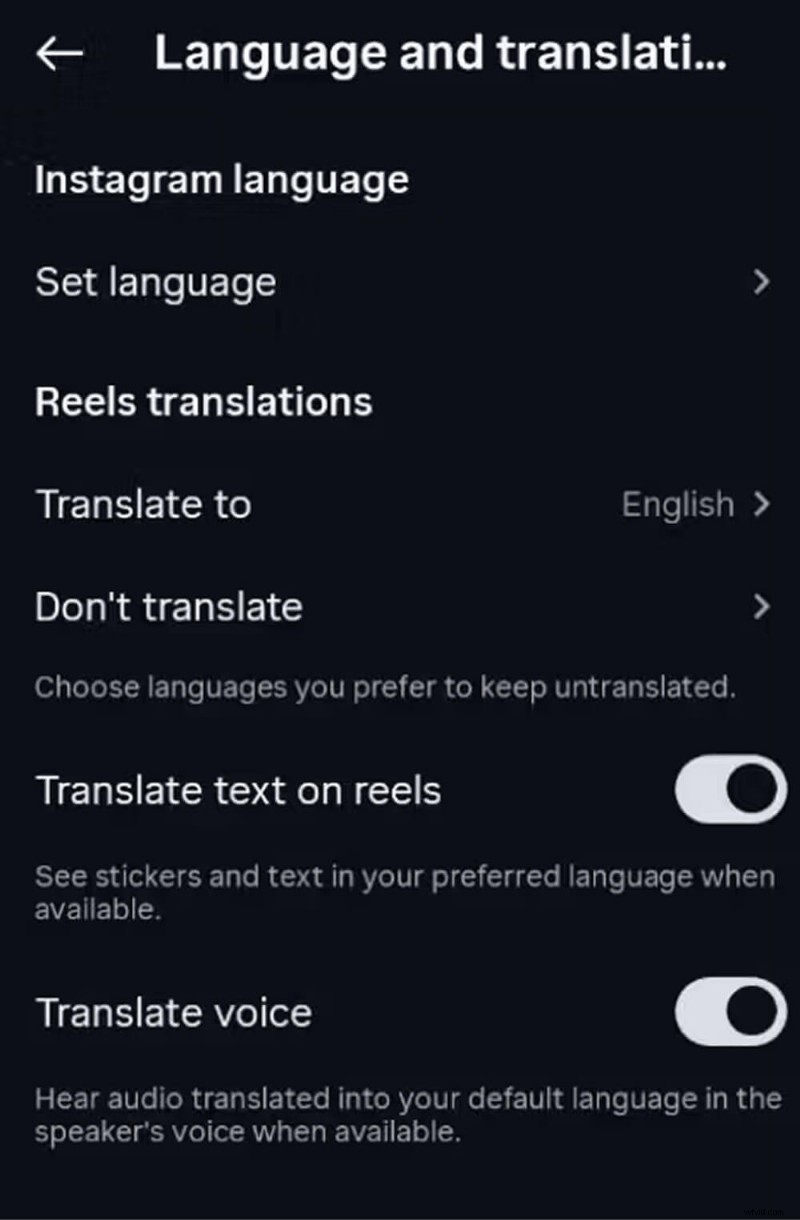
Instagram’s translation defaults follow your app’s language. To change or disable translations:
Profile > Menu (three horizontal lines) > Language and translation. Adjust Instagram language and Reel translation settings. All future “See Translation” prompts will honor these choices.
Conclusion
Mastering Instagram’s translation tools empowers creators and users to break language barriers, reach new markets, and foster inclusive communication. By translating DMs, Reels, and images, you can tailor content for global audiences and enhance engagement across cultures.
Read More:
How to Add Captions to Instagram Stories
Instagram Story Ratio: Right Dimensions & Resolutions
FAQs
How do I enable auto‑translate on Instagram?
All text—comments, captions, bios—is translated automatically based on your app’s language settings. For Reels, enable AI voice translation before posting.
How do I translate a chat message?
Long‑press any message bubble in your DMs and select Translate. Instagram does not auto‑translate DMs.
Can I translate Instagram messages on desktop?
Instagram’s web interface lacks native translation for DMs. Use a third‑party extension from the Chrome Web Store to translate chats in real time.