
Are you looking for a way of sending large videos from your iPhone? How to send longs videos on iPhone? In this post, I’ll show you the 4 best ways to send large videos. To send large videos on a computer, you can use MiniTool MovieMaker to cut videos or change their resolution or format.
You must have received a notification like “Video is Too Long when you try to share a long video with others via iMessage. To solve this, this post will teach you how to send long videos on iPhone in 4 different ways.
How to Send Long Videos on iPhone via AirDrop
You can send a long video from iPhone to iPhone, iPad, or Mac via Airdrop, without video size limits.
Here’s how to send someone a long video on iPhone via Airdrop.
Step 1. Make sure that the Apple device you’d like to send videos to is nearby and turned on Bluetooth.
Step 2. Check if the device you’re sending to is discoverable in Airdrop in order to receive the large video.
iPhone: Go to Settings > General > Airdrop, then choose one of these options: Receiving Off, Contacts Only, and Everyone.
Step 3. Open Photos, find the video you want to send, and select it.
Step 4. Tap the Share icon and tap the Airdrop user or the device you want to share with.
Step 5. Then the transferring will begin.
How to Send Long Videos on iPhone via iCloud
To send long videos, Mail Drop is also a great choice. It lets you send large videos (up to 5 GB in size) over iCloud.
How to send long videos on iPhone via Cloud? Take these steps:
Step 1. Open the Photos app, choose the videos you want to share, and click the Share icon.
Step 2. From the Share menu, tap on Mail and compose the email.
Step 3. When you are done, click on Send. Then a pop-up window shows up, choose Use Mail Drop to send large videos using iCloud.
How to Send Long Videos on iPhone via Google Drive
If the recipient uses an Android device or a Windows computer, the above-mentioned methods will not work. Thus, Google Drive is recommended here. Google Drive is a cloud storage service, compatible with most operating systems.
Step 1. Open Google Drive.
Step 2. Tap the + and choose Upload > Photos and Videos.
Step 3. Select the large video you want to send.
Step 4. After uploading the video, select Get link.
Step 5. Then share the copied link with others.
How to Send Long Videos on iPhone via Documents
For those who want to transfer many long videos between iPhone, iPad, Mac, and Windows computer, here recommend Documents. This app is free and delivers fast transfer speeds.
Here’s how to send long videos on iPhone.
Step 1. Download and install the Documents app on your iPhone.
Step 2. Make sure that your iPhone and PC are on the same Wi-Fi network.
Step 3. Launch the Documents app on the iPhone.
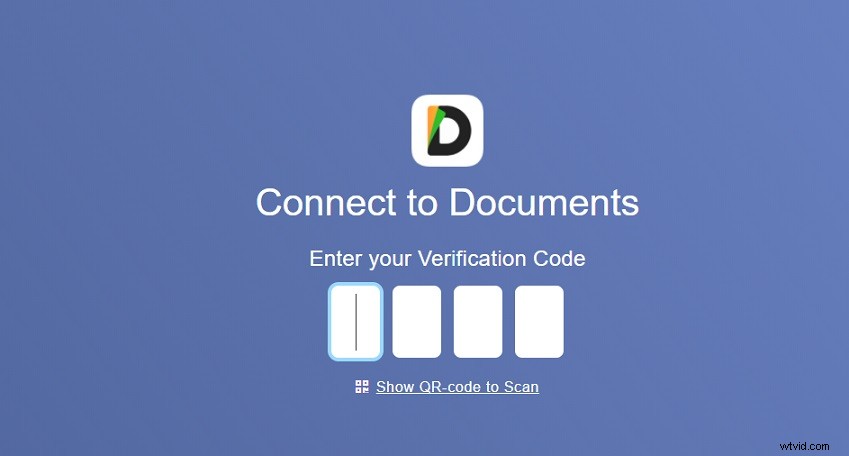
Step 4. Go to Connections > Computer and you will get the code.
Step 5. Open your web browser on the PC and visit the https://docstransfer.com/ website.
Step 6. Enter the code on the iPhone and you can start sending long videos from iPhone to the computer.
Conclusion
You’ve learned the 4 free ways of how to send long videos on iPhone. Choose one of them and try it now!