
Video editing can feel intimidating, especially for newcomers. Our goal is to demystify the process and make it approachable for everyone.
Anyone can learn to edit videos; however, achieving excellence hinges on your creative vision and the time invested in mastering the tools.
This guide covers everything a beginner needs—from getting started and selecting the right editing software to mastering core techniques. Think of it as your video editing 101.
TL;DR
- Video editing is accessible through free YouTube tutorials, paid masterclasses, and hands‑on practice.
- Choosing the appropriate software is critical. Consider budget, ease of use, and system compatibility.
- Riverside’s Editor provides a beginner‑friendly, intuitive editing experience.
How do I start learning video editing?
Knowing where to begin can be the most challenging part. Fortunately, there are several proven pathways to launch your editing journey.
Remember, video editing is a continuous learning process. Even after you master the basics, new techniques and workflows will surface.
Software walkthroughs & tutorials
Start by exploring the learning resources your chosen software offers. Many platforms feature a built‑in “learning” or “walkthrough” mode that introduces key features in an interactive way.
YouTube videos
YouTube is a rich, free resource that covers everything from general overviews to niche styles and specific effects. The creators on the platform are typically seasoned editors, so you’ll find quality content throughout.
Masterclasses
If you’re ready to invest, sites like Udemy or Skillshare provide paid, structured courses that guide you step by step. These are ideal for creators seeking a comprehensive curriculum.
Learn as you go
Some editors prefer a hands‑on approach: dive straight into a project and learn by doing. While it may feel experimental, this method can accelerate skill acquisition.
Choosing the right video editor
Picking the right editor is especially important when you’re starting out.
Budget
Determine how much you’re willing to spend. Good options exist across all price ranges, from free to premium.
Target audience
Beginner‑focused editors reduce frustration and avoid paying for features you won’t use. As you grow, you can upgrade to more advanced suites.
Compatibility
Check your operating system before you decide. Some editors run only on macOS or Windows.
Features
Browse the editor’s feature set to ensure it supports the types of videos you want to create.
Video Editing Tutorial: Editing Basics
Trimming
Trimming lets you define the start and end points of a clip, removing unwanted footage while preserving the segment you want.
Transitions
Transitions create a smooth flow between clips. Common options include cross‑fade, wipe, and jump‑cut.
Music & sound effects
Adding music or sound effects enhances atmosphere, underscores key moments, and elevates production value. Most editors include a library you can browse freely.
Voice over
A voice‑over replaces the original audio with a new track recorded later. It’s recorded retrospectively and synced during post‑production.
Audio editing
Clean up audio by reducing echo, reverb, and adjusting volume levels for a polished sound.
Color correction and grading
Color correction adjusts saturation, exposure, white balance, and contrast to match real‑world colors. Color grading follows correction and adds creative style, shaping mood and atmosphere.
Adding text and lower thirds
Insert text, overlays, or lower thirds to provide context or call‑to‑action elements. Lower thirds are common for speaker introductions.
Effects
Use visual or special effects like stabilization, slow‑motion, or speed‑ramping to enhance storytelling.
Captions and subtitles
Captions display all audio in written form, including dialogue and sound effects, while subtitles show only spoken words. Closed captions are optional tracks; open captions are permanently embedded.
Exporting and formats
Export in lossless or uncompressed formats to preserve quality. Advanced tools like Adobe Media Encoder and Apple Compressor help manage encoding settings.
Riverside video editor tutorial for beginners
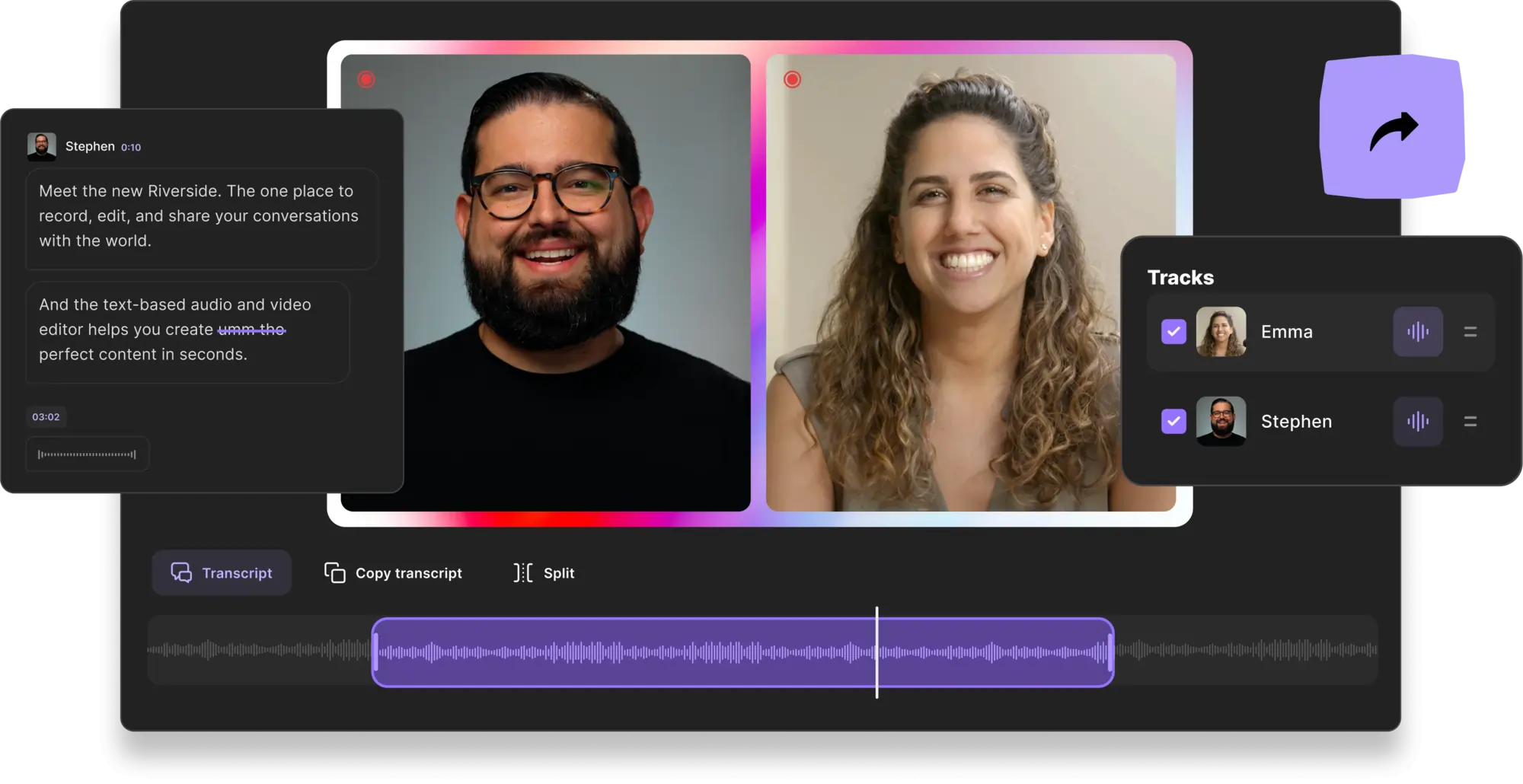
For those who prefer a streamlined workflow, Riverside offers an integrated editor that’s easy to use and powerful. The editor’s text‑based interface lets you edit by selecting words in your transcript, instantly trimming matching video and audio.
Key features include:
- Text‑based editing for quick, precise cuts.
- Highly accurate AI transcriptions in over 100 languages.
- Easy navigation via transcription search.
- AI Magic Clips for turning long videos into shareable short‑form clips.
- Customizable layouts, backgrounds, and branding options.
- Automated audio cleanup: noise removal and normalization.
- Seamless participant transitions with AI Speaker View.
How to edit videos on Riverside
Follow these steps to edit directly in Riverside:
- Record your video in the Riverside studio.
- Navigate to the Editor from the recordings page.
- Select a layout that matches your content type.
- Use the transcript to navigate, search phrases, delete sections, or edit directly on the timeline.
- Customize your video with logos, backgrounds, and captions.
- Export the final video, adjusting audio settings as needed.
Bonus: 3 Video Editing Tutorials to try
5 Must-Know Video Editing Tips Before You Start
Bridget O'Rourke shares five actionable tips that help beginners jumpstart their editing workflow.
Total Beginner’s Guide to Video Editing
A comprehensive YouTube walkthrough covering file organization, audio mixing, and more.
5 Simple Video Editing Secrets to Edit 10x Faster
Vince Opra’s tutorial offers practical shortcuts to speed up your editing process.
5 Levels of Video Editing Transitions in 5 Minutes! (Adobe Premiere Pro CC Tutorial)
Justin Odisho demonstrates how to execute multiple transition styles quickly in Premiere Pro.
FAQs on Video Editor Tutorial
What is the easiest video editor for beginners?
Answer depends on budget, goals, and platform. Riverside’s Editor is a great starting point, and iMovie works well on Macs. Once you’re ready, you can upgrade to more advanced software.
What is the 321 rule in video editing?
Maintain three copies of each file in separate locations—computer, cloud, and external drive—to safeguard against data loss.
Can you teach yourself video editing?
Yes—start with platform tutorials, practice regularly, and let curiosity guide you.
How do I get into video editing with no experience?
Begin with a beginner‑friendly editor, tackle a simple project, and gradually expand your skill set.
How many hours does it take to learn video editing?
Time varies; tech‑savvy individuals may progress faster, but ongoing learning is part of the craft.