
Last updated on 24th November 2023
Content ID is YouTube’s advanced digital fingerprinting system that automatically scans every uploaded video against a vast database of copyrighted audio and visual material. Developed by Google in 2007 at an estimated cost of $100 million and still evolving, it protects rights holders while providing a structured workflow for creators.
What Is YouTube Content ID?
Content ID is an automated, multi‑million‑dollar system designed to safeguard the intellectual property of music labels, film studios, sports leagues, and other content owners. It emerged from a series of high‑profile lawsuits—including a $1 billion Viacom case that settled in 2014—prompting Google to create a tool that could verify every video posted to the platform. The system cross‑checks new uploads against a library of pre‑registered files, flagging matches in seconds.
What Is a Content ID Claim?
A Content ID claim is triggered when an uploaded video contains material that matches (or partially matches) a file in the system. Rights holders can then choose to either block the video entirely or monetize it on their behalf. If you receive a claim, YouTube will notify you by email and display the claim details in YouTube Studio.
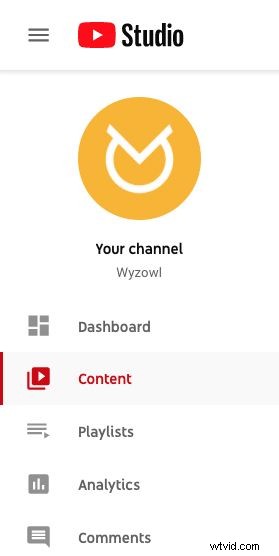
To review a claim, sign in to YouTube Studio, select Content from the left‑hand menu, and look for the “Copyright claim” label in the Restrictions column. Hover over it, click SEE DETAILS, and you’ll see the claim’s full description.
Will I Get in Trouble If My Video Has a Content ID Claim?
Google’s guidance is that most claims are not punitive. Rights holders often prefer to monetize rather than block content, especially if the clip is short (under eight minutes) or can be embedded with ads. However, if a claim is enforced, the video can be restricted or removed from certain regions or worldwide.
As a creator, you have several options:
- Do nothing and let the claim stand.
- Share revenue if you’re part of the YouTube Partner Programme.
- Dispute the claim if you believe it is incorrect or you hold the rights yourself.
How to Dispute a Content ID Claim
Before disputing, understand fair‑use principles, public‑domain rules, and consider legal advice. Misusing the dispute process can lead to penalties.
Steps to dispute:
- Log in to YouTube Studio and navigate to Content.
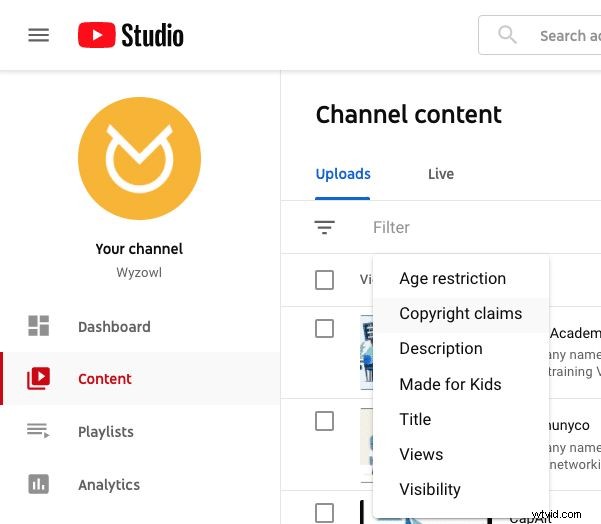
- Filter by Copyright claims.
- Hover over the Copyright claim in the Restrictions column, click SEE DETAILS, and review the claim summary.
- Click Dispute under the SELECT ACTION menu.
The Perils of Content ID Claims
Challenging a claim can be protracted. A rights holder may either release the claim or uphold it. If upheld, you can appeal, but a final takedown request will trigger a copyright strike on your channel.
A single strike requires you to complete YouTube’s Copyright School. Three strikes terminate the channel, delete all videos, and prohibit new channel creation.
Summary
Content ID empowers rights holders to control how and where their content is used, placing creators on guard when incorporating third‑party footage or music. The safest approach is to produce original content or use royalty‑free tracks to avoid claims altogether.
Want more tips on creating YouTube videos that steer clear of Content ID issues? Check out our guides on How to Make a YouTube Video and 21 YouTube Video Ideas for Businesses. Also, ensure your channel banner meets the recommended dimensions for optimal visibility.

Hassan is Marketing Manager at Wyzowl and an expert in video marketing, software, promotion, and analytics.