
Capturing video calls with pristine audio‑visual quality is essential for professionals, educators, and content creators alike. Selecting the right recording solution guarantees you preserve every nuance, from crisp video to clear dialogue, without relying on unstable internet bandwidth.
With a wide spectrum of free and paid options on the market, it’s vital to match your recording needs to the right tool. Below is a carefully curated list of the best video call recorders in 2026, organized by platform, price, and key features.
How to Record a Video Call
Recording a video call is straightforward once you have the proper software. Most recorders let you start, stop, and edit sessions with a few clicks. While basic recorders handle essential tasks, advanced tools offer higher‑resolution video, separate audio tracks, and AI‑powered editing.
Keep in mind that your recording options may vary by the video‑calling platform you use, so compatibility is a key factor.
Choosing the Right Video Call Recorder
To ensure you capture the highest quality, consider these criteria before making a decision.
1. Calling Platform Compatibility
Match the recorder to the platform (Zoom, Teams, Google Meet, etc.) you’ll use. A seamless integration reduces latency and preserves native features like screen sharing and participant controls.
2. Content Goals
Are you recording for internal reference, marketing, or public distribution? High‑end tools with robust editing and export options are ideal for professional publishing.
3. Skill Level
Beginner‑friendly interfaces are perfect for quick setups, while power users may prefer software with advanced settings and custom workflows.
4. Budget
Free tiers are great for light use, but a paid plan often unlocks essential features such as cloud storage, higher resolutions, and AI transcription.
The 10 Best Video Call Recorders for 2026
Below is our definitive ranking, covering native recording tools, screen capture solutions, and all‑in‑one platforms.
1. Riverside
Price: Free tier to $24/month
Compatibility: Web, iOS, Android
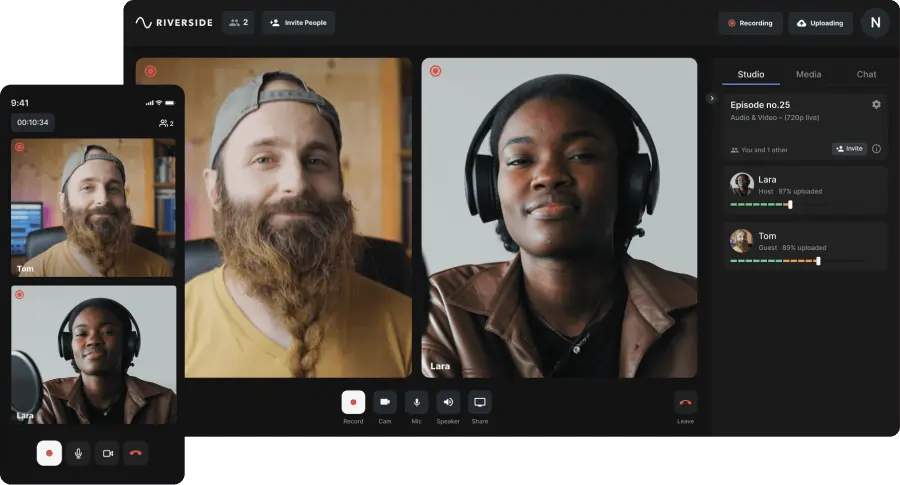
Riverside delivers local, 4K video and 48kHz audio without internet dependency. Its intuitive editor, AI transcriptions, and separate tracks for up to eight participants make it ideal for both beginners and seasoned creators.
Key features:
- 4K video & 48kHz audio
- Remote & local recording
- Separate audio/video tracks (up to 8 participants)
- Automated editing & AI‑powered transcriptions (100+ languages)
- Text‑based editing & speaker highlighting
- Mobile recording app (iOS & Android)
- Guest camera controls
Get started by signing up on Riverside’s website.
2. Screencastify

Price: Free tier to $10/month
Compatibility: Web (Chrome extension)
Screencastify is an intuitive screen recorder that blends webcam and screen capture. It offers on‑screen annotation, basic editing, and performance analytics.
Key features:
- Beginner‑friendly interface
- Screen + webcam recording
- Native editing tools
- Analytics dashboard
3. Callnote
Price: $29.99–$59.99/year
Compatibility: macOS, Windows
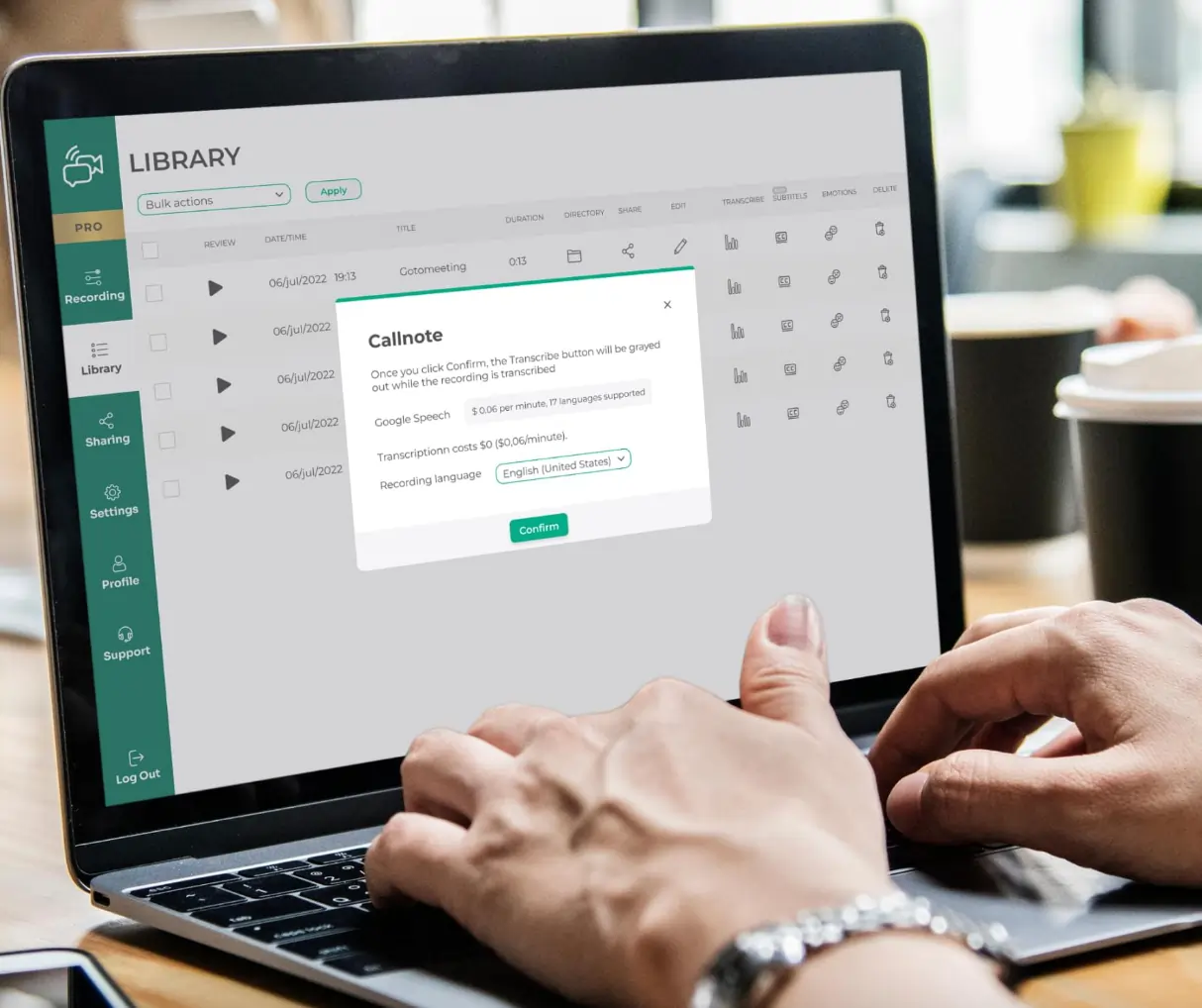
Callnote records across seven popular video‑call platforms, delivering all‑in‑one capture and post‑production tools, including AI‑driven transcription and emotion analytics.
Key features:
- Zoom, Skype, Teams, and more integration
- Transcriptions in 18 languages
- Emotion‑analysis AI
- Editing & tagging tools
4. Movavi
Price: Free tier to $149.95
Compatibility: macOS, Windows
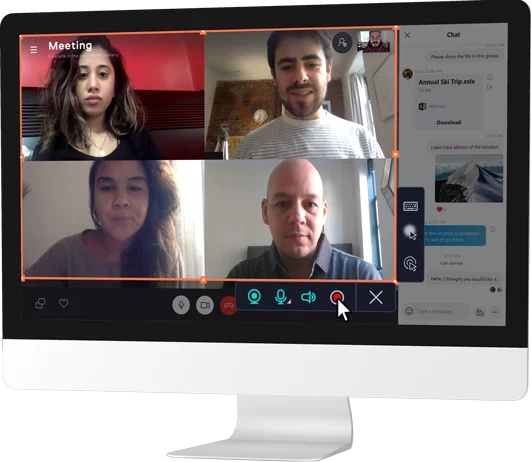
Movavi’s screen recorder captures online calls with robust editing options, from simple cropping to advanced overlays, making it suitable for creators of all skill levels.
Key features:
- Intuitive controls for all users
- High‑quality editing (transitions, overlays)
- Integrated video converter & photo editor
5. Vimeo
Price: Free tier to $69/month
Compatibility: macOS, Windows, iOS, Android
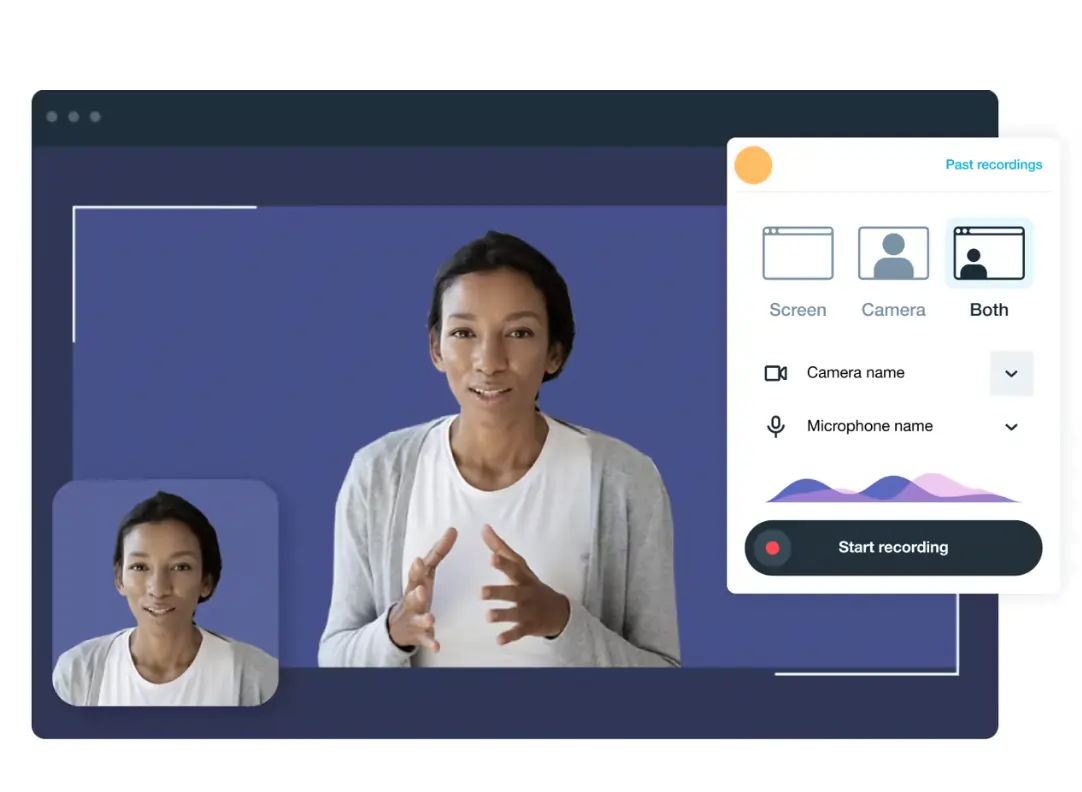
Vimeo offers both screen and webcam capture, plus a built‑in editor and monetization options. It’s ideal for sharing polished recordings with teams or audiences.
Key features:
- Interactive video creation tools (buttons, shop)
- Screen recording for presentations
- Professional support for production needs
6. OBS Studio
Price: Free
Compatibility: macOS, Windows, Linux
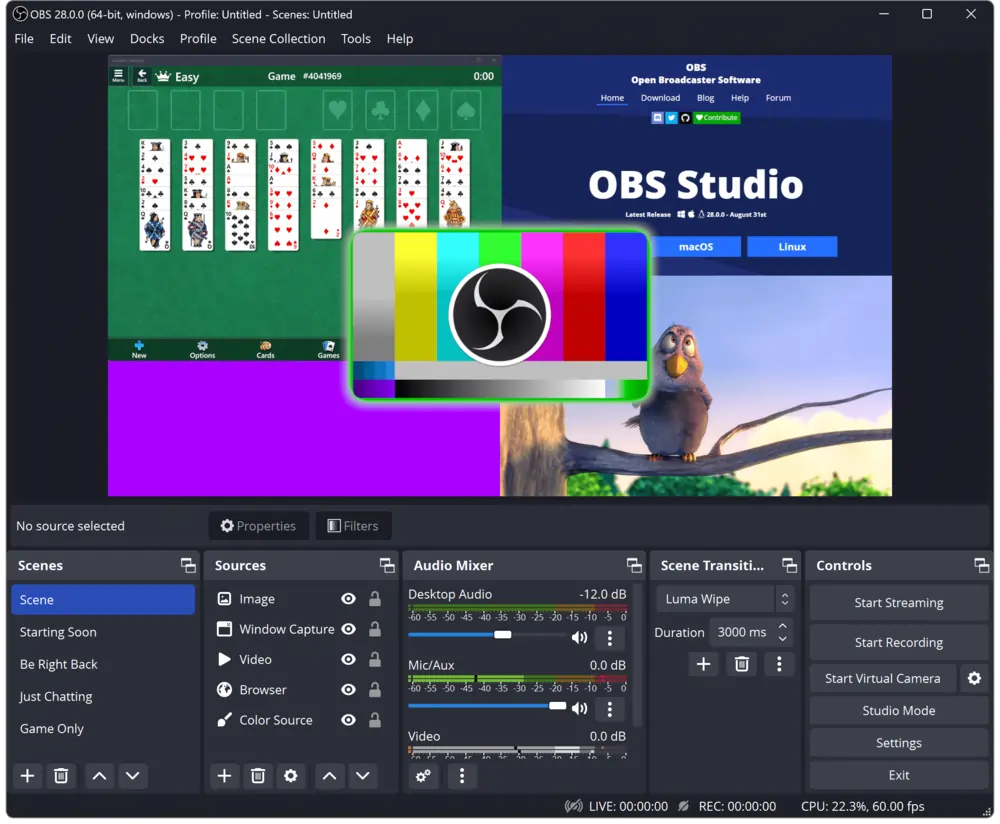
OBS Studio is a free, open‑source platform that excels at real‑time video capture and streaming. It’s ideal for users who want granular control and can handle a more hands‑on editing workflow.
Key features:
- Open‑source, zero cost
- Live streaming & recording
- Audio mixer & scene transitions
- Customizable plugins
7. RecordCast

Price: Free tier to $3.99/month
Compatibility: macOS, Windows, Linux, Chromebook
RecordCast offers a straightforward, browser‑based recorder that works with Zoom and other platforms. Its in‑app editing suite keeps the workflow streamlined.
Key features:
- Broad platform compatibility
- Embedded editing tools
- Webcam & screen capture modes
8. Webex
Price: Free plan, paid from $25/month
Compatibility: macOS, Windows, iOS, Android
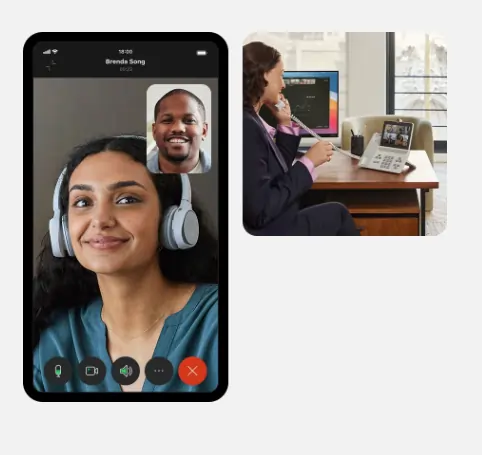
Webex records HD video (up to 1080p) and offers background noise cancellation. It’s a solid choice for large meetings with up to 100 participants.
Key features:
- 1080p recording
- Background noise cancellation
- Transcription (paid plans)
- Cloud & local storage
9. Media.io
Price: Free tier to $6.66/month
Compatibility: Web
Media.io combines AI‑driven editing with advanced background removal and subtitle generation, making it perfect for quick, high‑impact video content.
Key features:
- AI‑powered content creation
- Automatic transcription & subtitles
- Background remover & object isolation
Best Overall Video Call Recording Software
Each recorder has strengths; the best fit depends on your workflow. For general use, Riverside stands out with its local 4K capture and built‑in editing suite. OBS Studio remains the gold standard for those who need complete control without cost.
Best Android Recording App
While Android’s native screen recorder works, a dedicated app like Riverside’s mobile version delivers higher fidelity and on‑device storage.
Best iOS Recording App
iOS’s built‑in screen recorder can capture FaceTime, but Riverside or Webex offer richer editing and participant management for professional meetings.
Best Free Video Call Recorder
OBS Studio is the only fully free option with professional‑grade features, making it ideal for users who want no‑cost, high‑quality recording.
How to Record a Video Call with Riverside
Follow these steps for a smooth recording experience.
Step 1: Log in and create a new studio or select an existing one.
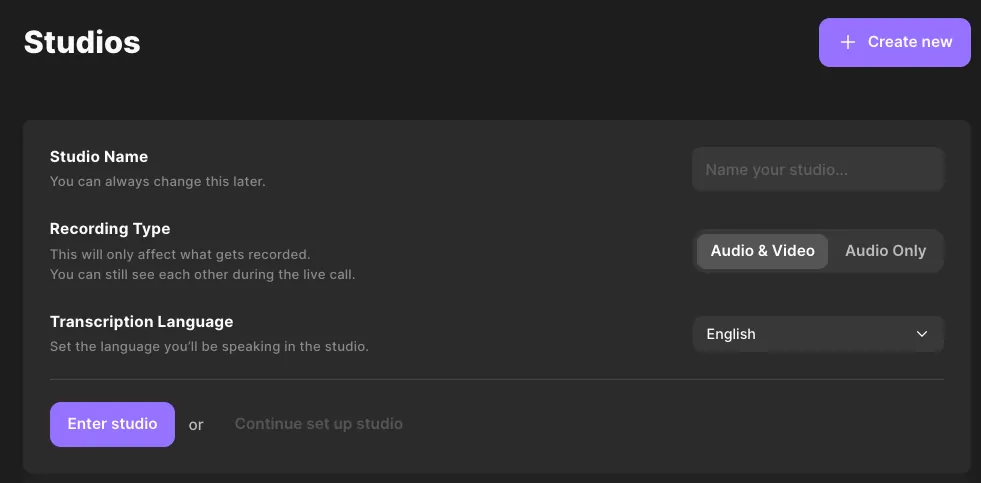
Step 2: Name your studio and choose "Audio & Video" settings. Invite participants or enter the studio to begin.
Step 3: Select input channels and confirm headphone usage before joining.
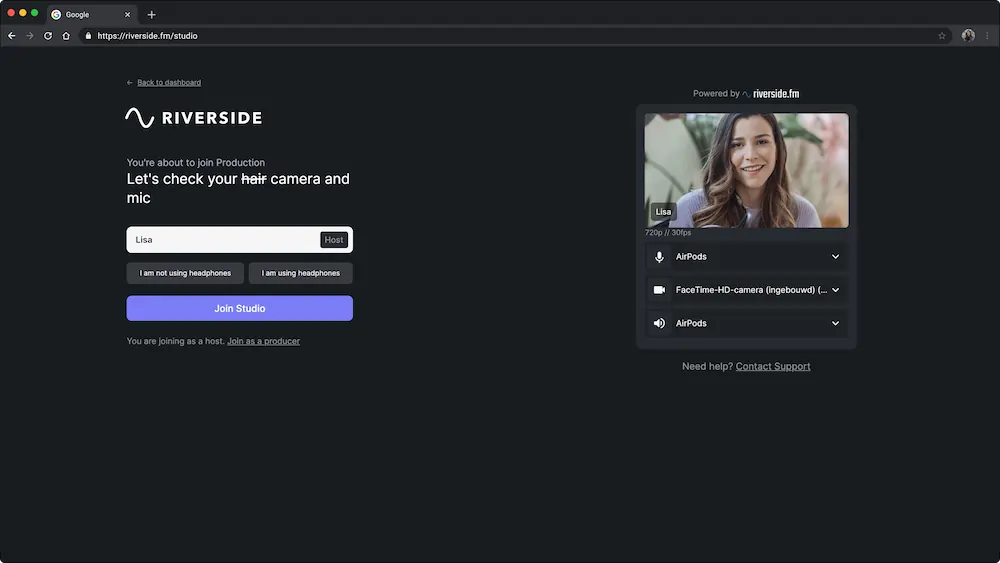
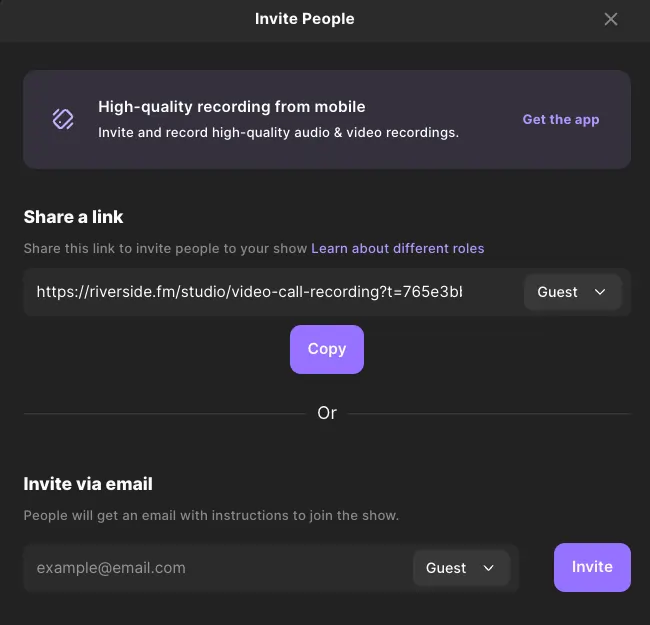
Step 4: Invite guests via the purple "Invite" button and wait for connections.
Step 5: Name your recording and adjust settings from the right‑hand panel.
Step 6: Press the red "Record" button to start.
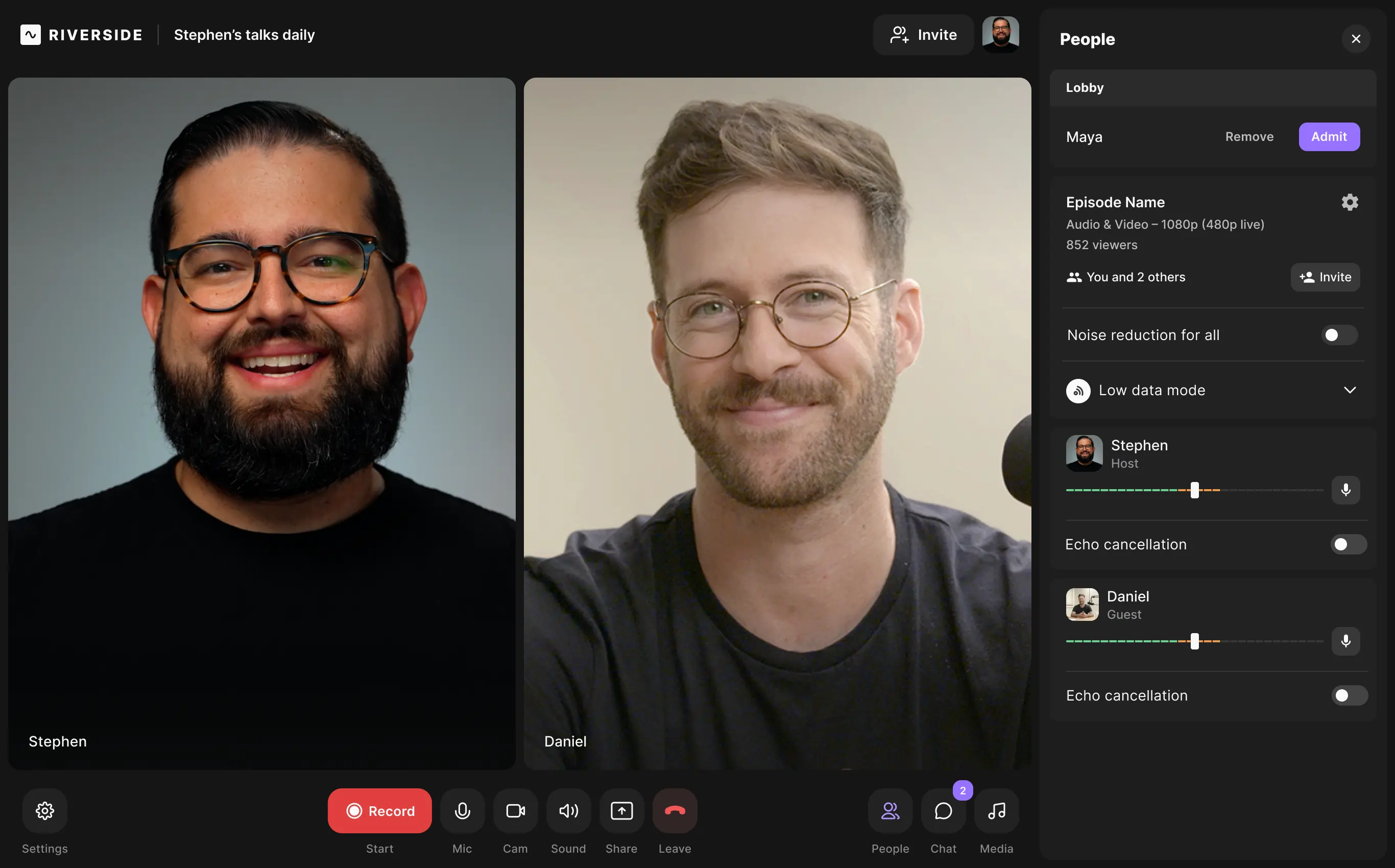
Step 7: End the session and click "Stop".
Step 8: Once uploads finish, view recordings and use the "Edit & create clips" tool.
Step 9: Refine your video with Riverside’s editing suite. Export when satisfied.
Riverside also allows downloading raw audio/video tracks and exporting directly to Descript or Premiere Pro timelines.
FAQs on Video Call Recorders
Can I record a video call with sound?
Yes. Most recorders capture synchronized audio and video, often as separate tracks for precise post‑production control.
Which screen recorder is best for video calls?
Choice depends on your needs. Riverside offers a comprehensive solution, while OBS Studio provides unparalleled flexibility for advanced users.
How can I record video calls for free?
Free tiers exist for many tools, but OBS Studio offers a fully feature‑rich, zero‑cost experience.
Is it legal to record video calls?
Recording is legal when all participants give informed consent. Always inform callers before starting.
Ready to capture high‑quality video calls? Try Riverside or your preferred platform today!