
First introduced back in 2009, the Memos app comes pre-loaded on iPhones, iPads, and Macs. In this article, we’re going to take a quick look at how voice memos work and provide a detailed guide to help you get a bit of extra functionality out of them.
Why voice memos are useful
Voice Memos are one of the most useful tools that the Apple ecosystem offers. You can use them to record thoughts and ideas quickly and hands-free, send quick reminders to your team, and, with how good iPhone microphones have gotten, even for quick, impromptu podcasting sessions.
With some help from Apple’s handy new Shortcuts feature, you can even create automatic reminders using voice memos to help you keep track of daily tasks.
But what if you have multiple shorter Voice Memos that you would like to merge into one longer recording? That feature is still missing from Apple’s official Voice Memo app, but we’re here to provide a simple solution that will help you combine two (or more) voice memos into one on Mac.
How to combine voice memos on iPhone or iPad
Unfortunately, there is currently no built-in way to combine voice memos on iPhone or iPad, so you’ll either need to install a third-party app to do it or use an online video editor like Flixier.
How to combine Voice Memos online:
If you don’t want to fill up your device storage with any new apps, you can also use an online editor like Flixier to combine multiple voice memos into one using your web browser and save them back to your computer as an MP3.
Step 1: Save the two Voice Memos as Files
In order to merge your Voice Memos with Flixier, you’ll first need to save them to your iPhone or iPad as audio files.
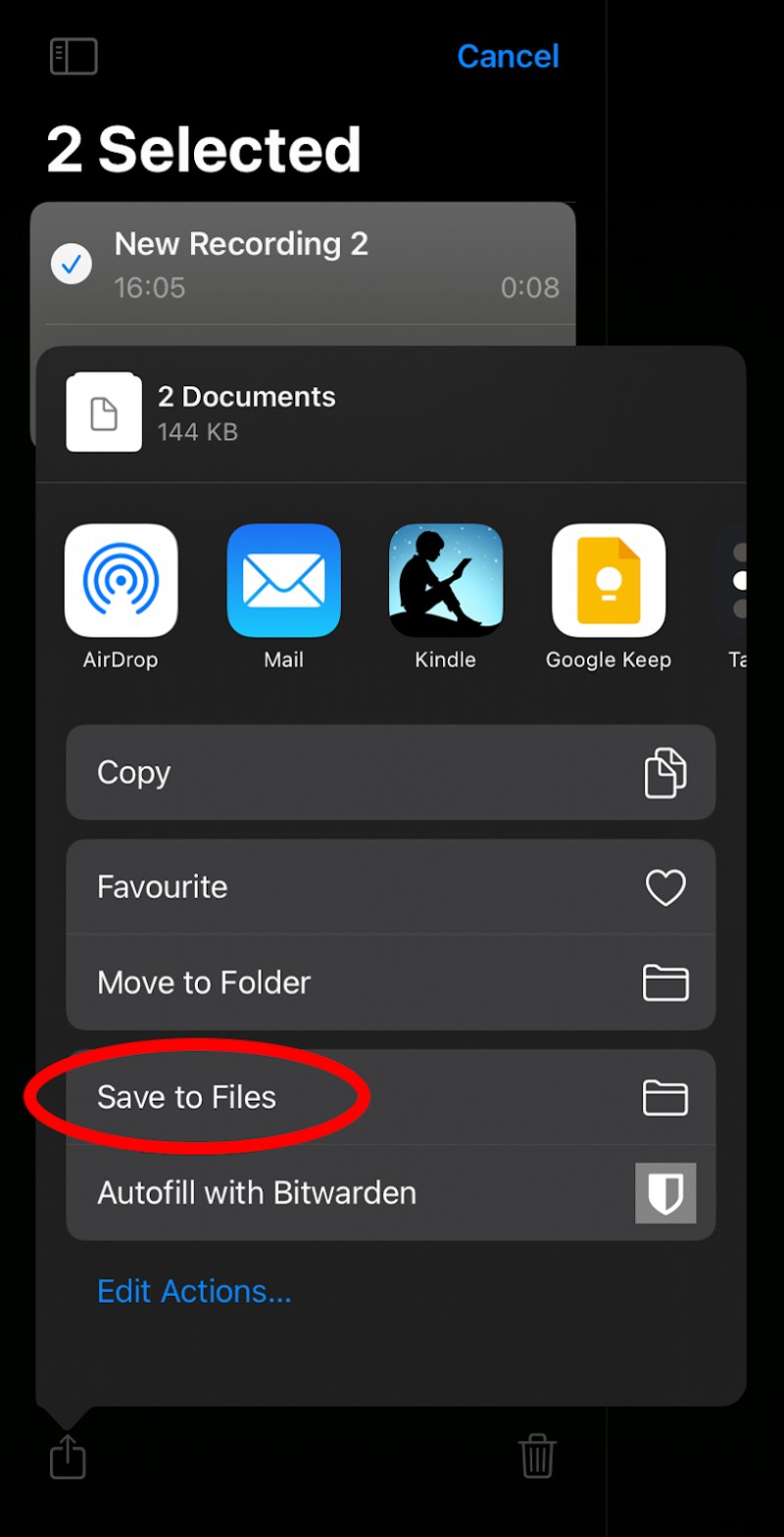
To do that, select your voice memos, click the Share button, and choose the Save to Files option from the Share menu.
Step 2: Open Flixier
On your computer or Mac, go to Flixier.com and click Get Started, or click this link to create a new Flixier project. You won’t need to register an account to create your first project!
Step 3: Import your voice memos
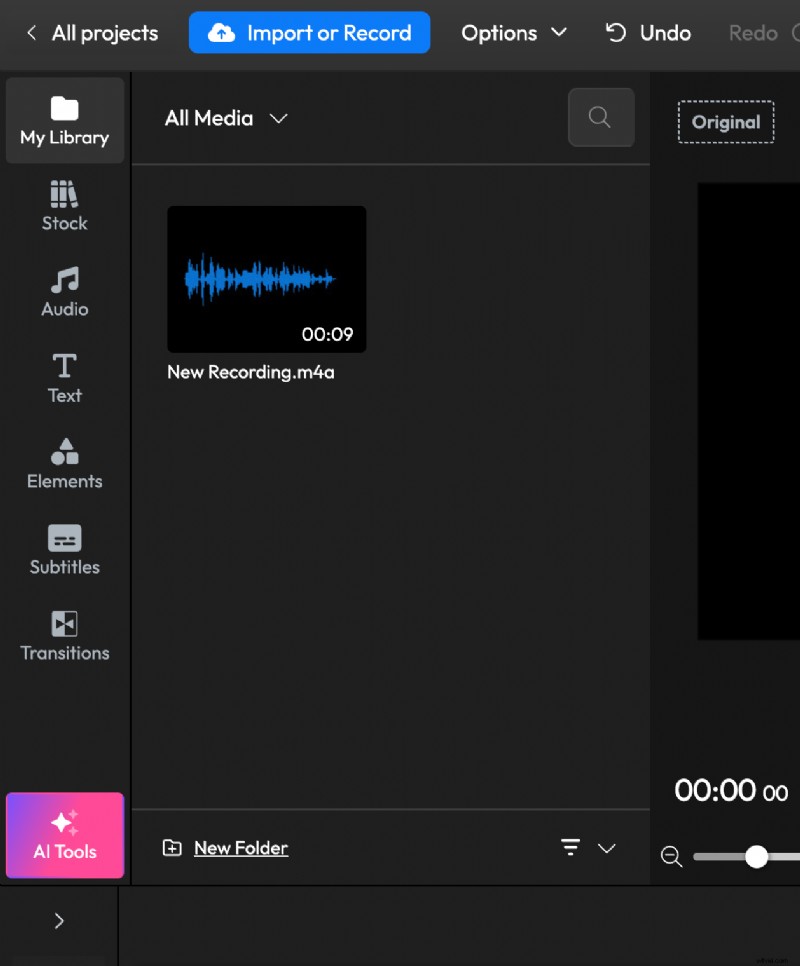
When you first open Flixier, you’ll be met with this screen asking you to import media. In our case, we need to upload the two voice memos we want to combine.
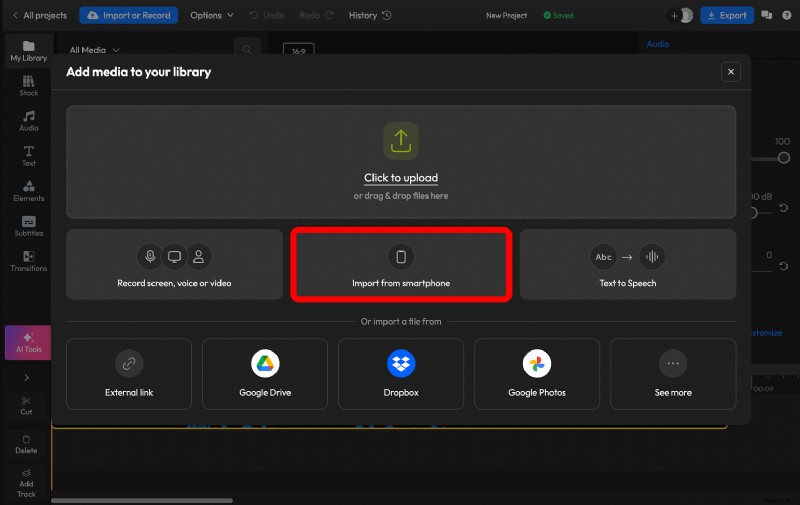
To bring them over easily, choose the Import from Smartphone option.
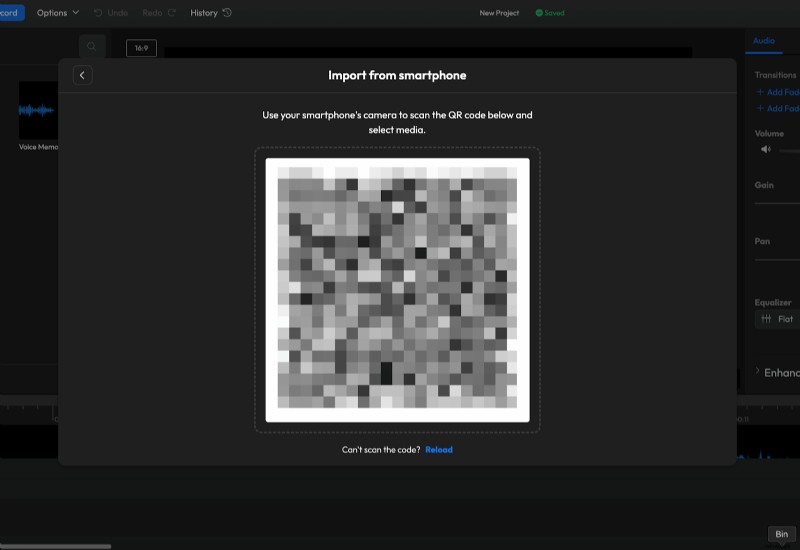
Then, scan the QR code on your iPhone or iPad.
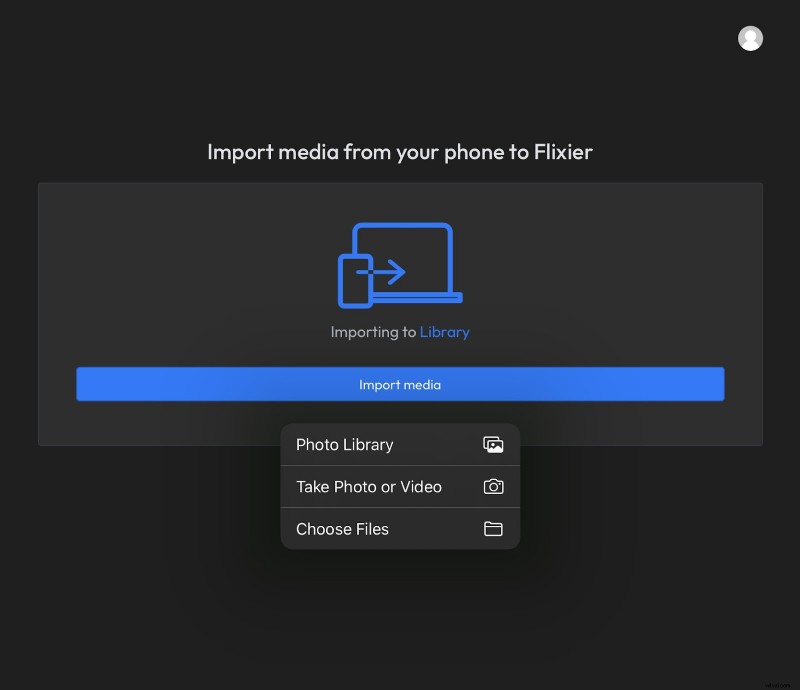
Click Import media on your device, then Choose Files, and select the Voice Memos you want to combine, and click Open.
The files will appear in your Flixier library on the computer in less than a second.
Step 4: Combine your voice memos into one
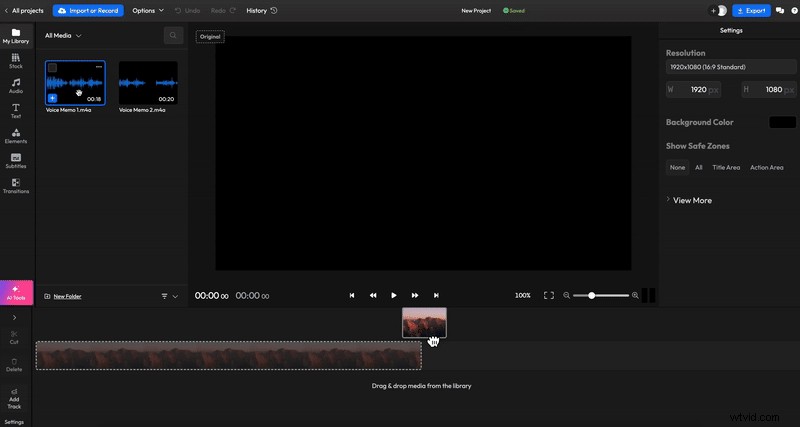
To merge your voice memos, drag them from the library down to the timeline at the bottom of the screen, making sure to arrange both of them on the same track.
Step 5: Save and Export
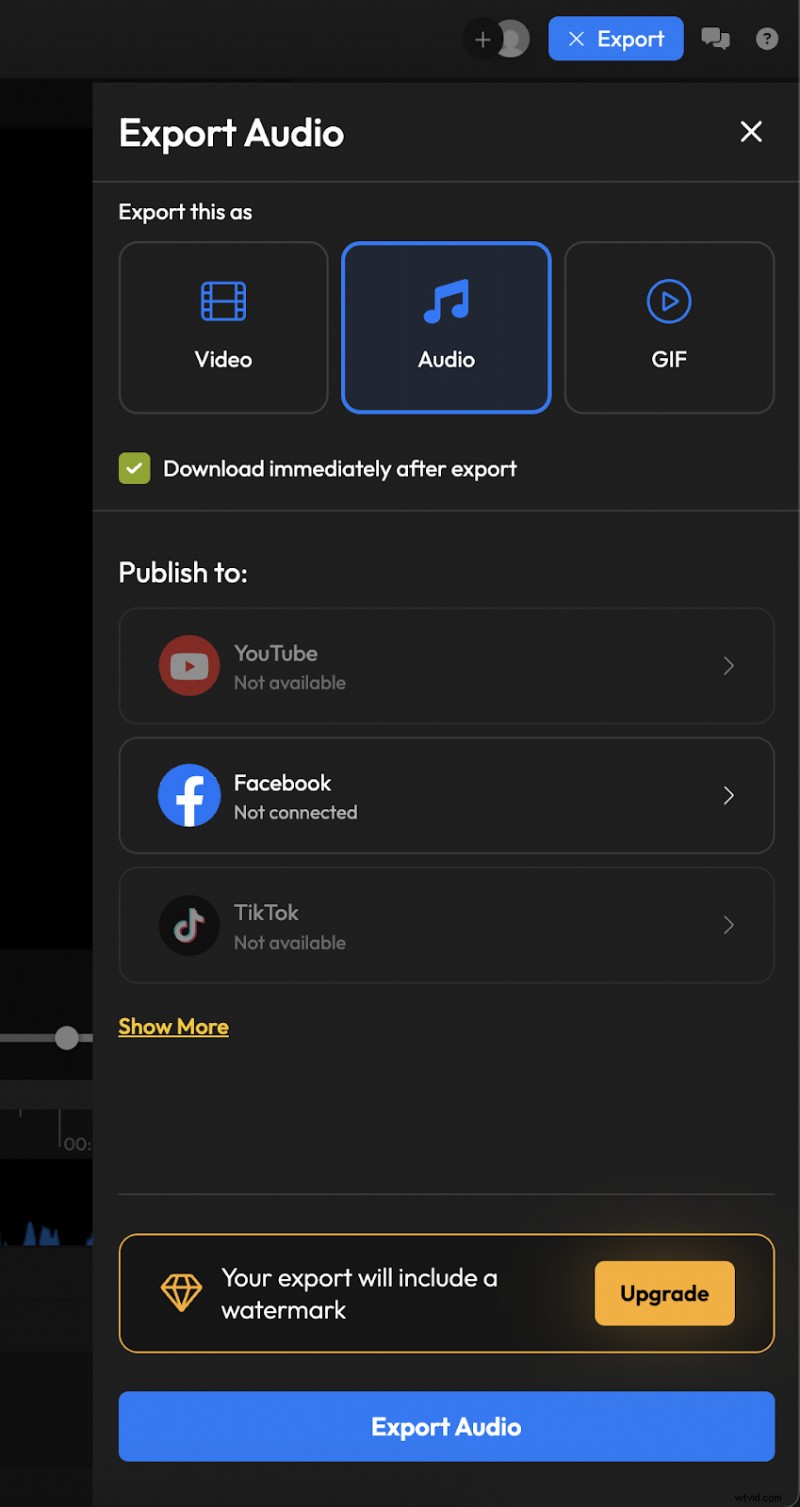
When you’re done with your memos, all you need to do to save them to your computer is press the Export button in the top right corner of the screen.
Make sure to choose Audio as the format, and your newly merged voice memo will be downloaded to your computer as an MP3 file.
OPTIONAL: How to edit your voice memos (with Flixier)
If you want to improve your two voice memos, you can also use Flixier to edit them before saving them to your computer.
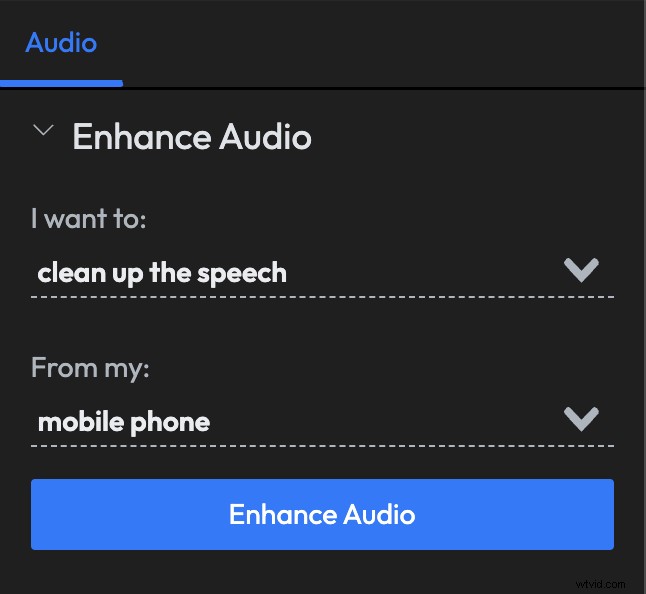
You can remove background noise or improve the speech clarity and audio quality of your memos by selecting them on the timeline and using the Enhance Audio menu on the right side of the screen.
You can cut out unwanted parts easily by dragging the playhead to the right area on the track, and pressing the ‘S’ key or clicking the Cut button. This will split the track into two parts. You can do this twice to separate any unwanted part from the rest of your memo, then right-click the part you want to remove and select Ripple Delete.
We’ll attach a quick tutorial below for a simple explanation of how cutting and trimming works:
We hope this helps!
We hope this quick guide helped you combine your Voice Memos! If you enjoyed using Flixier for audio, consider trying out the video editing features as well. It’s the perfect tool to help you easily edit everything from online videos to family memories, or for cropping those lengthy meeting recordings down to the essentials.