
This guide details how to reverse MP3 files efficiently using the desktop application MiniTool MovieMaker and the free web tool Online MP3 Cutter. Follow these steps to create a reversed audio track for creative projects, music games, or audio analysis.
When a popular game challenges players to identify songs played backwards, many wonder how to generate such tracks. The process is straightforward: download a reliable tool, import the file, reverse the audio, and export the result. Below, we outline two proven methods.
How to Reverse MP3 on Windows
MiniTool MovieMaker is a versatile video editor that also doubles as a lightweight audio editor. Its user‑friendly interface makes it ideal for beginners who need quick audio manipulation.
Supported formats include MP3, M4A, WAV, FLAC, AAC, and M4R, so you can reverse a wide range of files, not just MP3s.
Step 1: Download and Install
Download the latest version of MiniTool MovieMaker from the official site and install it on your computer.
MiniTool MovieMaker – Click to download. 100% clean & safe.
Step 2: Add Your MP3 File
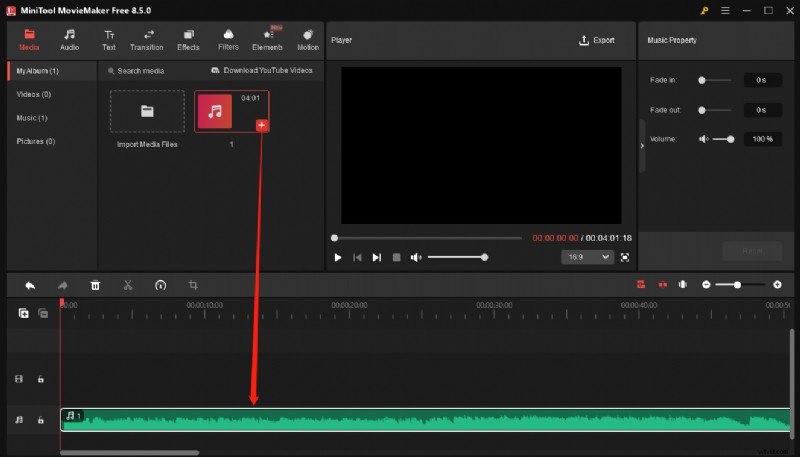
Launch the application, dismiss any pop‑ups, and click Import Media Files in the top‑left corner. Select your MP3 file, then drag it onto the timeline.
Step 3: Reverse the Audio
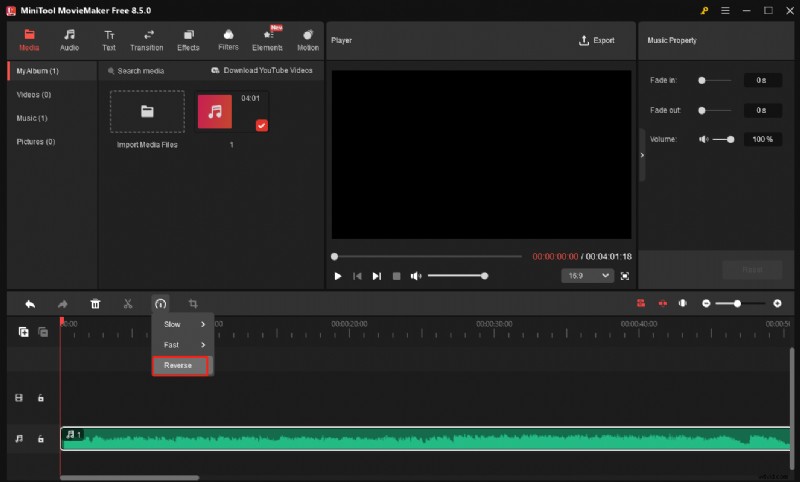
Select the clip on the timeline, click the Speed icon, and choose Reverse from the dropdown. The audio will play immediately in reverse.
Step 4: Export the Reversed File
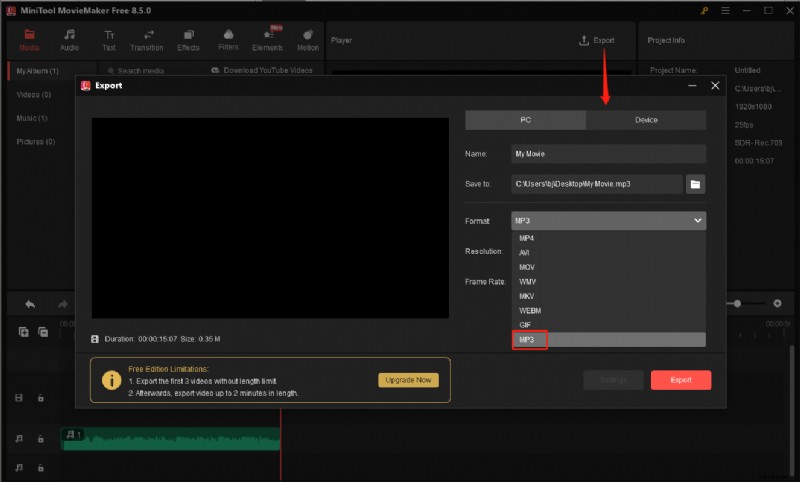
Click Export in the top‑right corner. Expand the Format menu, pick MP3, name the file, choose the destination folder, and press Export to start rendering.
MiniTool MovieMaker also offers trimming, splitting, merging, volume adjustment, fade effects, and speed changes. It even supports audio overlay on video, enabling creative storytelling.
How to Reverse MP3 Online
If you need a quick, no‑install solution, Online MP3 Cutter is an excellent choice. It’s free, requires no sign‑up, and imposes no file‑size limits.
Step 1: Open Online MP3 Cutter
Navigate to https://mp3cut.net/.
Step 2: Locate the Reverser Tool
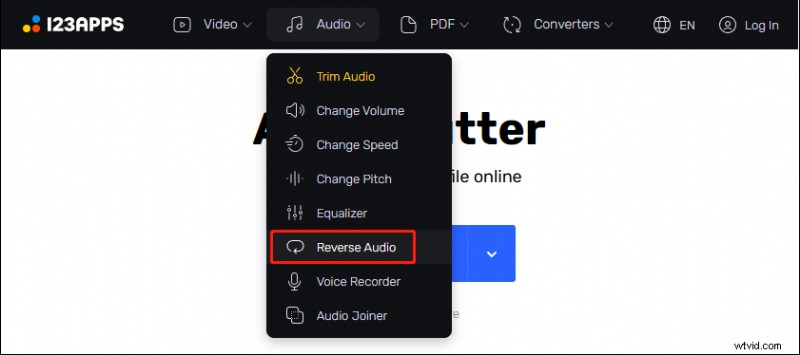
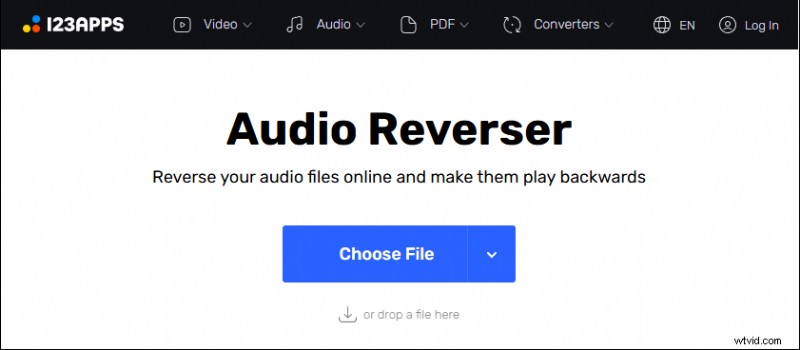
From the Audio dropdown, select Reverse Audio.
Step 3: Upload Your File
Click Choose File and pick the MP3 you wish to reverse.
Step 4: Download the Reversed Track
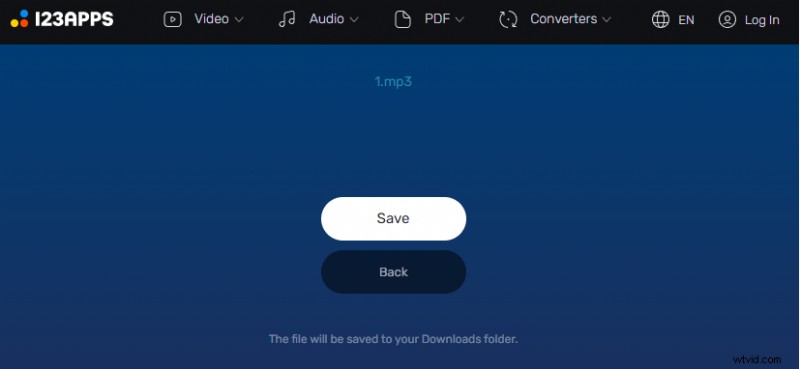
Once the upload completes, the audio reverses automatically. Click Save to download the new file.
Additional features include trimming, volume control, speed adjustment, pitch shifting, file merging, and voice‑over recording. The interface is intuitive, but a stable internet connection is essential for optimal performance.
Conclusion
Reversing an MP3 file is a quick, user‑friendly process that can be completed in just a few clicks, whether on Windows or via the web. With these methods, you can create reversed audio for games, music production, or experimentation. If you encounter any issues with MiniTool MovieMaker, contact our support at [email protected] for assistance.