
In this guide, we walk through the most common video effects and demonstrate how to apply them using MiniTool MovieMaker, the top free video editor for Windows. With its watermark‑free output, intuitive interface, and extensive library of visual tools, MiniTool MovieMaker empowers creators of all skill levels to produce polished, professional‑looking videos.
Quick Navigation :
- What Are Video Effects & Common Types
- Best Video Effects Editor for Windows
- How to Add Effects to Video
- Conclusion
What Are Video Effects & Common Types
Video effects transform raw footage into engaging stories. Below are the key categories you’ll encounter:
Video Transitions
Transitions guide viewers from one clip to the next, emphasizing shifts in time or location, setting tone, and keeping the flow smooth. MiniTool MovieMaker offers a spectrum from classic cuts to creative wipes, light leaks, and cross‑dissolves—my personal favorite for indicating the passage of time.
Motion Effects
Motion effects animate still images, text, or graphics, creating a dynamic visual experience. Built‑in tools such as panning, zooming, and keyframe animation allow you to mimic camera movements or add subtle motion to stills—like zooming into a photo’s focal point.
Speed Effects
Adjusting playback speed changes the pacing of a story. Speed‑up creates fast‑motion or time‑lapse, while slowing down delivers dramatic slow motion. MiniTool MovieMaker supports smooth speed ramping, letting you transition gradually between speeds within a single clip.
Color Correction & Grading
Color correction restores natural look by adjusting contrast, saturation, exposure, brightness, and white balance. Color grading then adds mood or style—via LUTs, filters, or color wheels—turning ordinary footage into cinematic imagery.
Masking & Overlay
Masking shapes or hides parts of a clip, enabling split‑screens, subject isolation, or creative blends. Overlays—text, graphics, or PiP elements—add information or flair without disrupting the main image.
Stylistic Filters
Filters are one‑click presets that alter tone or nostalgia—vintage, VHS, black & white, beauty, etc.—giving you instant style variety.
Audio Effects
Sound quality enhances visual storytelling. MiniTool MovieMaker offers equalization, noise reduction, pitch shifting, and sound‑effect libraries to align audio with your footage.
Best Video Effects Editor for Windows
MiniTool MovieMaker stands out as a free, watermark‑free editor that balances powerful features with an approachable UI. Its library includes:
- Hundreds of text templates, transitions, frames, and filters
- Pan & zoom presets for dynamic movement
- An extensive sticker collection for creative overlays
- Speed controls, reverse playback, crop, rotate, flip, split, and trim tools
- Free export up to 4K resolution

How to Add Effects to Video
Follow these steps to transform raw footage into polished content using MiniTool MovieMaker.
Step 1: Download and Install
Click the button below to download the latest version.
MiniTool MovieMaker
Click to Download (100% Clean & Safe)
Step 2: Import the Video
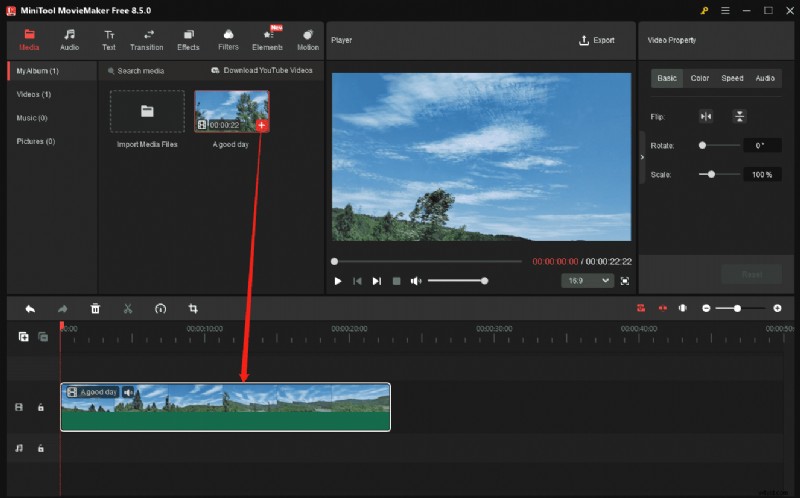
After installation, launch the app and click New Project to open the main workspace. Use the Import Media Files area to browse and select your clip. Drag the media from the library or click the + icon onto the timeline to begin editing.
Step 3: Enhance Content with Various Effects
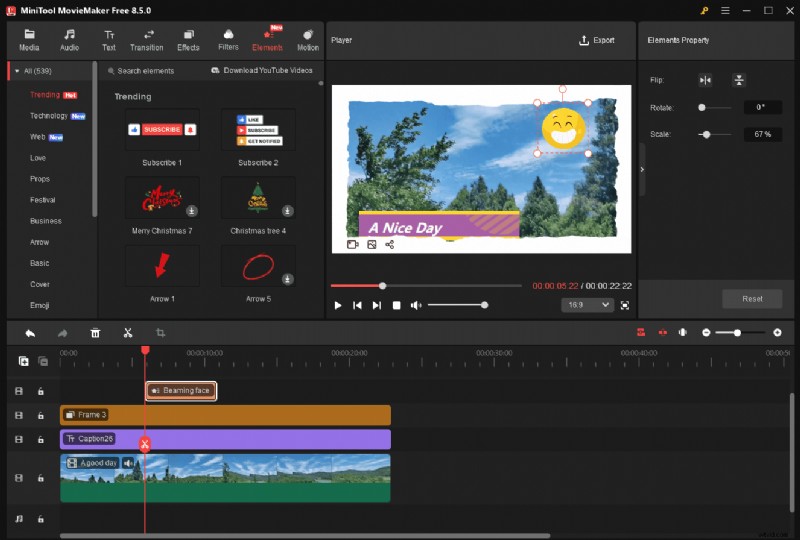
1. Add Text: Navigate to Text, choose a category, drag a template onto the timeline, and edit the content in the right‑hand editor.
2. Add a Transition: Go to Transitions, pick or download an effect, and drop it between two clips on the timeline.
3. Create Speed Effects: Select a clip, open the Speed tab, and adjust the slider to speed up or slow down.
4. Color Correct: In the Color tab, tweak Contrast, Saturation, and Brightness sliders for a natural look.
5. Add Filters, Elements, or Motion: From the top toolbar, choose a menu, download an effect, and drag it onto the timeline.
Step 4: Export the Video
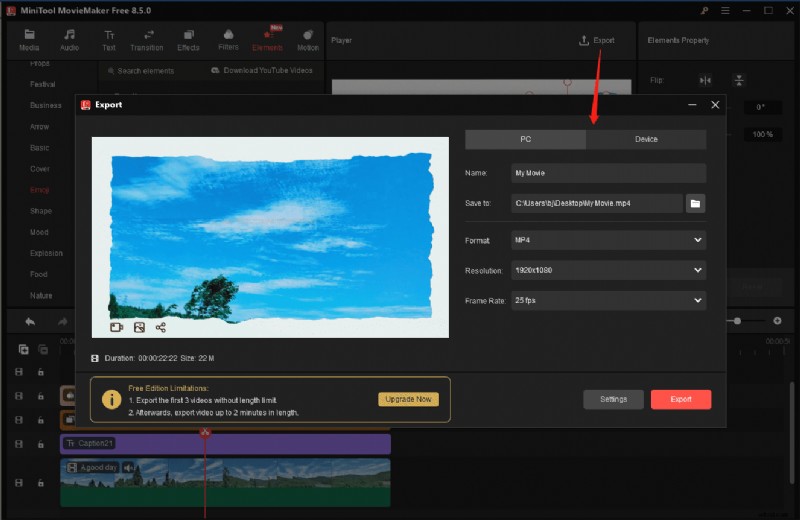
Click Export in the top‑right corner to open the settings window. Choose your destination folder, format, resolution, and frame rate, then hit Export to render.
Conclusion
MiniTool MovieMaker provides a comprehensive, no‑watermark solution for Windows users who want to add professional video effects—from transitions and motion to color grading and audio polish. Follow the steps above to elevate your footage and achieve cinematic results.
If you run into any issues, reach out to our support team at [email protected] for assistance.