
Many people choose to pixelate part of image to hide sensitive information or just for fun. Want to know how to pixelate image easily? This post teaches you how to create a pixelated image in 3 different ways. To make a photo slideshow without watermarks, try MiniTool MovieMaker.
How to Pixelate an Image in Lunapic
Lunapic can be regarded as an online Photoshop app. It provides all basic and advanced photo editing tools. Here you can pixelate, blur, resize, crop image and make image transparent. Besides, you can use it to convert image to pixel art without any registration requirement and save it directly from the Internet.
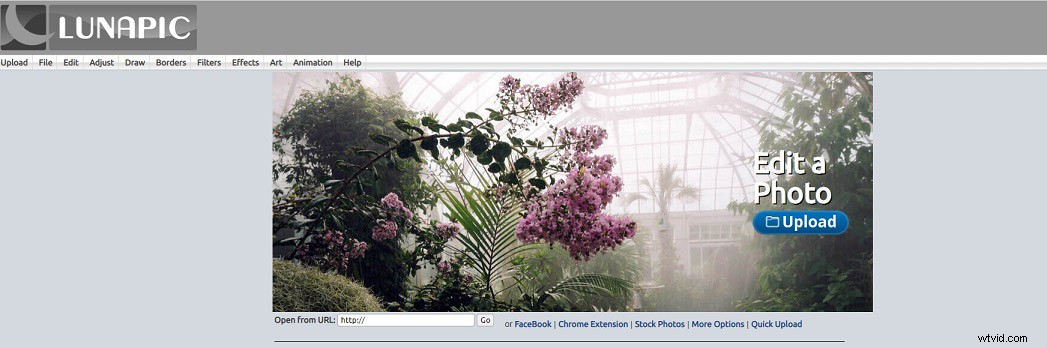
Here’s how to pixelate an image online.
Step 1. Open the Lunapic website in your browser.
Step 2. Click the Upload button to get the Upload page.
Step 3. On the Upload page, press the Choose File button and import the image that you want to pixelate.
Step 4. Hover your mouse on Adjust and select the Pixelate option from the drop-down list.
Step 5. Move the slider to adjust the pixel size and you can preview the change in the below window.
Step 6. Once done, tap on Apply, right-click on the pixelated image and save it.
Related article: How to Blur a Picture - 3 Effective Methods.
How to Pixelate an Image in PineTools
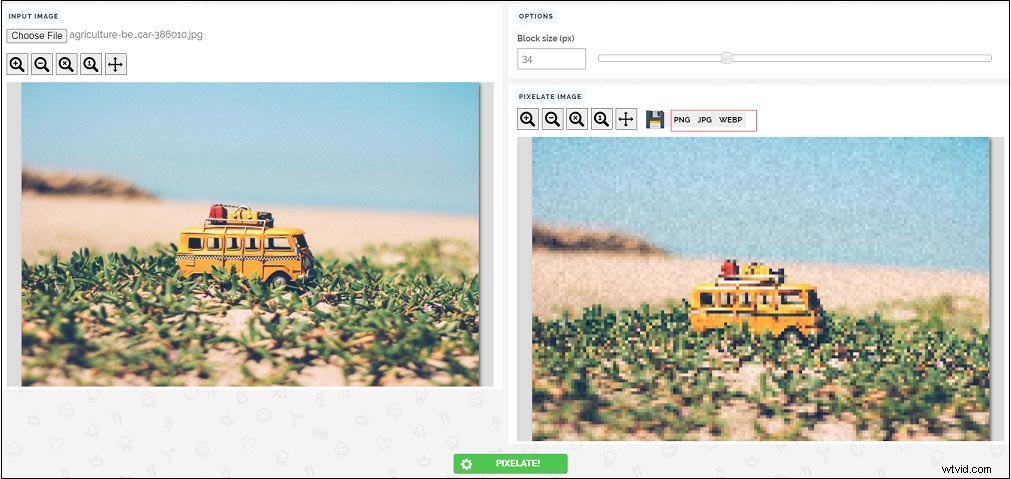
PineTools is also a web-based photo editor that comes with tons of photo editing tools. It lets you save the pixelated image in PNG, JPG and WEBP format. Other than that, you can use it to flip image, invert colors and so on.
Follow the detailed guide on how to pixelate image.
Step 1. Go to the PineTools website.
Step 2. Click on More in the IMAGES tab and find the PIXELATE EFFECT tool.
Step 3. Open the pixelate image tool and upload the target image.
Step 4. Drag the Block size slider to adjust the pixel size or enter the desired size number in the Block size box. Then press PIXELATE to preview the change.
Step 5. Choose the desired output format and click on it. Then the pixelated image will be downloaded automatically.
How to Pixelate an Image in Photoshop
If you don’t trust any online image processing tool, Photoshop is always the first choice. No matter you want to pixelate or beautify your image, Photoshop can perfectly get the job done. Wonder how to pixelate an image in Photoshop? Takes the following steps to learn how to convert image to pixel art in Photoshop.
Step 1. Find the desired image and right-click it. Then navigate to Open with > Photoshop to open the image with Photoshop.
Step 2. Choose Filter in the menu bar and go to Pixelate > Mosaic.
Step 3. Adjust the pixel size until you’re satisfied and press OK.
Step 4. After that, save the pixelated image on the computer.
Tip: If you’d like to pixelate part of the image, you need to make a selection of the wanted area by using the Lasso Tool or Rectangular Marquee Tool. Then repeat the above steps.Conclusion
Making a pixelated image isn’t a difficult task. Want to pixelate image? Choose the desired image to pixel art converter and try it out!