
If you’re looking for a tool that can slow down a timelapse video, this post may meet your needs. This article will introduce two tools, one is MiniTool MovieMaker which can be downloaded to the desktop for free and the other is Kapwing which can be used online for free. Shall we go and have a flip through them.
There are many purposes for making a timelapse video, such as speeding up video files and slowing down video files. In the post, I will introduce you two ways about how to slow down a timelapse video.
What Is Timelapse Video
You can use timelapse photography to reduce the frame rate in photography. For instance, you could use 12 frames per minute instead of 12 frames per second. This means the action moves much faster than it does in reality.
Timelapse video combines a large number of photos to create an accelerated or slow video. In other words, the movie frames captured are more scattered than the frequency used to view the sequence.
Timelapse is the perfect way to show motion that is almost invisible to the naked eye. To be honest, timelapse video has nothing to do with slow motion video.
How to Slow Down a Timelapse Video with MiniTool MovieMaker
MiniTool MovieMaker is a free, ad-free, and watermark-free video editor that provides you with a clean, intuitive interface and simple operations to help you complete slow down a timelapse video.
Now, you can try the following steps to slow down a timelapse video.
Step 1. Download and install MiniTool MovieMaker.
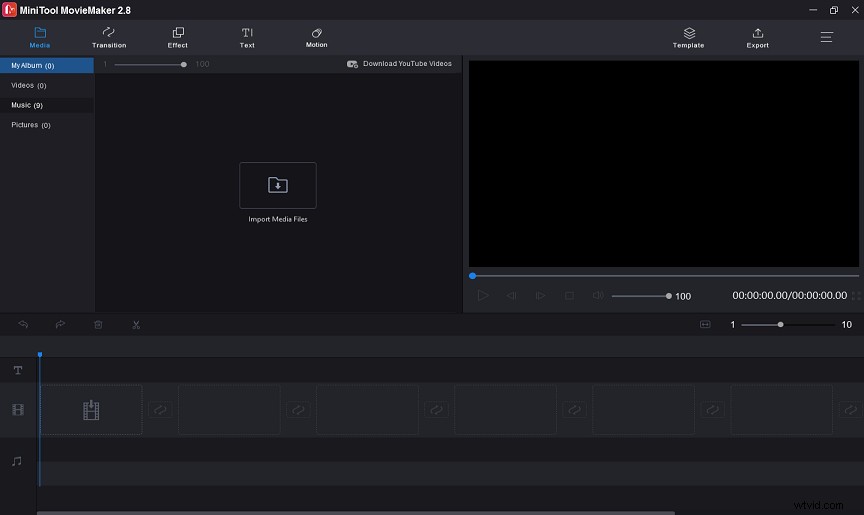
Download MiniTool MovieMaker and follow the instructions to install it on Windows. After that, launch it and you will see the following interface.
Step 2. Upload timelapse video file.
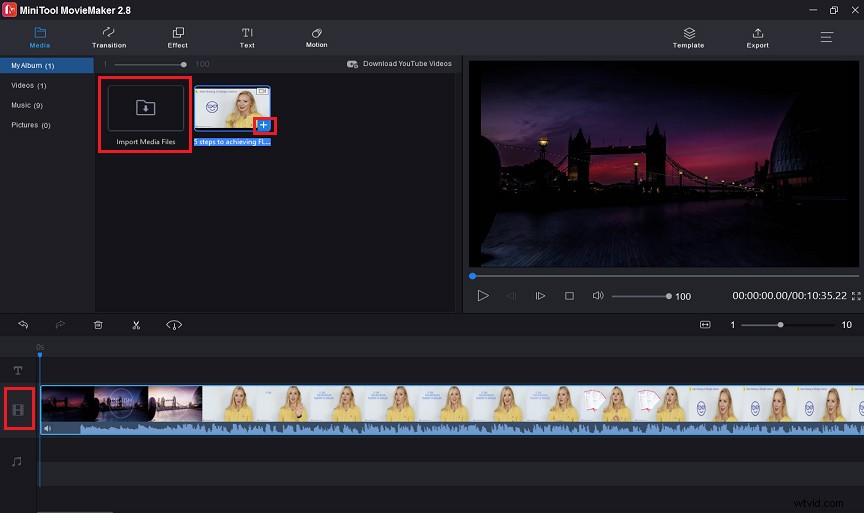
Click the Import Media Files button to import the timelapse video file, then drag and drop it to the timeline.
Step 3. Slow down the timelapse video.
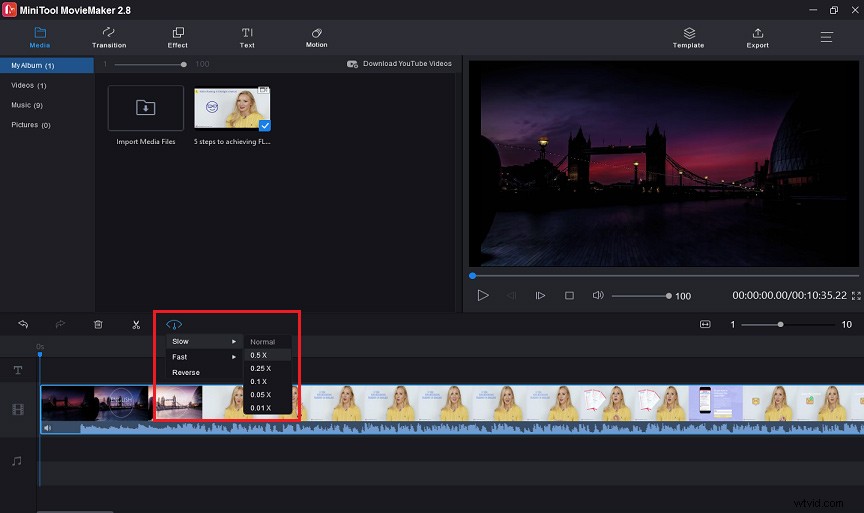
Click the Speed button to open Slow and select exactly how fast you want it to slow down.
Step 4. Save the timelapse video you have slowed down.
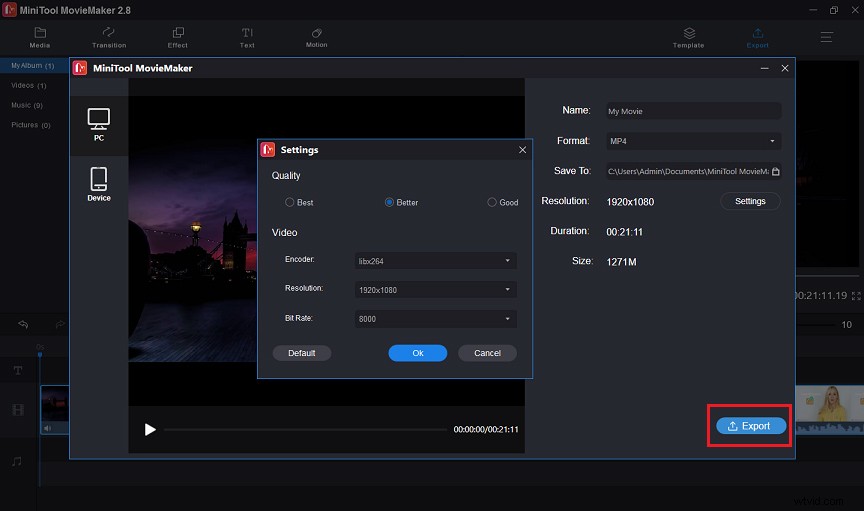
Click the Export button to open the specific export interface. In the export interface, you can find the details of the timelapse video you slowed down, including name, format, save path, resolution, duration and size.
How to Slow Down a Timelapse Video Online
In addition to the MiniTool Movie Maker, you can also use an online software called Kapwing to slow down a timelapse video.
Here are the steps for slowing down timelapse video with Kapwing.
Step 1. Upload your video or GIF
Upload a video or GIF that you want to slow down. You can also import videos from YouTube, Twitter, TikTok, or other video sources into Kapwing.
Step 2. Select your speed
You can choose the speed you want to adjust the speed of the video in the sidebar.
Step 3. Download and share
Click the Export button, and the timelapse video you edited will be automatically generated by the system soon.
Conclusion
Have you ever slowed down a timelapse video? If you’re in need of slowing down a timelapse video, you can try using MiniTool MovieMaker.
In this post, I’ve shown you how to slow down a timelapse video. If you have any questions about how to use MiniTool MovieMaker, please feel free to contact us.