
You see a photo with beautiful fonts and you are curious about what the font is in this photo. How to find a font from an image? This post aims to help you identify a font from an image and show you how to use the identified font in your video (with MiniTool MovieMaker).
How to Find a Font from an Image
Want to find a font from an image? Here gives you a simple way to identify fonts from images – using online font finder websites. Below are the two best free font identifiers.
WhatTheFont
Powered by the world’s largest collection of fonts, WhatTheFont can quickly identify and find out what font was used in an image. This tool only supports JPG and PNG. If the image you want to identify a font from is GIF, you should convert GIF to PNG or JPG.
Here’s how to identify a font from an image using WhatTheFont.
Step 1. Visit the WhatTheFont website: https://www.myfonts.com/WhatTheFont/.
Step 2. Upload the image from your computer.
Step 3. Select the font that you want to identify and click the right arrow to find out the font used in this image.
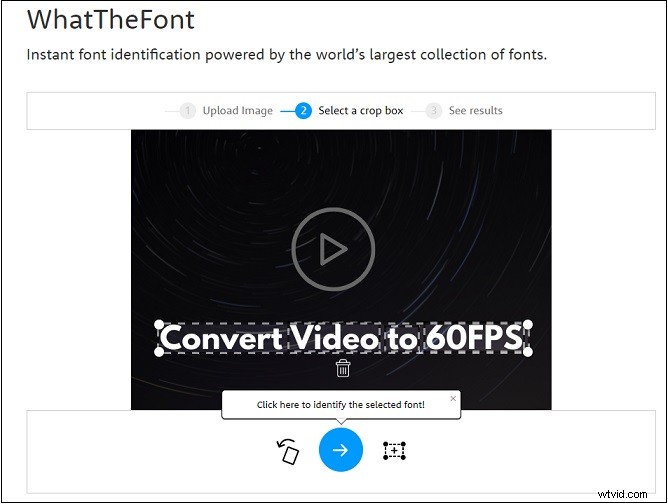
Step 4. After that, choose the best match from the results.
WhatFontIs
Another font finder is WhatFontIs. It helps you find out what font is this and lets you search by price, adjust the brightness of the image, etc.
It allows you to upload an image from your computer or by entering the URL.
Below are the steps on how to find a font from an image.
Step 1. Visit the WhatFontIs website: https://www.whatfontis.com.
Step 2. Drag and drop your image to this website.
Step 3. Draw a crop box to select the font in the image and click the NEXT STEP button.
Step 4. Tap on CHOOSE THIS ONE (recommend) to identify the font.
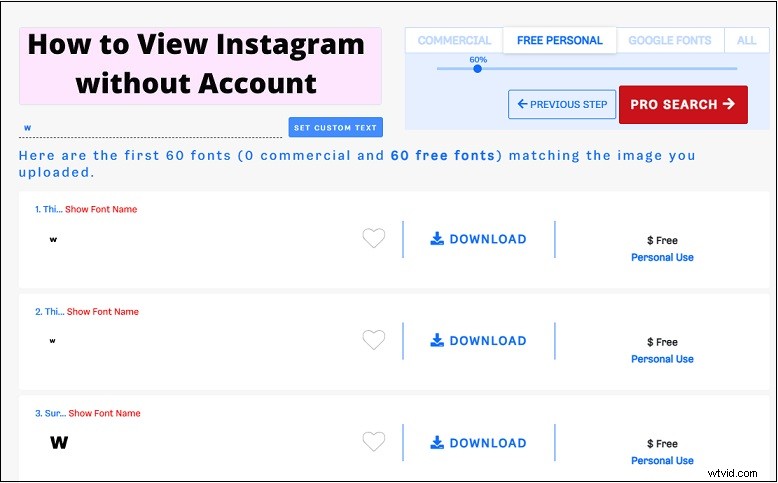
Step 5. Click Display all fonts and choose the desired option from the drop-down list. In the Input section, input one letter from above and click NEXT STEP.
Step 6. Then check the matching results and download the font that matches the uploaded image.
How to Add Text to Video Using Custom Fonts
After knowing the font name, you may want to download the font and use it in your video. This post will teach you how to do this.
5 Website to Find Free Fonts
- DaFont
- Fontspace
- 1001 fonts
- Font Freak
- Google Fonts
How to Install Fonts on Your Windows PC
Here’s a quick guide on how to install fonts on Windows.
- After downloading the font, double-click on it.
- In the popup window, click the Install button to install this font on your Windows PC.
How to Use Custom Fonts in Your Video
Now, you’ve already installed the font on your computer. To use this font in your video, you need a video editor – MiniTool MovieMaker. It’s watermark-free and allows you to add text to video with custom fonts.
Here’s how:
Step 1. Download, install, and launch MiniTool MovieMaker.
Step 2. Import the video that you want to use the font in. Add the video to the timeline.
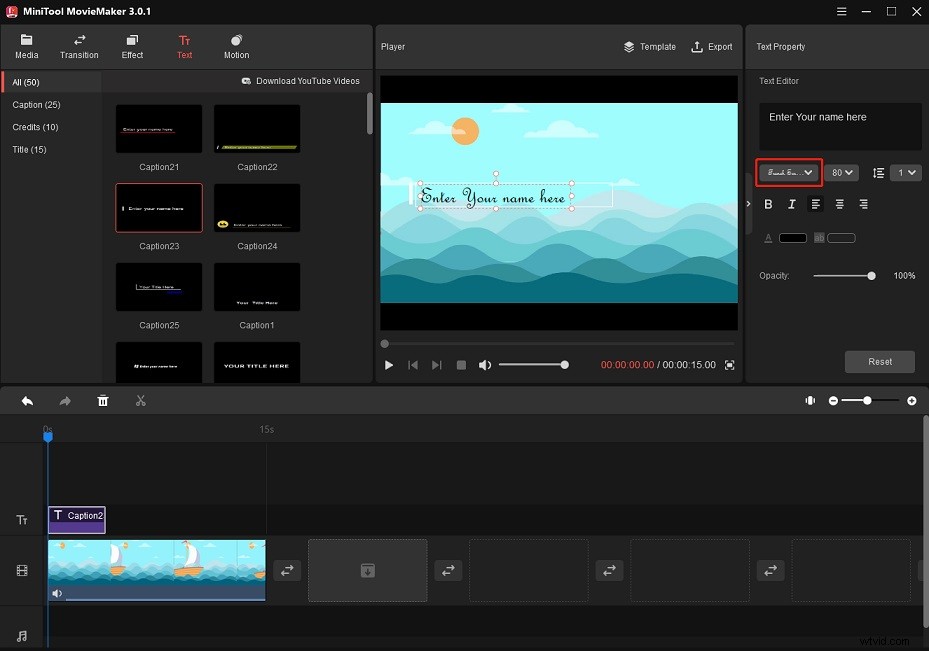
Step 3. Click on Text and choose the wanted text template. Click the + to add it.
Step 4. In the Text Editor, select the font you just installed on Windows and adjust other settings.
Step 5. Finally, click Export and change the output settings. Press the Export button to export the video.
Conclusion
After reading this post, you must know how to find a font from an image and how to add text to a video using custom fonts. Now, it’s your turn!