
Step-by-Step Guide to Adding Magic Effects in Filmora
Want to transform ordinary footage into something truly mesmerizing? Filmora’s built‑in tools let you add motion‑tracked magic, blend colors, and finish with cinematic grading—all without a steep learning curve.
- Select the Footage
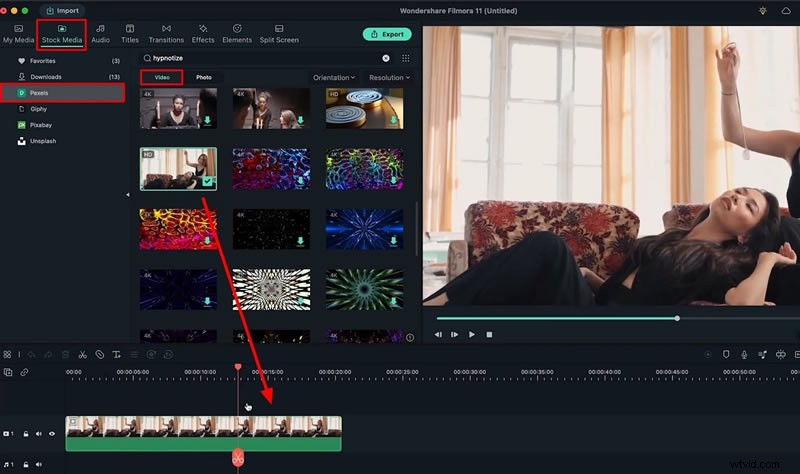
Open the Stock Media panel, choose Pexels, search for the clip you want, and drag it onto the timeline.
- Track the Target Object
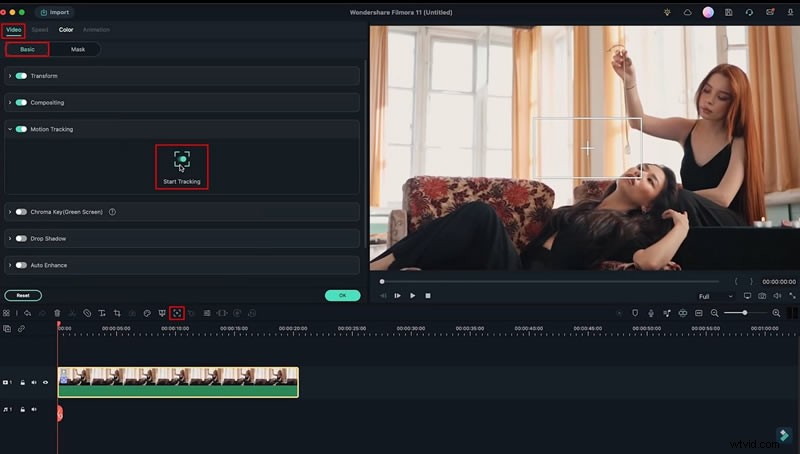
Move the playhead to the clip’s start, click Motion Tracking in the toolbar, draw a box over the object, and hit Start Tracking. When the data appears, click OK.
- Choose a Magic Element
Go to the Elements tab, search “magic”, and drop your chosen effect above the video track.

- Match Timing and Speed
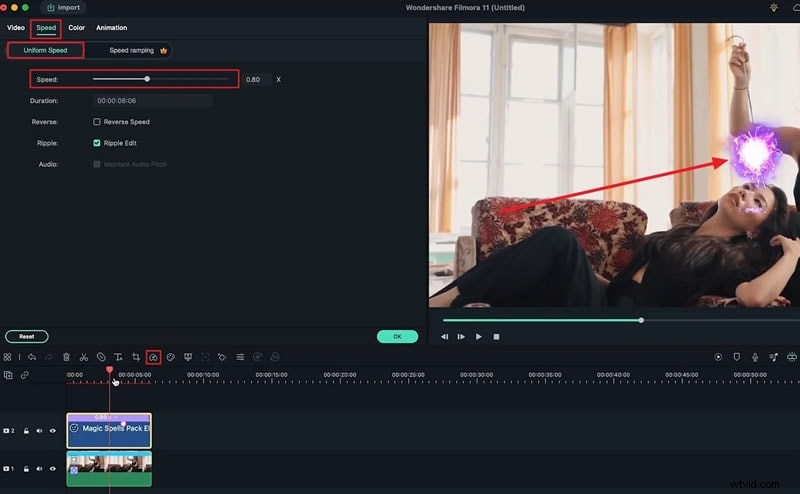
If the element’s duration differs, trim or slow it: click the Speed icon, choose Uniform Speed, and reduce the slider slightly.
- Attach the Element to the Track
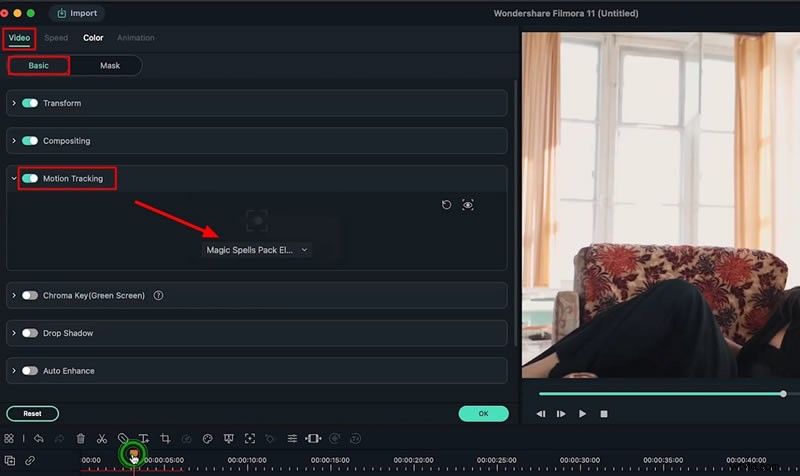
Select the element, return to Motion Tracking in the video tab, and link it to the tracked object.
- Clean the Element
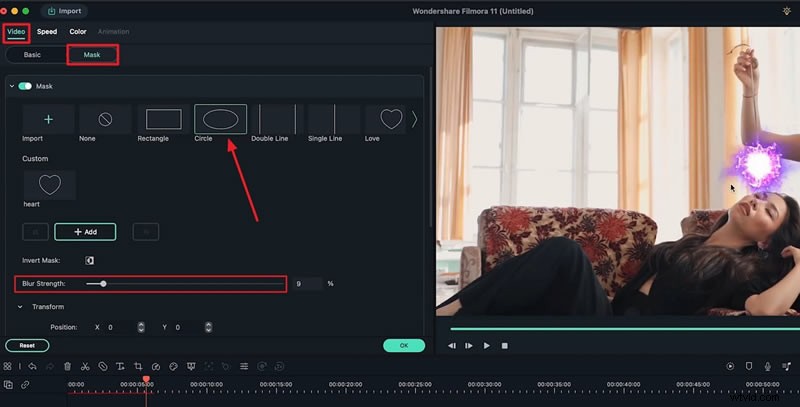
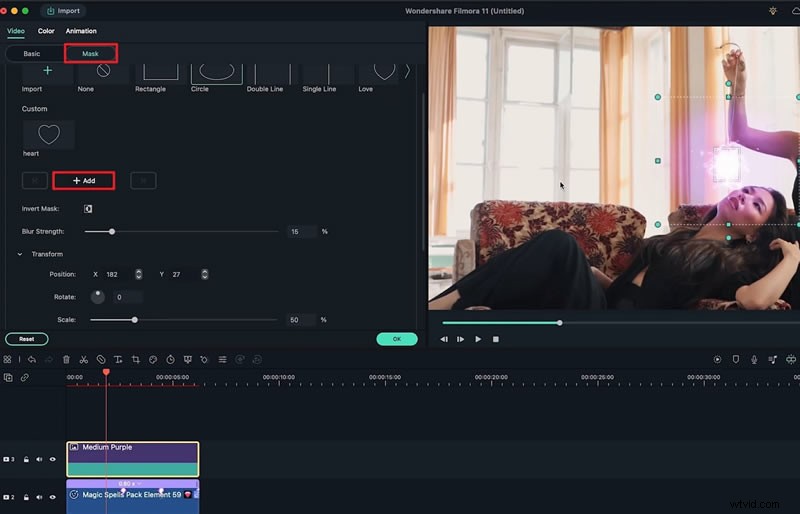
Apply a Circle Mask to remove unwanted parts and increase Blur Strength if edges bleed.
- Blend Seamlessly
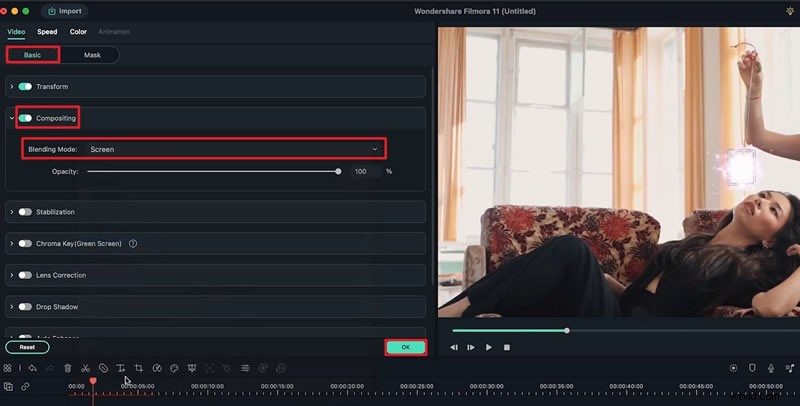
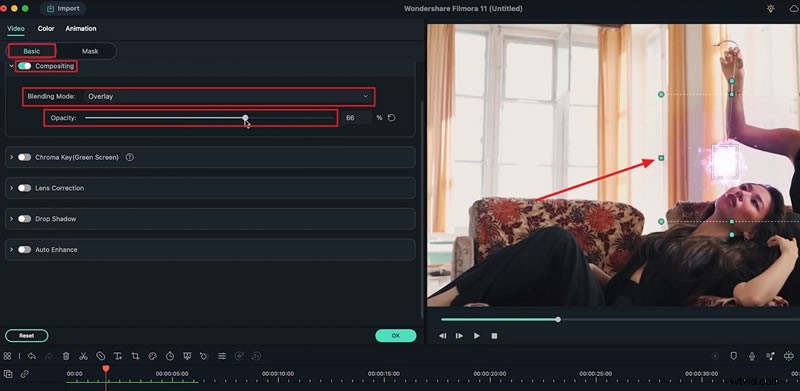
Under Basic > Compositing > Blending Mode, choose Screen (or Linear Dodge) for a natural look.
- Add a Matching Color Overlay
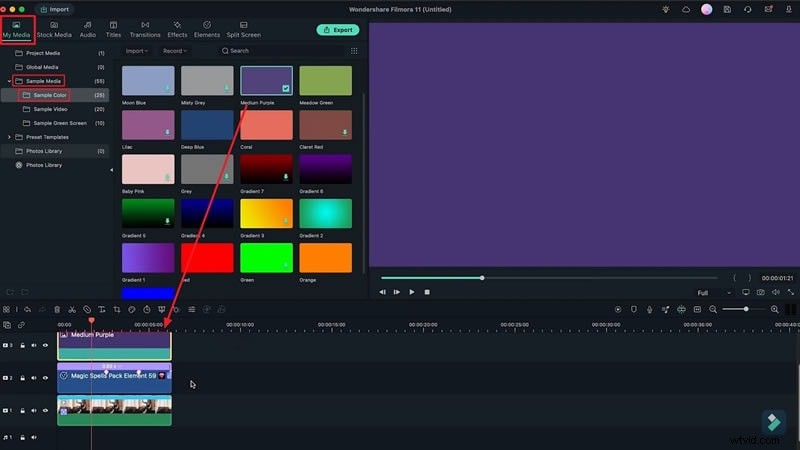
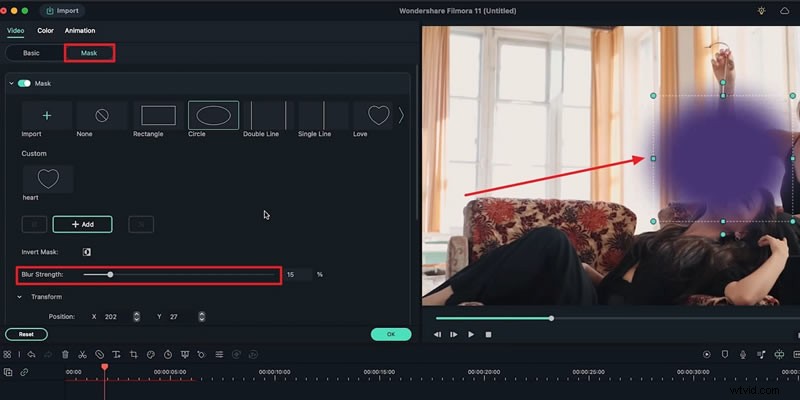
From My Media > Sample Media > Sample Color, pick a hue that complements your magic (e.g., Medium Purple). Place it over the element, set a Circle Mask, adjust Blur Strength, and set Overlay blending. Fine‑tune Opacity and Brightness in the Color panel.
- Animate the Overlay
Keyframe the mask’s Position to follow the moving object. Add keyframes at each major frame so the glow tracks the action.
- Synchronize the Glow
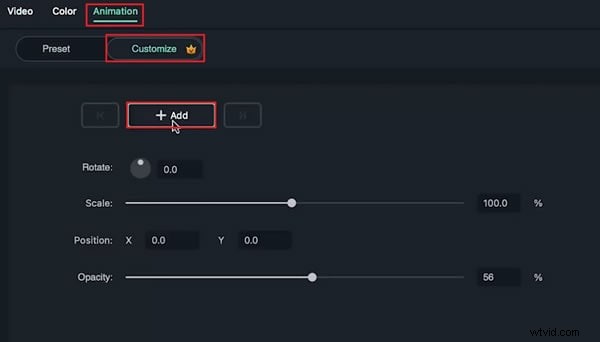
In the Animation > Customize tab, add a video keyframe at 56 % opacity. Then set the start keyframe to zero opacity so the glow appears only when the magic is active.
- Color‑Grade the Final Footage
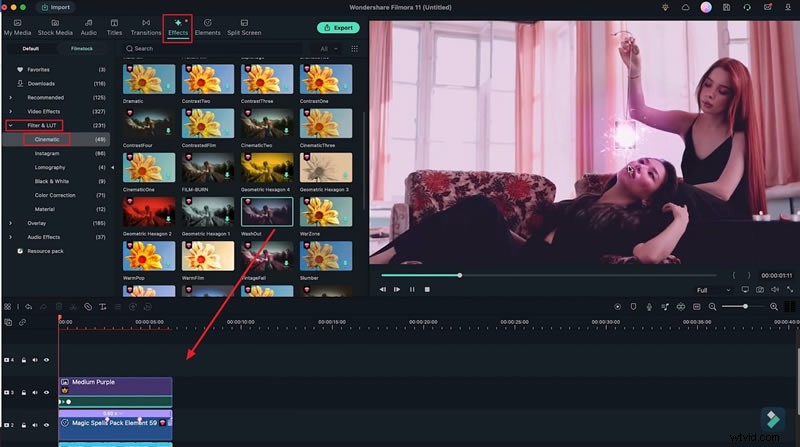
Apply a cinematic filter: Effects > Filters & LUT > Cinematic > WashOut. Drag it onto the timeline, trim as needed, and adjust Opacity if it’s too strong.
- Fine‑Tune with 3D LUTs
Add a 3D LUT (e.g., Gravity) to desaturate and give depth, then tweak Brightness in the Color > Advanced panel.

- Export Your Masterpiece
Once satisfied, hit Export, choose your desired format, and share your newly animated video.
Summary
By combining motion tracking, masking, blending, and color grading, Filmora empowers creators to add realistic magic effects that enhance storytelling and visual appeal. Practice these steps to master the art of video enchantment.