
Introduction
Sports footage is inherently dynamic, but turning raw clips into polished highlight reels requires skillful editing and the right tools.
Tools You’ll Need
- A Windows or macOS computer
- Filmora video editor (free download)
- High‑quality sports clips with plenty of action
Step‑by‑Step Guide to Editing Sports Videos in Filmora
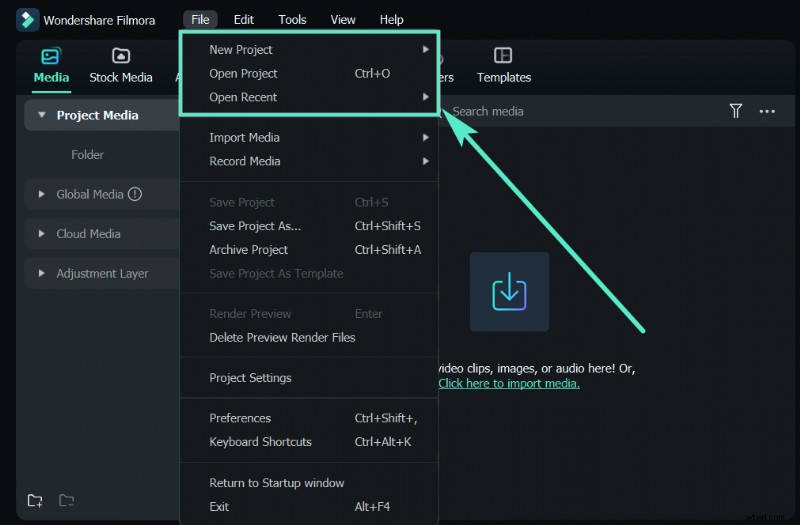
Step 1: Install Filmora
Download Filmora from the official website. It’s available for both Windows and macOS. The installer is straightforward and free for basic use.
Step 2: Import Your Footage
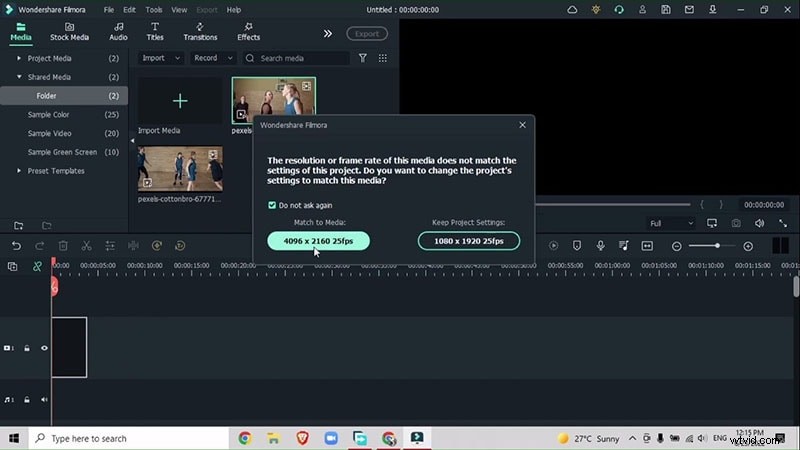
Launch Filmora, drag two action‑packed sports clips into the timeline, and ensure each clip’s resolution matches the project settings.
Step 3: Apply Speed Ramping
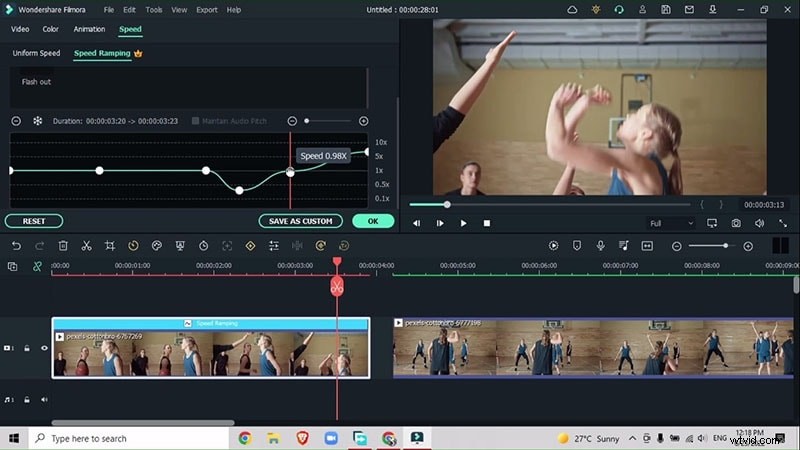
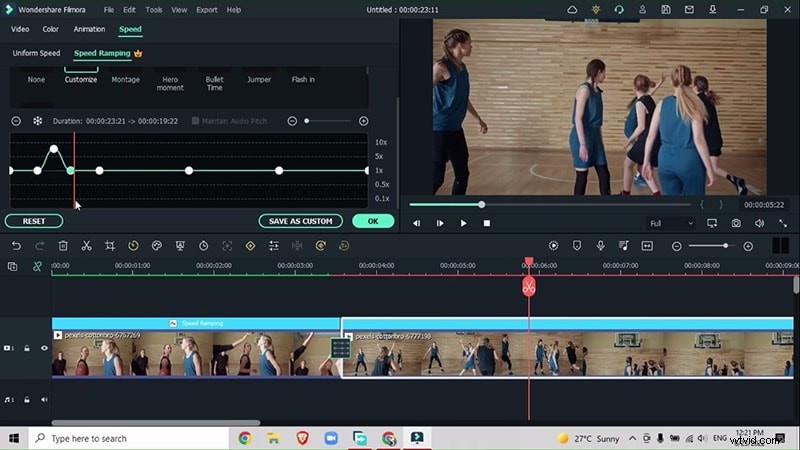
Identify key moments—such as a ball launch or a decisive shot. Double‑click the clip, go to Speed > Customize, and add keyframes to slow or accelerate playback for dramatic emphasis.
Step 4: Insert Transitions
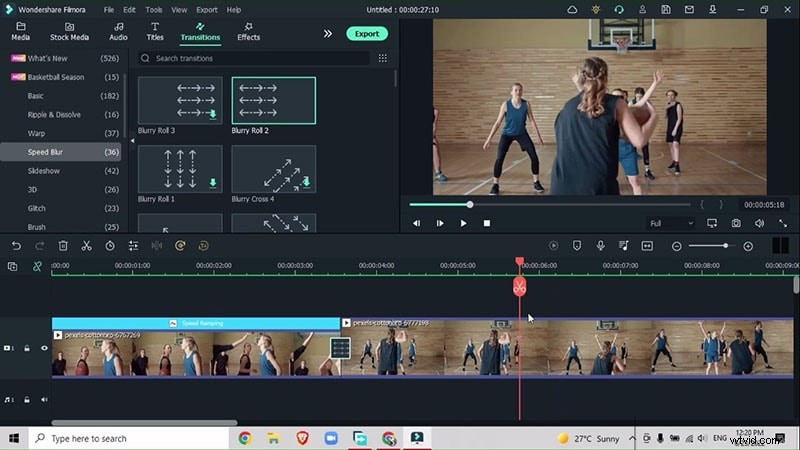
Place a Speed Blur > Blurry Roll 2 transition between clips. Choose a transition that has arrows on both sides for a dynamic forward‑backward effect, and shorten the duration to increase speed.
Step 5: Refine the Second Clip
Repeat the speed ramping process on the second clip. Focus on a player’s movement, cutting out segments where they’re obscured, and add transitions to stitch the edits seamlessly.
Step 6: Layer Glitch Effects
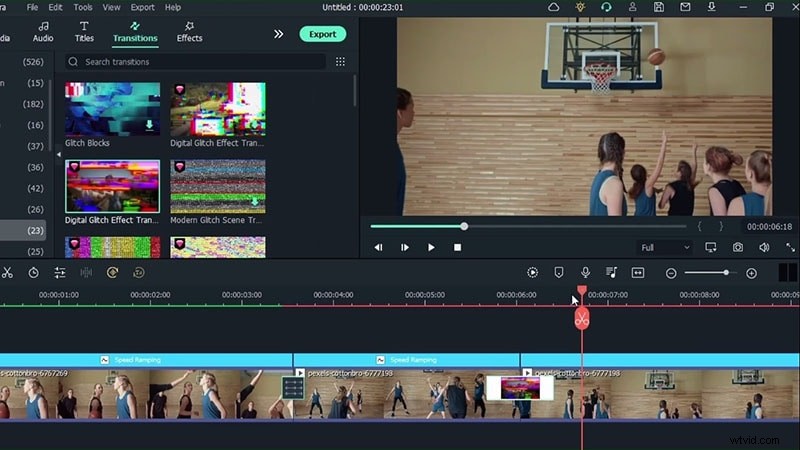
When a player is about to score, insert a Glitch > Digital Glitch Effect to emphasize the moment. Shorter transition times yield sharper, more impactful glitch overlays.
Step 7: Add Overlay Enhancements
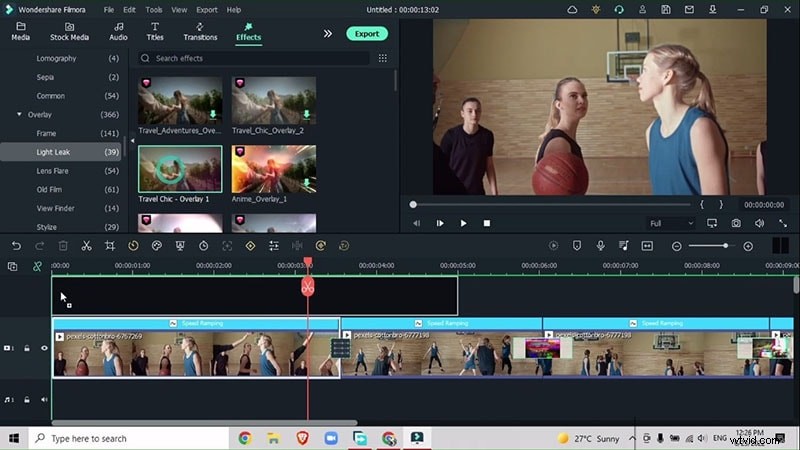
Apply light‑leak overlays such as Light Leak > Travel Chic to give the footage a cinematic glow. Preview each overlay by double‑clicking before applying it to the project.
Step 8: Color Grade and Sharpen
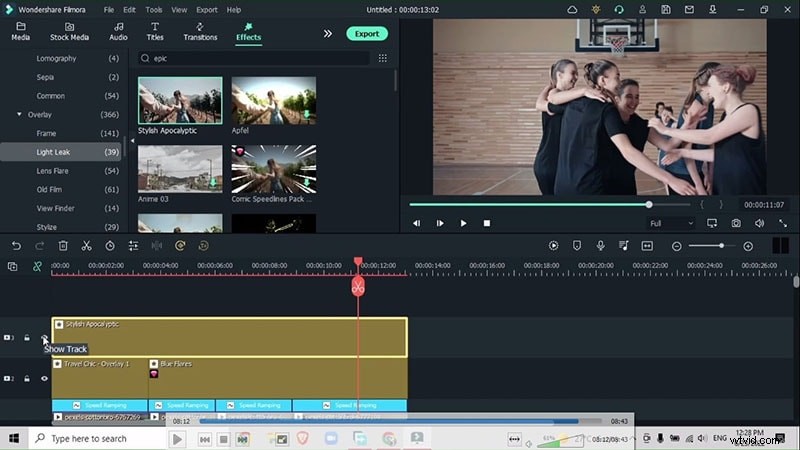
Drag an Epic > Stylish Apocalyptic effect onto the top track for a bold, high‑contrast finish. Adjust the opacity to balance the overall tone.
Why Sports Highlights Matter
In today’s digital age, well‑edited highlight reels capture audiences and amplify the impact of every play. By applying these techniques, you can transform everyday footage into a polished, commercial‑grade showcase.