
So you’ve just finished your video and uploaded it to Vimeo. Now you want to pull out a segment to share easily and make it a GIF —or jif, however you pronounce it. Well, fear not meme lords, we’re here to help.
It used to be that you could only make GIFs in photoshop. Those days are no more! In fact, Vimeo’s own interface makes GIF creation a total breeze —with GIPHY and Adobe Premiere remaining solid creation options, as well. Now let’s GIF going. (Get it?)
Why GIFs?
GIFs convey information quickly and easily — like tasty memes, strong Powerpoint presentations, or sneak peek vibes — without having to link or embed a full video. They play and loop automatically so you won’t be breaking the flow of your video just by needing someone to press play on a video.
GIFs are excellent tools for tutorials and education graphics, perfect for everything from presentation decks to blogs.
And in our current tech climate, videos are currently not embeddable in emails. So, if you want to reach all of your fans, but aren’t able to drop your video in your mass email, GIFs are a great way to reach lots of people. (You can see how to do that right here.)
Now, here’s how you can do it yourself!
Upload your video, then GIF away.
Try out Vimeo’s GIF maker. You can make up to four GIFs per video!
Make a GIFHow to make a GIF with Vimeo (in 3 quick steps!)
First, make sure you’ve got a video uploaded to your Vimeo account. Then, you’re ready to get gif-ed.
Step 1: Upload your video
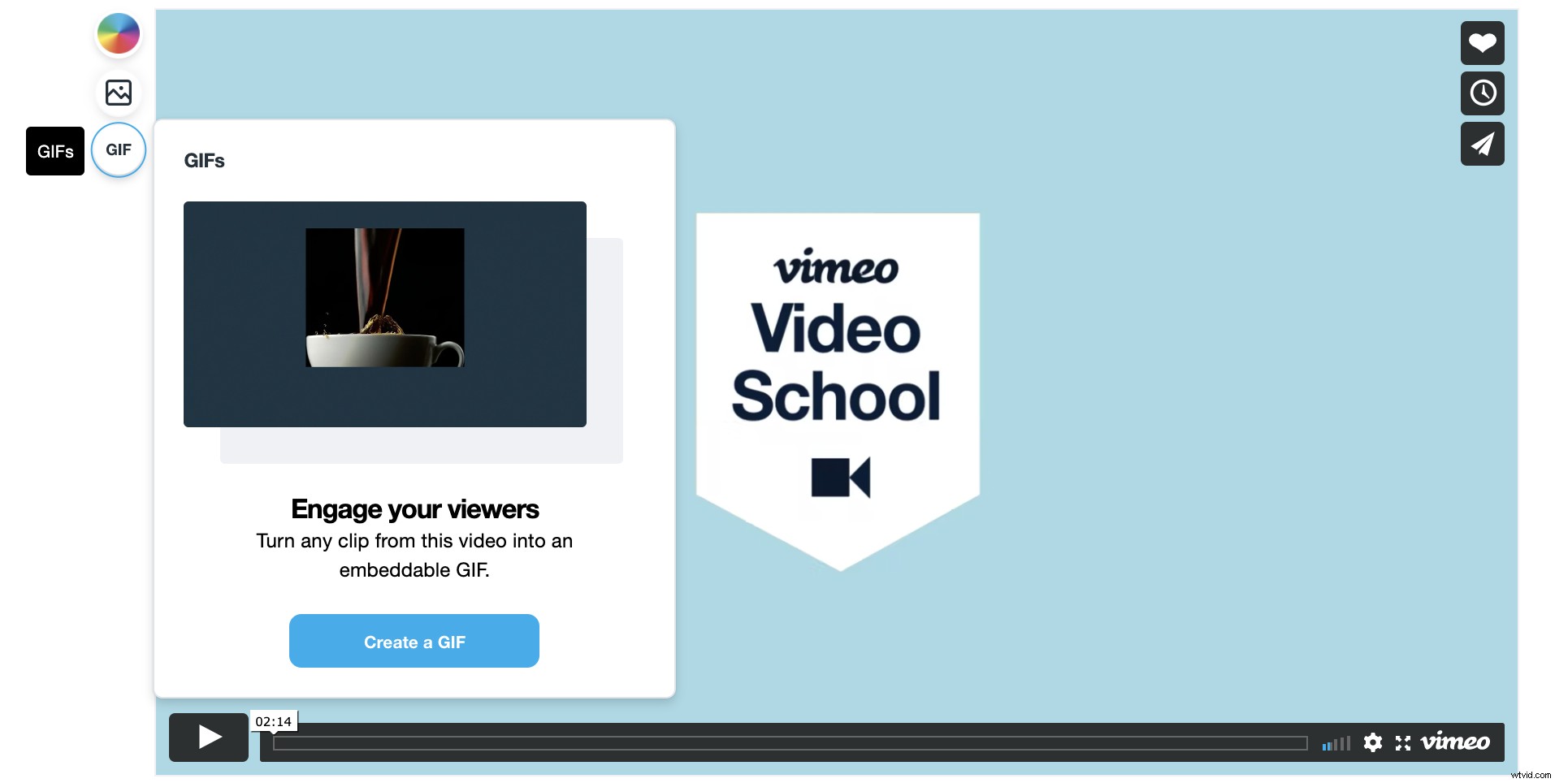
Once you’ve clicked into the clip page for the video you’d like to GIF, select “GIF” from the left sidebar. Click the “Create a GIF” button to jump into your GIF editor.
Step 2: Make your GIF
Then, choose the part of the video you want to loop.
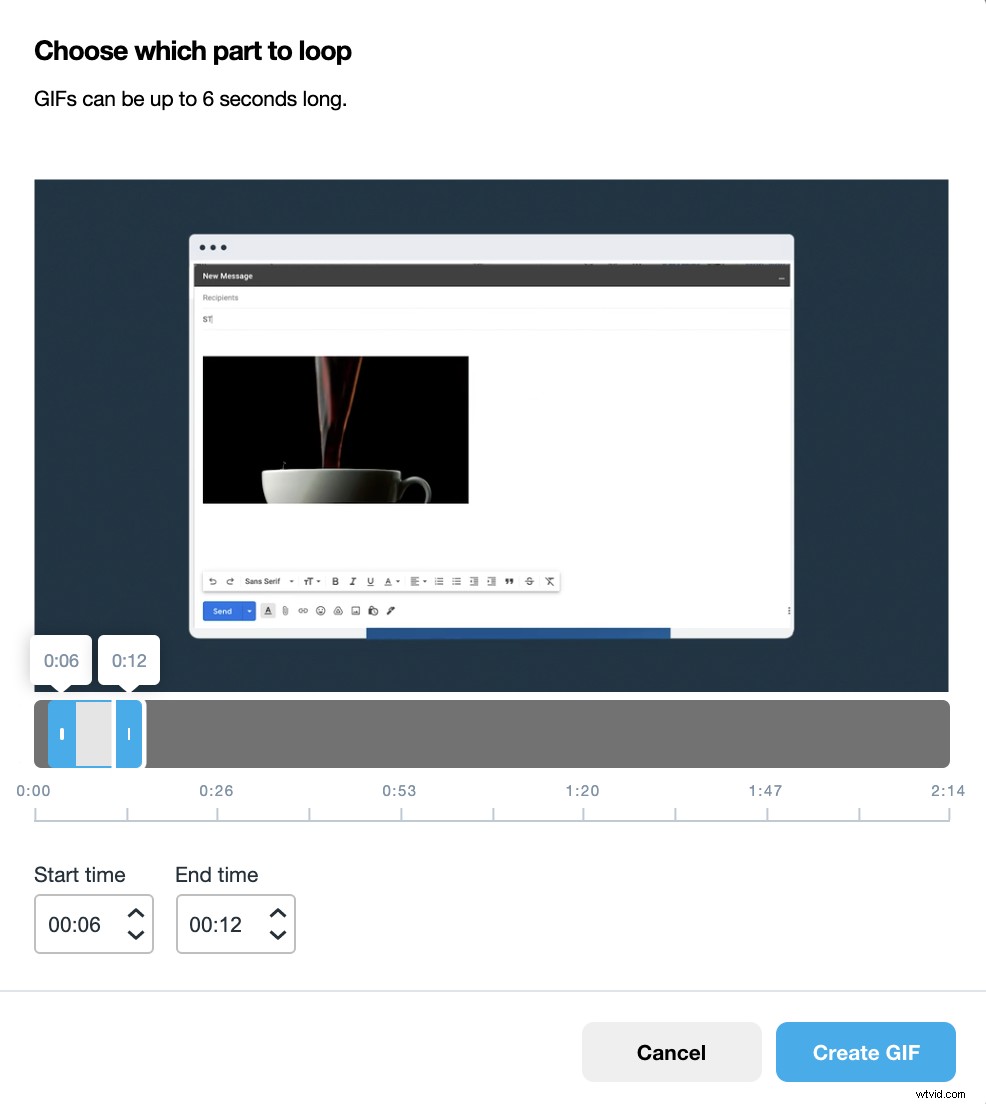
Select the start and end time of your GIF from your video timeline — it can be up to six seconds. Once you’ve picked the correct time range, click “Create GIF.”
Step 3: Export or embed
Your GIF is now created! From here, you can download for future use and share anywhere. You can create up to four gifs per video.
(Or you can generate an email platform-specific embed code that’ll make embedding as easy as a simple copy + paste!)
How to make a GIF in Photoshop (in just 4 steps!)
An oldie but a goodie, let’s dive into the process for making GIFs in Photoshop. (You can review the official Adobe guide here.)
Step 1: Trim down your video to gif length
If you’re in Vimeo Create, you can trim your clip down to six seconds, save, and download. You can also use tools on your computer, like QuickTime, to trim your content. Then, you’ll upload your file to Photoshop.
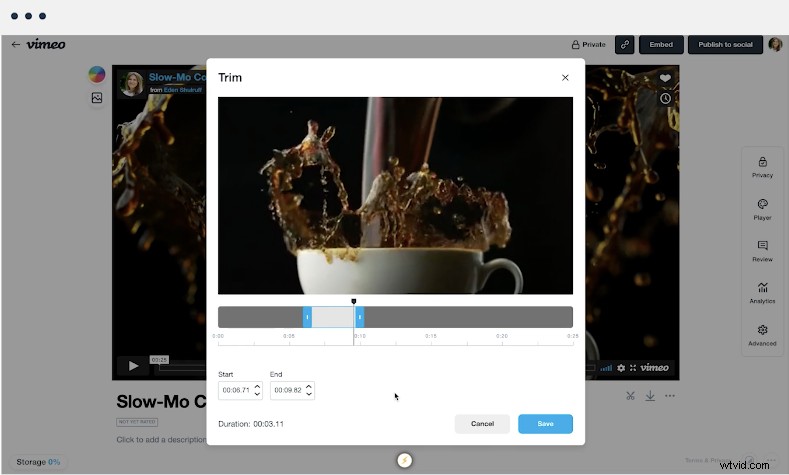
Step 2: Reduce your GIF size
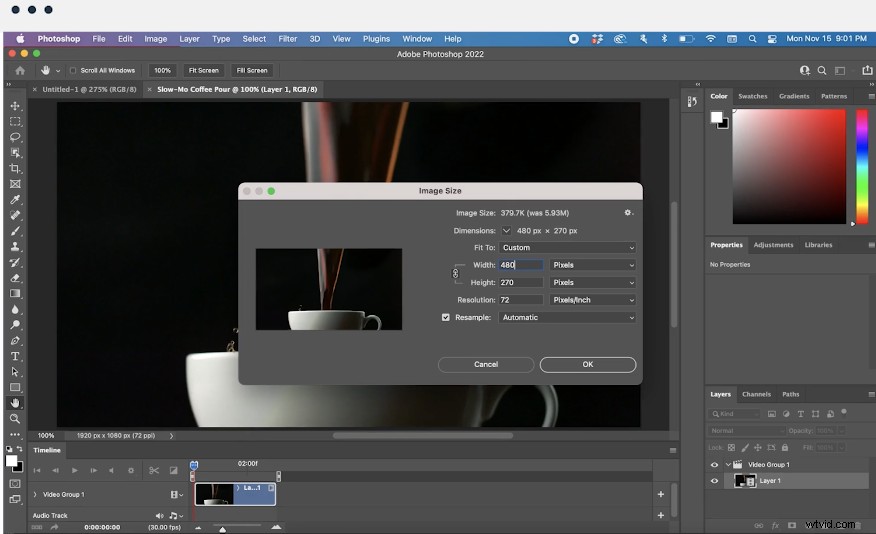
Head to “Image > Image Size” to pop out the dimensions, and go ahead and reduce that file size a bit.
Head to “File > Export > Save for Web [Legacy], which will open up a control panel to the right of your screen.
Step 3: Set up your loop
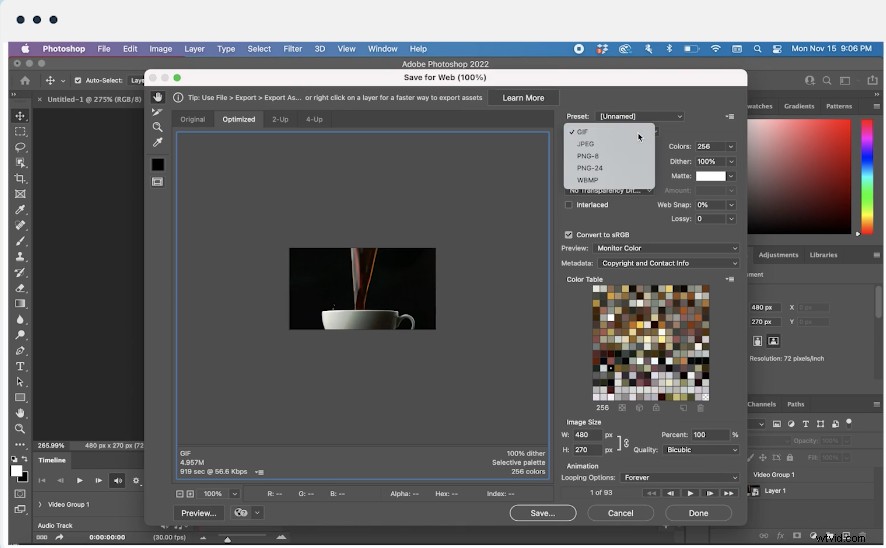
Select “GIF” from the dropdown on the right hand menu.
Don’t forget this step: select the “Repeat” menu in the Timeline panel, then tap “Forever.” This will create your endlessly looping GIF!
Step 4: Export your GIF
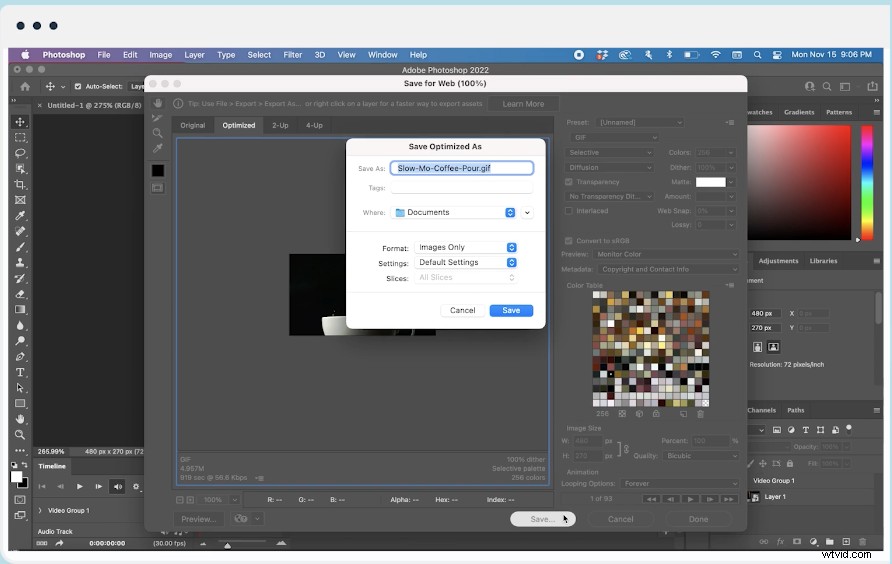
You’re almost done! Head to “File > Export > Save for Web (Legacy).” From there:
- Select “GIF 128 Dithered” from the Presets menu
- Choose “256” from the Colors menu
- Select “Forever” from the Looping Options menu
Once you’ve previewed your GIF and like the looks of it, hit “Save” and select a download destination to finish up.
How to make a GIF with Adobe Premiere
Adobe Premiere heads, this one’s for you. Here’s how to make a GIF in four easy steps.
Step 1: Edit in your timeline
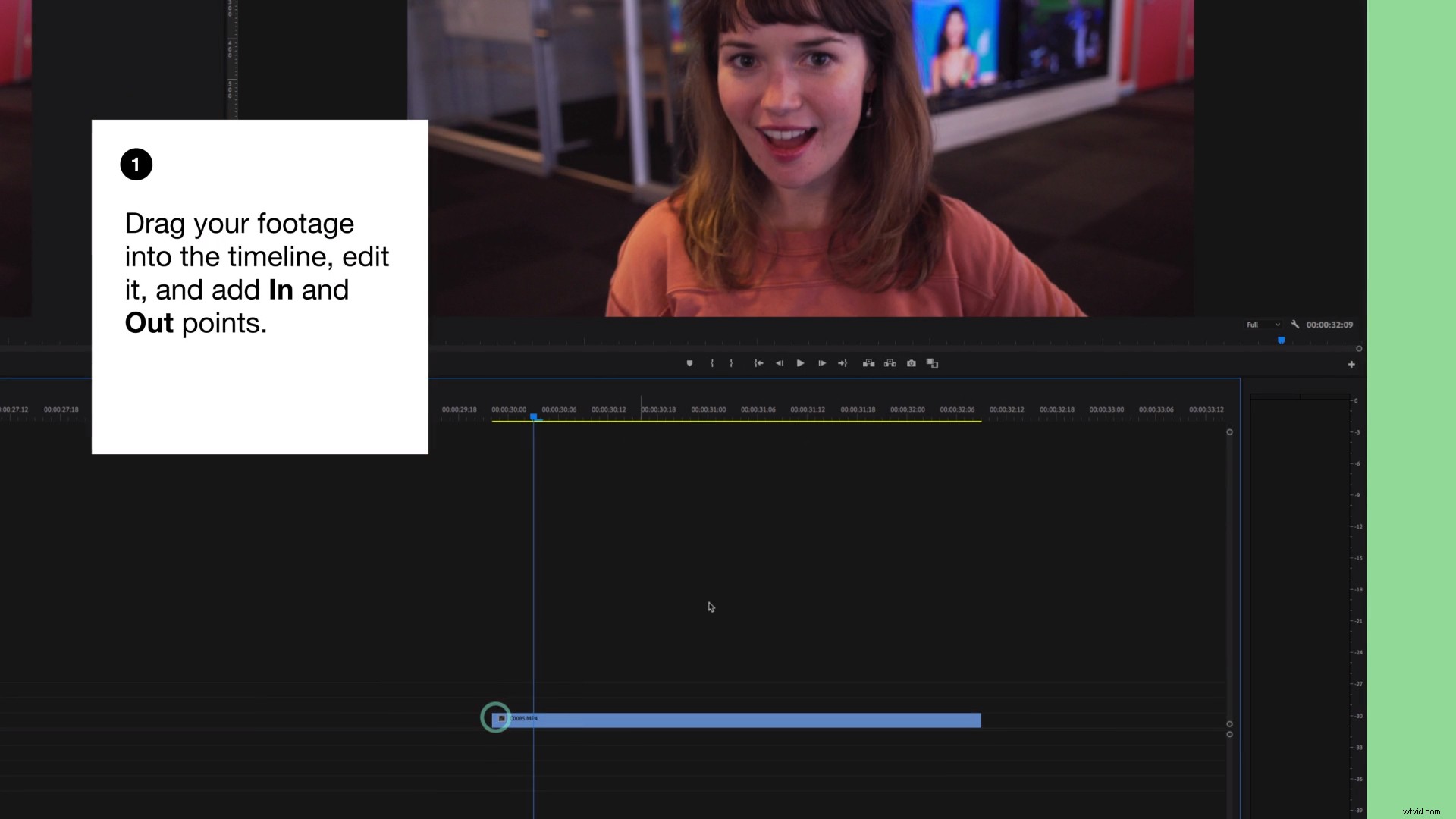
Drop your video clip in a timeline. Edit however you wish, and then lock it between some In and Out points.
Step 2: Prepare to export
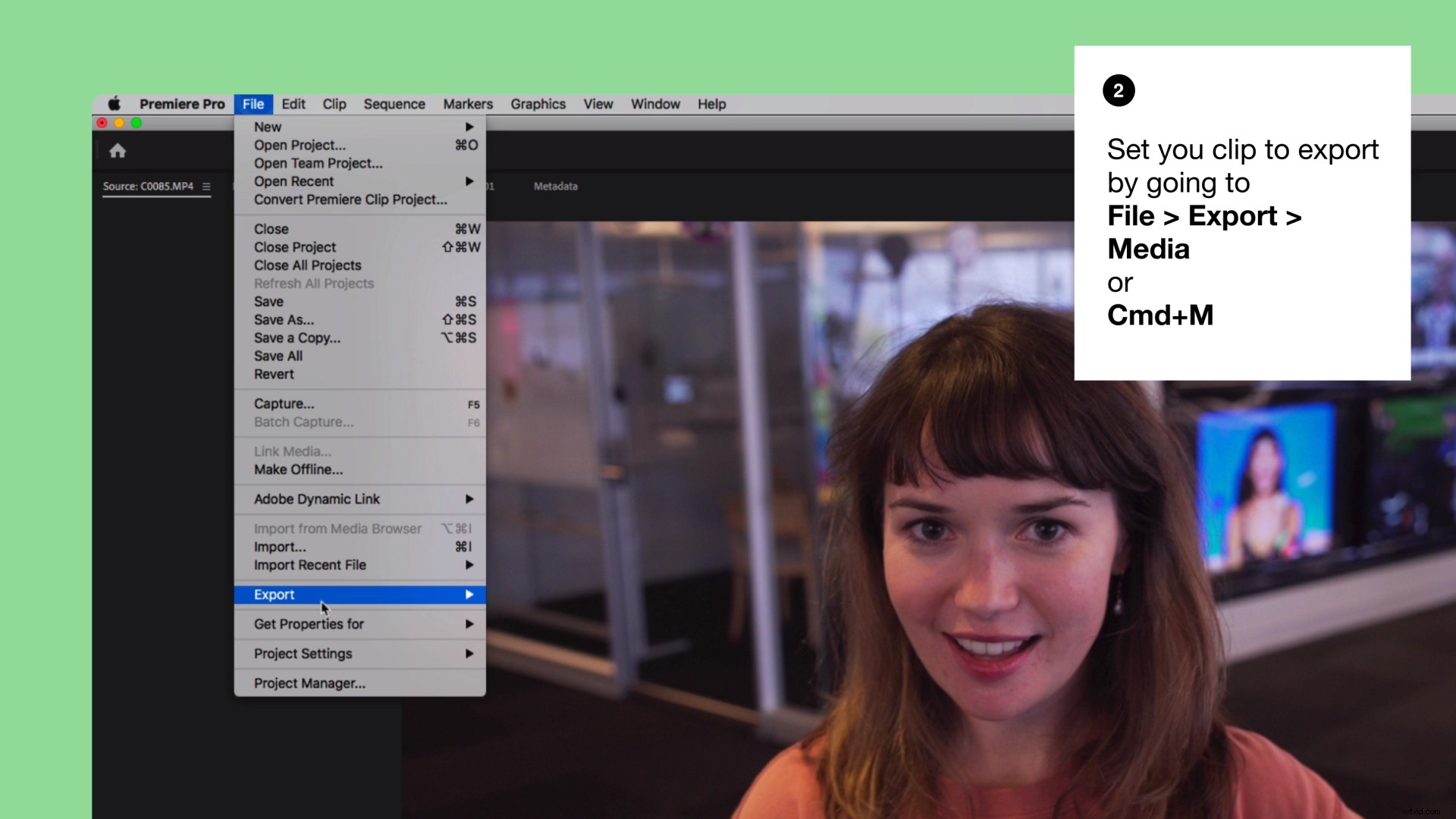
Make sure you’re clicked into the video timeline, and prepare to export the file as you would a video: “File > Export > Media”.
Step 3: Adjust your settings
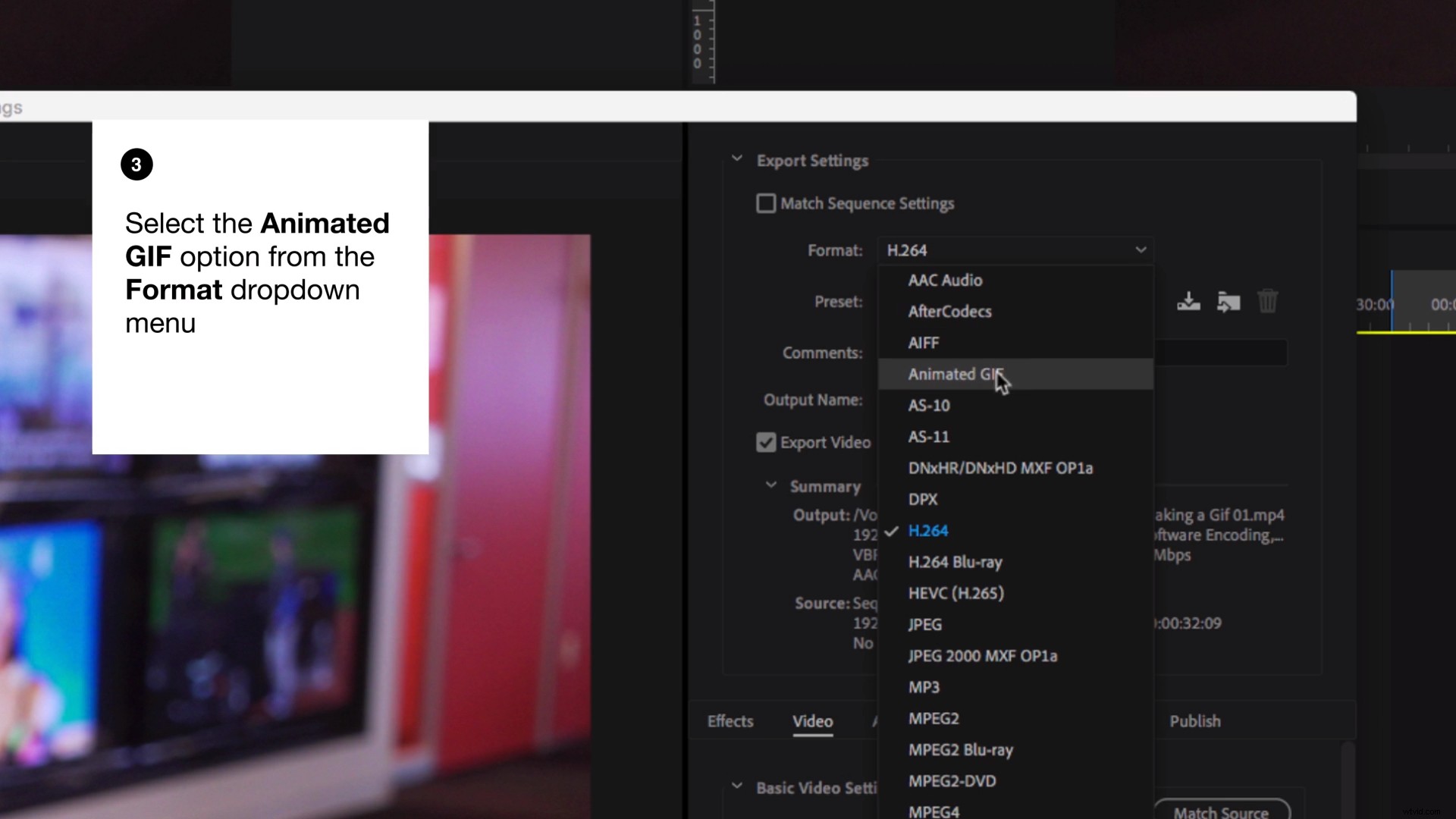
Now with that window open, select “Animated GIF” from the “Format” dropdown menu. Name your file, add its destination, and change any video settings.
(Note: Larger resolutions and longer length GIFs may have some issues when being exported or embedded. To avoid this, try to keep your GIF short and sweet.)
Step 4: Export
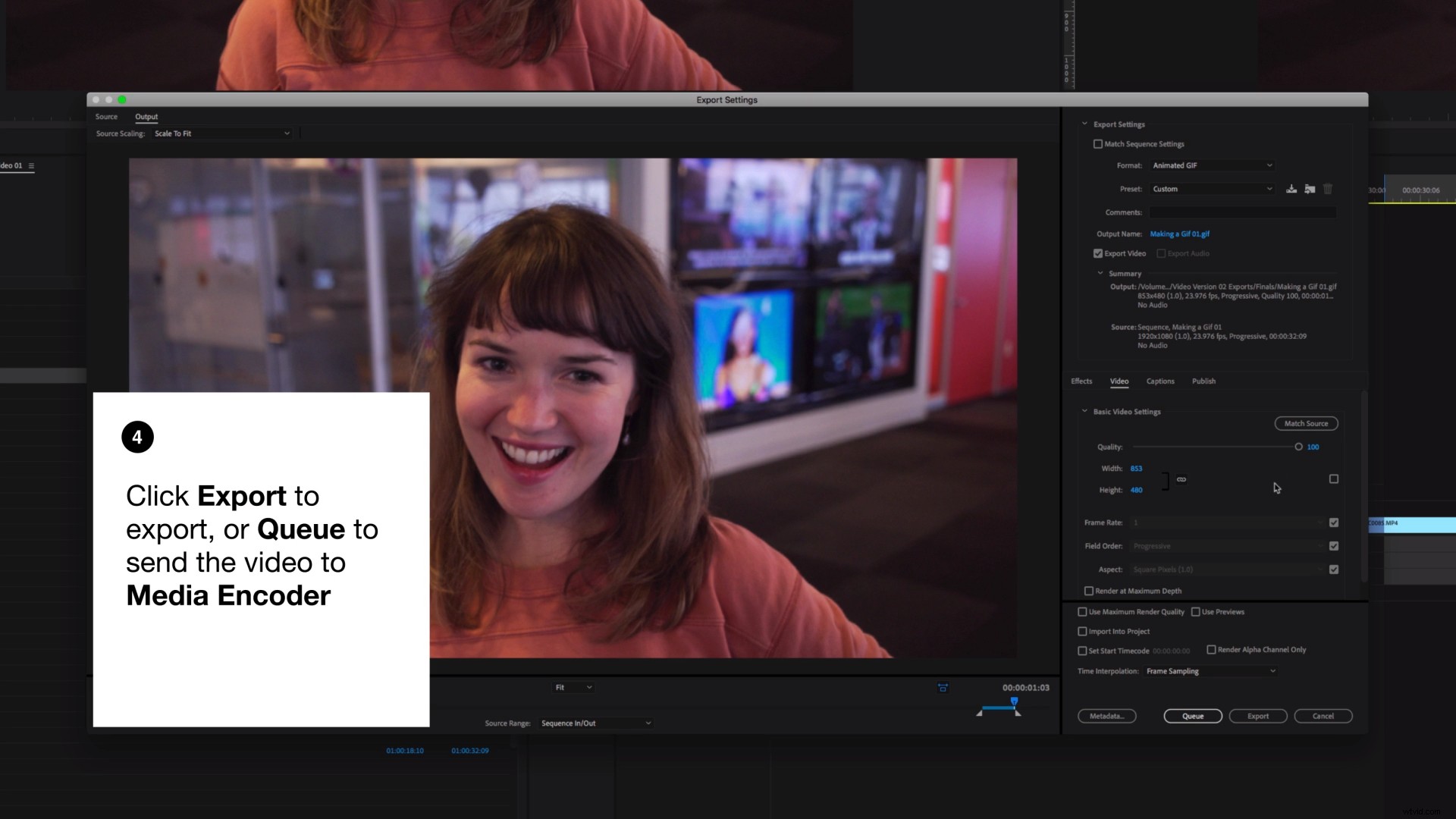
Now just click “Export!” You can also hit “Queue” and send it to Media encoder, which has the same animated GIF option as well.
Video by Jennifer Arfi.
How to make a GIF with GIPHY
You can also use an online video to GIF converter like GIPHY to get it done. Here’s how.
Step 1: Upload and “Create”
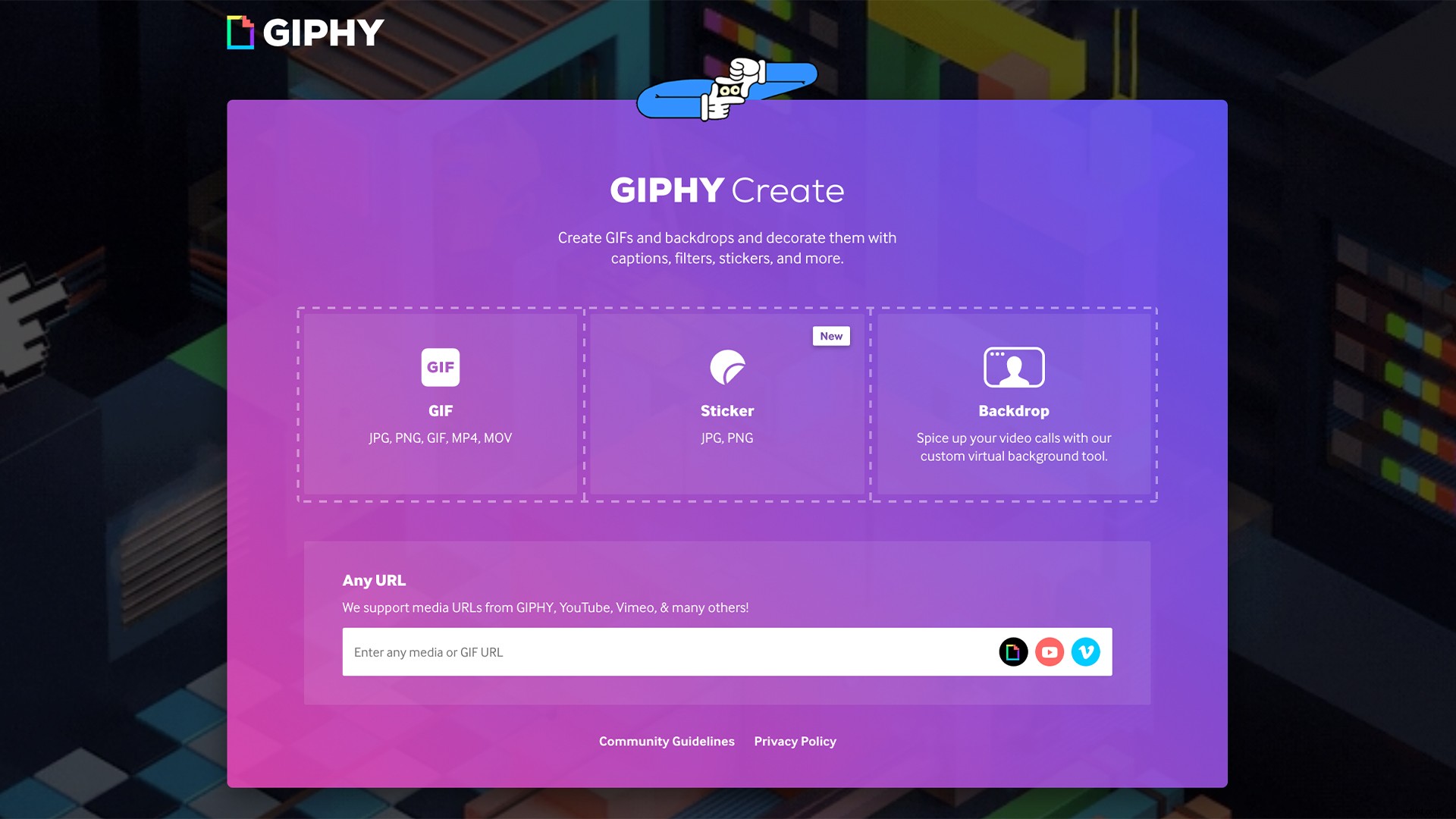
First, head to Giphy’s website or app and tap “Create.” You can directly paste in your Vimeo video link into this field. Note: you’ll need to make sure your video settings allow downloads for this to work. Once you’ve selected that, you’re good to go.
Step 2: Trim your video
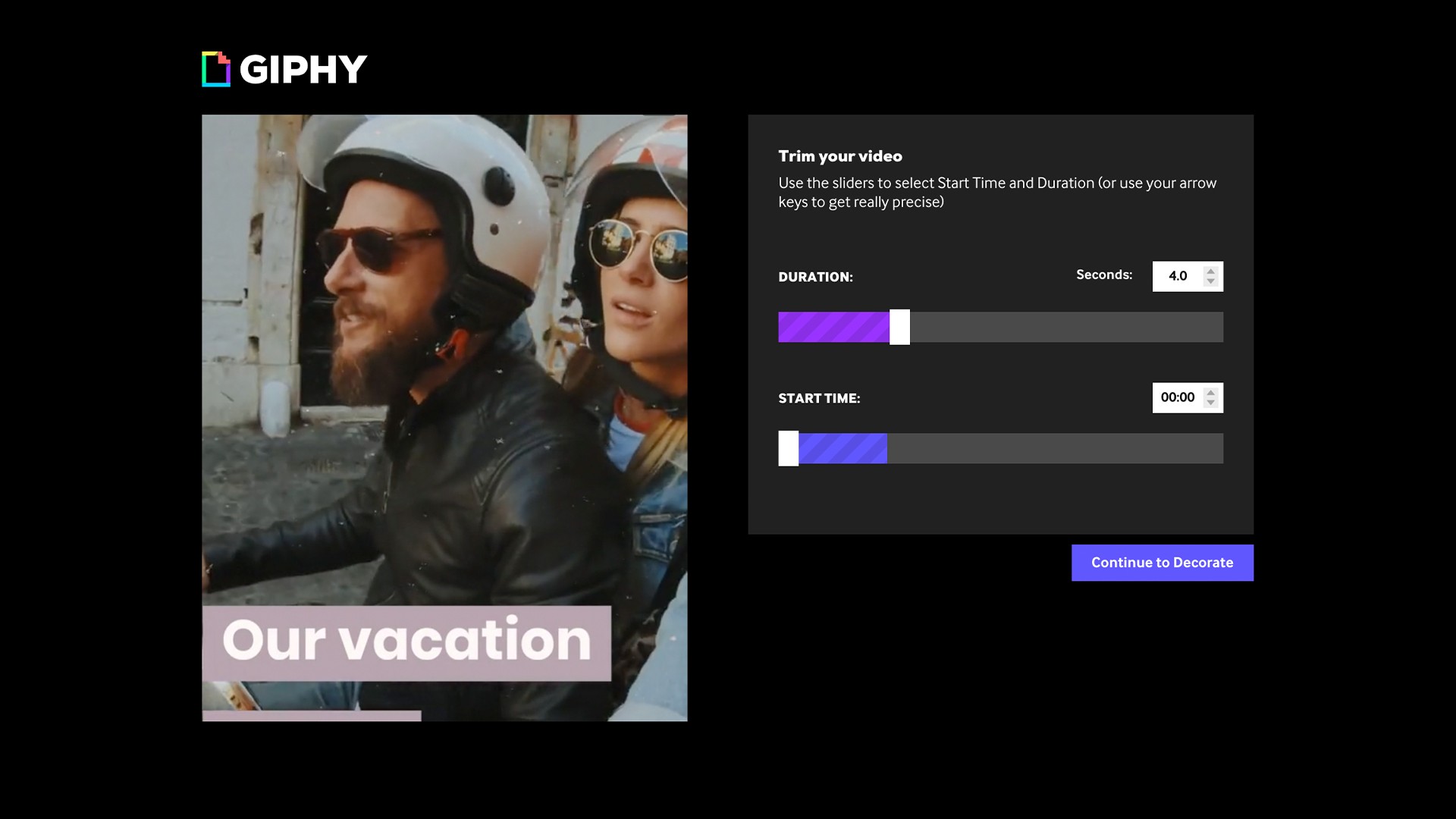
Select the duration of your GIF and what section of you video you’d like to loop, using the sliders. Then hit “Continue to decorate.”
From there, you can add any text of your choosing, with options to customize both the style and the animation of the text. Once you like how it looks, tap “Continue to upload.”
Step 3: Add a source link and tags
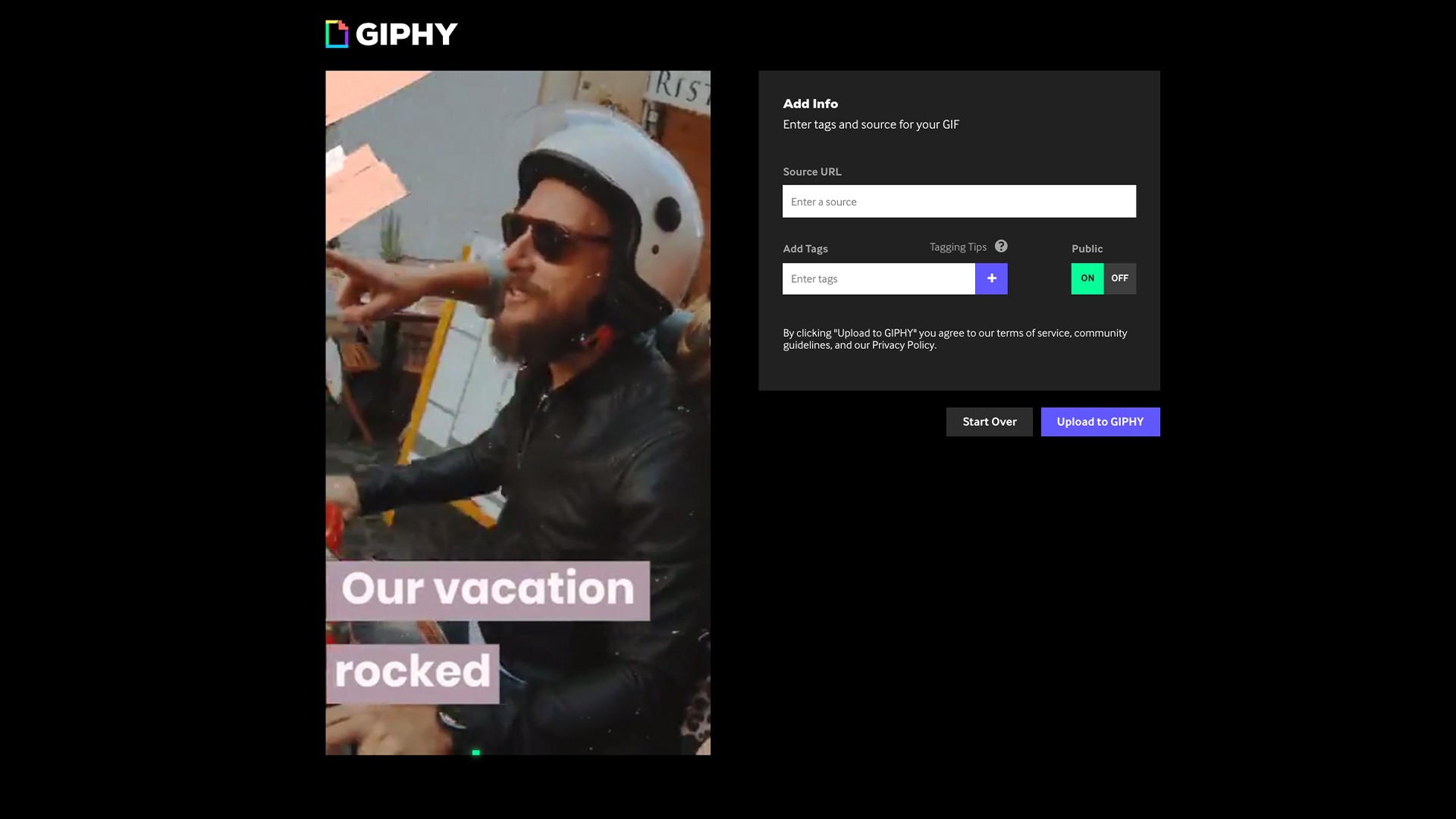
For better discovery within the GIPHY site and to make sure you’ve got proper sourcing, drop in the URL of your original video and tag with any relevant terms.
Step 4: Upload to GIPHY
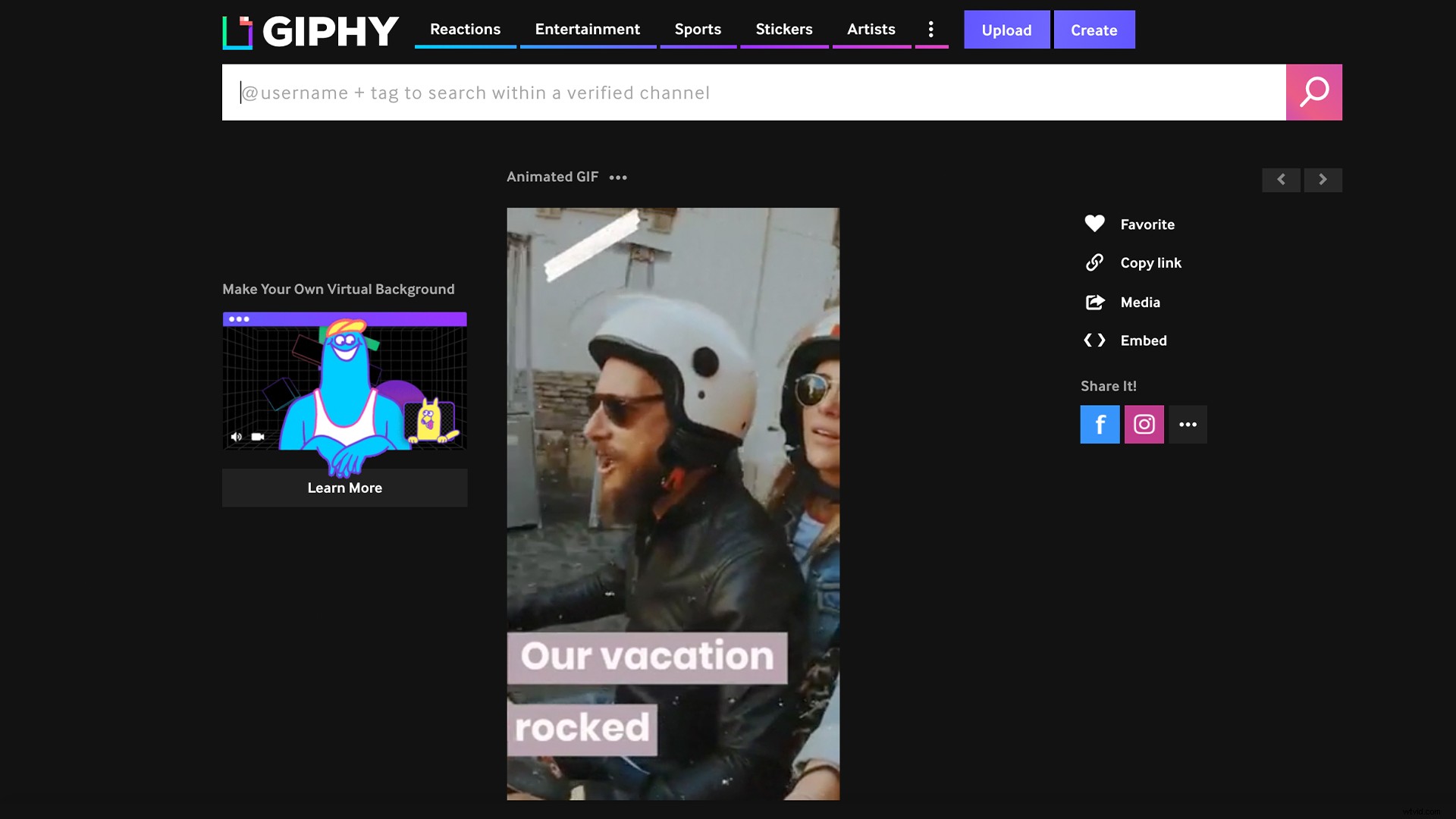
Once done, hit “upload to GIPHY.” Now you have a shiny new GIF! You can either copy the embed code, download it directly, or share with others via social.