
Three easy steps. That’s all it takes to transform your videos into GIFs. The entire process can easily be done in just a few clicks.

Anatomy of a GIF
GIFs are short clips, ten-seconds or less, with no audio. GIFs play automatically on a loop. The files load quickly and can work across various platforms. The lightweight file size makes GIFs hassle-free to share, upload or embed in a website or email.
Most GIFs are created using videos or simple animations. Anyone with the Screencast-O-Matic Video Editor has the power to customize and convert any video into a GIF.
Creative Ways to Use GIFs
GIFs can be a quick way to enhance professional projects, create workflow instructions, build marketing campaigns, and improve social media posts. You can also send fun quirky GIFs to get your point across.
Here are several creative suggestions on how to use a GIF:
Professional Presentations
Use GIFs to save time during office meetings. Instead of showing time-consuming videos during presentations, shorten the video down to the highlights. Incorporate the shorter GIF version into the meeting. Send a followup email and link to the full-length video.
Workflow Instructions
Screencasts are a popular tool among professionals creating online tutorials. If your tutorial is simple, consider converting your video file into a GIF.
Enhance your video in the Screencast-O-Matic Video Editor by adding text, shape overlays or images. Shape overlays are especially helpful in quick tutorials for pointing out important buttons or features in a recording.
Marketing Campaigns
Embed GIFs into your next marketing email. The animation from a GIF stands out, drawing viewers to important information. Looping GIFs bring extra value to emails to make sure important information stands out.
Social Media Content
GIFs are a great strategy for social media campaigns. The fact that GIFs play automatically is social media gold. You no longer need to count on audiences opting to play your content.
Turn Your Videos Into GIFs in 3 Simple Steps
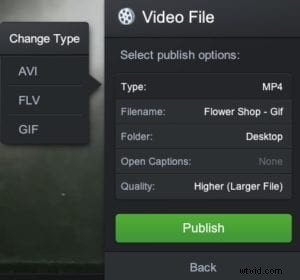 Screencast-O-Matic has made it easy to create a GIF. Once you are done creating your video, follow these simple steps to transform them into shareable files.
Step 1: There will be several options to upload and save your video. On the menu, click ‘Save As Video File.’
Step 2: Select ‘Type’ and choose ‘GIF’ in the dropdown menu. You can also add a filename, choose a folder and select a quality type.
Step 3: When you are done, click ‘Publish.’
That’s all it takes in 3 easy steps!
Get Creative!
 There are many ways to engage your audience with GIFs. You can use the video editor to enhance GIFs. Add rich text callouts or use shapes to emphasize your points.
You can also adjust the speed of the entire video or cut out sections with the editor.
Don’t have the perfect image? Use images or videos from the stock library or mix and match content from multiple devices. There are so many options to create the perfect GIF. So get creative now and use Screencast-O-Matic to get started!