
REC

Recommended: Video Production, Editing & Gear Maintenance Guide

 WTVID >> WTVID >  >> video >> Video production

Master Source Patching in Adobe Premiere Pro Timeline: Elevate Your Editing Skills

Take your video editing skills to the next level by working with source patching in the timeline panel in Adobe Premiere Pro.

Whether you’re new to Premiere Pro or simply switching over from another NLE, the timeline panel can be a bit intimidating. One of the first things you’ll want to learn is source patching. While you can easily get by without knowing how to patch a source, figuring out how to use this feature will streamline your workflow and help cut through the confusion.

Let’s have a closer look at how it works.


The Journey of a Premiere Pro Clip

First, let’s talk about how a file makes its way around Adobe Premiere Pro.

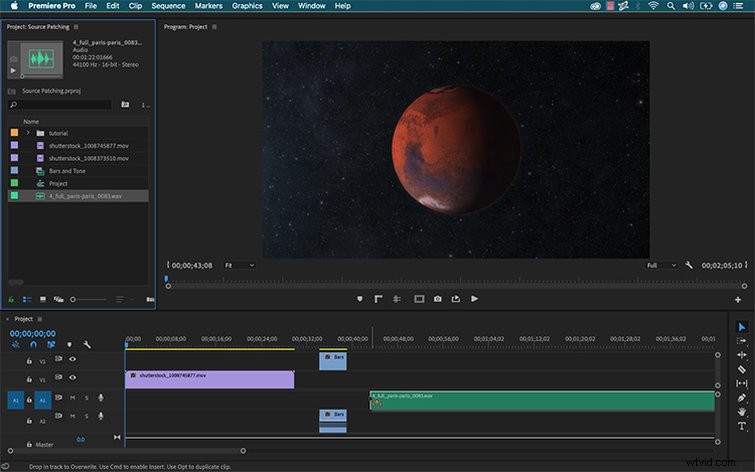
When editing video, I’m essentially taking my source material from the project panel and moving it into the timeline where I’ll craft my edit. Now, there are a number of different ways to do this.

One method is to simply drag assets from the project panel and drop them straight into the timeline. With this method, I can place the assets wherever I want. I can use keyboard shortcuts to specify if I want to perform an insert, overwrite, overlay, or replace edit. This particular method is good if I’m in a hurry and want to quickly slam a cut together, but it lacks a lot of options.
Master Source Patching in Adobe Premiere Pro Timeline: Elevate Your Editing Skills


  1. Master LUTs for Stunning Results: Lumetri Color Tips in Premiere Pro + Free LUTs

  2. Stabilize Shaky Footage Effortlessly with Warp Stabilizer in Adobe Premiere Pro

  3. How to Merge Videos in Adobe Premiere Pro: Step-by-Step Guide with Screenshots

  4. Master Working with Photos in Adobe Premiere Pro: Expert Video Editing Guide

  5. 5 Expert Tricks for Seamless Photo Integration in Premiere Pro | Video Tutorial

Video production
  1. 10 Expert Tips to Edit Videos Faster in Adobe Premiere Pro

  2. Master Audio Perfection: Clean and Enhance Sound in Premiere Pro with Adobe Audition

  3. Master Digital Zooms in Premiere Pro: Unlock Stunning Effects from 4K Footage

  4. Master Sequence Nesting in Premiere Pro: Clean Up Timelines and Accelerate Your Editing Workflow

  5. Step-by-Step Guide: Record Professional Voiceovers in Adobe Premiere Pro

  6. Slash Editing Time: Add Notes to Footage Markers in Adobe Premiere Pro

  7. Insta360 Fully Integrates with Adobe Premiere Pro for Seamless VR Editing

  8. Master Slow-Motion Magic in Premiere Pro: Pro Editing Tutorial