
Let’s take a look into how sound quality can be improved in Premiere Pro with the help of Audition. Follow these steps to clean your audio.
As filmmakers who are primarily focused on the visual elements of our projects, we often relegate audio capture and mastering to the “nice to have, but not essential” category.
It’s to our detriment since few things affect the quality of the final film or video more than sound quality — in particular, the quality of dialogue — because it’s the critical factor in audiences understanding plot and absorbing nuances.
In this video tutorial, we’re going to look at how to clean up dialogue that’s been captured in less-than-ideal circumstances, and how to add extra punch and quality to that audio for the final output.
Eliminating Background Noise
Background noise is probably the most common audio issue in footage. Air conditioners or fans that add a constant hum to our audio are the bane of sound recordists. However, you may be surprised how easy it is to remove this in post (if you can’t switch them off on set).
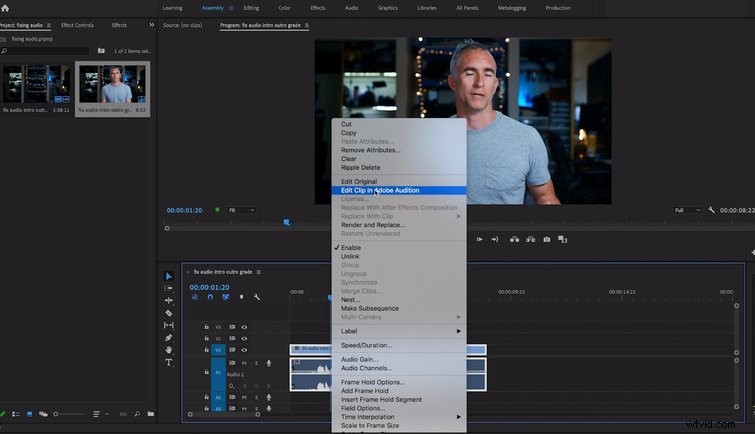
Once your clip is open and in your Premiere Pro timeline, right click the Audio and select Edit Clip in Adobe Audition. Premiere will now render the audio and open the new linked audio clip in Audition.
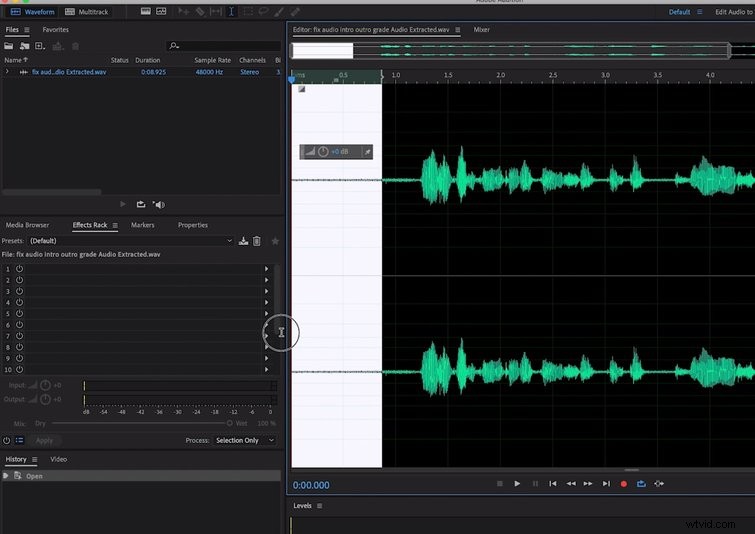
In Audition, select a part of the audio that’s just the noise with no dialogue, and go to Effects > Noise Reduction (process), then click Capture Noise Print. Now, deselect the previous selection and select the entire clip.
Audition will use the noise you previously defined to remove the AC noise from your dialogue. If you set the amount too high, the noise will disappear, but it may leave the voice sounding tinny and robotic. A setting of forty to sixty percent usually eliminates a hum, without making the speaker sound like a robot.
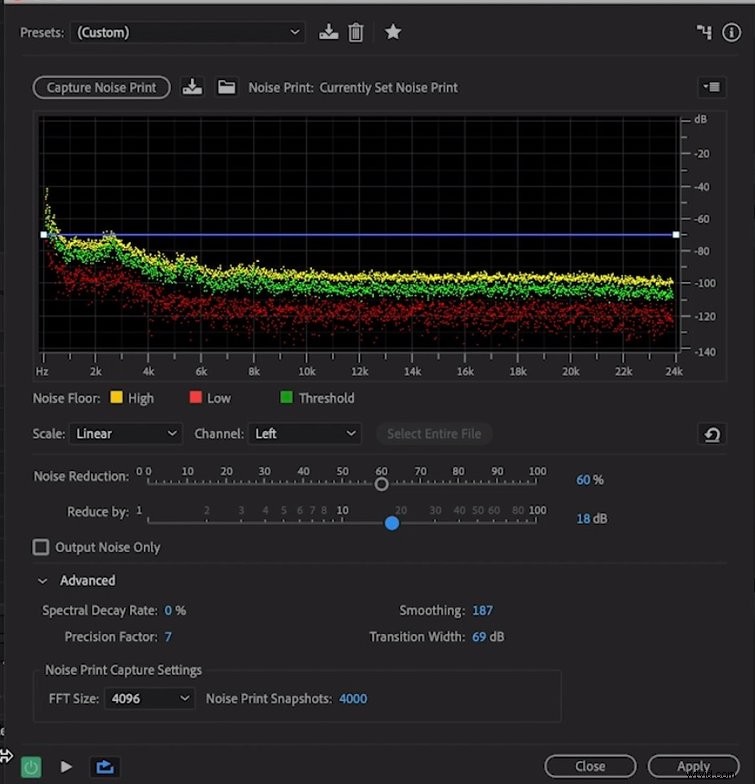
Save the waveform, and when you swap back to Premiere, you’ll find your audio updated with the settings from Audition.
Master the Audio
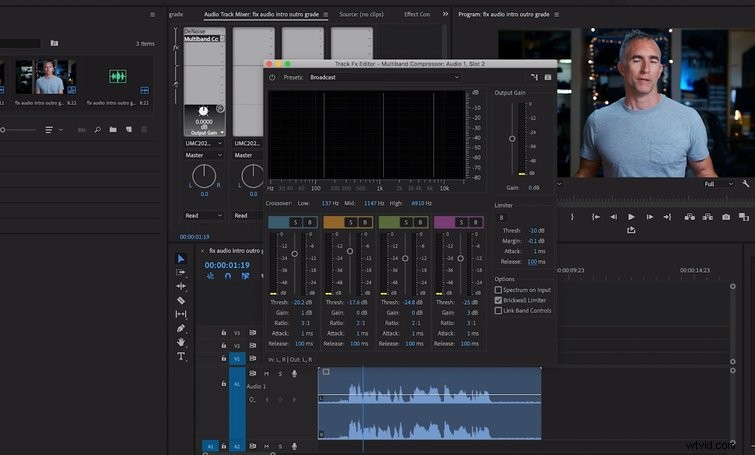
To master the audio and standardize the volume levels, go to the Audio tab and select the track you’ve placed your dialogue in (typically Track 1). In the Audio Track Mixer, select Multiband Compressor. Double click the compressor to bring up Options and select Broadcast in the presets. This will not only punch up the audio levels, but make the voice sound more full.
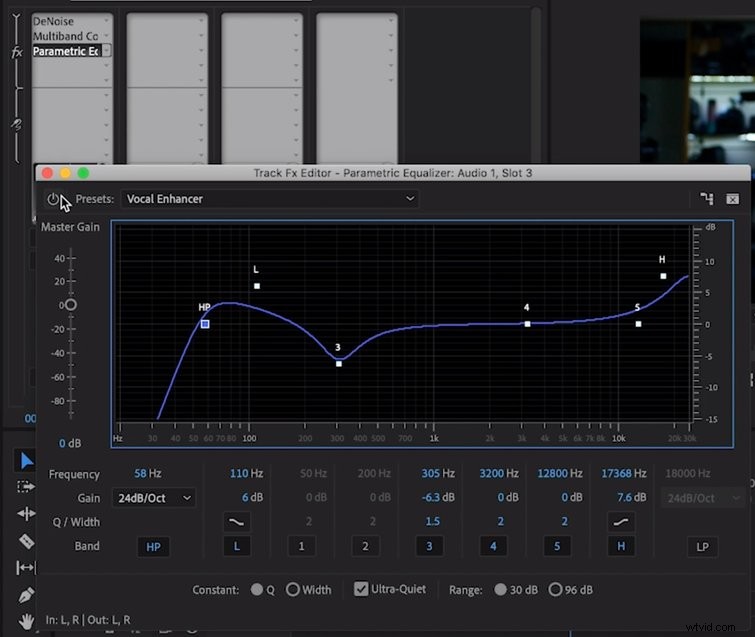
For a final touch, add a Parametric Equalizer. Click the Options box and scroll down to select Voice from the presets. This will add some bass and top-end to the speaker’s voice, allowing it to cut through whatever music you place against it.
Film audio is a universe in itself, but that doesn’t mean that we can’t learn some tricks — especially when they help us get better-quality audio that will set our projects apart and compliment powerful visuals.