
J-cuts and L-cuts in video editing
Many editors may not know some types by name since nowadays editing has become easier and more intuitive, and, for example, look for a J-cut or L-cut definition . Those are pretty simple, though.
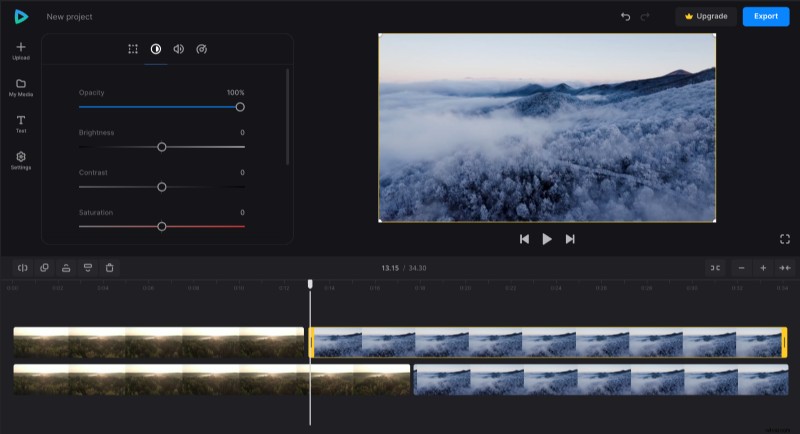
L-cut, like J-cut, is a way of compositionally combining two frames using an audio track. In the case of L-cut, the sound is superimposed on the second frame from the first one. And in the timeline, it looks like the letter "L", hence the name. So what is a J-cut? It's the same thing, but this time the sound is superimposed on the first frame from the second one. And in the timeline, we can see something like "J". In film editing, this way of transition helps preserve the atmosphere when moving from one scene to another and creates the illusion of a "seamless" transition.
Nowadays, if you want to make such cuts in your video, it's easier than ever. And you don't even have to download any video editor – our online tool will help you with this task! All you need is an internet connection, otherwise, it works on any device so you can edit your videos anytime.
The rest is easy, just take a look at the steps below:
Upload files
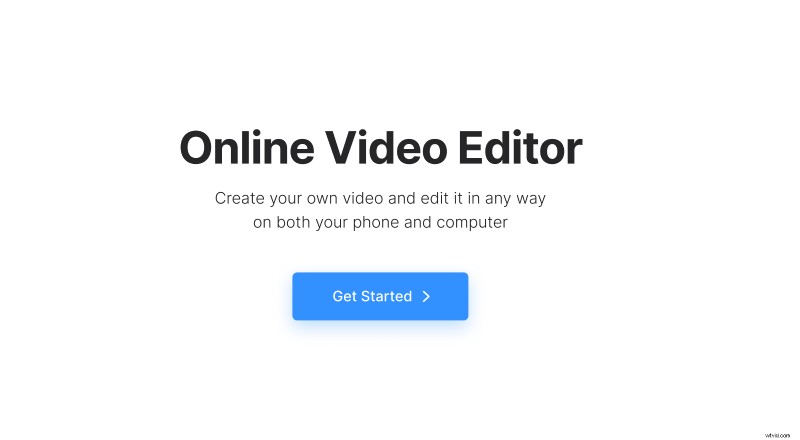
Open Clideo’s Online Video Editor and click "Get started".
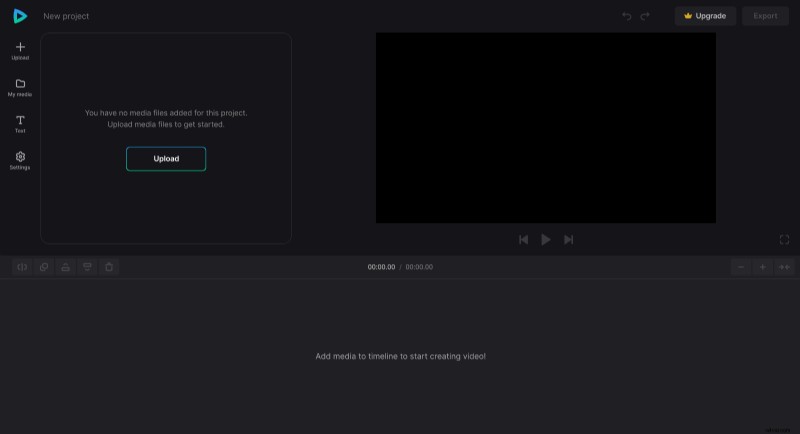
On the next page, click "Upload" and add your media files from your device or cloud storage account. You can add additional files anytime in the same way.
Create split edits
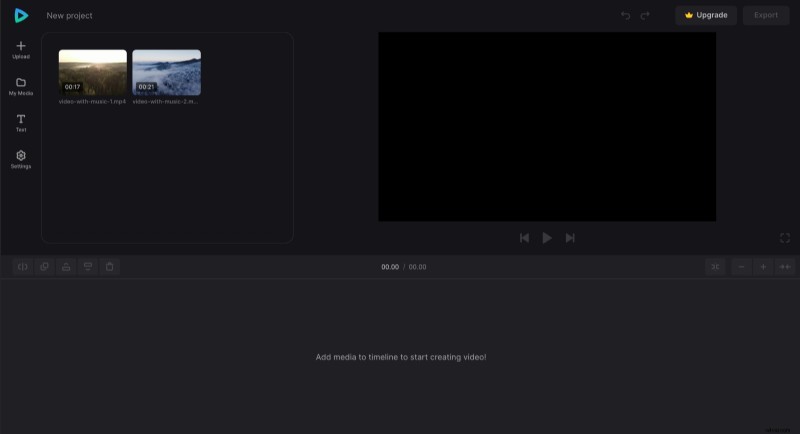
Uploaded files are stored in the "My Media" tab. And now you can make a split edit, let's start with an L-cut.
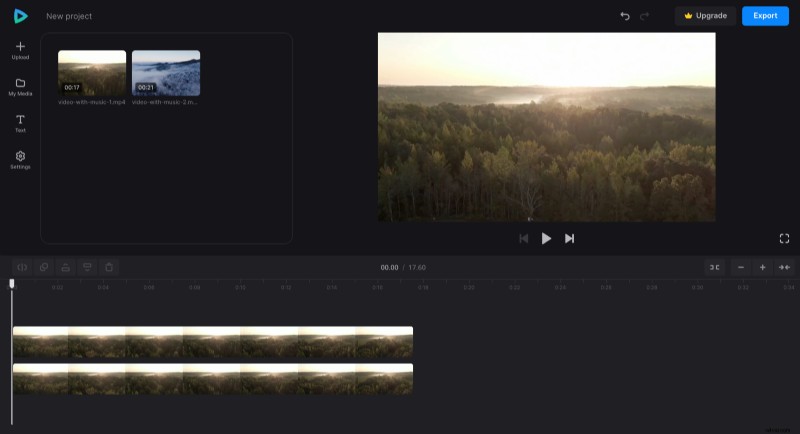
Drag your first video to the timeline or click the "+" icon on the media thumbnail. Then select the video in the timeline, click the "Duplicate" option at the top left of the timeline or use the regular copy-paste keyboard shortcut, and drag the duplicated video under the first one.
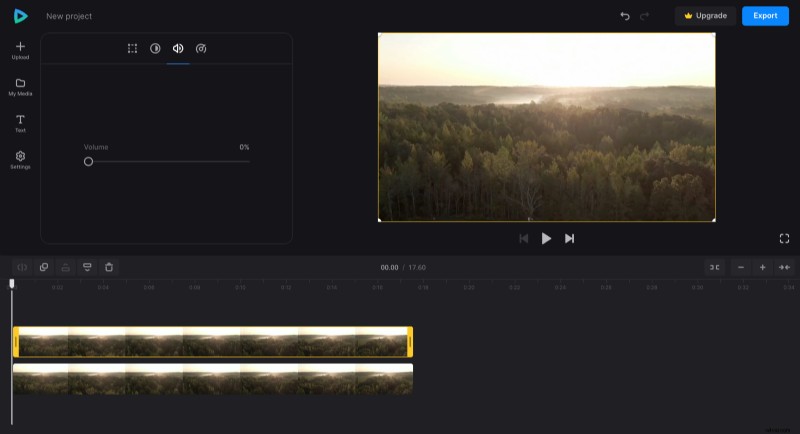
Select the first video and remove the sound – to do so, click the "Volume" option and set it to 0%.
Then, make the duplicated video transparent by setting its opacity to 0% in the "Adjust" tab.
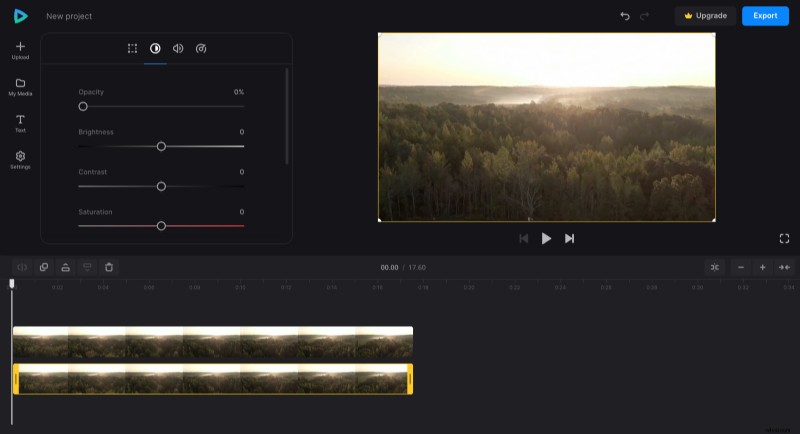
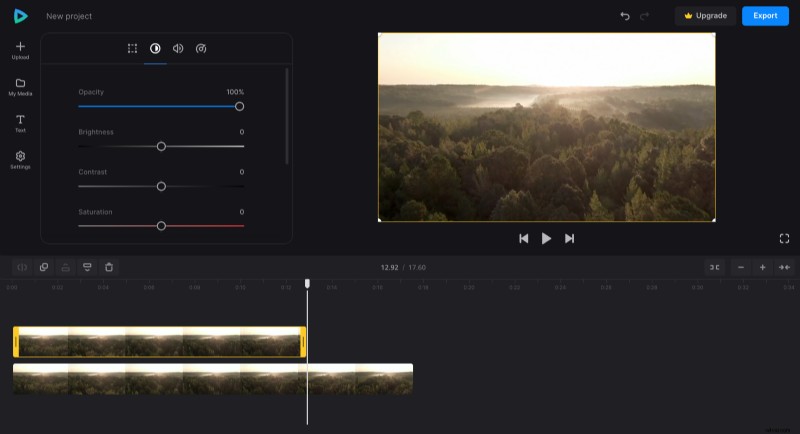
Voilà, you have the video and audio separately, video only is at the top and sound only is at the bottom. So if you shorten the first video clip and add another next to it, you will hear the audio from the first clip while already seeing the second one. And that will be an L-cut.
By the way, if it is easier for you to operate with a separate audio track, you can cut audio from the original video with the help of one of our mini tools.
Then you can add the second video and perform the same operations, but this time make a J-cut.
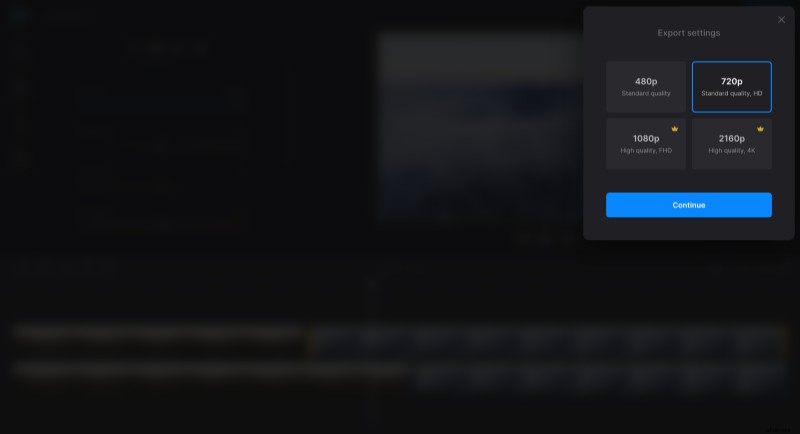
When you finish editing, click "Export" and choose the export option you want. The exporting process may take more time if your project is large.
Download the result
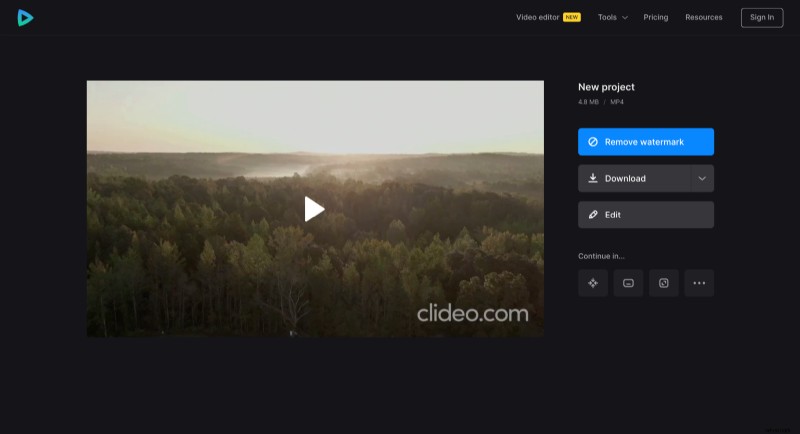
Watch the preview to see how the final video looks. If you need to change something, click "Edit". Otherwise, click "Download" to save the video to your device or upload it to the cloud storage.
See also our Help Center for more details about Video Editor.