
How to put video side by side
Some social media have an inbuilt option of creating side-by-side video comparisons, but they rarely allow sharing the result on other platforms.
You’ve asked — we’ve heard! Usually, Clideo provides a separate tool for each editing function: adding sound, muting, applying filters, cutting, reversing, flipping, etc. But now, meet our new “all-in-one” video editor!
As always, it’s not an app but an online service. With its help, you can edit your video in different tools without constant uploading and downloading. It’s an elaborate, multi-functional and handy editor, and still, we’ve tried to keep it as user-friendly as possible.
Take your seats, here we go! Let's make a comparison or reactin side-by-side video, say, for TikTok.
Upload a video to the editor
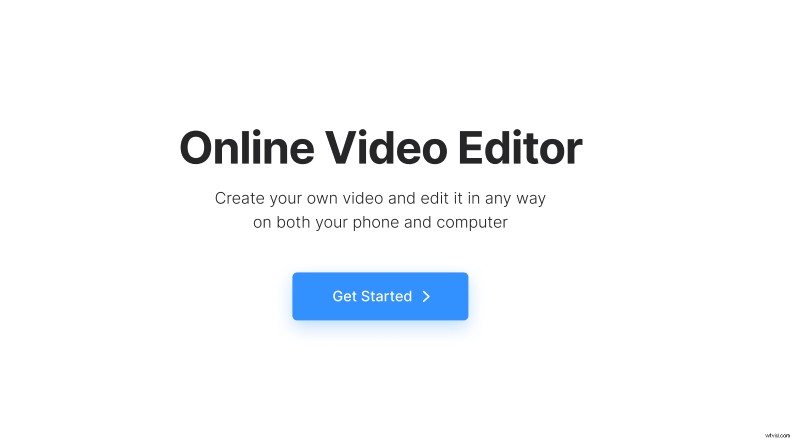
Open Clideo’s Video Editor in any browser and on any device and hit the "Get started" button.
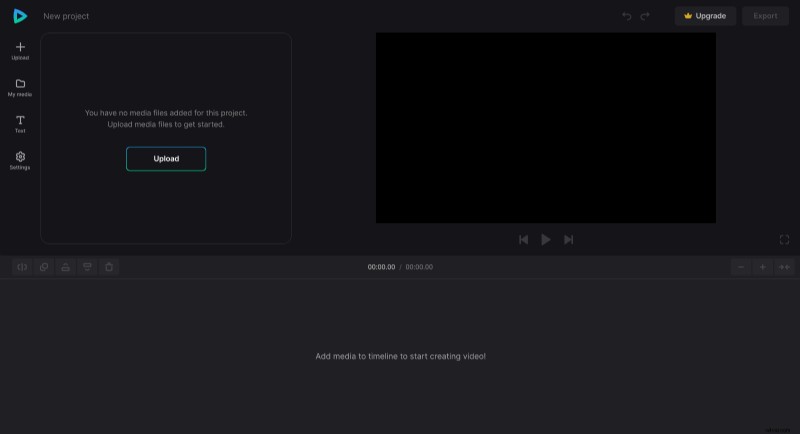
Then, click either the "Plus" sign on the left sidebar or the "Upload" button to import your clips. You can also just drag the files from your computer folder to the editor's screen. We’ll need two videos or images, if we want to place them side by side. By the way, it is possible to import media from Google Drive or Dropbox as well.
Create side-by-side video
Drag both media elements to the timeline one under another and adjust their length with the help of yellow handles. In the player, you might see only one of them — don’t worry, that’s what it could look like if they have the same size. Just click on the video in the player to make it active and drag one of the corner handles in to change its size. You’ll see the second recording just behind the first one. Adjust and move the videos in the player, so they are side by side.
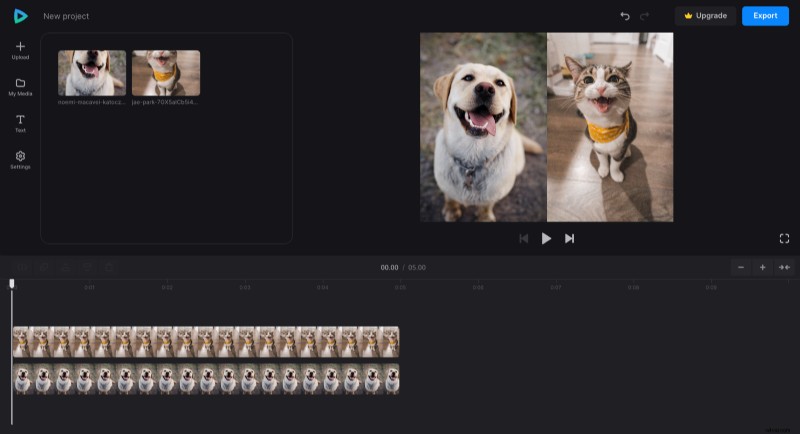
You can be as creative as you like. If needed, click "Settings" in the left sidebar and select the recording aspect ratio and background color.
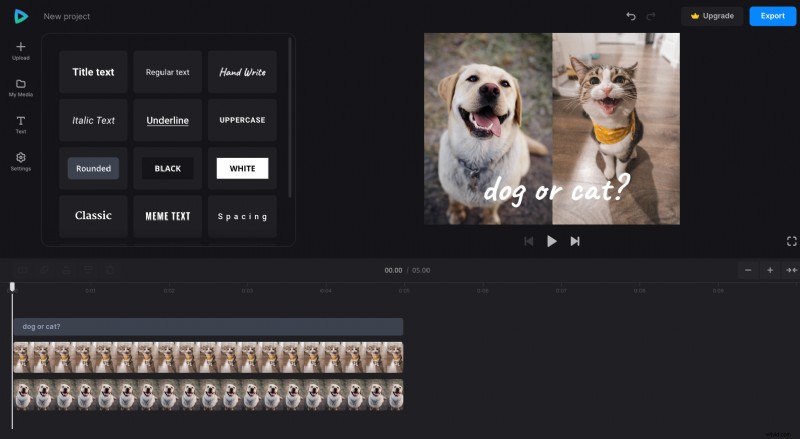
If you want to add a caption, hit "T text" and choose the preset you like. Click the plus to add it to the timeline and adjust its position in the player by dragging, expanding, and rotating. In the editor’s pane to the left, you can edit the text, set its font, color, and other characteristics.
Process and save the result
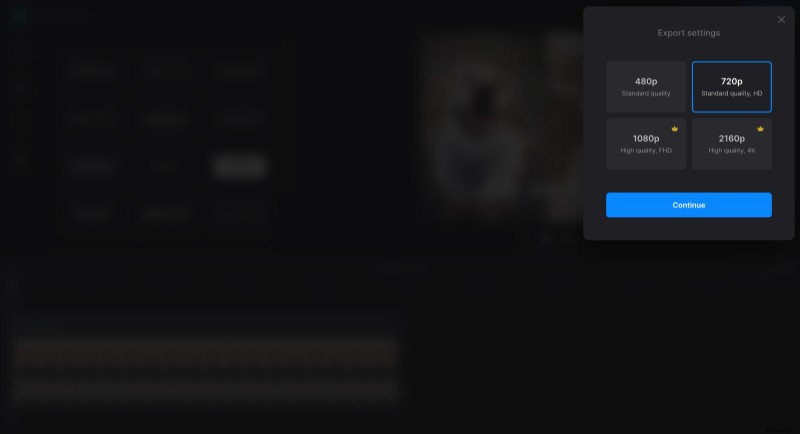
When you are done, hit the "Export"button and choose the output resolution. Free accounts may avail of 480p and 720p quality. For saving the project in HD or 4K quality, consider upgrading your account to Clideo Pro.
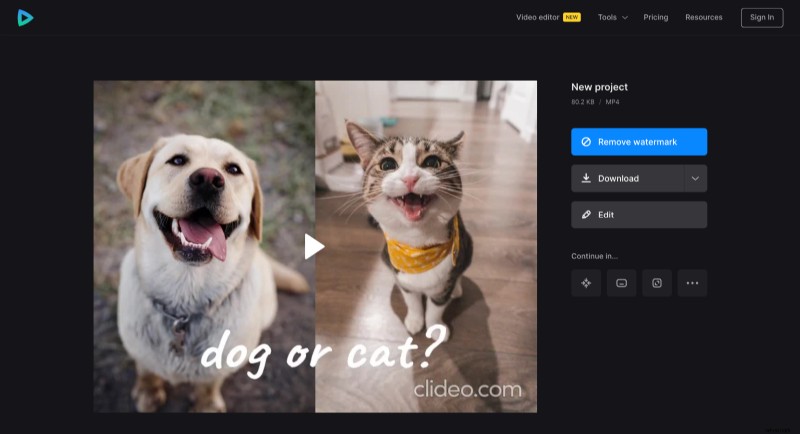
When the clip is processed, you may save it to your device, upload it to cloud storage accounts, or go back to editing.
If you are interested on other all-in-one video editor options and features, you can find more information in our Help Center.