What is aspect ratio
Aspect ratio is a proportion of the video’s width to its height. It is also sometimes called a format or orientation.
The most popular aspect ratios are:
- 16:9 — Horizontal/Landscape/Widescreen
- 9:16 — Vertical
- 1:1 — Square
- 4:3 — Full Screen
- 4:5 — Portrait
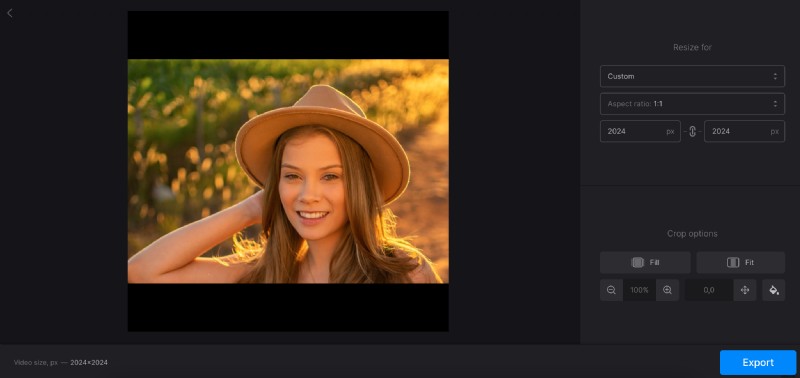
If you try to fit the wrongly oriented video to a player which is compatible with some specific aspect ratio only, the image may be stretched or there will be black sidebars.
For example, Facebook tolerates Vertical, Portrait or Landscape orientations. YouTube supports Full Screen and Landscape. While Snapchat limits the users to only one aspect ratio available – 9:16.
What is resolution
Briefly speaking, resolution is a quantity of pixels of which an image consists of. The higher it is, the better and sharper the quality. This parameter is defined by two numbers – the amount of pixels horizontally and vertically – but quite often the first number is omitted as it depends on the aspect ratio.
The most common resolutions nowadays are:
- 720p — Standard HD
- 1080p — Full HD
- 2160p — 4K Ultra HD
Not very long ago it was possible to come across 480p resolution but now it’s considered to be extremely poor.
Resolution and aspect ratio are related to each other, that’s why social media usually have a list of specifications to meet.
How to change resolution and aspect ratio
In order to change video’s resolution and aspect ratio, you’ll need a special tool.
And Clideo has just the right one!
Our video resizer helps to make a recording meet specs of the most popular social media. More than 90 presets allow you to select the needed platform and post type right away, even without checking some special guides..
The service works online in a browser and it is compatible with all the types of devices. It allows processing files up to 500 MB each, and you can upload and resize as many videos per day, as you need.
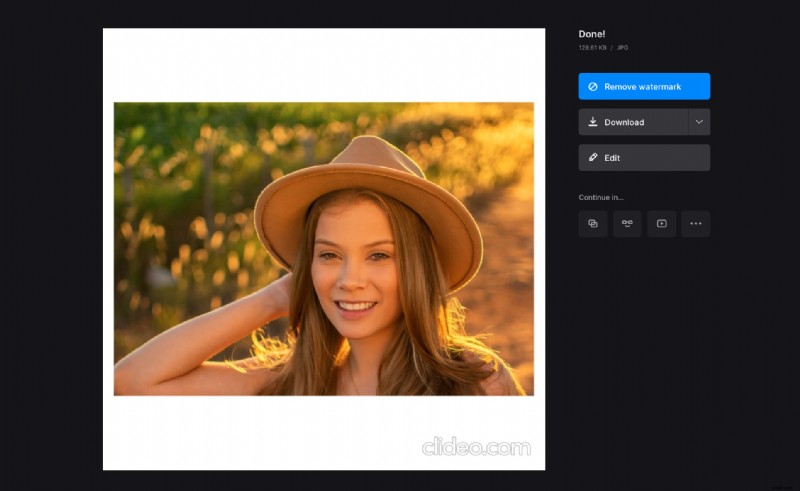
To use it, you don’t have to register or log in, but all the free users have to bear with a tiny watermark in the bottom right corner of the ready video. To get rid of it you can subscribe to Clideo Pro.
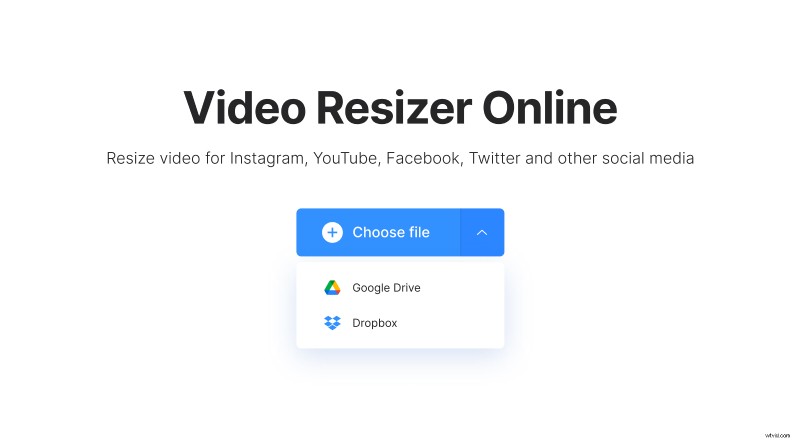
- Open Clideo’s Resizer and upload a video or photo from your personal device, Google Drive or Dropbox .
- Select a social medium and a post type you need. Otherwise, hit the “Custom” option, choose an aspect ratio and set the resolution manually. Enter either width or height, and the second parameter will be calculated automatically. You can also untick the chain sign and set both parameters as you wish.
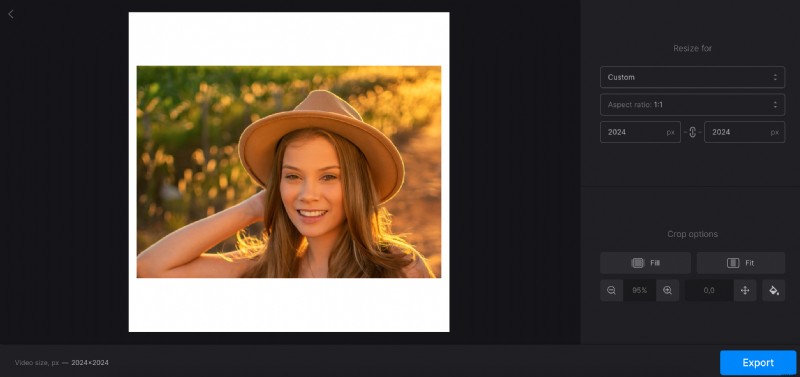
- Decide on the crop option. If there are sidebars left, choose the background colour. Change the output format if you want, click on ‘Export”.
- Save the result to your device or cloud storage account.