
Open up a world of online educational and entertainment possibilities with this tablet-based setup for creating on-screen graphics in real time.
Unleash your inner John Madden with this setup for drawing on your live streams and videos.
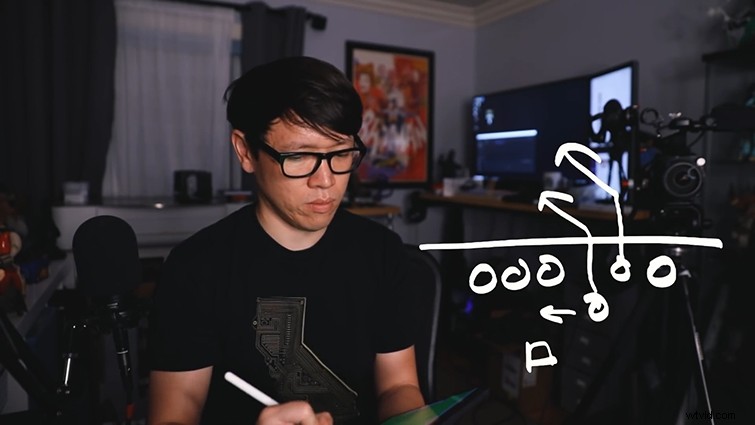
This video comes from Norm Chan from Adam Savage’s Tested crew. It’s a rather simple and ingenious way to live draw on your screen, using tools you likely already have.
Tools Required:
- Mac or PC
- Webcam or DSLR/mirrorless camera connected to your computer
- iPad or tablet with USB cable
- OBS Studio (Free)
- ApowerMirror (Free Trial)
- Adobe Fresco (Free)
Tutorial
OBS is a super-powerful free tool for streaming and recording. It’s one of my go-to programs for all things live-stream related, and it’s trusted by countless Twitch and YouTube streamers.
Using the color keying tools normally used to replace backgrounds, Chan employs a workaround where he uses a faux green screen on his tablet, keys out the color, then draws directly onto his video footage. Here are the steps.
1. Set up an OBS Project with Your Video Capture Device
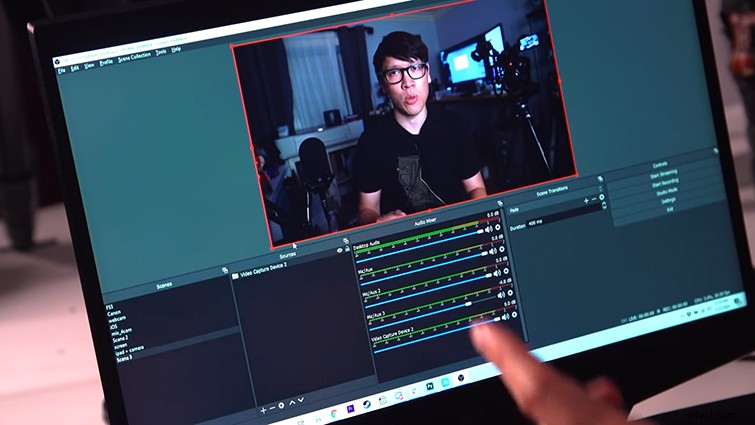
Bring your camera feed into OBS.
2. Use ApowerMirror to Stream Your iPad to Your Computer
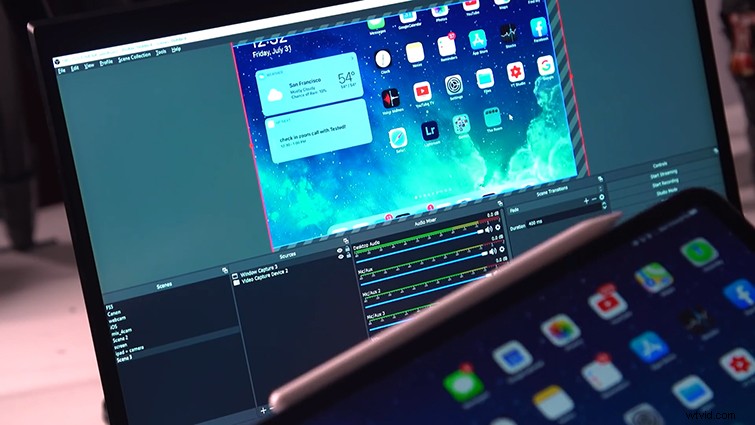
Add a Window Capture of your iPad into OBS, and layer it on top of your video feed.
3. Open Adobe Fresco on Your iPad and Load a Green Image
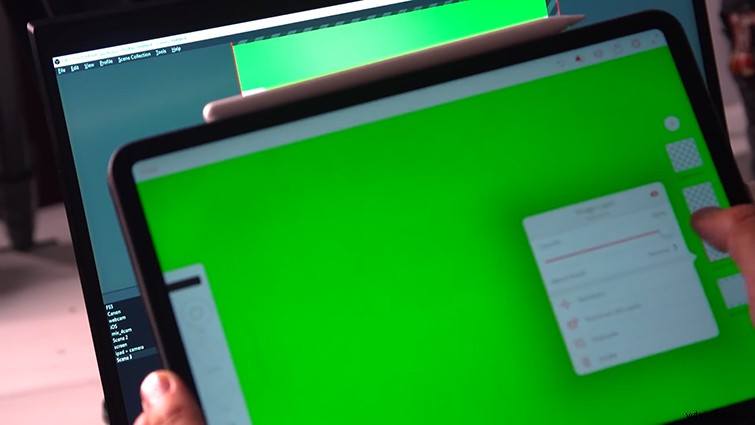
You will use Adobe Fresco as your live drawing app. To set it up, open an all green image in Adobe Fresco. This will serve as your green screen that you’ll key out in OBS.
4. Add a ChromaKey Filter in OBS to Your Window Capture
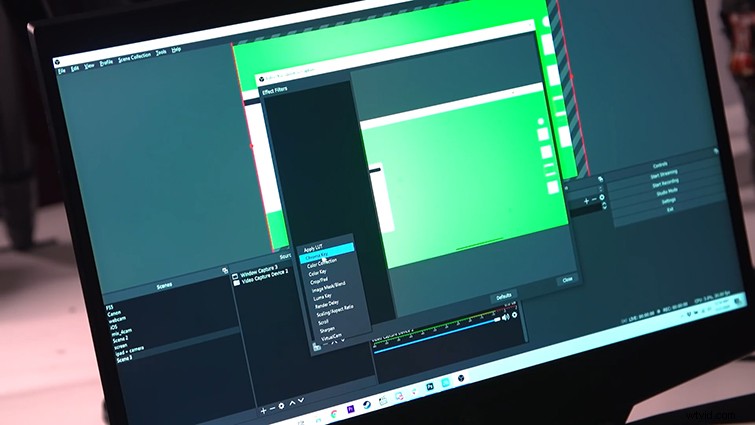
Back in OBS, navigate to your iPad Window Capture and right-click on it. Select Filters and then click on the + icon and select ChromaKey. Green is already the default, so you should be good to go.
5. Adjust and Scale for Best Results
You may see the Adobe Fresco interface on your top layer, so you can simply scale that layer up in OBS to remove the UI from the frame.
Just keep in mind, you’ll want to know the in-frame real estate that you can draw on. I suggest drawing a border (that isn’t visible on your live stream) to serve as a reference point.
6. Start Drawing and Streaming
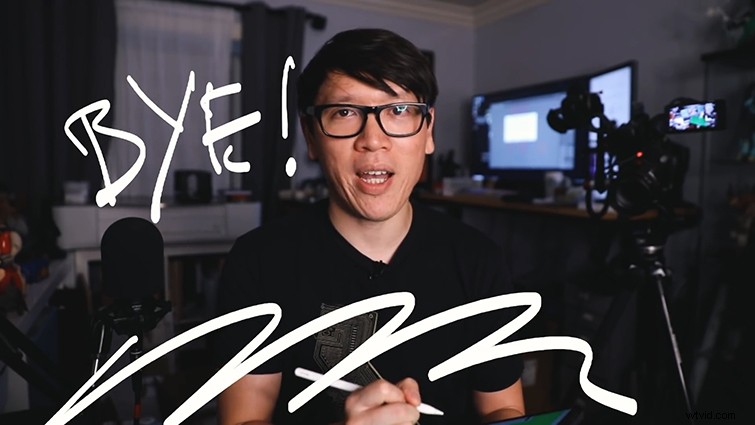
You’re all set and ready to go. You can now either start live streaming in OBS, or recording a video to edit and post later.
Need help making your live-stream dreams come true? We’ve got you covered.
- How to Start a Twitch Stream with Your Filmmaking Camera
- How to Use OBS Studio for Streaming and Video Conferencing
- Live Stream with the Blackmagic Pocket Cinema Camera 4K and 6K
- The Most Practical Livestreaming Microphones on the Market
- Power Up Your Gaming Videos and Twitch Streams with Royalty-Free Music
- How to Loop Video for Live Streams Using OBS Studio
- The Ins and Outs of Streaming on YouTube Live
All images via Tested.