
This tutorial shows you how to speed through some After Effects fundamentals, including transparency information. Here’s what you need to know.
If you’re new to Adobe After Effects, you may not know how to include transparency information in your exports. This is an important aspect of motion graphics because you’re going to want to render out graphic elements to use in video editing applications. With transparency, you can simply drag and drop your graphic files on top of your video tracks. Let’s take a look at how to make this happen in AE.
In this video, I reference an Anime Speed Lines tutorial that I produced. You can find that tutorial here.
The Alpha Channel
Video files are made up of red, green, and blue channels (RGB). There’s actually a fourth Alpha channel, but only certain video codecs can include an alpha. If you add a sequence to the Render Queue in After Effects, by default it will not include an alpha channel. This means your graphics will lack any transparency information in the final file. So how do we properly handle this in AE?
Transparency and Background Colors
First, let’s figure out how to view transparency information inside the program. As with the exported files, After Effects by default does not show transparency in the comp panel. Instead, you see the background color of the composition. To change this color, go to Composition > Composition Settings. To quickly view the transparency in AE, click on the Toggle Transparency button at the bottom of the Composition panel. If you want to view individual channels, you’ll also find a Show Channel button just to the left.
Exporting with Transparency
When exporting a file from the Render Queue, After Effects will default to the composition’s background color, where any transparency exists. To export with the transparency (instead of the background color) follow these simple steps:
Step 1 — Add to Render Queue
First, you’ll want to add your sequence to the render queue. To do this, go to Composition > Add to Render Queue.
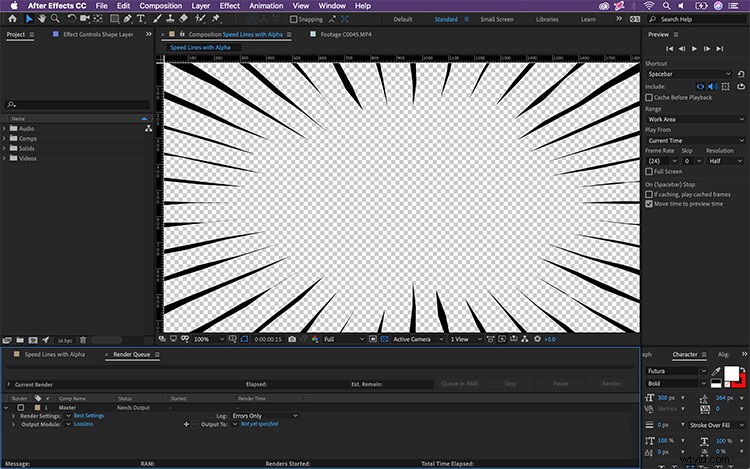
Step 2 — Include the Alpha Channel
Next, click on “Lossless” to bring up the Output Module Settings. Just under “Video Output,” open the channel’s dropdown menu. Select “RGB + Alpha,” and then click OK. Specify where you want the file to output to, and then click “Render.”
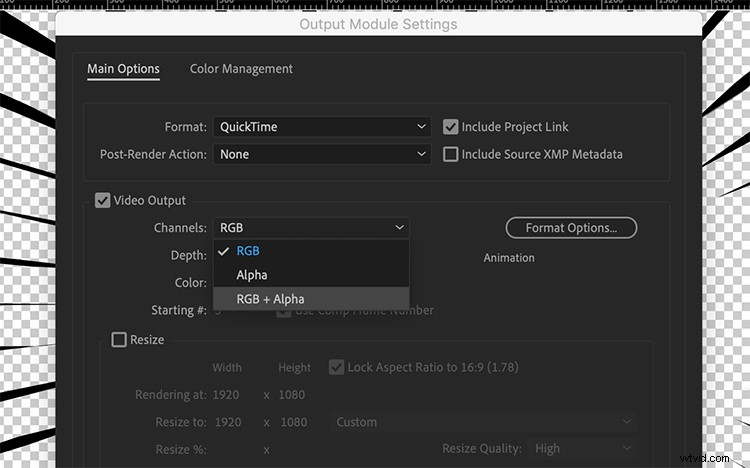
Step 3 — Drag and Drop
Now you have a file that includes the corresponding transparency information. Bring this file into any professional video editing application and simply drag and drop it over the desired footage.
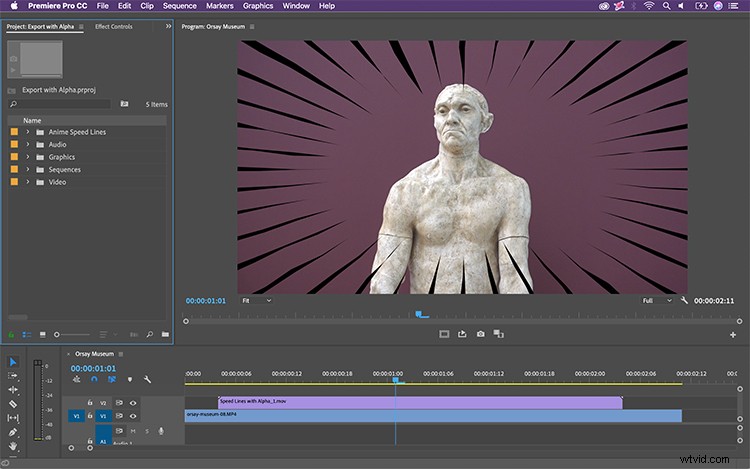
Voilà. Now that you know how to include alpha channels in your exports, it’s time to get back to creating in Adobe After Effects. Have fun!