
Looking to edit audio on your phone? Whether you’re a professional producer or an audio enthusiast, mastering a mobile audio editor can open up endless creative possibilities. In this guide we’ll dive deep into Lexis Audio Editor, examine its strengths and weaknesses, walk you through a hands‑on tutorial, and recommend alternatives for iOS and Android.
Part 1. Introduction to Lexis Audio Editor
Average Rating: 4.5/5
Lexis Audio Editor is a cross‑platform app available on the App Store and Play Store. It lets you record, play back, and edit audio files directly from your iPhone, iPad, or Android device.
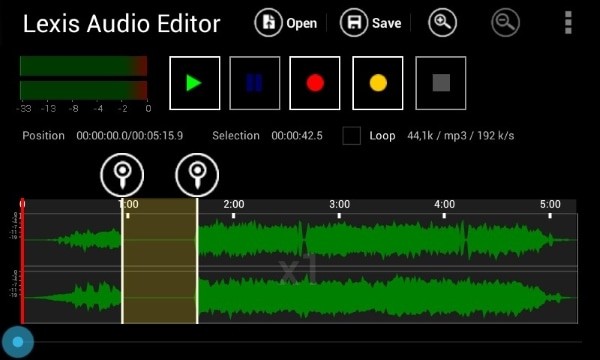
Key functions include basic cut, copy, and paste, as well as more advanced tools such as noise reduction and format support for WMA, MP3, WAV, FLAC, M4A, and more.
Part 2. Core Features of Lexis Audio Editor
Lexis is praised by musicians and podcasters alike for its intuitive workflow and robust feature set. Below are the main categories that make it stand out.
• Simplicity
The app’s clean interface means you can trim, apply effects, and manage files without a steep learning curve.
• Basic Editing Tools
Delete, trim, insert, silence, fade in/out, copy, and paste – all accessible from a single toolbar.
• Advanced Editing Capabilities
Noise reduction, normalization, multi‑file mixing, and a 10‑band equalizer empower you to polish recordings to a professional standard.
• Additional Utilities
Built‑in compressor, pitch and tempo controls, and a dedicated recorder and player enhance workflow flexibility.
Part 3. Pros and Cons
Advantages
- No restrictions on editing; you can record into an existing file or import external tracks.
- Broad format support: MP3, WAV, FLAC, M4A, WMA, and more.
- User‑friendly design eliminates the need for a long learning curve.
Disadvantages
- Unlike many rivals, the Pro version lacks multi‑track editing, which may limit complex projects.
Part 4. Step‑by‑Step Tutorial
Ready to get started? Follow these simple steps to import, edit, and share your audio.
Step 1: Import or Record
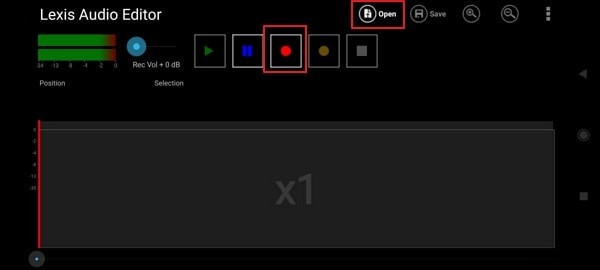
Launch the app and choose between recording live or tapping Open to import an existing file.
Step 2: Trim Your Audio
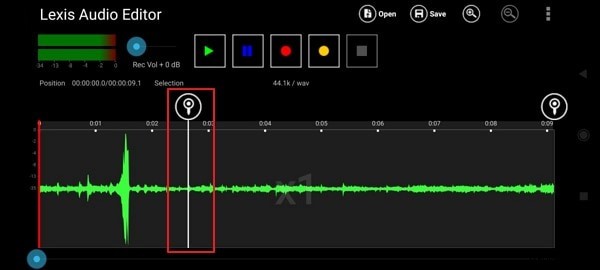
Use the on‑screen slider to cut unwanted sections. The process is quick and visually guided.
Step 3: Mix Multiple Tracks
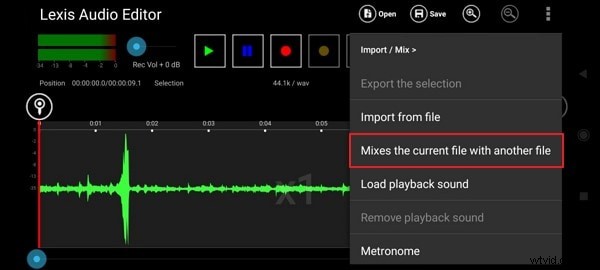
Tap the three dots, select Import Mix, then choose Mix the current file with another file to blend tracks.
Step 4: Add Effects
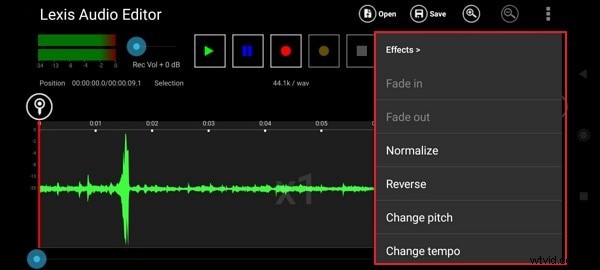
Navigate to the Effects tab and apply the desired effect—whether it’s reverb, distortion, or equalization.
Step 5: Save or Share
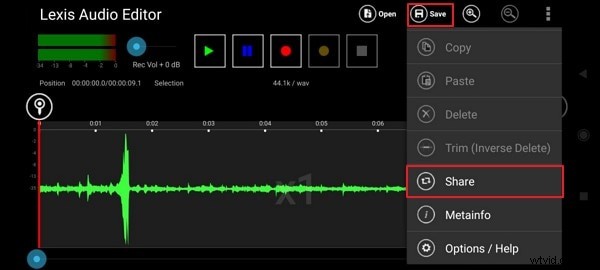
When you’re satisfied, tap the three dots again to Save or Share the final mix directly from your device.
Part 5. Alternatives for Lexis Audio Editor
If Lexis doesn’t fit every workflow, here are reliable alternatives for both iOS and Android.
Audio Editor – Music Editor (iOS)
Average Rating: 4.6/5
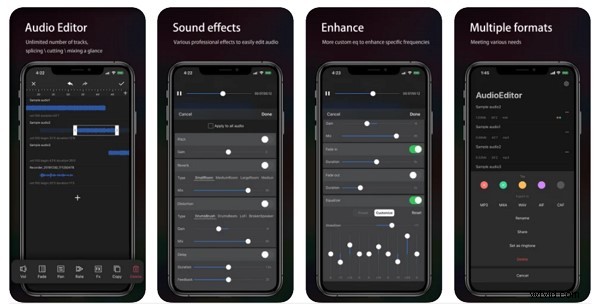
This app offers professional‑level editing, a built‑in equalizer, distortion, reverb, pitch adjustments, and a vocal enhancement toolbox. It also supports wired and wireless recording via AirPods.
Music Editor (Android)
Average Rating: 4.4/5
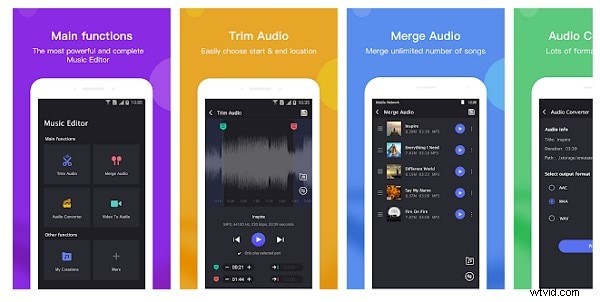
Specialized for MP3 files, this editor allows format conversion, trimming, merging, volume adjustment, reverse playback, and built‑in compression. Edited files remain accessible within the app for easy re‑editing.
Final Thoughts
Lexis Audio Editor delivers a solid set of tools for on‑the‑go editing, especially for users who value simplicity and wide format support. However, if you require multi‑track capability or more advanced effects, consider the alternatives highlighted above. For desktop‑grade editing, Wondershare Filmora also offers a comprehensive audio suite that can complement your mobile workflow.