
Ready to create engaging videos with the perfect soundtrack? This guide walks you through adding and editing music in your videos using Filmora, the industry‑trusted editor available on both desktop and mobile. Follow the simple steps below to elevate your content and keep it watermark‑free.
Let’s start with an introduction:
In this article
Part 1: Video Apps to Add & Edit Song
When searching for the best app to add music to a video for free, you’ll typically find two categories: desktop and mobile. Below, we highlight Filmora as the top choice for both platforms and explain how to incorporate audio into your projects.
For Desktop: Filmora
Filmora is a leading video editing software that lets you import, edit, and mix audio tracks with ease. Its intuitive interface reduces the time and effort needed to create professional‑looking videos. With a wide array of effects and a comprehensive help library—including step‑by‑step guides on adding music—Filmora is an ideal choice for both beginners and experienced editors.
For Mobile: Filmora
Filmora’s mobile app (available for iOS and Android) mirrors the desktop experience with features such as trimming, merging, and a library of over 1,000 royalty‑free tracks. The app also offers robust support resources, allowing you to learn how to add music, edit audio, and more directly from your phone.
Part 2: How to Add Song to Video
For Desktop: Filmora – Step‑by‑Step Guide
Wondershare Filmora
Get started with Filmora’s powerful performance, intuitive interface, and endless creative possibilities!
Step 1: Import Audio & Video

First, install Filmora on your desktop. In the Media tab, click Import to browse your device’s files. Select the video you want to edit and add it to your project. This is the foundation for adding music.
Step 2: Add Music to Timeline
The timeline is key. Drag your chosen audio track onto the timeline and align it with your video. Matching the lengths ensures a polished final product.
Step 3: Edit Music Files
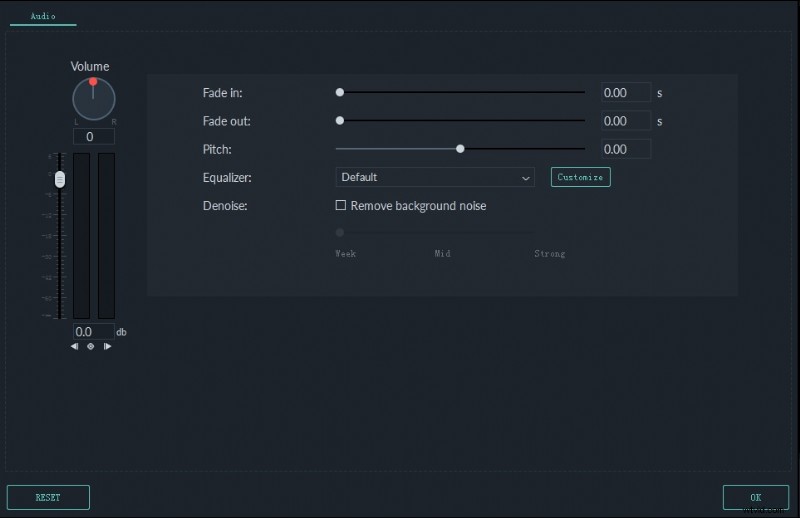
Double‑click the audio clip to open the editing panel. Use the equalizer, fade in/out, and volume controls to fine‑tune your track. Small adjustments can make a big difference, so review each change carefully.
Step 4: Export
Once satisfied, click Export. Choose your desired format (MP4, WMV, etc.) and save the file. You’re now ready to share your video.
For Mobile: Filmora – Step‑by‑Step Guide
Step 1: Video Selection

Open Filmora on your phone and tap CREATE NEW VIDEO. Select the video from your gallery, then tap ADD to bring it into the project.
Step 2: Add Audio
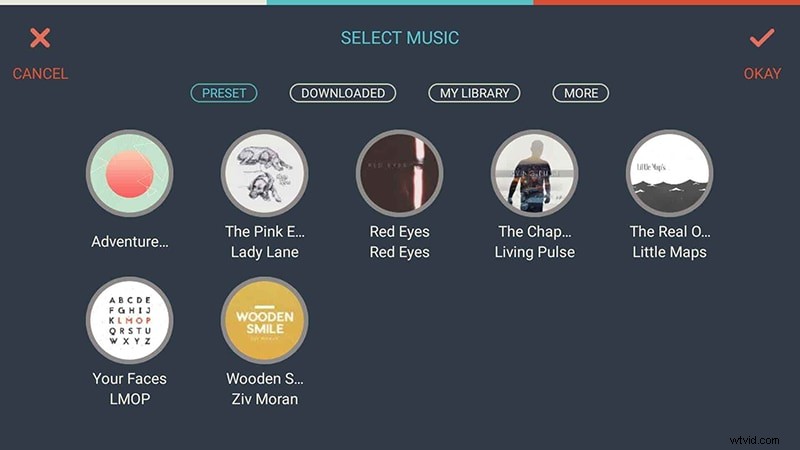
Tap the MUSIC button in the toolbar. Choose an audio track, preview it, and confirm your selection. Skipping this step can lead to mismatched audio.
Step 3: Export
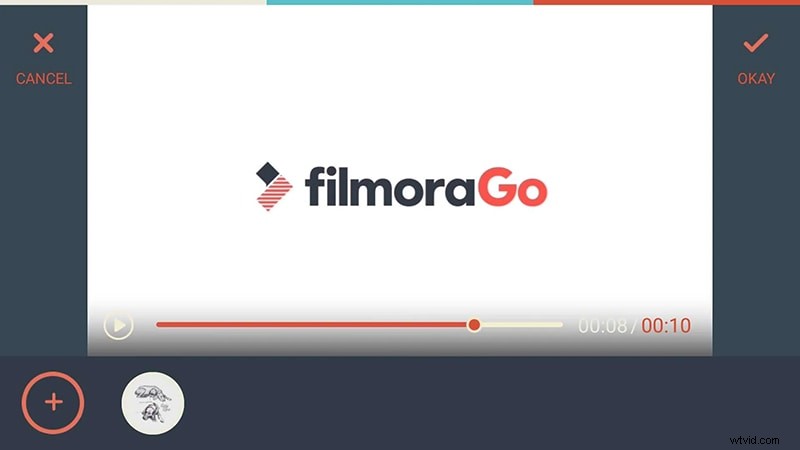
After editing, export the video. Pick a format that suits your device and audience, then save or share directly from the app.
Part 3: How to Edit Song on Video
Step 1: Add Videos & Audio
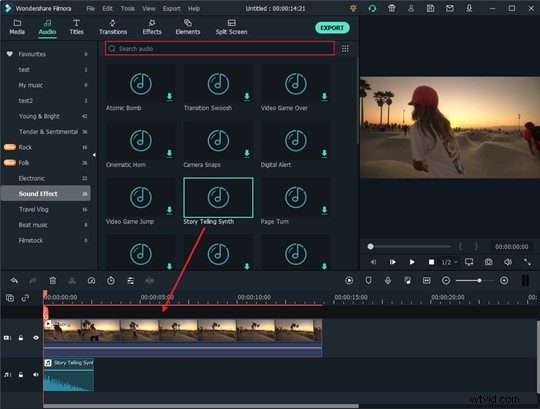
Start a new project, import your video and audio files, and drag them onto the timeline. Filmora also lets you separate audio from video if needed.
Step 2: Edit Audio Track
Filmora offers a suite of audio editing tools:
- Separate audio from video clips
- Adjust volume, pitch, and speed
- Remove background noise
- Apply built‑in audio effects
- Add voiceovers or custom recordings
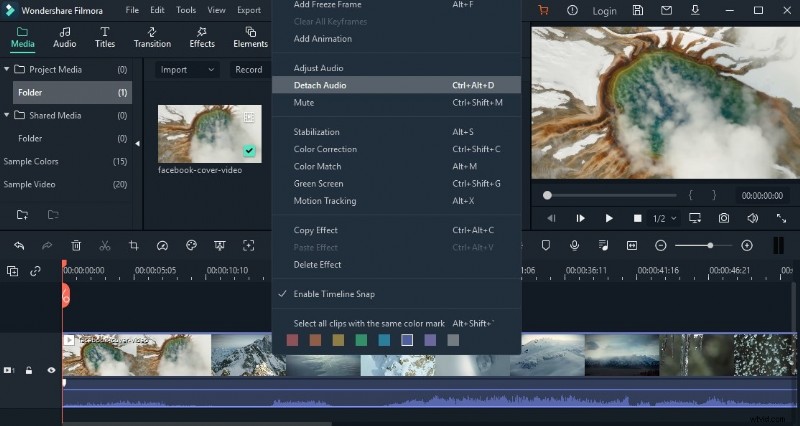
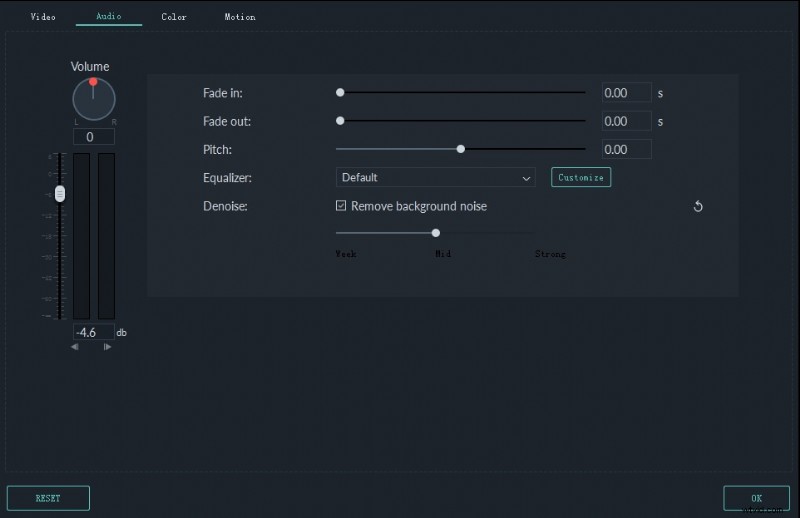
Use these features to tailor your soundtrack to the mood of your video.
Step 3: Save the Changes
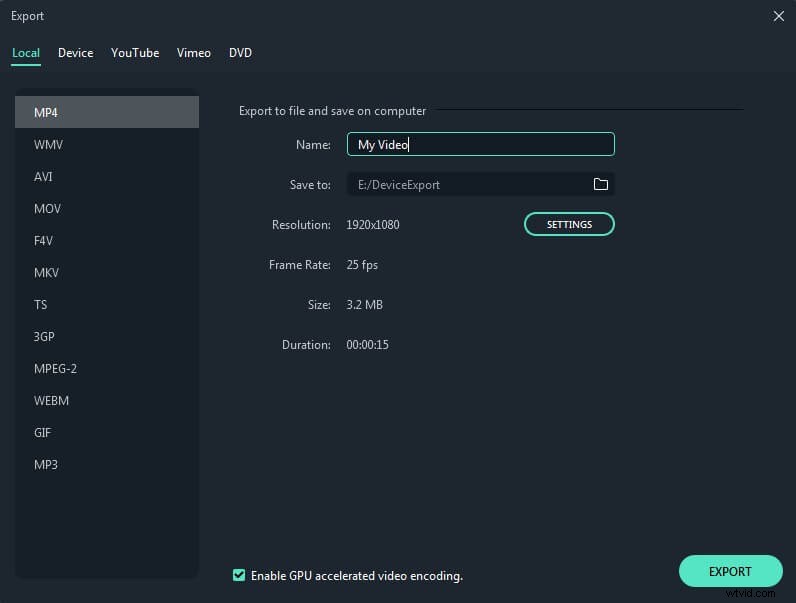
Always save your project before closing the app to preserve your edits. Then export the finished video as usual.
Part 4: Where to Find Songs Without Watermark
Filmora’s Audio Library
Filmora includes a free library of over 500 tracks, sound effects, and music files. These can be added directly to your projects without watermark or licensing concerns.
YouTube Audio Library
For additional royalty‑free options, browse the YouTube Audio Library. Be sure to check the usage rights before incorporating tracks into your videos.
Third‑Party Sites
Websites such as Free Music Archive, Incompetech, and SoundCloud offer downloadable tracks that are free from watermark. Verify each track’s license to ensure compliance.
Compose Your Own Music
If you have musical skills, creating your own tracks guarantees full control over quality and copyright.
Final Words
With these steps and resources, you’ll confidently add and edit music in your videos—whether on desktop or mobile—without worrying about watermarks or licensing issues. Filmora’s user‑friendly tools make the entire process approachable, helping you produce polished, engaging content every time.