
Whether you’re sharing a quick clip with friends or creating polished social‑media content, the right soundtrack elevates every video. This guide walks you through proven methods to overlay music on your footage—using top desktop editors, free online tools, and powerful mobile apps. Follow the step‑by‑step instructions to achieve professional results without a steep learning curve.
How to Add Music to a Video
1. Filmora – The Beginner‑Friendly Desktop Editor
Filmora combines an intuitive interface with a full suite of editing tools. It’s ideal for users who need basic features and robust audio control in one package.
- Open Filmora and click Import in the Media Library.
- Browse and select your music file; it appears in the library.
- Drag the audio clip to the timeline’s audio track below your video.
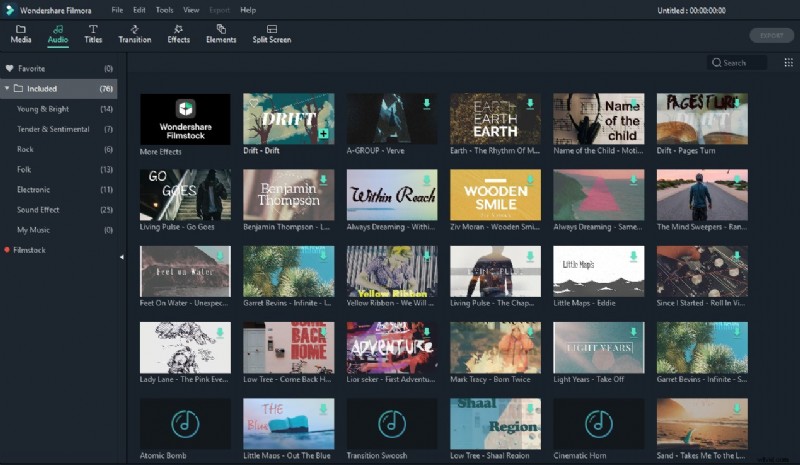
- For royalty‑free options, explore Filmora’s built‑in Audio Library (50+ tracks).
- Double‑click the audio clip to fine‑tune volume, pitch, and keyframes via the Audio Effects panel.
- Export your project in the desired resolution and format.
2. iMovie – Apple’s Seamless Cross‑Device Solution
iMovie ships free on all Apple devices and offers a streamlined workflow for adding music.
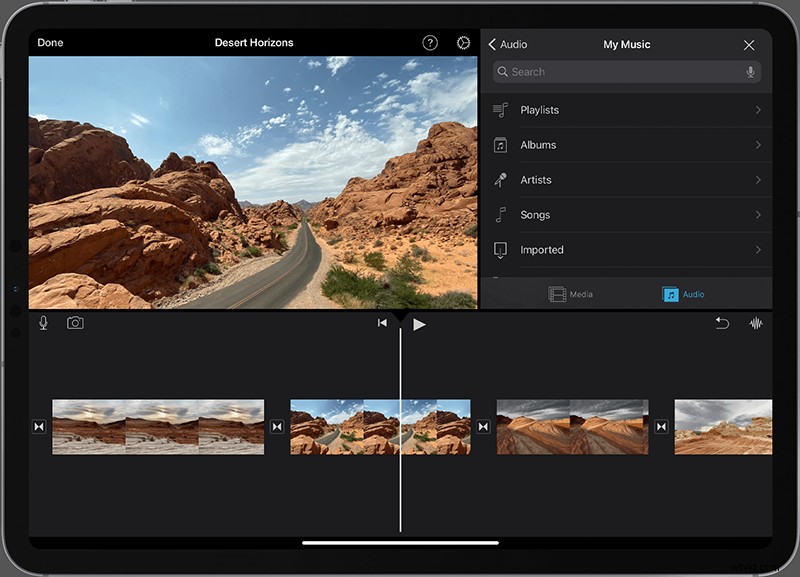
- On iPhone/iPad: tap the Add Media button, select Audio, and choose your track.
- On macOS: drag the audio file into the timeline beneath your video clip.
- Trim the audio to match your video’s length and adjust the volume slider.
- Export via Share to the desired format or directly to social media.
3. Premiere Pro – Professional‑Grade Editing
Adobe Premiere Pro powers major film and TV productions, offering advanced audio mixing capabilities.
- Open the Media Browser and locate your audio file.
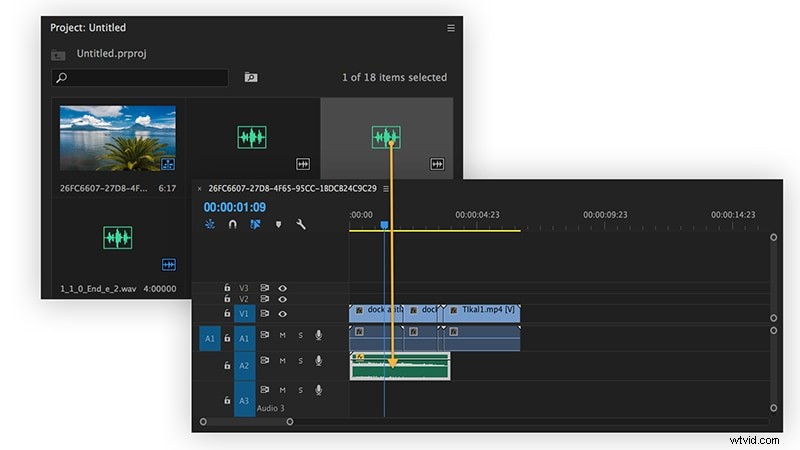
- Right‑click and select Import to add it to the Project panel.
- Drag the audio onto the timeline beneath your video track.
- Use the Effect Controls panel to adjust volume, pitch, and add keyframes.
- Apply audio transitions or noise‑removal presets as needed.
- Render and export using the Export Settings dialog.
4. Online Editors – Add Music Without Installing Software
For quick edits, online tools let you combine video and audio directly in your browser.
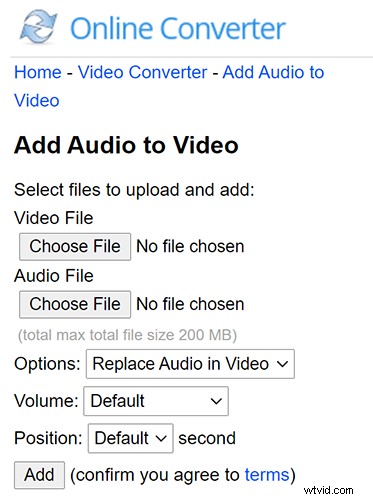
- Navigate to Audio to Video Tool by Online Converter.
- Upload your video file and the desired audio track.
- Set the audio’s start time, volume level, and mute options for the video.
- Click Add to merge the files.
- Download the combined video or share it straight to social media.
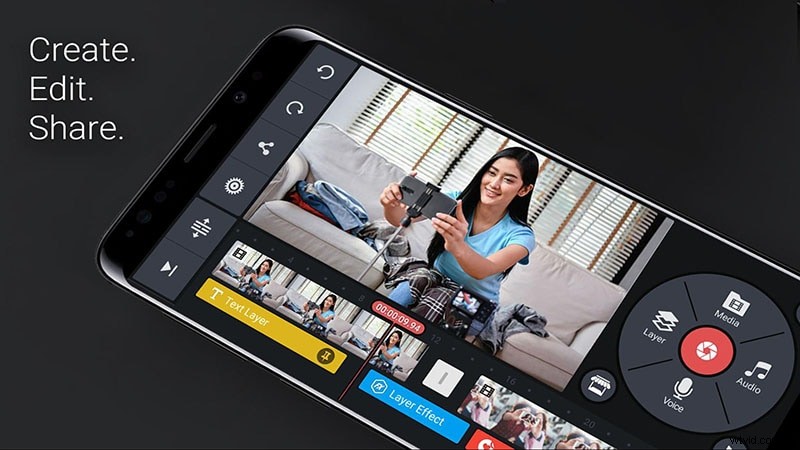
5. Kinemaster – Mobile Editing on the Go
Kinemaster is a full‑featured mobile editor that supports multi‑track audio and video layers.
- Open your project and tap the Audio button.
- Choose a file from your device or the built‑in library.
- Drag the audio onto the timeline and adjust its length and position.
- Use the mixer to balance audio levels with background music or voice‑over.
- Export the final video in the chosen resolution.
Conclusion
Adding music transforms ordinary clips into engaging stories. Whether you prefer a desktop editor, Apple’s ecosystem, a professional suite, an online tool, or a mobile app, the process is straightforward once you know where to find the audio track and how to align it with your footage. Experiment with the methods above to discover which workflow best suits your creative vision and technical comfort level. Share your edited videos confidently—your audience will appreciate the polished, soundtrack‑enhanced experience.