
Sora 2 is rapidly becoming a favorite among creators, not just for its hyper‑realistic visuals but for its remarkably authentic audio. For the first time, creators can embed ambient sounds, Sora voice lines, and AI‑generated music directly into the video, creating a fully immersive soundscape.
Because Sora 2 is still fresh, many users are unsure how its audio engine works and how to fine‑tune it. In this guide we demystify the Sora audio system, explain what you can control, show how to troubleshoot common issues, and outline how to polish your clips for a cleaner, more cinematic feel.
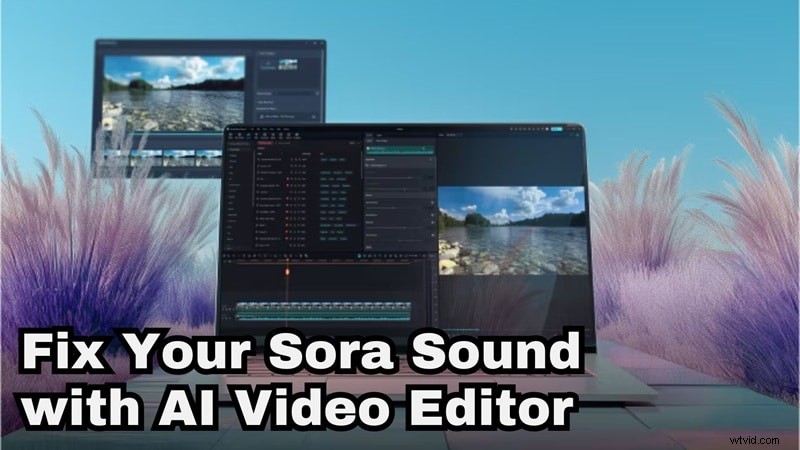
Part 1: The Core of Sora Audio (Why It Matters)
OpenAI’s latest model, Sora 2, treats sound as a first‑class citizen. It constructs a complete audio world around each frame, surpassing typical expectations for AI‑generated sound.
The table below breaks down the key audio components that Sora builds, how they’re produced, and the resulting experience.
| Sora’s Audio Skill | What It Produces | How It Comes Across |
| Character Dialogue & Lip Sync | Generates voice lines that match the prompt and synchronizes mouth movement. | Feels like the character is actually speaking. |
| Environmental & Object Sounds | Adds footsteps, wind, rain, fabric rustle, crowd noise, and small object sounds. | Makes the scene feel alive instead of silent. |
| Cinematic Sound Design | Blends ambience, AI audio, and sound effects into one smooth mix. | Comes through as a polished, natural soundtrack. |
Control Your Sora Sound With a Precise Prompt
All three audio roles are driven by the prompt you provide. Sora pays close attention to detail—clearer descriptions yield cleaner audio. Below are three guiding principles to help you craft prompts that produce the exact sonic atmosphere you want.
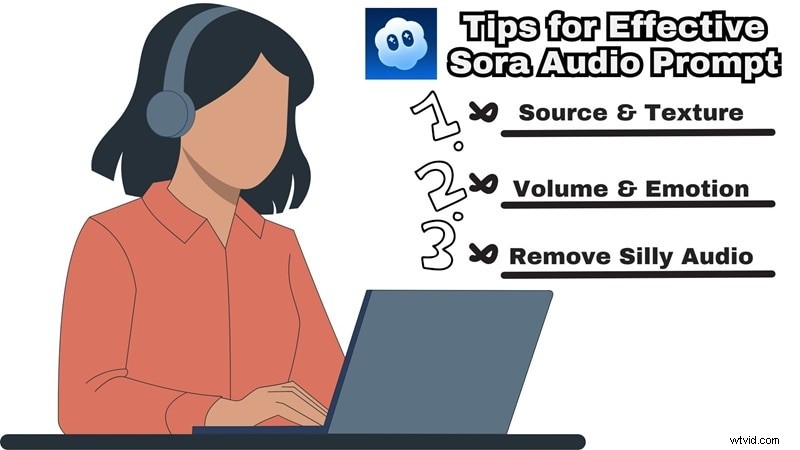
- Describe the Source and Texture of the Sound
Mention specifics such as soft footsteps on wooden floors, light rainfall on leaves, or a gentle rustle of clothing. These cues allow Sora to layer the right ambient textures.
- Set the Volume and Emotion
Provide hints about loudness and mood—quiet ambience, soft-spoken dialogue, excited chatter, or a calm, low rumble. These instructions shape the emotional tone of the AI voice and soundscape.
- Exclude Unwanted Elements
Explicitly rule out elements that would detract from the moment, such as heavy wind, loud music, or excessive reverb. This keeps the AI-generated audio aligned with your creative vision.
Part 2: Polish Your Sora Audio in a Smart Editor
Even with precise prompts, Sora’s audio can occasionally miss the mark—ambience may overpower dialogue, or the mix may feel cluttered. Instead of wrestling with the prompt, you can refine the audio directly in Wondershare Filmora, an all‑in‑one video editor that simplifies the process.
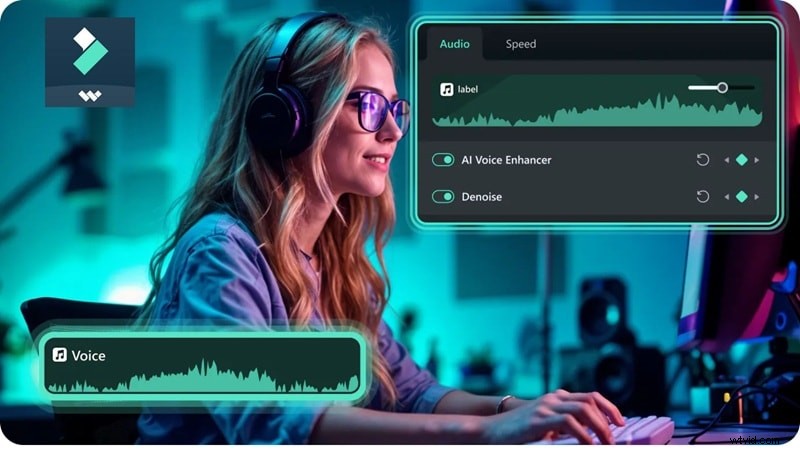
Why Filmora Accelerates Sora Audio Cleanup
Filmora offers intuitive tools that let non‑experts smooth out volume, eliminate unwanted noise, and enrich the sound layer without overcomplicating the workflow.
Smooth Out the Volume
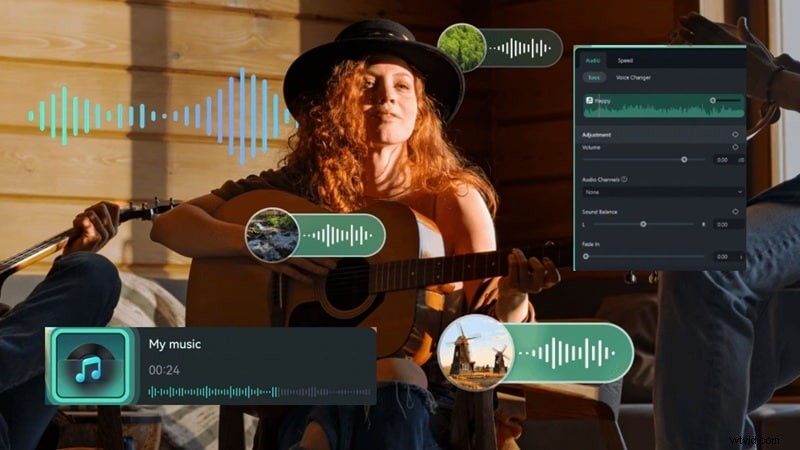
Adjust uneven levels with a few clicks—boost the voice, temper the ambience, and balance effects for a cohesive mix.
Clear Out Unwanted Noise
The AI Audio Denoise tool removes faint hums and artifacts that sometimes slip into the clip, leaving a cleaner, more natural sound.
Build a Richer Sound Layer
When the audio feels thin, layer in AI music, additional ambience, or sound effects from Filmora’s library to deepen the atmosphere.
Give the Voice a Boost
The AI Voice Enhancer sharpens the Sora voice, enhancing clarity and detail without sounding artificial.
Separate and Rebuild the Audio
The AI Vocal Remover isolates background from voice, giving you the flexibility to replace or remix the Sora audio as needed.
Part 3: Build and Refine Sora 2 Clips Directly Inside Filmora
Filmora now integrates Sora 2 into its Text‑to‑Video and Image‑to‑Video features, streamlining the entire production pipeline.
- Create Sora Clips Inside the Editor – Generate a full Sora video with AI music and voice in a single step.
- Instant Audio Adjustment – As soon as the clip appears on the timeline, tweak the sound, lift the voice, or calm the ambience with quick edits.
- Export Immediately – Save the finished video without leaving Filmora, eliminating extra steps and platform switches.
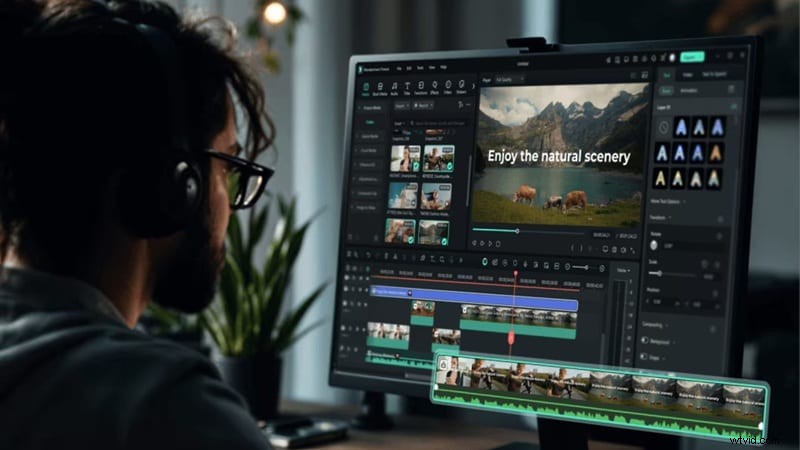
Step‑by‑Step: Create and Edit Sora 2 Clips in Filmora
- Open Text‑to‑Video
- Install the latest Filmora version.
- Navigate to Toolbox > Text to Video to set up your scene.
- Write Your Prompt & Generate AI Video
- Switch the mode to OpenAI Sora 2.
- Enter your prompt with detailed descriptors.
- Select resolution, aspect ratio, and duration, then click Generate.
- Preview & Edit Audio
- Locate the result in My Files.
- Drag the video onto the timeline and preview.
- Open the Audio panel to refine the mix.
- Enable AI Voice Enhancer or use Audio Ducking to lower background when dialogue plays.
- Export
- Click Export in the top right.
- Choose Local and set resolution, folder, and format.
- Click Export again to finish.
With Sora 2 built into Filmora, you can craft, refine, and finalize your audio‑rich videos in one seamless workflow.
Conclusion
Mastering Sora’s audio is essential to delivering a polished video that matches its stunning visuals. By understanding the audio engine, writing precise prompts, and using Filmora’s AI‑driven tools, you can transform raw Sora clips into clear, cinematic productions.
Filmora’s integrated workflow and advanced audio editing features make it the ideal platform for creators who want to focus on storytelling rather than technical headaches.

Filmora – AI Video Editing App & Software
Best tool for making videos anywhere for all creators!