
If you have been looking for video and audio editing tools then you have probably heard of Kinemaster. It is a great video editing app that allows users to edit all aspects of the video including any audio or music that may accompany the video. It has a lot of very useful features and the user interface is fairly easy to use.
One of the things that you can do with Kinemaster is to fade out audio, a useful feature that can help the ending of any video appear more authentic. In this article, we will be looking at how you can use Kinemaster to fade audio.
In this article
-
- VideoShop
- Filmora
- Quik
Steps to Fade Audio in Kinemaster
The following steps show you how you can easily fade audio in Kinemaster;
Step1If you don't have Kinemaster already, start by downloading and installing the video editor on your computer.
Step2Open Kinemaster on your computer and then click on the “New Project” icon to start. Select the aspect ratio that you would like to use. If you are not sure, we recommend choosing the “16:9” aspect ratio.
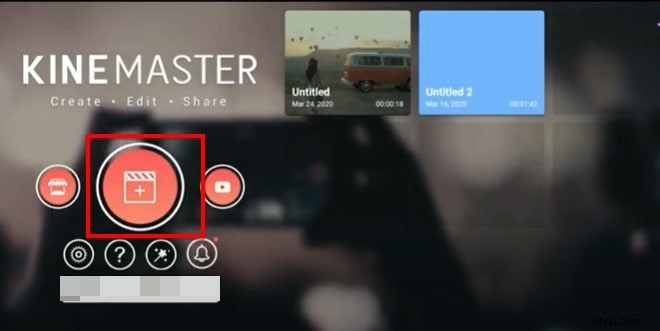
Step3In the next window, click on “Media” to select the clip you would like to add to the Kinemaster project that you have just created.
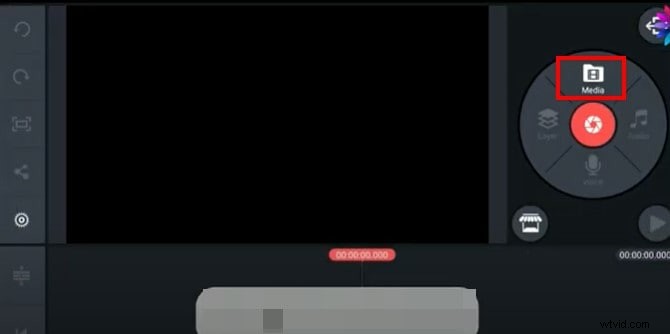
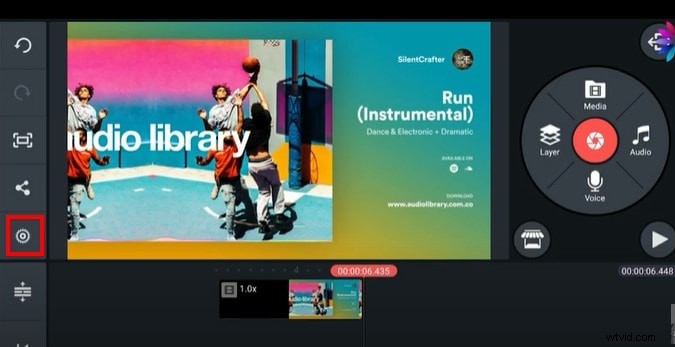
Step4To fade in and fade out the audio in the project, click on the gear icon from the options to the left of the screen.
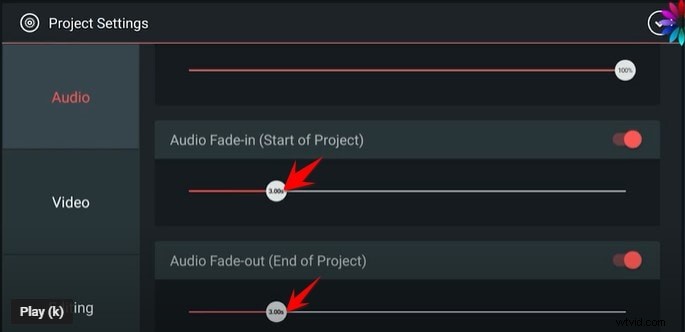
Step5Select the “Audio” tab on the next screen and then turn on the switch next to “Audio Fade-in (Start of Project)” and “Audio Fade-out (End of Project).” This will add a fade-in and fade-out effect at the beginning of the audio and at the end of it.
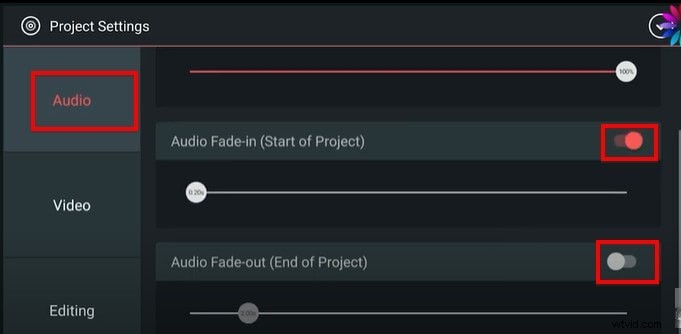
Step6You can then easily set the duration of the “Audio fade-in” and “Audio fade-out” by dragging the slider below each option. We recommend setting the duration to just a few seconds.
Don't forget to save the project when you're done.
Kinemaster Alternatives to Edit Audio
Kinemaster is a good way to edit both audio and video on your computer, but the following options are just as good;
1. VideoShop
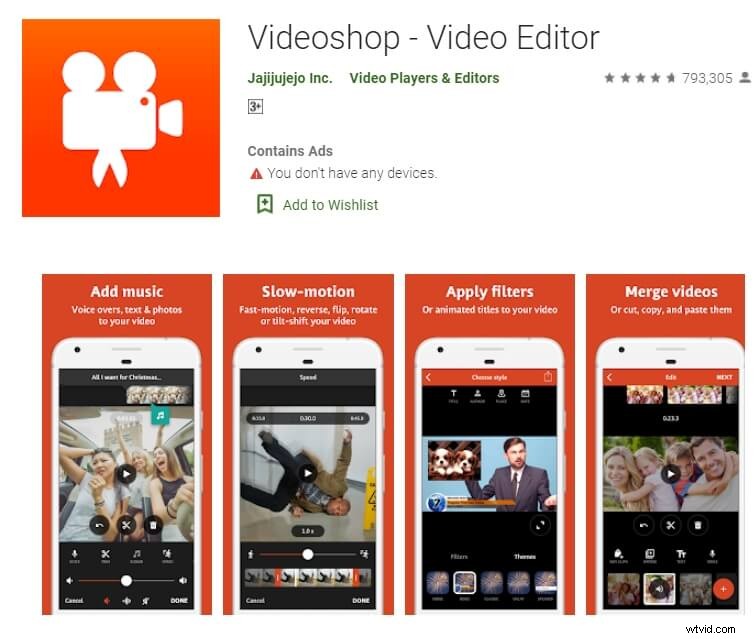
VideoShop is a simple to use and highly effective program that you can use to create and edit videos on your computer. The interface makes it easy to import any video project that you have into the program and the wealth of very useful features can help you edit the video in various ways.
For example, you can change the speed of the video, add transitions at various points in the video, add and remove text, add and remove music and so much more. Although there is a free trial version, you will only be able to access some of the more useful features when you purchase the premium version.
The Pro version of VideoShop goes for $3.99 a month, but you can get lifetime access to the program for only $39.99. One thing that VideoShop has over Kinemaster is that it is very easy to use, even beginner users find video editing a breeze with this tool.
2. Filmora
While Kinemaster is a capable editor, a truly great alternative simplifies your entire workflow. Before you can even think about fading audio, you need the perfect track. Wondershare Filmora stands out by solving this problem upfront with a massive, built-in library of high-quality, royalty-free music.
Instead of just giving you tools, Filmora gives you the creative ingredients you need to start your project. Here’s a small sample of the diverse, production-ready music you can find right inside the editor:

Phonk Uplifting Pissed Off
01:39




Phon Aggressive Slap
01:32
As The World Spins On
03:43
With the perfect track selected, Filmora's intuitive interface makes technical tasks like audio fading, trimming, and adding effects incredibly simple. Advanced options like changing the speed of the video are also available, and you can even remove watermarks for free by watching an ad (once per day). Available for both iOS and Android, Filmora offers a premium plan for just $19.90 per year, making it a powerful and affordable choice.
Get Started for FreeFor Win 7 or later (64-bit) Get Started for FreeFor macOS 10.14 or later
3. Quik
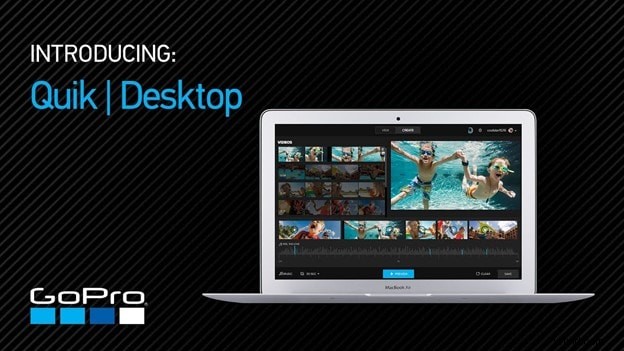
Quik is a video editing program created by GoPro for the purpose of editing GoPro videos, but that doesn't mean that you will not be able to use it to edit other types of videos. You can use Quik to create a new project or edit an existing video and gives users a lot of different options when it comes to video editing.
One of the main benefits of using Quik is that you can easily add music, audio, and special effects to a video as well as change the length of the video, fade audio in and out and even change when the music starts. It is also one of the best ways to use images to create collages and slideshows very easily. There are a lot of slideshow and collage templates to choose from, and you can edit them easily by adding your music and images. Quik is completely free to use and you can upload your creation to the cloud ad share the link with others.
Conclusion
Kinemaster is one of the most popular video editing tools, especially since it simplifies the video editing process to make it very easy. All the alternative tools we have outlined here in this article are selected because they can make video editing quite simple.
Get Started for FreeFor Win 7 or later (64-bit) Get Started for FreeFor macOS 10.14 or later