
Imagine converting written words into natural‑sounding speech without relying on an internet connection. That’s the power of offline text‑to‑speech (TTS) technology, and it’s increasingly essential for professionals who need reliable, secure audio output in any environment.
Whether you’re preparing a presentation for a remote meeting, generating narration for a video that will be shared in low‑bandwidth areas, or simply want to keep your audio workflow independent of Wi‑Fi, offline TTS gives you the flexibility to produce high‑quality voice output whenever you need it.
Below is a step‑by‑step guide that explains why offline TTS matters, how it works, and how to use the industry’s best offline solution—Wondershare Filmora—to convert text to speech with ease.
In this article
- Why Offline TTS Matters: Reliability, Security, Portability, Cost, Disaster Recovery
- How Offline TTS Works: Input, Analysis, Synthesis, Processing, Output, Offline Capabilities
- Choosing the Right Tool: Why Wondershare Filmora Leads
- Step‑by‑Step: Converting Text to Speech with Filmora
- FAQs
Part 1: What Are Offline Text‑to‑Speech Tools and Why Do They Matter?
Offline TTS refers to software that converts written text into spoken words without requiring an active internet connection. These tools are built on local language models and speech synthesizers, allowing users to generate audio on any device—desktop, laptop, or mobile—without external dependencies.
Key advantages of offline TTS:
Reliability
Because all processing happens locally, you can produce audio even in areas with poor or no connectivity.
Security
Data never leaves your device, eliminating the risk of exposure to third‑party servers or potential cyber‑attacks.
Portability
Many offline TTS solutions run from a USB drive or SD card, making it easy to carry the tool across devices.
Cost‑Effectiveness
Unlike subscription‑based online services, offline TTS tools typically require a one‑time purchase or free download, with no recurring bandwidth costs.
Disaster Recovery
In emergencies—such as natural disasters or network outages—offline TTS ensures you can still produce and share audio content.
With these benefits in mind, let’s explore how offline TTS software actually works.
Part 2: How Offline Text‑to‑Speech Conversion Tools Work
Offline TTS engines follow a multi‑stage pipeline that transforms raw text into polished speech. The process is illustrated below:
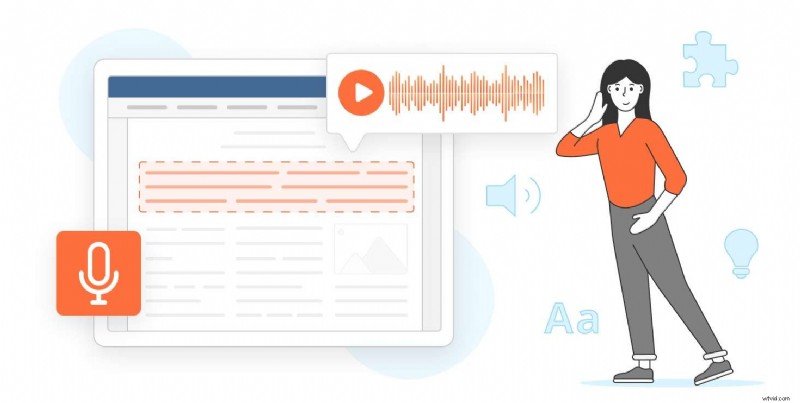
1️⃣ Text Input
You provide the text—either by typing, pasting, or uploading a file—into the application.
2️⃣ Text Analysis
The engine parses the input for grammar, punctuation, and linguistic cues to determine pronunciation and prosody.
3️⃣ Speech Synthesis
Using a built‑in voice database, the tool generates raw waveform data that approximates natural human speech.
4️⃣ Audio Processing
Post‑processing steps adjust pitch, volume, and timing to enhance clarity and emotional tone.
5️⃣ Output
The final audio can be exported to standard formats (MP3, WAV) or played directly within the app.
6️⃣ Offline Capabilities
All language models and voice libraries are stored locally, so the application remains fully functional without an internet connection.
Understanding this workflow helps you choose a tool that meets your technical and creative needs.
Part 3: The Best Offline Text‑to‑Speech Tool—Wondershare Filmora
Wondershare Filmora is widely recognized as a versatile video editing platform, and its offline TTS feature sets it apart from competitors. Filmora’s TTS engine supports 25 languages, offers a range of voices and accents, and allows extensive audio customization—all without the need for an internet connection.

Key features:
- 🔹 Offline Text‑to‑Speech: Convert text to natural‑sounding voice without an online connection.
- 🔹 Multi‑Language Support: 25 languages, including English, Spanish, French, German, Italian, and more.
- 🔹 Customizable Voices: Choose from diverse voices, adjust pitch, speed, and accents to suit your project.
- 🔹 Audio Processing: Fine‑tune volume, tone, and pitch for optimal listening experience.
Step‑by‑Step Guide to Converting Text to Speech in Filmora
- Download and install Filmora from the official website.
- Open Filmora and create a new project.
- Import your video or audio clip via the “Import” button.
- Navigate to the Audio tab, then select “Text to Speech.”
- Click the “Start” button to open the TTS dialog.
- Enter your desired text, choose the language and voice, and adjust speed and pitch as needed.
- Press “OK” to generate the audio track.
- Export the final project or export the generated audio file directly.
With these straightforward steps, you can produce professional‑grade narration that’s ready for distribution—whether online or offline.
Conclusion
Offline text‑to‑speech technology empowers creators and professionals to generate high‑quality audio content anywhere, anytime. By leveraging local processing, it offers unparalleled reliability, security, and flexibility. Wondershare Filmora’s robust offline TTS feature makes it an excellent choice for anyone seeking a hassle‑free, feature‑rich solution.
Try Filmora today and experience how offline TTS can streamline your workflow and enhance your projects.
FAQ
-
Q1: Is offline text‑to‑speech conversion accurate?
The accuracy depends on the quality of the chosen tool. Filmora’s built‑in synthesizer delivers clear, natural‑sounding output with minimal errors.
-
Q2: Can I choose the voice and tone of the audio output?
Yes—Filmora offers a variety of voices, accents, and adjustable pitch/speed controls to tailor the narration to your needs.
-
Q3: Is offline text‑to‑speech safe and secure?
Offline tools keep all data on your device, eliminating exposure to external servers. Always review the software’s privacy policy before use.