
Any media files capture the attention of the viewers through its mesmerizing background music. Choose the perfect soundtracks for your video using an innovative application. You would have come across surplus programs that help to add background music to video. Select the reliable ones and create an interactive video for your needs.
In this article, you will find impressive facts on optimal methods to edit the background music with the help of a reliable application Filmora. It is an incredible app that customizes the videos precisely. Quickly surf the below content to learn more about the Filmora video editor and its relevant features in editing the background music of the media files.

In this article
- What is Filmora?
- How to add background music with Filmora
- How to edit background music with Filmora
- Conclusion
Part 1. What is Filmora?
The Filmora is a prestigious product from a giant software developer Wondershare. It is an awesome program that helps you to make reliable edits to the videos. You can use this app to create and edit video files professionally with the help of the in-built functionalities. There are options to import the media files into the working space and edit them by tapping the perfect controls.
This program offers you a platform to make your video interactive and mind-blowing to attract the viewers precisely. Use Filmora to make the best out of the video and due to its simple interface, you can work comfortably hassle-free.
Get Started for FreeFor Win 7 or later (64-bit) Get Started for FreeFor macOS 10.14 or later
The remarkable features of Filmora video editor:
- Unleash your imagination by adding miraculous effects to the videos using its in-built filter effects, and transitions.
- Edit the background music of your video and add desired sound effects to engage the users optimally.
- Personalize the videos by changing their background using the Green Screen feature.
- Enhance the audio tracks by enabling the audio ducking option.
- Split the screens of your video to make it interactive precisely.
These are the incredible functionalities of the Filmora Video Editor application. You can use this program without any prior knowledge as the controls are displayed explicitly for quick access.
Part 2. How to add background music with Filmora
You can add background music to your memorable video captures using the Filmora application. Follow the below steps to carry out the process efficiently.
Step1Download the application
Go to the official webpage of Filmora video editor and download the correct version of this tool. Then, import the desired media file into the working environment by tapping the Import Media Files option. Then, click and drag the uploaded file into the timeline to make further edits to it.
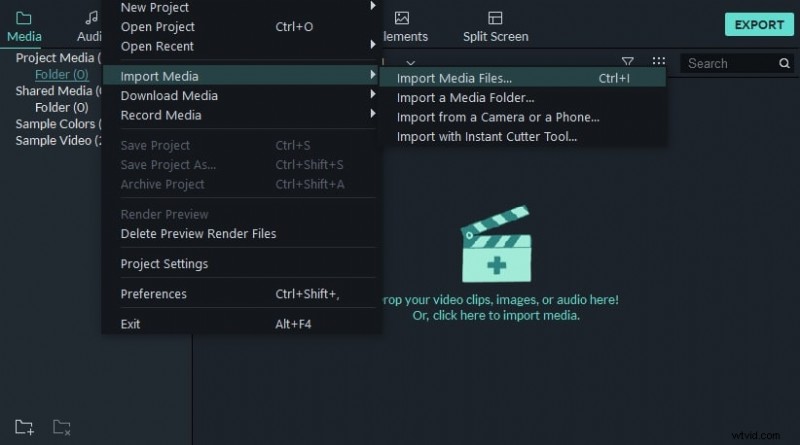
Step2Add background music
Now, click the Audio option on the Menu and choose the sound effects at the left pane followed by the desired audio track in the right pane precisely. Right-click the chosen audio file and select Apply option from the pop-up.
You can also click and drag the selected audio file into the working timeline to add background music to the uploaded video.

Filmora's integrated library is packed with thousands of high-quality, royalty-free tracks and sound effects to match any mood. To give you a taste of the creative possibilities, here’s a small sample of what you can find inside:

Phonk Uplifting Pissed Off
01:39




Phon Aggressive Slap
01:32
As The World Spins On
03:43
Step3Import the edited video
Finally, you can have a preview of the edited video using the Preview panel and click the Export button to share it directly to social media platforms or any local storage space.
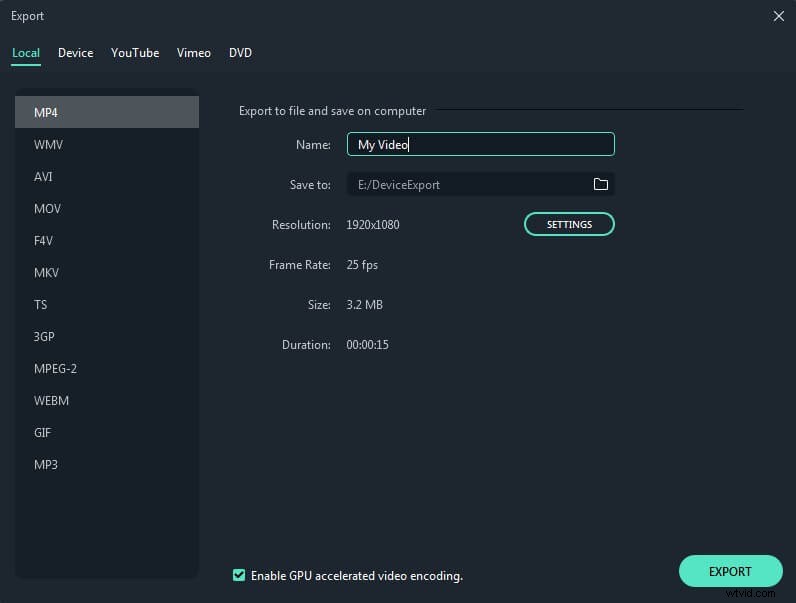
The above steps will help you to perform the respective edits on the background music of the video professionally. During the export process, you can make changes to the file format, video resolution. Click the Settings button to work on the advanced options of the edited video.
Get Started for FreeFor Win 7 or later (64-bit) Get Started for FreeFor macOS 10.14 or later
Part 3. How to edit background music with Filmora
Filmora offers a range of built-in tools to help you easily edit and enhance background music in your videos. Here’s how to get started:
1. Basic Audio Edits
- Double-click on the audio track to access the adjustment panel.
- Use the sliders to modify volume, pitch, fade in and out effects.
- To reduce unwanted noise, enable the Denoise option directly from the popup panel.
2. Advanced Customization
- Click on Customize for more precise control.
- Manually adjust the sliders to fine-tune audio settings for better results.
- Access the Audio Equalizer to apply preset sound styles like default, Classic, Low Bass, Sparkle, Pop, soft, and techno.
3. Audio Track Management
- Detach audio from a video clip by right-clicking and selecting Detach Audio.
- Trim or delete audio segments, or add new background tracks as needed.
- Use Audio Speed and Duration settings (right-click the audio track) to adjust timing.
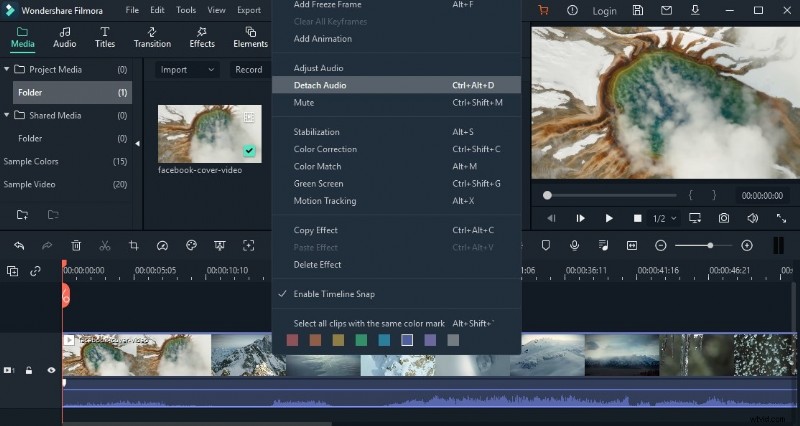
4. Enhance with Voice and Effects
- Add narration using the Record Voiceover feature to make your video more interactive.
- Apply Audio Ducking to lower the background music automatically when dialogue or voiceover is present, making speech clearer.
- Use the Audio Mixer to fine-tune audio across Stereo or Surround modes for a more professional sound balance.
Conclusion
Thus, in this article, you had a better understanding of how to add background music to video precisely. It is a perfect space to make desired edits on your video file using a sophisticated program Filmora video editor. It is a precise app that brings miraculous changes to the media files effortlessly. Create a quality media file using the Filmora video editor application. Connect with this incredible editor and make required changes on the media files to impress the audience in no time. Stay tuned for exciting facts about the best video edits with the help of the Filmora video editor tool. Choose the Filmora app and make reliable edits on memorable videos.
Get Started for FreeFor Win 7 or later (64-bit) Get Started for FreeFor macOS 10.14 or later