
Versatile Video Editor – Wondershare Filmora
Wondershare Filmora blends simplicity with power, making it a top choice for creators who want to add music and effects without a steep learning curve.
With a library of filters, transitions, and royalty‑free tracks, you can produce polished videos in minutes.
Official tutorials walk you through every feature, ensuring you get the most out of the tool.
How to Build a Video with Music Using Filmora
Follow these expert‑approved steps to pair your footage with the perfect soundtrack.
Filmora offers a drag‑and‑drop timeline, intuitive media import, and real‑time previews, so you can see changes instantly.
Advanced audio tools—ducking, detaching, voice‑over recording—give you full control over the soundtrack.
Export options let you tailor resolution, format, and file size for any platform, from YouTube to social media.
Key Features
- Built‑in sound effects, filters, and transitions for eye‑catching visuals.
- Click‑and‑drag editing for effortless customization.
- Beginner‑friendly interface with all controls visible.
- Comprehensive audio editing: ducking, detaching, voice‑over.
- Seamless export and direct sharing to YouTube, Vimeo, and more.
With Filmora, you can produce professional‑looking videos quickly and share them instantly.
Step‑by‑Step Instructions
Step 1: Download & Install
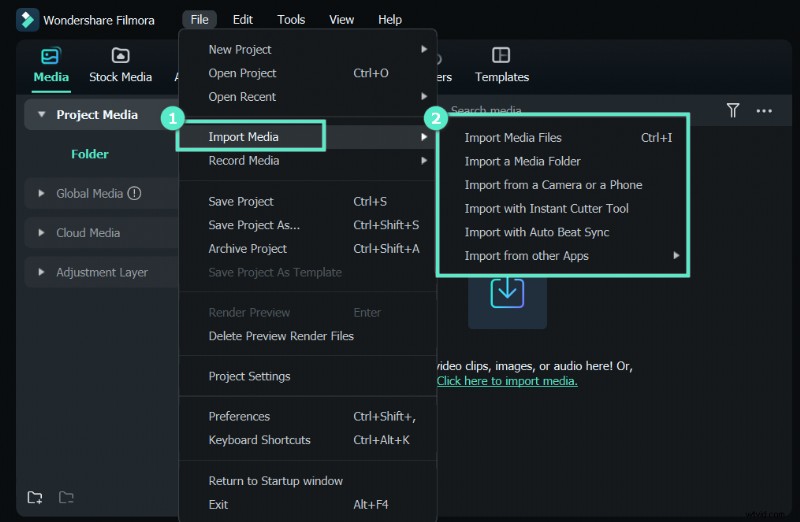
Visit the official website, choose the version for your OS, and follow the installer wizard. Once launched, import your footage into the timeline by dragging it from the media bin.
Step 2: Add Music
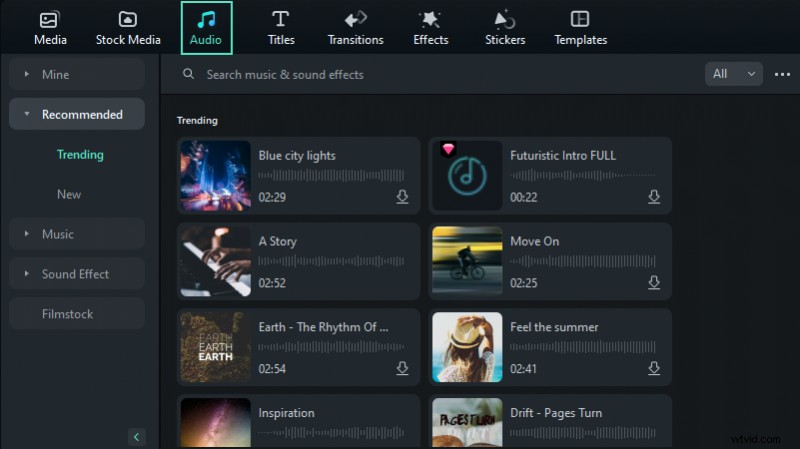
Navigate to the Audio menu and open Sound Effects on the right panel. Browse the royalty‑free library, right‑click your chosen track, and select Apply. Drag the audio to the timeline for further adjustments, or import your own files via the Import button.
Step 3: Preview & Export
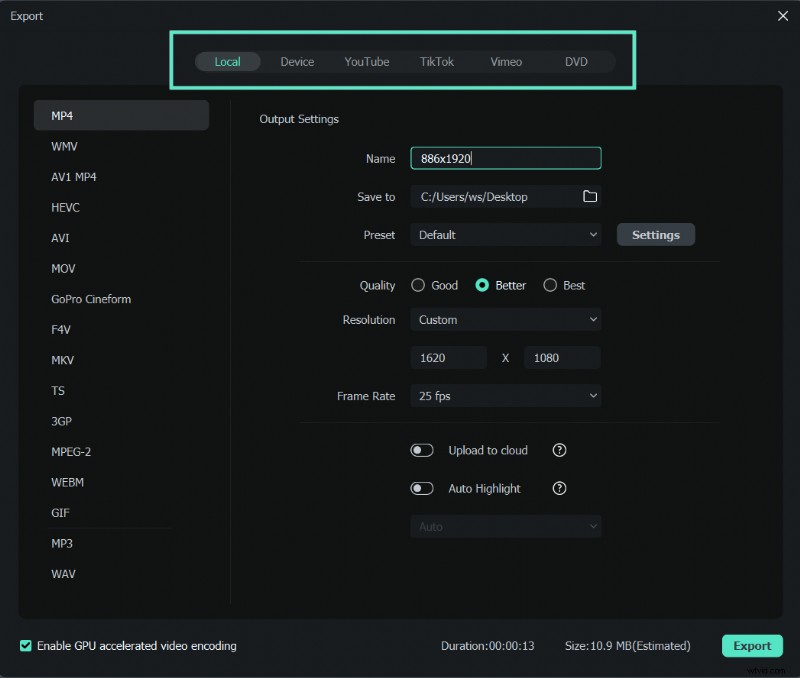
Click Preview to review the edit. When satisfied, hit Export and choose your desired resolution, format, and destination. You can also share directly to social platforms.
For advanced effects, explore Filmora’s built‑in templates, color correction tools, green‑screen, and split‑screen options.
Wondershare Filmora – Best Video Editor for Mac & Windows
Over 5.48 million users have chosen Filmora for their editing needs.
Craft unique animations and stories with ease, thanks to drag‑and‑drop effects and auto‑features that handle the details.
Advanced Editing Features
Filmora equips you with:
- Filter Effects – apply cinematic tones.
- Transitions & Titles – smooth cuts and engaging text.
- Royalty‑Free Music – a vast soundtrack library.
- Audio Ducking – fade music around voice‑overs.
- Noise Removal – clean background hiss.
- Detach Audio – separate audio from video for custom voice‑overs.
- Templates – ready‑made projects for rapid creation.
- Color Corrections – fine‑tune brightness, contrast, saturation.
- Green Screen – replace backgrounds effortlessly.
- Split Screen – multi‑view storytelling.
These tools help you elevate video quality and audience engagement.
Wondershare Filmora
Get started quickly with Filmora’s powerful performance, intuitive interface, and endless effects.

Conclusion
Follow this guide to seamlessly add music and professional edits to your videos with Wondershare Filmora. Its user‑friendly design lets anyone create stunning content without technical hurdles.
Stay tuned for more tips on harnessing Filmora’s features to match your creative vision.