
Versatile Video Editor – Wondershare Filmora
Wondershare Filmora delivers a robust, user‑friendly editing experience for Windows and macOS, combining advanced tools with an intuitive interface.
Its extensive library of effects, transitions, and color‑grading options makes it ideal for both beginners and professionals.
Once you’ve selected the perfect background track, the next step is to integrate it into your video. KineMaster, a mobile‑first editor available on Android, iOS, and Chromebook, streamlines this process with a simple, touch‑based workflow. This guide walks you through adding music to a KineMaster project in under ten minutes.
KineMaster is suited for hobbyists creating celebratory videos and for seasoned editors delivering client work. Its mobile‑friendly interface offers powerful features without the complexity of desktop software.
In this article
Part 1 – Basic Introduction to KineMaster
KineMaster is a free video‑editing app that supports Android, iOS, and Chromebook. It combines common editing functions—cutting, trimming, layering—with advanced capabilities like multi‑track audio, color grading, and animated transitions.
The free version includes a watermark, but a subscription unlocks premium tools, removes branding, and expands the asset library.
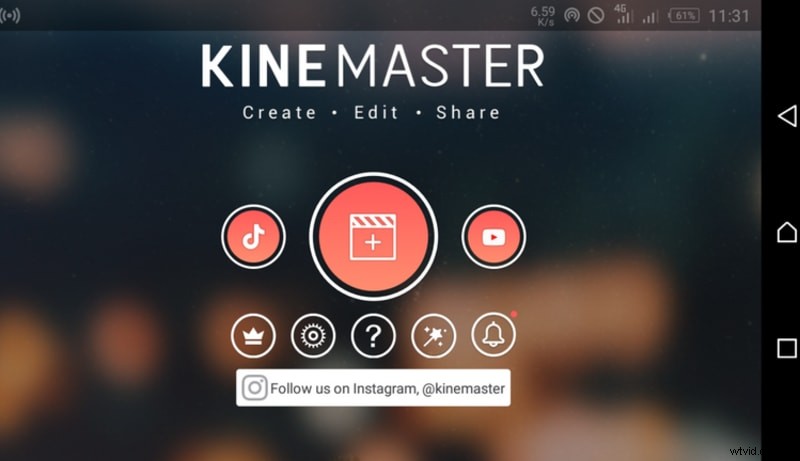
Color grading lets you enhance footage with vivid hues, while blending modes, effects, and graphic layers allow for cinematic polish. Audio editing is straightforward, enabling users to add custom tracks or access KineMaster’s built‑in library.
Part 2 – Adding Music to KineMaster
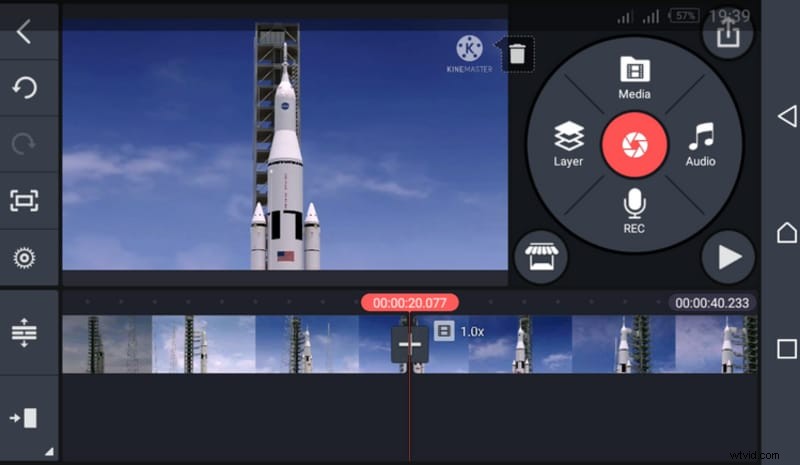
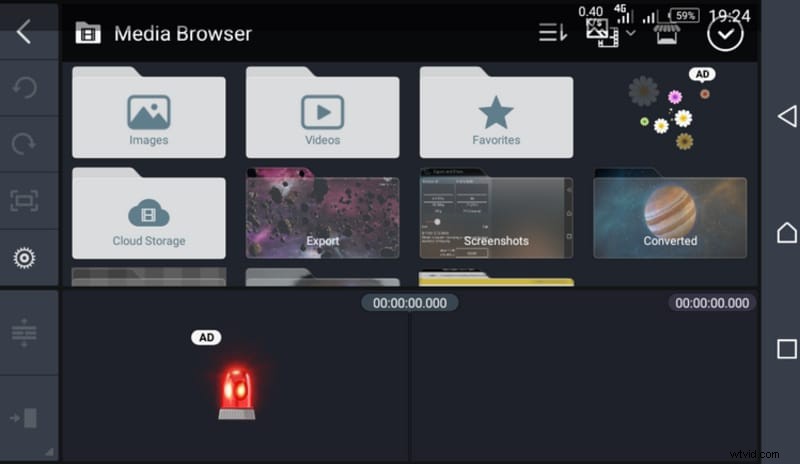
After launching KineMaster, choose “New Project” or continue an existing one. To add a video clip, tap the Media icon, select the desired footage, and confirm with the checkmark.
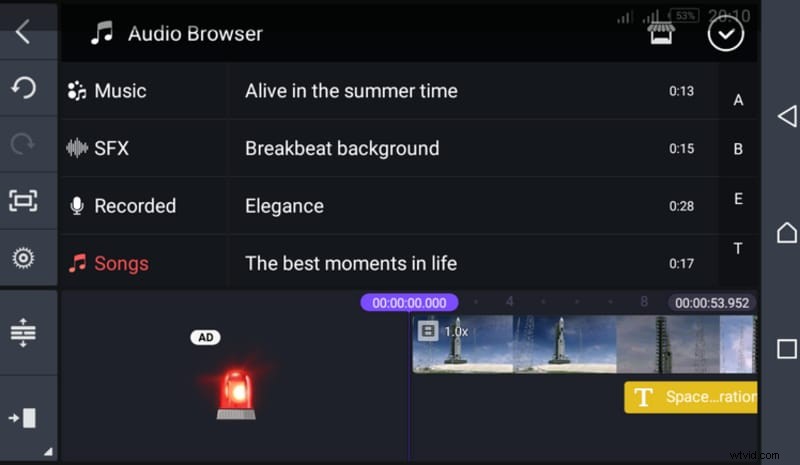
Next, tap the Audio tab. You can choose a custom track from your device or use the premium library if you have a subscription.
KineMaster supports MP3, WAV, and M4A files. After selecting a file, tap the red + button to add it to the timeline.
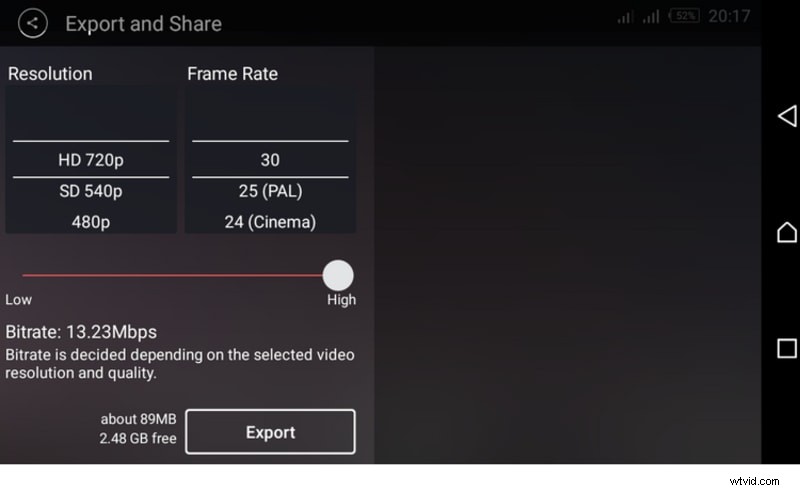
Adjust the track’s length, fade, and volume as needed. When satisfied, tap the export icon to render your video.
Part 3 – Importing Music from YouTube and Spotify
Using YouTube Audio Library
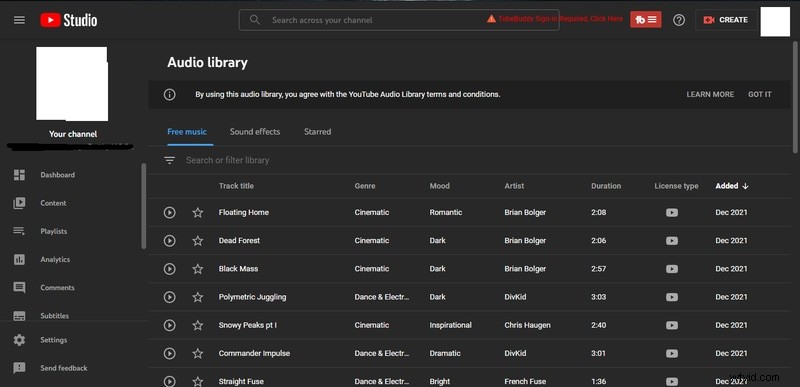
Free, royalty‑free tracks are available through YouTube’s Creator Studio. Download the desired MP3 and import it into KineMaster via the Media tab.
Using Spotify Tracks
Spotify tracks are licensed for in‑app playback only. To use them in KineMaster, export the track to your device (e.g., via a download manager) and then import it following the steps above.

Part 4 – Additional KineMaster Features
KineMaster’s mobile platform enables on‑the‑go editing with powerful tools:
Trim & Split
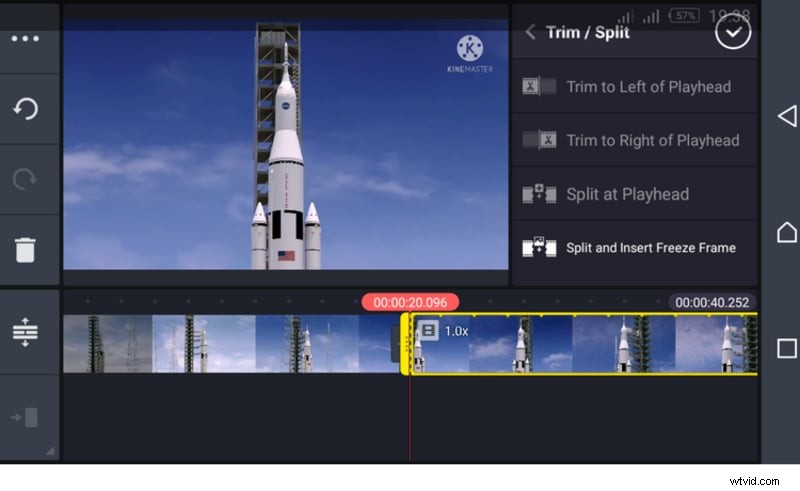
Use the scissors icon to trim or split clips at the playhead. Options include cutting before, after, or inserting a freeze‑frame.
Transitions
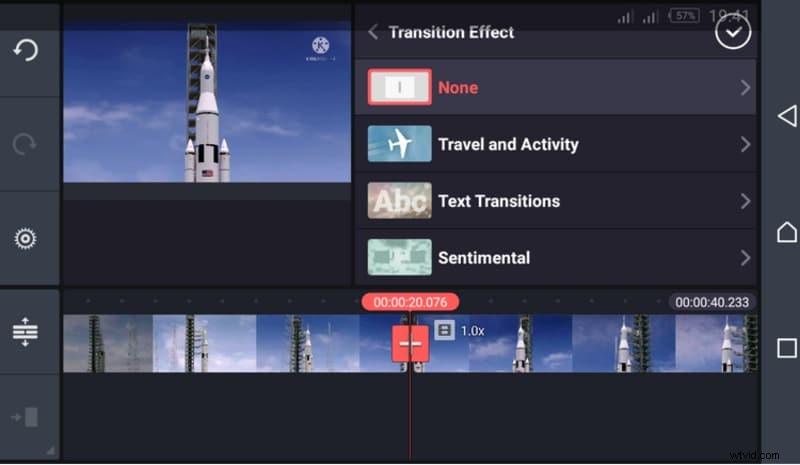
Apply a variety of transitions—3D, text, picture‑in‑picture—by selecting the desired effect and confirming with the tick mark.
Handwriting & Animations
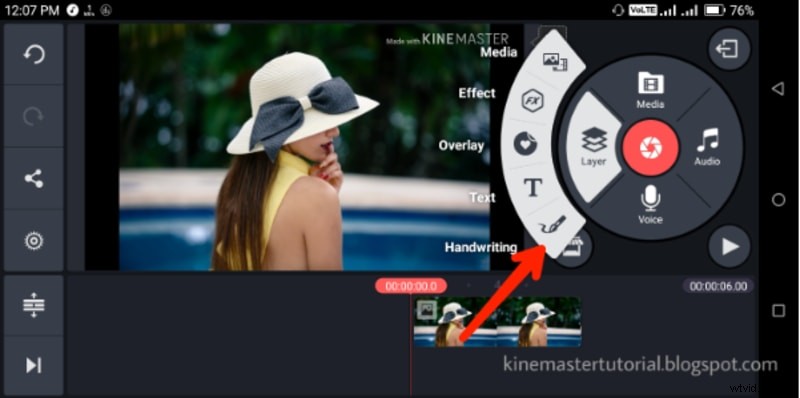
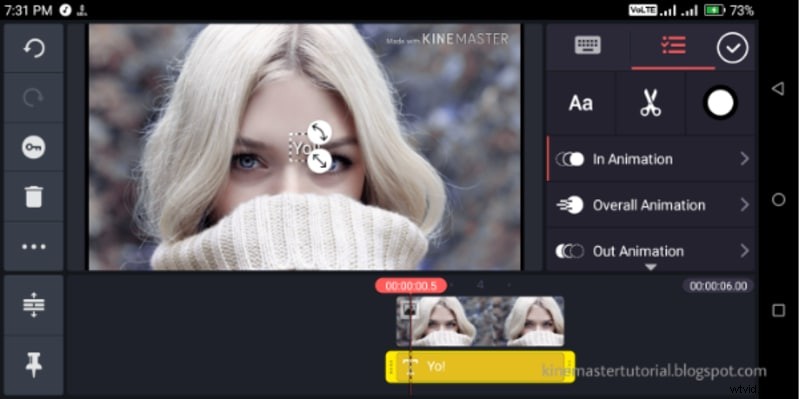
Layer handwritten notes or doodles directly onto your video. Each element can be animated with entry, exit, or continuous motion presets.
Wondershare Filmora
For desktop editing, Filmora offers a comprehensive suite of effects, transitions, and easy‑to‑use tools. It supports both Windows and macOS, making it a strong alternative to KineMaster for PC users.
Conclusion
KineMaster remains one of the most versatile mobile editors, enabling anyone—from novices to professionals—to add music and polish videos efficiently. With its intuitive interface, extensive feature set, and cross‑platform support, it empowers creators to produce high‑quality content directly from their smartphones.