
In many editing scenarios you may want to silence a video or replace its soundtrack entirely. While desktop software can handle this, several Android apps deliver the same functionality right from your phone.
In this article
- Mute a video with Google Photos
- Remove audio using Filmora
- Delete sound with InShot
Method 1: Use Google Photos to mute a video
Google Photos remains the most accessible free editor for Android users. It lets you trim, adjust color, add text, and—crucially—remove audio from a video clip without leaving the app.

Follow these steps to silence a clip:
Step 1 – Launch Google Photos and select the video you want to edit.
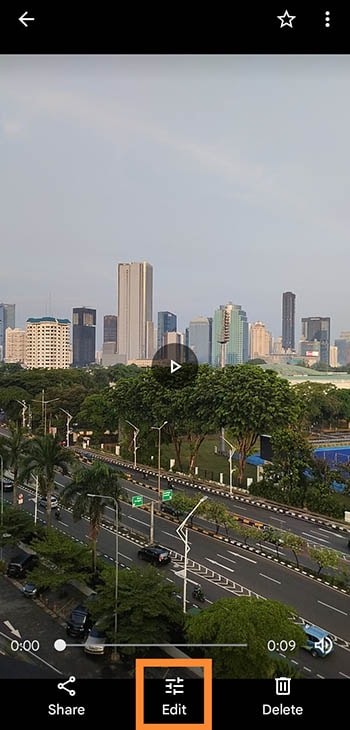
Step 2 – Open the video editor.
Pause the video and tap the Edit button to bring up the editing panel.
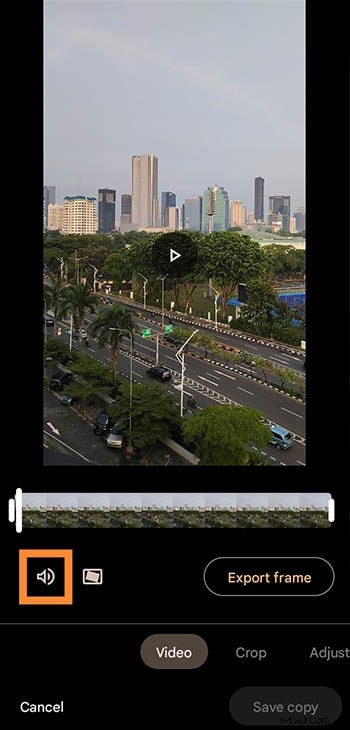
Step 3 – Mute the audio.
Tap the speaker icon to toggle the volume off, as illustrated below.
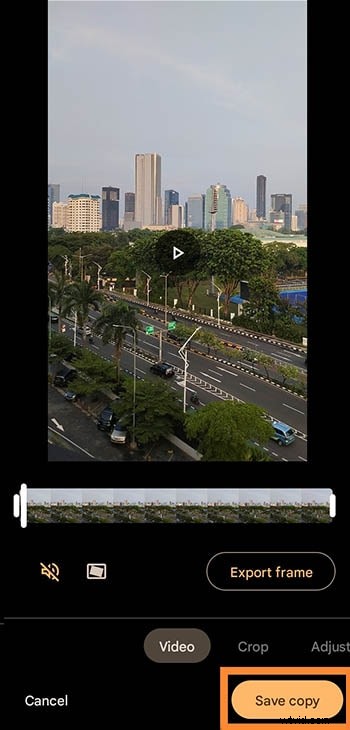
Step 4 – Save your changes.
When you’re satisfied, tap Save copy to keep a new, silent version of the video.
Method 2: Use Filmora to remove audio from a video
For users who don’t have access to Google services or need more advanced features, Filmora’s mobile editor is a solid choice. It offers a friendly interface, built‑in tutorials, and a wealth of creative tools.
App size: 67 MB Rating: 4.8/5 (Google Play)
- Over 1,000 templates and royalty‑free music tracks
- Keyframe animation directly on the phone
- Professional audio adjustments, including voice‑enhancement and speed control
- Fast HD export with customizable resolution
Filmora is consistently ranked in the top 10 video editors on Google Play, making it reliable for both beginners and seasoned creators. To remove background sound:
Step 1 – Import your video into the timeline.
Step 2 – Tap the audio icon and choose Mute or delete the track.
Step 3 – Export the edited clip.
Filmora preserves the original quality while giving you full control over the audio track.
Method 3: Use InShot to remove sound from a video
InShot is one of the most popular mobile video editors, boasting over 500 million downloads. While it offers a generous free tier, ads may appear unless you upgrade.
App size: 168 MB Rating: 4.9/5 (Google Play)

InShot’s workflow is slightly more involved but still straightforward:
Step 1 – Install InShot from Google Play.
Step 2 – Create a new project and add your video.

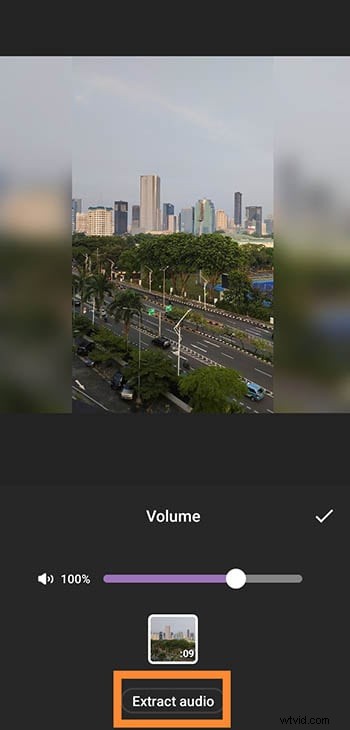
Step 3 – Access the Volume settings.
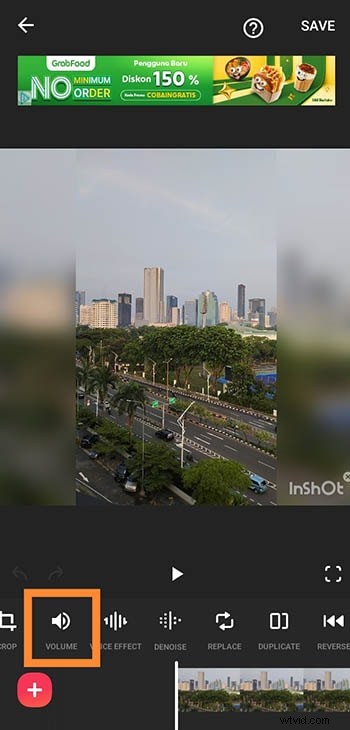
Here you can either slide the volume to zero to mute or click Extract audio to separate the track.
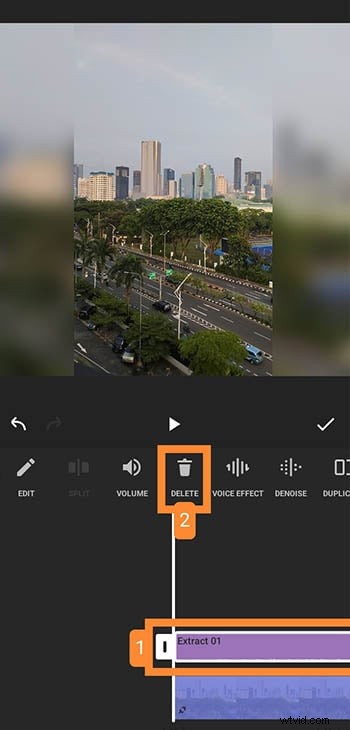
Step 4 – Delete the extracted audio.
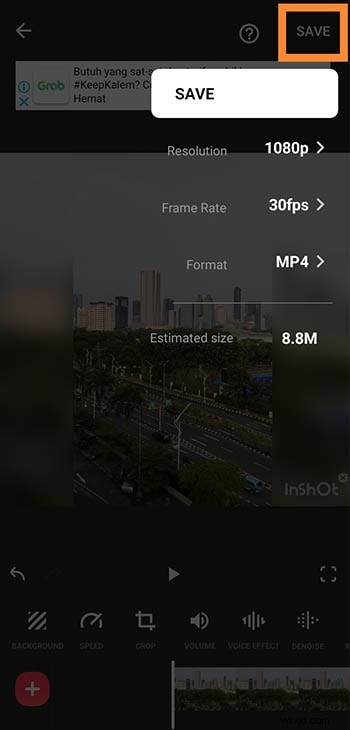
Step 5 – Save the edited video.
Choose your desired resolution, frame rate, and format. InShot shows the estimated file size before saving.
Conclusion
Editing audio on Android is no longer limited to a PC. Whether you need a quick mute or a complete audio removal, the three apps highlighted here—Google Photos, Filmora, and InShot—offer reliable, user‑friendly solutions. Pick the one that best fits your device and workflow, and enjoy producing polished videos on the go.