
Transcribing video audio to text no longer requires hours of manual labor. With AI‑driven speech‑to‑text tools, you can convert MP4 files into clean, editable transcripts in seconds.
Wondershare Filmora is one of the most reliable options available. It supports MP4 and a wide range of other formats, offers multilingual subtitle generation, and lets you fine‑tune every aspect of the transcript.
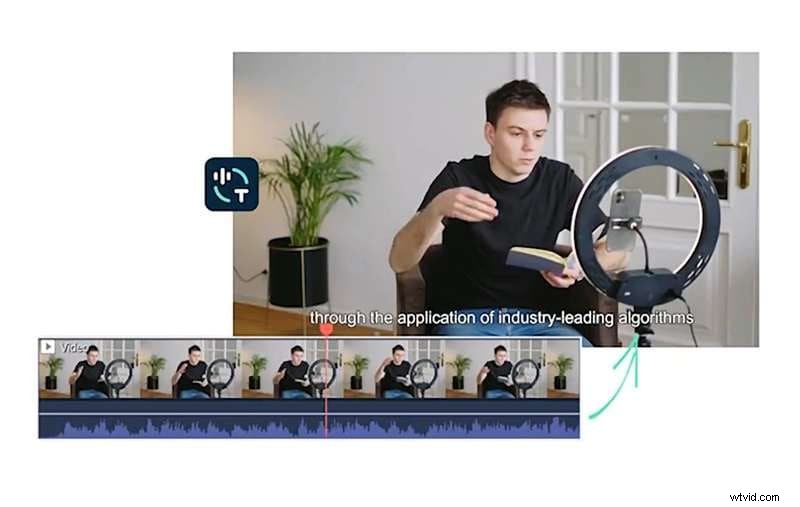
Table of Contents
- Why AI is the Future of MP4 Transcription
- How to Transcribe MP4 to Text with Filmora
- Optimizing Accuracy for Your Transcripts
- Conclusion
- Frequently Asked Questions
Part 1. Why AI is the Future of MP4 Transcription
MP4 is the most common video format worldwide, used for everything from short clips on social media to full‑length corporate presentations. Capturing the spoken content accurately is essential for subtitles, closed captions, repurposing video into written content, and preserving meeting minutes.
Traditional transcription involved hiring professionals or spending countless hours listening and typing. AI speech‑to‑text eliminates this bottleneck by offering:
- Higher Accuracy – Continuously trained on diverse datasets, AI models recognize a variety of accents and speech patterns.
- Speed – A 30‑minute video can be transcribed in under a minute.
- Scalability – Process hundreds of hours of footage without a drop in quality.
- Multilingual Support – Transcribe and translate content into dozens of languages.
With these benefits, AI transcription is not just a convenience – it’s a strategic advantage for creators, educators, and businesses alike.
Part 2. How to Transcribe MP4 to Text with Filmora
Filmora’s speech‑to‑text feature is intuitive and powerful. Follow these steps to turn your MP4 into an editable transcript or subtitle track.
Step 1: Install and Launch Filmora
Download the latest version from the Filmora website and install it on Windows or macOS.
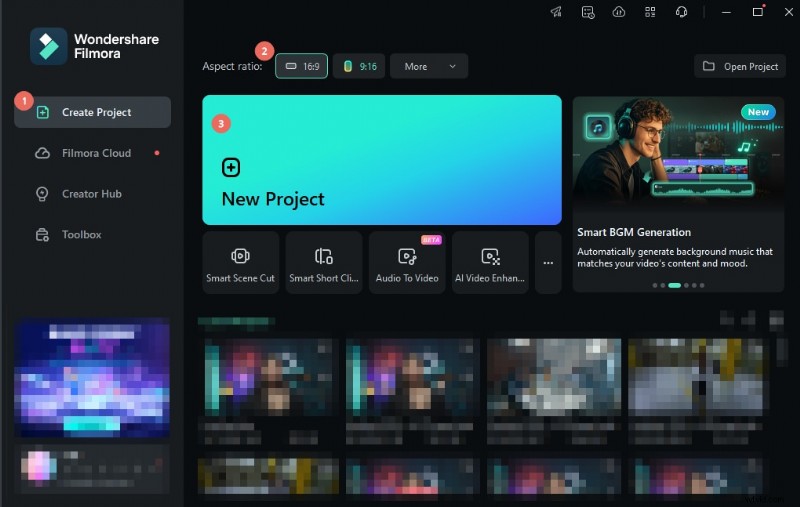
Step 2: Create a New Project and Import Your MP4
Open Filmora, click New Project, then Import to add your MP4 file. Drag the clip onto the timeline.
Step 3: Access the Speech‑to‑Text Tool
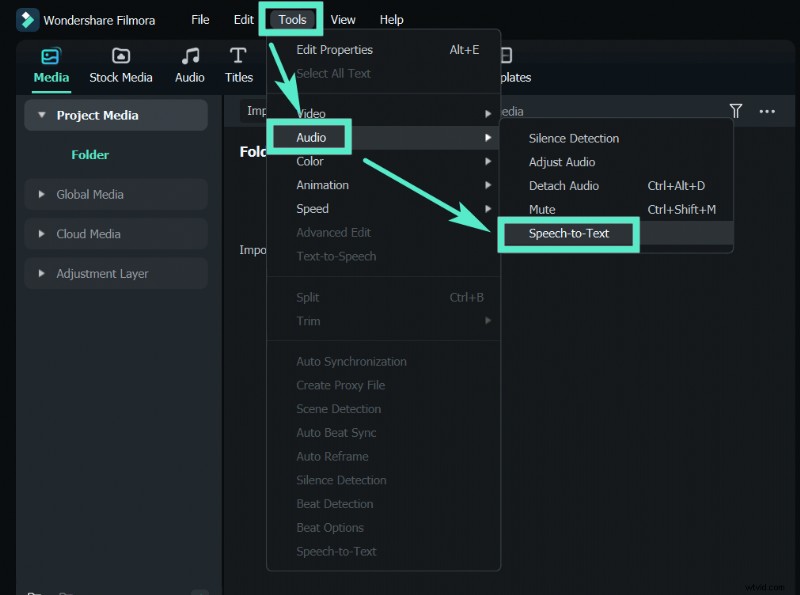
Select the video track on the timeline, then navigate to Tools > Audio > Speech to Text. Alternatively, right‑click the clip and choose Speech to Text.
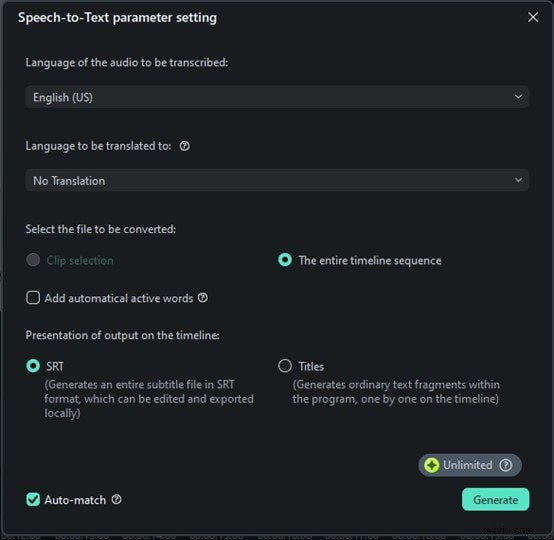
Step 4: Configure Transcription Settings
Choose the original language of the audio. If you want a translation, pick the target language; otherwise set No Translation. Decide whether to transcribe the entire timeline or only a selected segment, and select the output format (SRT or on‑screen titles). Tick Auto match to sync automatically with the timeline.
Step 5: Generate the Transcript
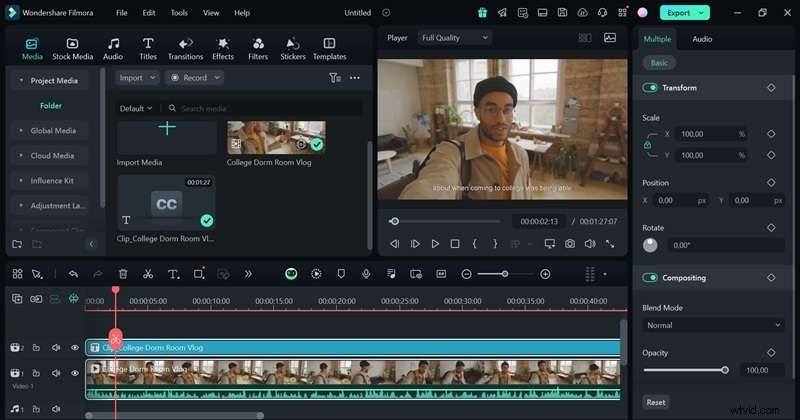
Click Generate and wait a few seconds. The transcript will appear in the Media tab once processing completes.
Step 6: Edit and Polish
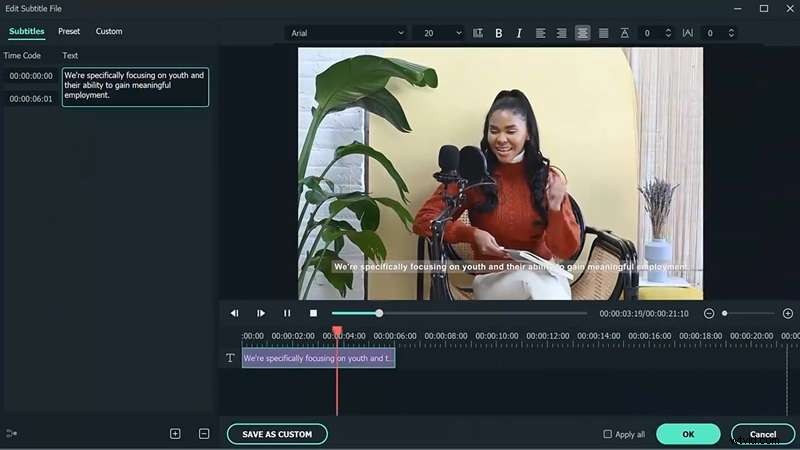
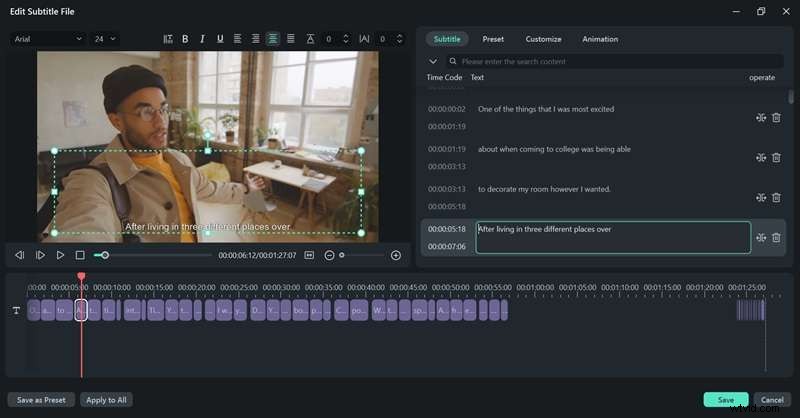
Double‑click the subtitle track on the timeline to open the editor. Correct any errors, adjust timing, and apply styles such as font, size, color, and position.
Step 7: Export or Integrate
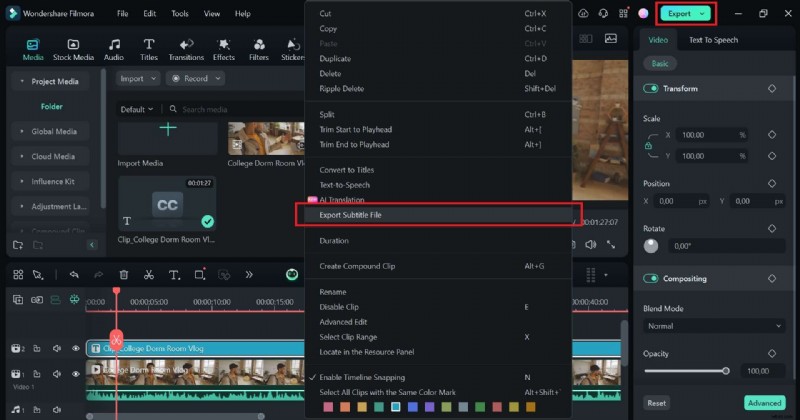
To save the transcript alone, right‑click the subtitle track and choose Export Subtitle File. To embed subtitles in the video, click Export and select the desired format.
Part 3. Optimizing Accuracy for Your Transcripts
Even the best AI models benefit from a few extra steps. Here’s how to maximize precision:
- Review & Edit – Play the video while scrolling through the transcript; correct misspellings or misheard words.
- Improve Audio Quality – Use Filmora’s Denoise feature (Audio tab → Denoise) to reduce background hiss.
- Split Long Files – Divide lengthy videos with the Split tool; shorter clips help the AI maintain focus.
- Choose Correct Language Settings – Select the exact spoken language; mis‑setting can degrade accuracy.
Conclusion
Filmora’s AI speech‑to‑text engine turns your MP4s into crisp, customizable transcripts in minutes. Whether you’re a content creator, educator, or business professional, this tool saves time, enhances accessibility, and broadens your audience with multilingual subtitles.
Start transcribing today and experience how effortless audio‑to‑text can transform your workflow.
FAQ
1. Can I translate the transcribed text into other languages?
Yes. Filmora’s feature supports translation into dozens of languages, including Arabic, Bengali, Chinese, Dutch, English, Japanese, Korean, and more.
2. Is there a free way to transcribe MP4 to text?
Filmora offers free AI credits upon account creation, which can be used to transcribe MP4 files at no cost.
3. Can I edit the transcribed text within Filmora?
Absolutely. You can adjust timing, font, size, and color, and correct any inaccuracies directly in the editor.