
Manual note‑taking and transcription can drain both time and energy. Whether you’re a student, a business professional, or a content creator, the ability to convert spoken words into written text quickly and accurately is invaluable. Google’s suite of speech‑to‑text solutions delivers just that—leveraging advanced machine learning to transcribe audio with high precision, across more than 125 languages.
This guide explains how Google’s speech‑to‑text technology works, why it’s the industry standard, and reviews the five most reliable tools available online. We’ll also touch on an excellent alternative for video editors: Wondershare Filmora’s built‑in transcription feature.
In this article
- What is Google Speech‑to‑Text Technology?
- Why Choose Google‑Powered Speech‑to‑Text Tools?
- Top 5 Google‑Powered Speech‑to‑Text Tools
- Alternative for Video Content Creators: Filmora
- Conclusion
Part 1. What is Google Speech‑to‑Text Technology?

Google Speech‑to‑Text uses neural networks and deep learning to recognize spoken language and convert it into text in real time. By continuously training on diverse audio datasets, the system handles accents, background noise, and multiple languages, making it suitable for global users.
Key benefits include:
- Fast, real‑time transcription that lets you focus on speaking instead of typing.
- Support for 125+ languages and dialects.
- High accuracy, with the ability to detect speaker turns and emotion.
- Seamless integration with Google Cloud, Docs, and Drive.
- Cross‑platform availability—from desktop to mobile.
Who can benefit?
- Students: Dictate lecture notes, essays, and research.
- Content Creators: Transcribe interviews or generate subtitles quickly.
- Office Professionals: Draft emails, reports, and meeting minutes on the fly.
- Journalists: Convert field interviews into editable text.
- People with Disabilities: Voice typing offers an alternative for those with mobility challenges.
Part 2. Why Choose Google‑Powered Speech‑to‑Text Tools?
Google’s speech‑to‑text solutions stand out for their reliability, scalability, and deep integration with the broader Google ecosystem. They are ideal for both casual users and developers needing robust APIs.
- Language Coverage: 125+ languages and dialects.
- Accuracy: Continuous improvements through AI training.
- Real‑time Transcription: Immediate output with minimal latency.
- Integrations: Works natively with Google Docs, Drive, and Cloud.
- Multi‑Platform: Accessible via web, Android, and iOS.
Below are the five best tools powered by Google’s technology.
1. Google Speech‑to‑Text API
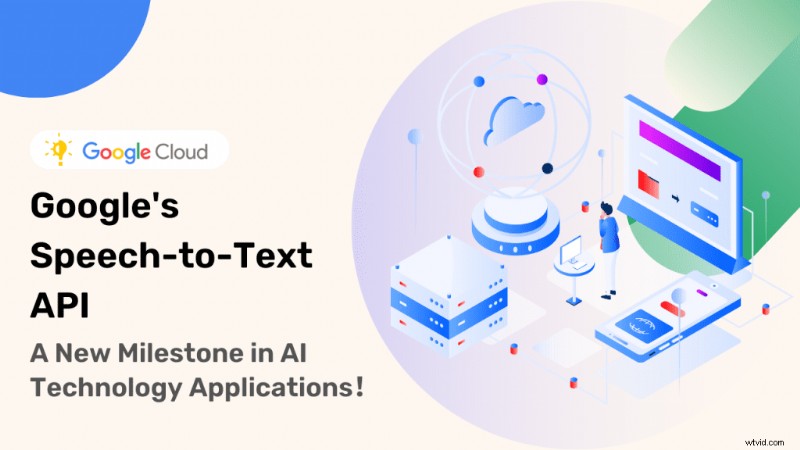
Designed for developers, this API offers powerful transcription features: real‑time streaming, batch processing, speaker diarization, and sentiment analysis. New users receive 60 free minutes of transcription and $300 in Google Cloud credits, making it a cost‑effective entry point.
Key features:
- Real‑time streaming and batch transcription.
- Speaker identification and sentiment analysis.
- Automatic timestamping for video and audio.
- Support for over 125 languages.
- Easy integration with Google Cloud Storage and other APIs.
Pros: Free tier, high accuracy, multilingual support.
Cons: Requires a GCP project and cloud storage; not ideal for non‑technical users.
Ideal For: Businesses and developers needing scalable, programmable transcription services.
2. Google Docs Voice Typing
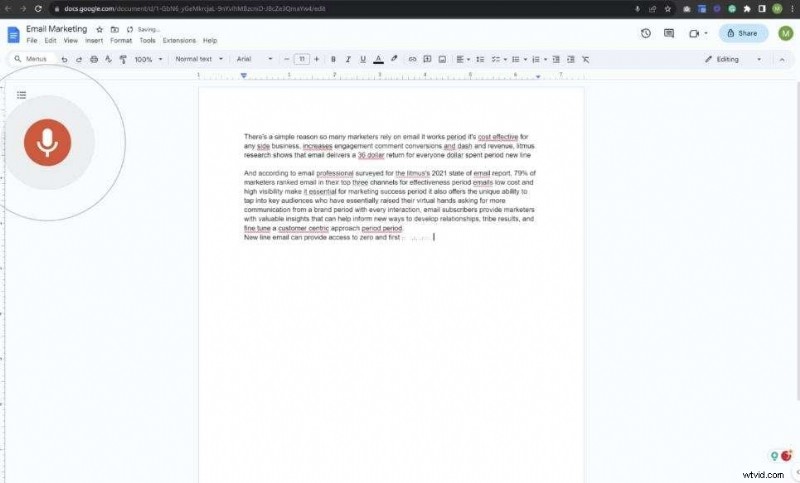
Google Docs’ built‑in voice typing is a free, no‑setup solution that works in the browser. By selecting Tools > Voice Typing or pressing Ctrl+Shift+S, users can dictate text directly into a document.
Key features:
- Supports 118 languages and dialects.
- Voice commands for formatting (e.g., “new paragraph,” “bold”).
- Cross‑platform availability via Google Chrome.
Pros: Completely free, instant transcription, voice commands.
Cons: Requires a live internet connection; cannot process pre‑recorded audio.
Ideal For: Anyone needing quick dictation while drafting documents.
3. Voice Dictation (Dictation.io)

Dictation.io is a straightforward, browser‑based tool that supports English, Spanish, French, German, Italian, Portuguese, and Chinese. It offers real‑time transcription and allows exporting to .txt, .docx, .pdf, or .rtf.
Key features:
- Instant transcription across multiple languages.
- Easy export options.
- No subscription required.
Pros: Free, reliable, multi‑language support.
Cons: Requires continuous internet; limited customization.
Ideal For: Professionals and students needing basic, on‑the‑go transcription.
4. SpeechTexter
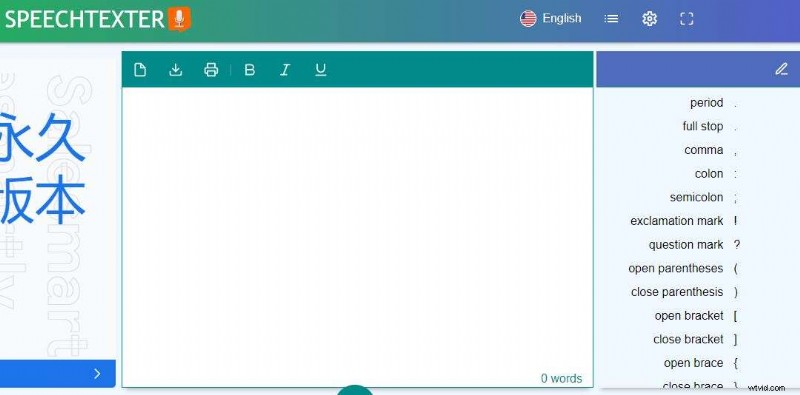
SpeechTexter is a free, multilingual tool that allows custom voice commands and punctuation. It’s especially helpful for people with dyslexia or motor impairments.
Key features:
- Custom voice commands for actions like “comma” or “new line.”
- Real‑time transcription.
- Support for many languages.
- Accessibility features for users with disabilities.
Pros: Enhances productivity for writers and students.
Cons: Occasional inaccuracies with certain accents; occasional formatting errors.
Ideal For: Users seeking hands‑free dictation with customization.
5. Speech Notes
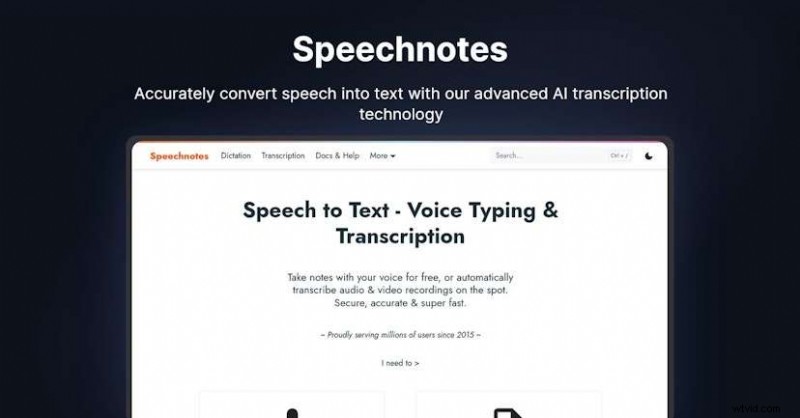
Speech Notes offers a lightweight, browser‑based interface for fast dictation. It automatically capitalizes sentences, checks spelling, and exports directly to Google Drive.
Key features:
- Unlimited free usage.
- Automatic capitalization and spell‑check.
- Export to Google Drive, print, or email.
- Android app for mobile dictation.
Pros: Free, simple, cross‑platform.
Cons: Cannot transcribe pre‑recorded audio; limited export formats.
Ideal For: Students, podcasters, and professionals needing quick, on‑the‑spot transcription.
Part 4. Alternative for Video Content Creators: Wondershare Filmora
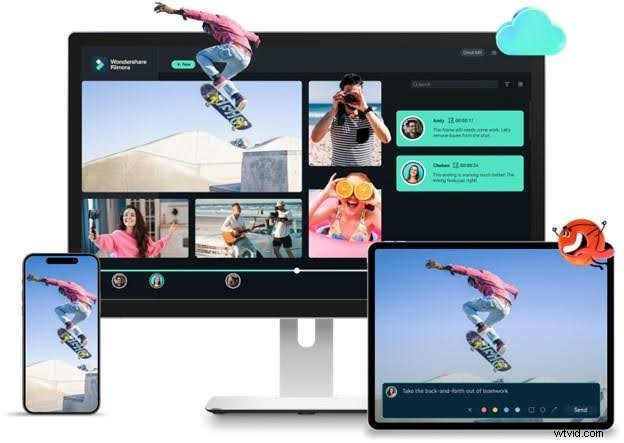
For creators who also need video editing, Filmora’s built‑in speech‑to‑text feature offers an all‑in‑one solution. It automatically generates captions from your video’s audio with high accuracy, supporting multiple languages and accents.
How it works:
- Open your video in Filmora and select Tools > Audio > Speech to Text (or right‑click the audio track).
- Choose the original language and enable bilingual subtitles if needed.
- Monitor the Task List to track transcription progress.
- Once completed, export the SRT file and use it for captions or subtitles.
Filmora’s integration of editing and transcription saves time and ensures the subtitles sync perfectly with the video.
Conclusion
Google’s speech‑to‑text tools deliver reliable, real‑time transcription across a wide range of languages and use cases. Whether you’re a student taking notes, a professional drafting documents, or a content creator generating subtitles, one of the five tools above will fit your needs.
If your workflow involves video editing, Filmora offers a seamless, AI‑powered transcription feature that complements its robust editing suite. For pure transcription, the Google tools remain the industry benchmark.