
Recordings are everywhere—college lectures, business meetings, podcasts, and interviews. Transcribing them manually is tedious and error‑prone, especially when the audio runs long.
Fortunately, the latest generation of audio‑to‑text solutions turns spoken words into accurate text with a few clicks. With so many options available, choosing the right one can feel overwhelming.
This guide breaks down the leading tools, explains the criteria you should consider, and shows you step‑by‑step how to use the best option for your workflow.
In this article
- Key criteria for choosing a transcription tool
- Top 6 recommended audio‑to‑text solutions
- Wondershare Filmora
- Transkriptor
- Restream
- TurboScribe
- Happy Scribe
- Transcribe
- Author’s pick
Part 1. Criteria to Look For in an Audio‑to‑Text Converter
Before diving into specific tools, it’s useful to know what truly differentiates a reliable transcription solution from a mediocre one. Focus on these key factors:
- Accuracy – The tool should produce a near‑perfect transcript, minimizing manual corrections. This is critical for technical or specialized content.
- Supported Formats – A versatile tool accepts common audio types such as MP3, WAV, M4A, MP4, and more, so you can transcribe any file without converting it first.
- Speed – Transcription should be fast enough for your workflow, whether you need real‑time results or batch processing.
- Language & Accent Support – If your recordings contain multiple languages or heavy accents, choose a solution that can handle them accurately.
Part 2. Recommended Tools for Audio‑to‑Text Transcription
Below we highlight the six best tools, summarizing their standout features, supported platforms, and availability. Each tool is evaluated on the criteria from Part 1.
1. Wondershare Filmora
Filmora is a full‑featured video editor that also offers a robust Speech‑to‑Text (STT) feature. With one click, you can generate subtitles or a plain transcript from any video or audio clip. The editor supports 27 languages, making it ideal for vloggers, educators, and content creators who need quick, high‑quality subtitles.
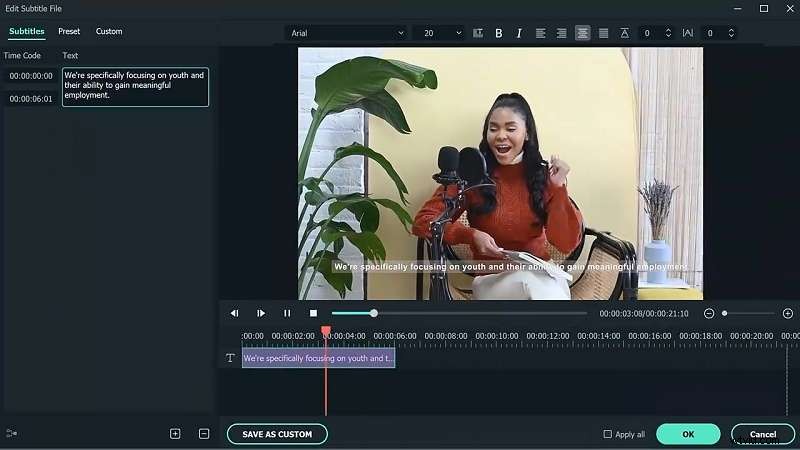
- High‑accuracy speech recognition powered by advanced AI.
- One‑click transcription saves valuable time.
- 27‑language support for subtitles and captions.
- Import external SRT files for easy editing.
- Built‑in audio enhancement tools (vocal remover, denoise, silence detection).
Availability: Windows, macOS, Android, iPhone, iPad
2. Transkriptor
Transkriptor is a lightweight app focused on quick transcription of meetings, lectures, and interviews. It accepts both audio and video files and offers a 90‑minute free trial so you can test accuracy before upgrading.
- Supports multi‑speaker sessions with group transcription.
- Compatible with MP3, MP4, WAV, and M4A formats.
- 90‑minute free trial to evaluate performance.
- Android‑only application.
3. Restream
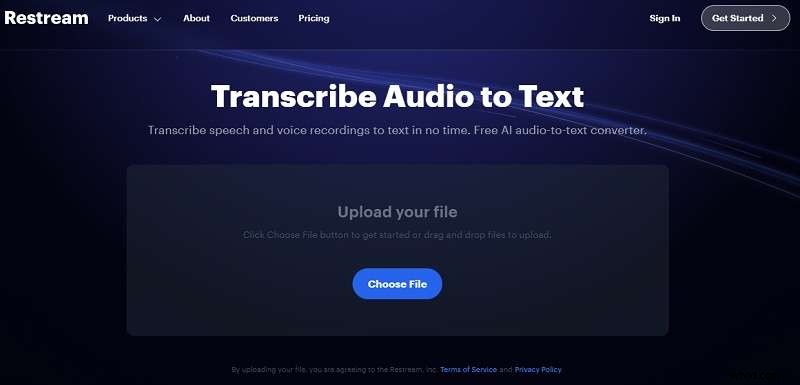
Restream offers a free, browser‑based transcription service powered by AI. It supports 15 languages and requires no account creation. Upload your file, and the tool returns a clean transcript instantly.
- Completely free with no sign‑up needed.
- Integrated with Restream Studio for high‑quality recordings.
- 15‑language support including English, French, Spanish.
- Data is deleted after transcription for privacy.
Availability: Online
4. TurboScribe
TurboScribe uses OpenAI’s Whisper engine to deliver accurate transcription in over 98 languages. It also offers built‑in translation and speaker identification, making it suitable for multilingual meetings, podcasts, and interviews.
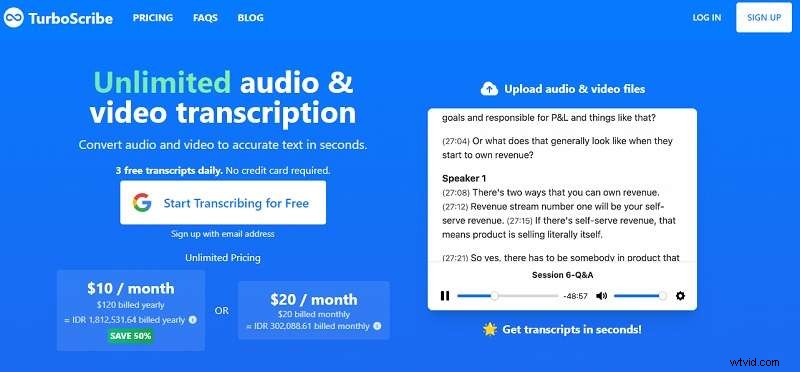
- AI‑powered audio restoration improves low‑quality recordings.
- Supports 98+ spoken languages.
- Built‑in translation for 134+ languages.
- Handles large files and multiple uploads.
Availability: Online
5. Happy Scribe
Happy Scribe offers both AI and human transcription services. The AI option reaches up to 94% accuracy, while the human team guarantees 99% accuracy within 24 hours. Upload from Google Drive, YouTube, Dropbox, or directly from your device, and start with 10 minutes of free transcription.
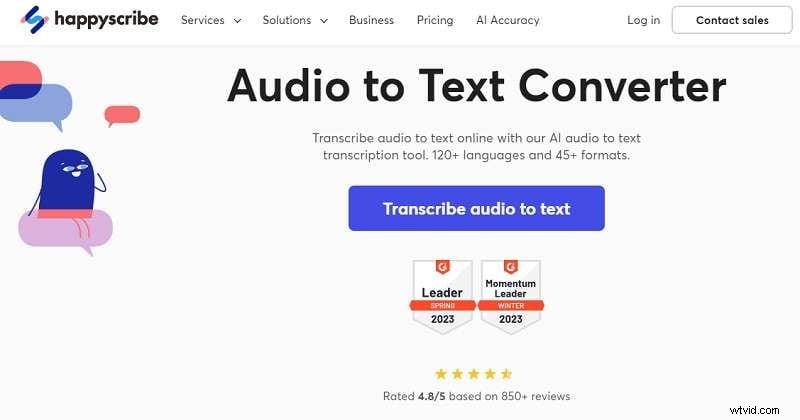
- Dual AI and human transcription workflows.
- Wide range of import options and file types.
- Built‑in editor for proofreading and final touches.
- Ideal for academics, journalists, and content creators.
Availability: Online
6. Transcribe
Transcribe is a cross‑platform assistant that converts voice memos, videos, and foreign language content into readable text. It supports over 120 languages and dialects, and its interface is ad‑free for a clean experience.
- 120+ languages and dialects supported.
- Import files from Dropbox or other apps.
- Export to TXT, PDF, DOCX, and SRT.
- Ad‑free, streamlined workflow.
Availability: macOS, iOS, iPadOS
Part 3. Comparing the Top Tools for Audio‑to‑Text Transcription
To simplify your decision, here’s a side‑by‑side comparison based on the criteria from Part 1. The table highlights each tool’s accuracy, speed, supported formats, and language coverage.
| Audio‑to‑Text Tool | Accuracy | Transcription Speed | Supported Formats | Language Support |
| Wondershare Filmora | High accuracy with AI speech recognition. | Fast for short and long videos. | MP4, WMV, AVI, MOV, F4V, MKV, TS, 3GP, MPEG‑2, WEBM, GIF, MP3. Also supports SRT import. | 27 languages. |
| Transkriptor | High accuracy; depends on audio quality and language. | Fast. | MP3, MP4, WAV, M4A. Also supports PDF, TXT, SRT import. | 100+ languages. |
| Restream | High AI‑powered accuracy. | Depends on internet connection. | MP3, WAV, FLAC, AAC, and more. | 15 languages. |
| TurboScribe | Pro version offers high accuracy; free version moderate, may need editing. | Fast for short files; slower for longer ones. | M4A, MP4, MOV, AAC, WAV, WMV, AVI, MKV, and more. | 98 languages. |
| Happy Scribe | Human transcription reaches 99% accuracy; AI may need proofreading. | Depends on internet; human transcription takes longer. | 45+ file formats: M4A, MP4, MOV, AAC, WAV, WMV, AVI, MKV, etc. | 120+ languages. |
| Transcribe | Moderate to high; depends on recording quality. | Fast for short videos; slower for longer ones. | MP3, MP4, WAV, M4A. Also supports PDF, TXT, SRT import. | 120 languages. |
Author’s Pick
Considering the balance of accuracy, speed, and user experience, Wondershare Filmora emerges as the top choice. While it supports 27 languages—fewer than some competitors—its precision and rapid transcription, combined with robust audio enhancement tools, make it ideal for professionals who need reliable results without internet dependency.
Filmora also offers a free trial, making it easy to test the feature set before committing. Its cross‑platform availability (Windows, macOS, Android, iOS, iPad) ensures you can transcribe on any device.
Part 4. Turning Your Audio Into Text with Wondershare Filmora
Below is a concise, step‑by‑step guide to harness Filmora’s Speech‑to‑Text tool. Whether you’re a podcaster, educator, or video editor, these steps will help you produce accurate transcripts or subtitles quickly.
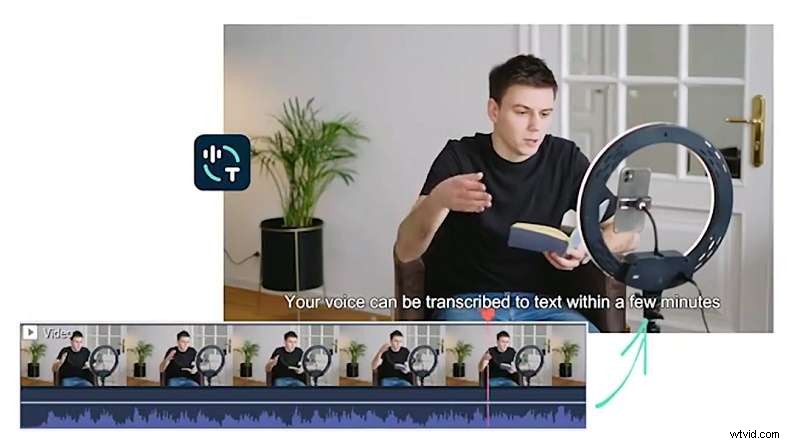
- Open Filmora and upload your file. If you haven’t installed Filmora yet, download the latest version here. After installation, start a new project and import the audio or video you wish to transcribe.
- Access the Speech‑to‑Text tool. Right‑click the media in the Project Media panel or the timeline, then choose Speech‑to‑Text from the context menu.
- Configure settings and start transcription. In the Speech‑to‑Text window, select the audio language, enable auto‑sync, and if needed, choose a second language for bilingual subtitles. Click Generate to begin.
- Review and edit the transcript. Once transcription completes, the text appears on the timeline. You can adjust timing or correct errors directly.
- Export subtitles or text. To export, right‑click the SRT track and select Export Subtitle File. Choose your desired format and destination.
That’s all—Filmora turns audio into accurate, editable text in just a few clicks.
Conclusion
We’ve explored six standout audio‑to‑text solutions, each with unique strengths. By evaluating them against accuracy, speed, format flexibility, and language coverage, you can identify the tool that best matches your workflow. Whether you prefer a free, web‑based service or a feature‑rich desktop editor, there’s an option that will transform your recordings into reliable transcripts effortlessly.
For most users, Wondershare Filmora delivers unmatched accuracy and speed, coupled with powerful audio enhancement features. Its cross‑platform support and free trial make it a dependable choice for anyone looking to streamline transcription tasks.