
iPhone’s 4K camera and advanced image processing make it a top choice for mobile videography. To polish your footage, cropping can remove distractions, tighten composition, and highlight the subject. Below is a step‑by‑step guide for three of the most reliable tools—Apple’s Photos app, iMovie, and Filmora for iPhone.
- Crop videos with the built‑in Photos app
- Crop videos with iMovie
- Crop videos with Filmora for iPhone (recommended for advanced edits)
Part 1: Crop videos with the Photos app
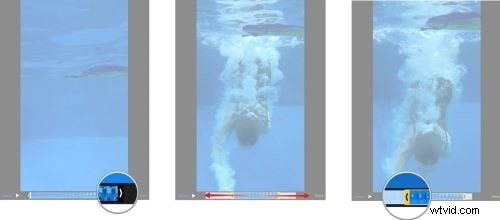
The Photos app is the quickest way to trim and crop your clips without installing third‑party software. Note that it can only crop from the edges; it does not allow you to remove a mid‑section.
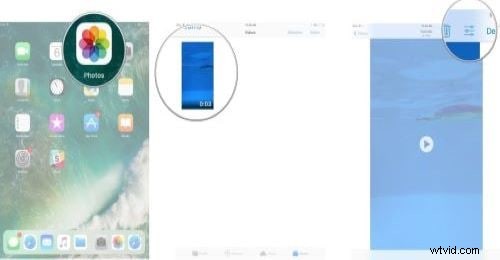
- Open the Photos gallery and select the video you want to edit.
- Tap Edit in the upper‑right corner.
- Choose Crop & Rotate at the bottom.
- Drag the corners of the overlay to frame the desired portion.
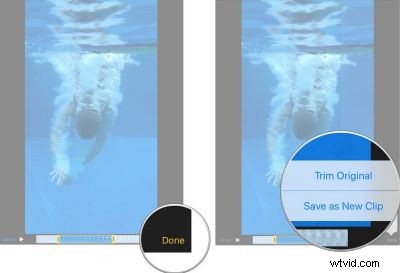
- Tap Done to save. If you need to revert, select Revert at the bottom‑right.
Part 2: Crop videos with iMovie
iMovie offers a more flexible cropping interface, letting you zoom in on the frame and adjust the aspect ratio. The process is still fully manual.
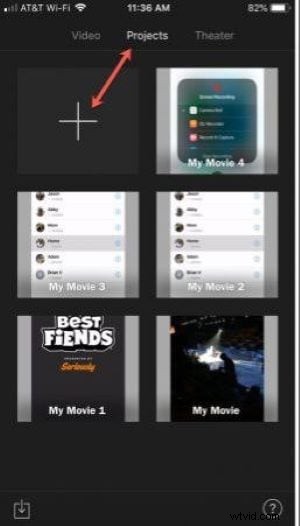
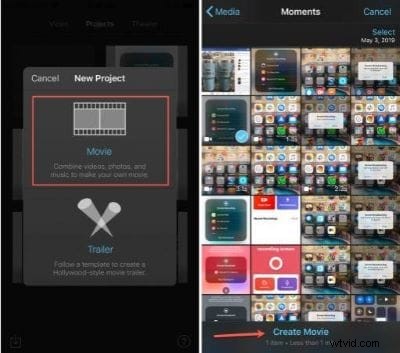
- Open iMovie and tap the + icon to create a new project.
- Select the video you wish to crop and tap Create Movie.
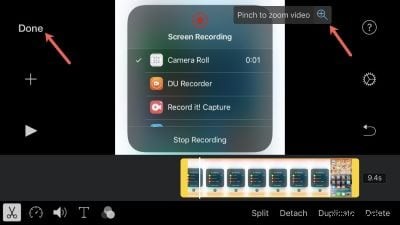
- At the bottom, tap Trim then tap the pinch‑to‑zoom icon on the right.
- Pinch in or out to set the crop area. The preview will update in real time.
- When satisfied, tap Done and choose Save Movie to export to Photos.
Part 3: Crop videos with Filmora for iPhone
Filmora for iPhone (formerly FilmoraGo) is a feature‑rich editor that supports trimming, adding effects, and exporting directly to social media. It’s ideal for users who want more creative control.
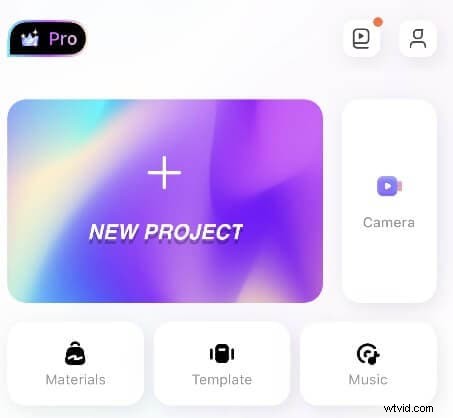
- Download and open Filmora, then tap New Project > New.
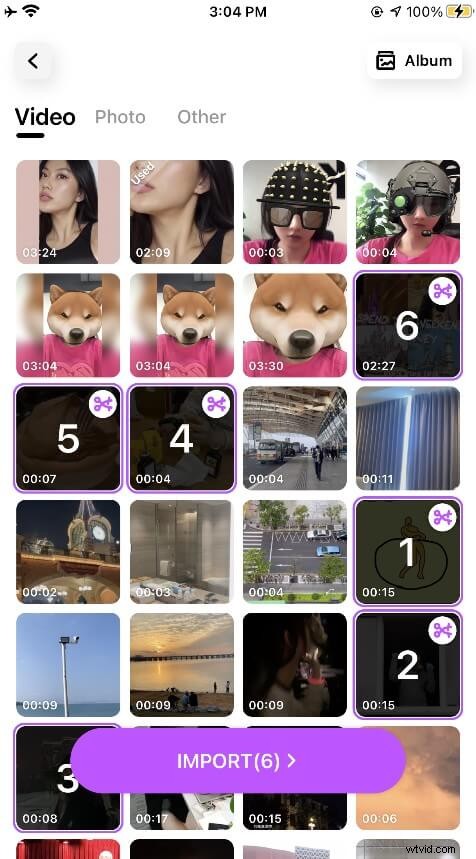
- Import the desired video by selecting it from the gallery and tapping Import.
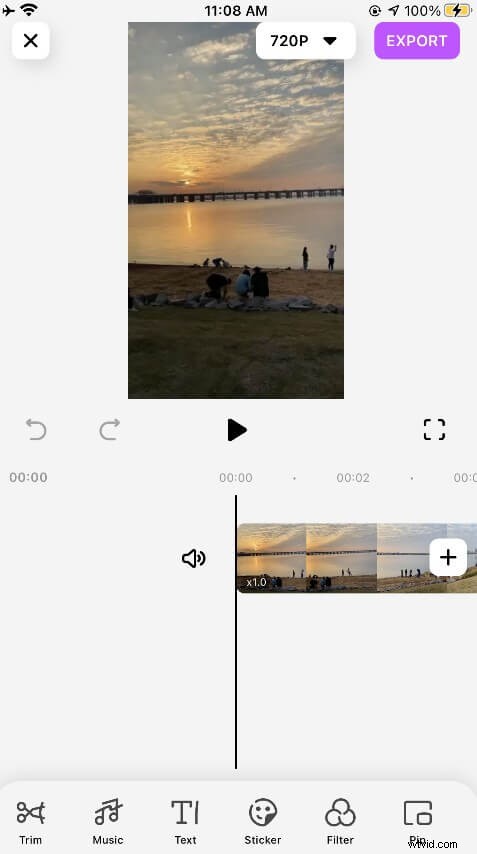
- Use the Trim tool to slide the start and end markers, removing unwanted footage.
- For more precise cropping, tap the Crop icon and adjust the frame.
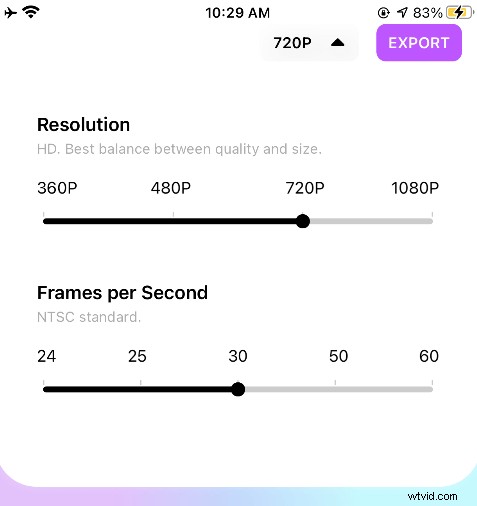
- When ready, tap Export, choose your output settings, and hit Continue Export. The file will be saved to your Camera Roll.
Key features of Filmora:
- High‑quality filters and visual effects
- Background music and audio overlays
- Built‑in stickers, text, and transitions
- Easy sharing to YouTube, Instagram, Facebook, and more
Instantly record, edit, and share every beautiful moment in life. Install Filmora for Mobile now!
Conclusion
Whether you prefer the simplicity of Photos, the flexibility of iMovie, or the power of Filmora, cropping your iPhone videos is straightforward and can dramatically improve the storytelling impact of your footage. Experiment with these tools to find the workflow that best suits your creative vision.