
Adjusting video speed can elevate your content—whether you want to cut out filler, create a cinematic slow‑motion effect, or simply keep viewers engaged. The key is to maintain quality while manipulating playback speed. Wondershare Filmora for Mobile (formerly FilmoraGo) offers a mobile‑friendly solution that works on both iOS and Android devices.
Why Choose Wondershare Filmora for Mobile?
With a user base that prefers on‑the‑go editing, Filmora for Mobile is praised for its intuitive interface, robust feature set, and wide format support. Over 70 % of mobile editors rely on the app for speed adjustments, filters, effects, and templates—all without needing a desktop.
Its simple workflow lets you speed up or slow down clips in seconds, preview changes in real time, and export at your preferred resolution.
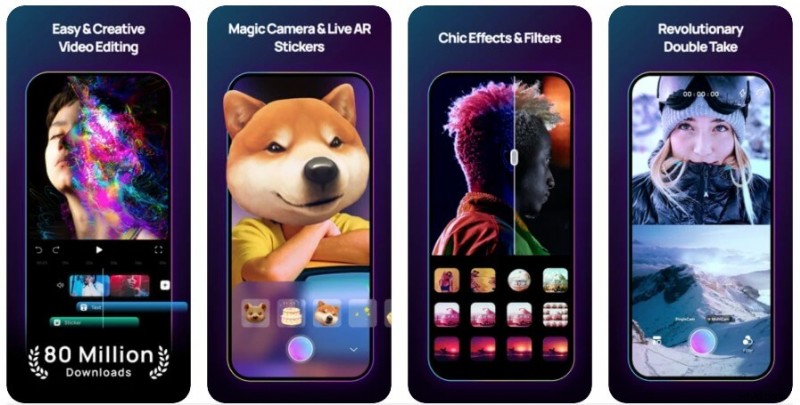
Speed Up or Slow Down Video on iPhone
Step 1: Create a New Project and Import Your Clip
Launch the app, tap the + icon to start a new project, and choose the video you wish to edit from your library. Filmora for Mobile accepts all popular formats, so format compatibility isn’t a concern.
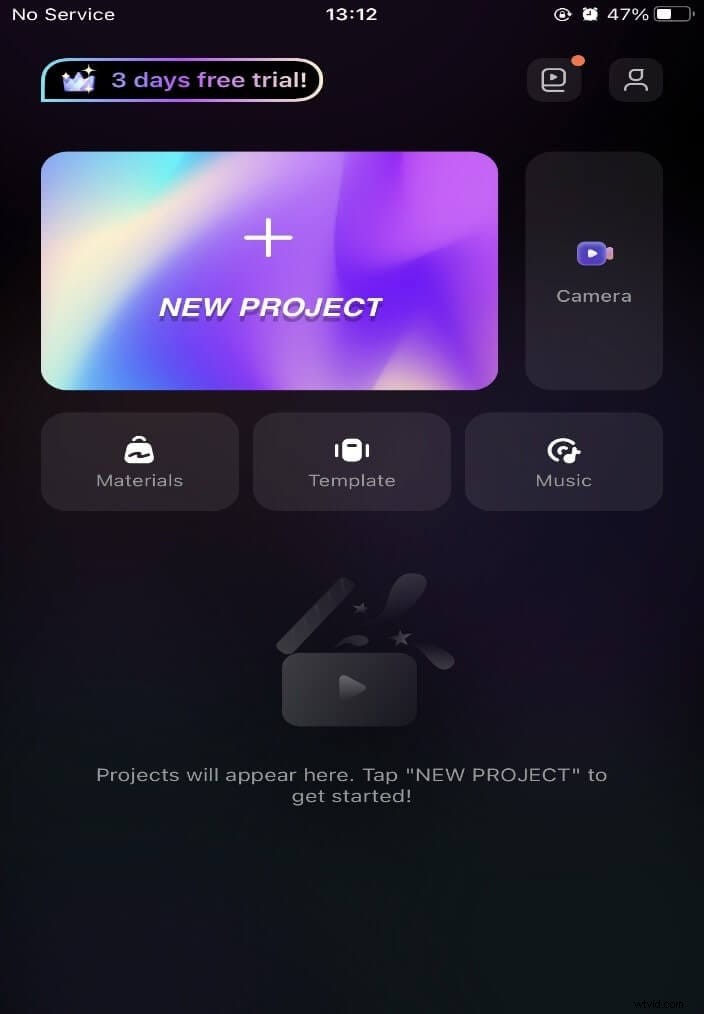
Step 2: Adjust the Speed Slider
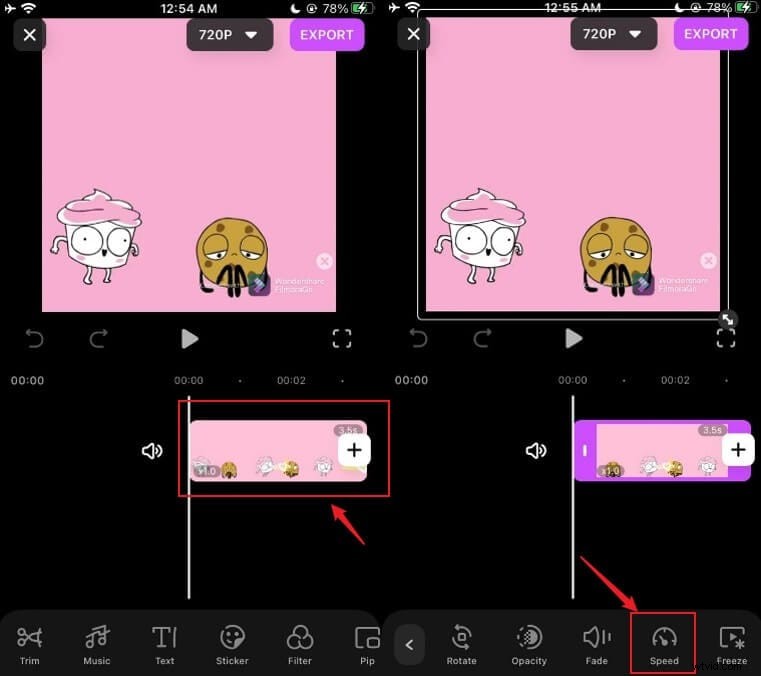
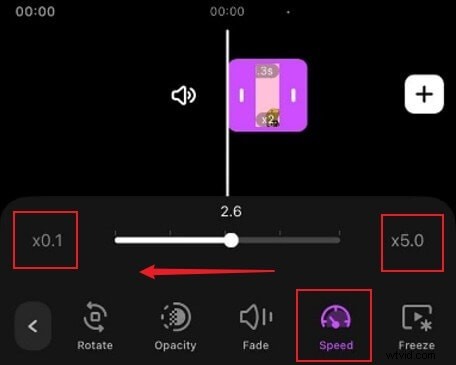
On the timeline, tap Trim to reveal the speed control. The slider ranges from 0.1× to 5× the original speed. Moving the handle to the right increases speed (shortening the clip), while moving it left slows the video (extending its duration).
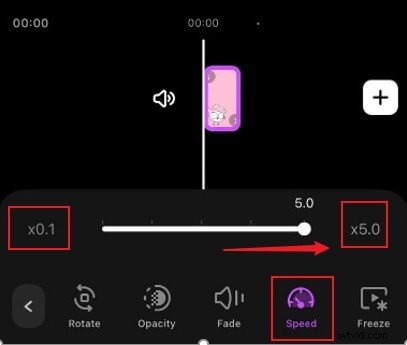
- Speeding Up: Drag the slider right. The preview updates instantly, allowing you to fine‑tune the tempo before finalizing.
- Slowing Down: Drag left to create slow‑motion or cinematic effects.
Always preview after adjusting to ensure the motion feels natural.
Step 3: Export and Save
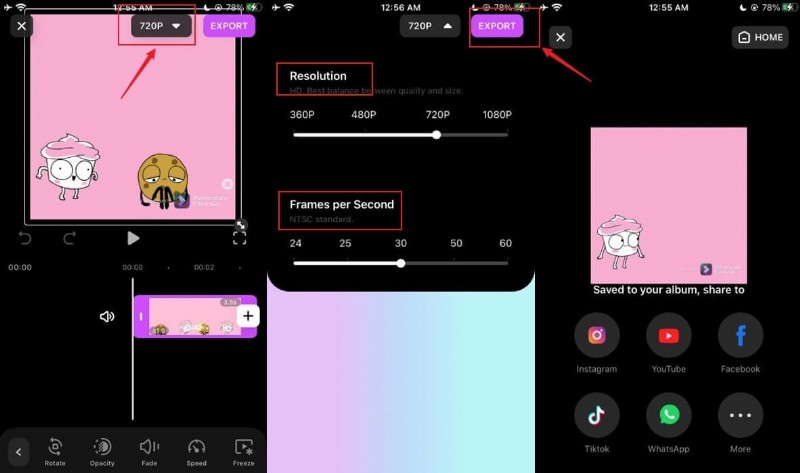
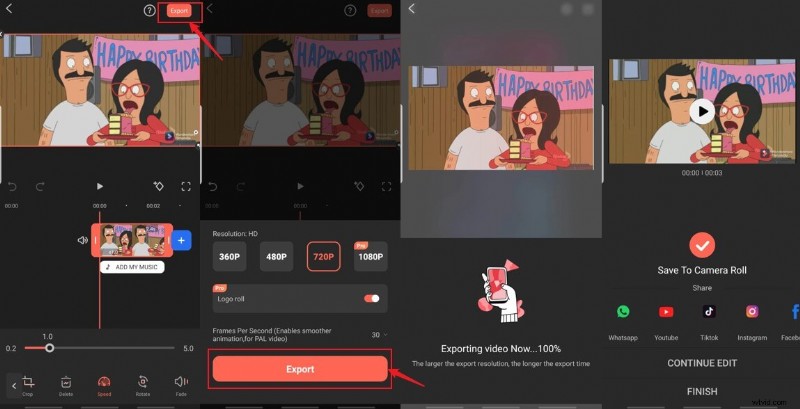
Tap the down arrow next to 720 P to choose your output resolution. Then hit Export—the video is saved to your iPhone gallery and can be shared directly to social platforms.
Speed Up or Slow Down Video on Android
Step 1: Import Your Video
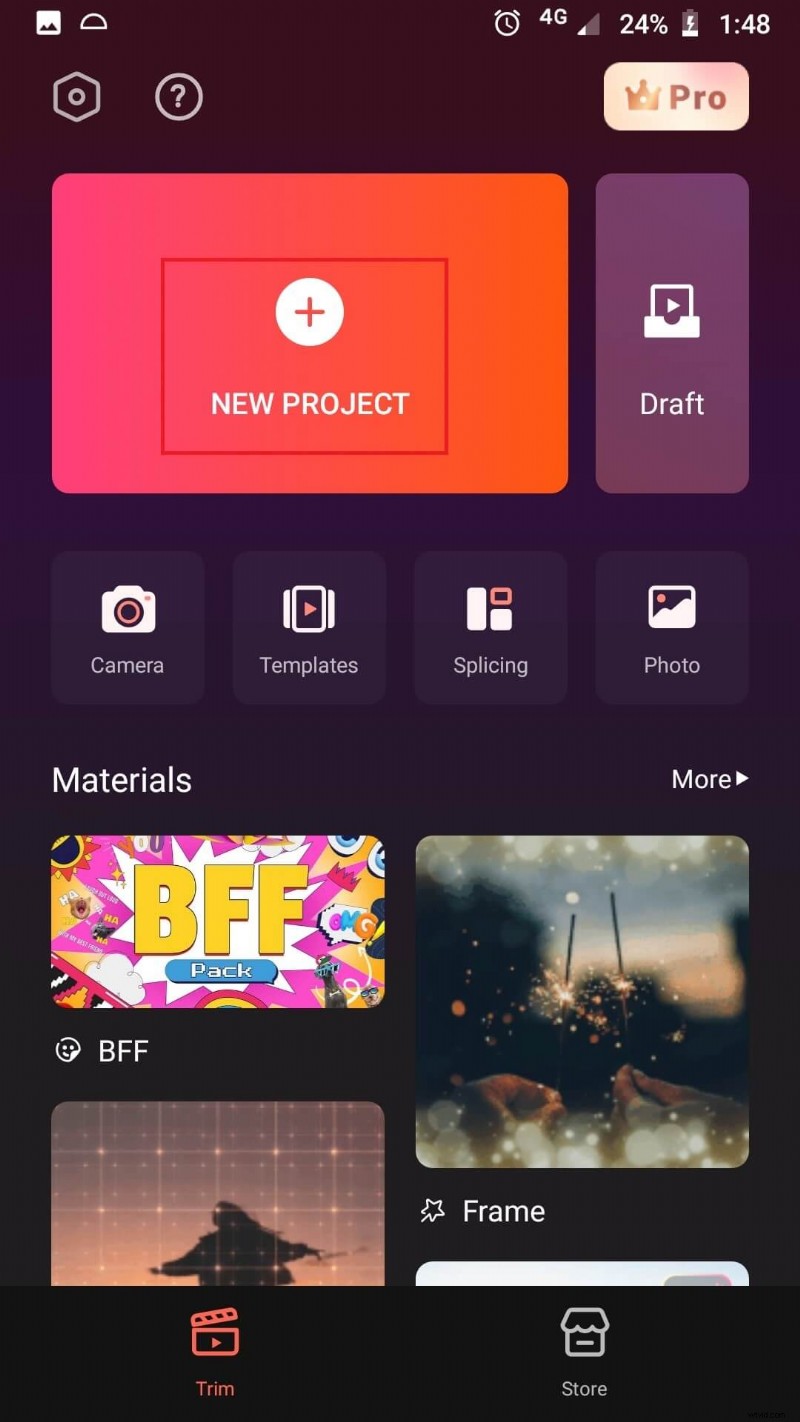
Open Filmora for Mobile on Android, tap New Project, then + to select your clip. The app supports the same broad range of formats as on iOS.
Step 2: Adjust Speed
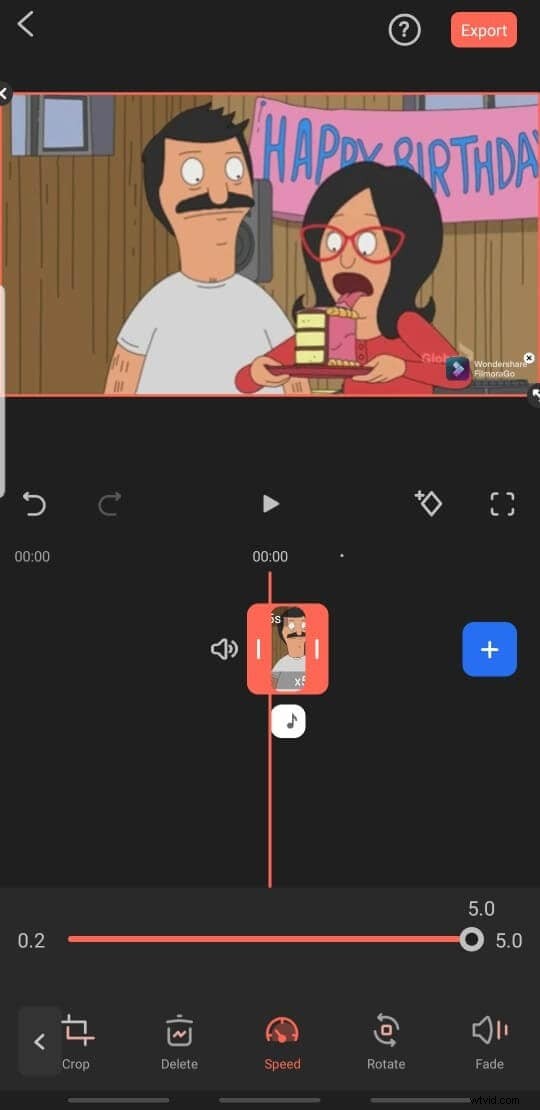
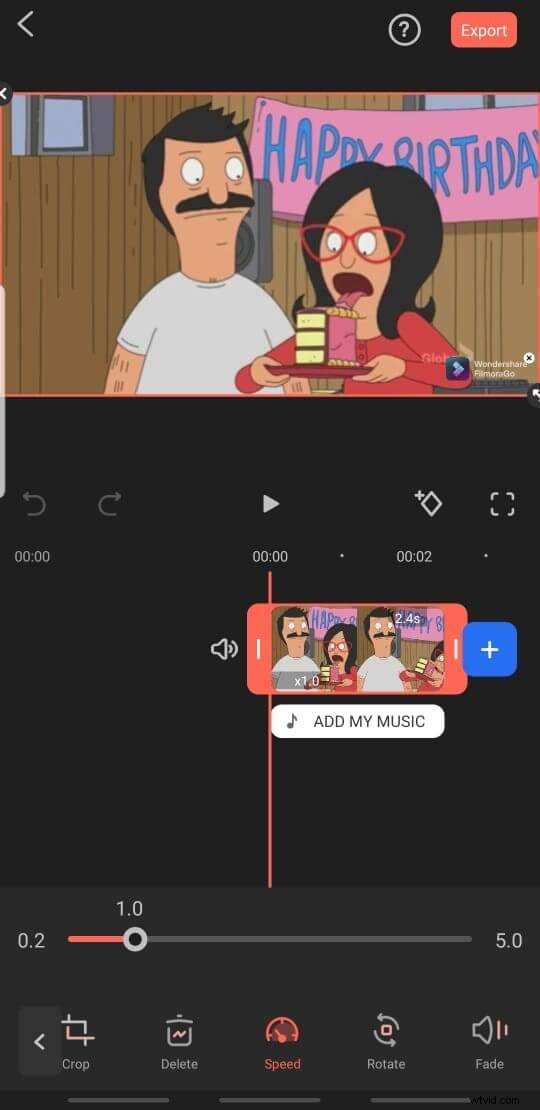
Tap Trim, then select Speed. The slider lets you double the speed or reduce it to as low as 0.1×. Moving the handle right speeds up the clip; moving left slows it.
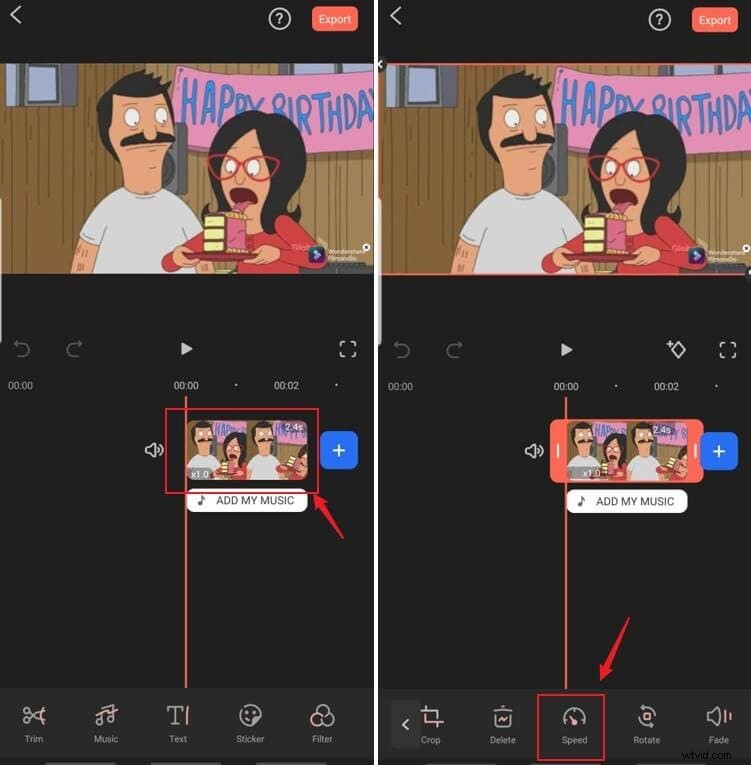
- Speeding Up: Move the slider right—notice the clip’s duration shrinks accordingly.
- Slowing Down: Move left to create a smooth slow‑motion effect.
Step 3: Export to Gallery
Tap the export icon in the top right, choose your desired resolution, and let the process complete. Once finished, the video appears in your gallery and can be shared across social media.
By following these straightforward steps, you can harness Filmora for Mobile to produce fast‑motion or slow‑motion videos that look professional and engaging. Download the latest version on iOS or Android today and start editing on the go.