
Social media creators frequently combine audio and video to produce engaging content. With a powerful mobile editor, you can merge them into a single, polished clip quickly and reliably.
Wondershare Filmora for Mobile (formerly FilmoraGo) is a leading video‑editing app that empowers users to create high‑quality videos right on their smartphones. It offers a wide range of effects, transitions, and audio options, and it works offline—no internet connection required.
Below is a detailed, step‑by‑step tutorial for merging audio and video on iPhone, iPad, and Android devices.
How to Merge Audio & Video on iPhone
iPhone users can easily combine video clips and audio tracks in Filmora for Mobile with just a few taps.
Step 1: Start a New Project and Import Videos
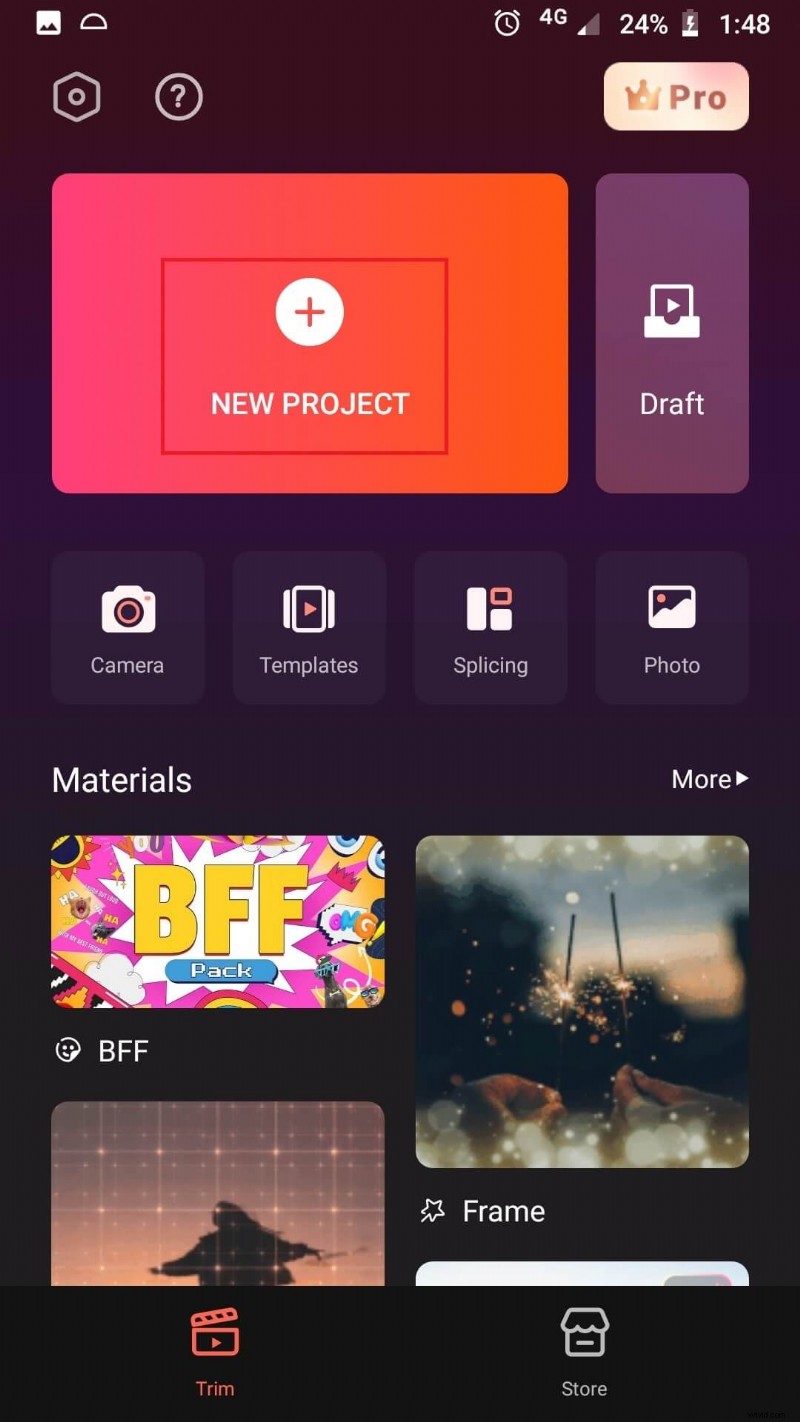
Tap New Project and select the video clips you wish to merge. The app supports more than five clips, but the example below merges two.
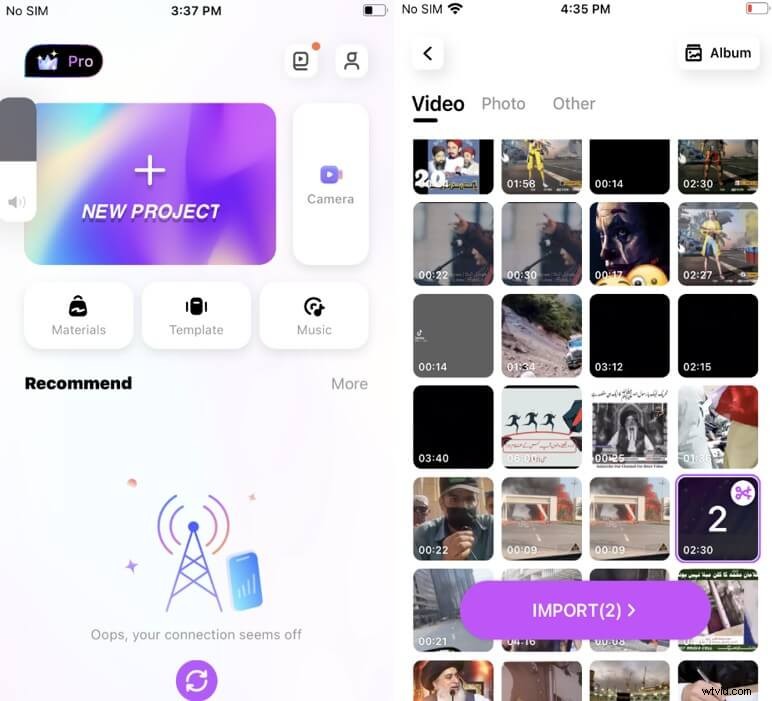
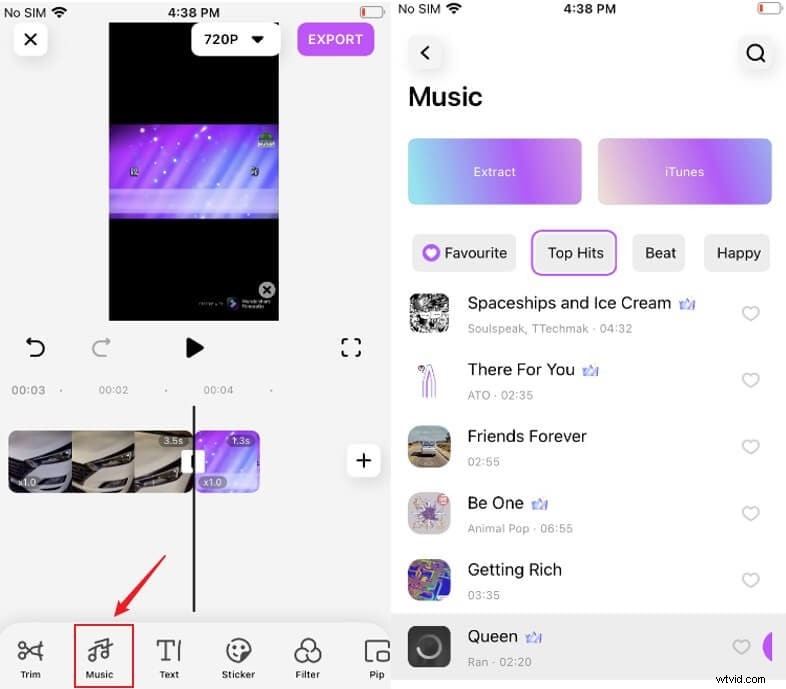
Step 2: Add Effects and Audio
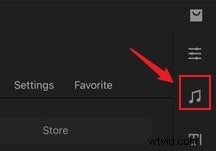
Use the extensive library of over 300 effects, themes, and transitions to enhance your video. To add music, tap Music and choose from categories such as Favorites, Top Hits, or Ambient. Select your track and preview the result.
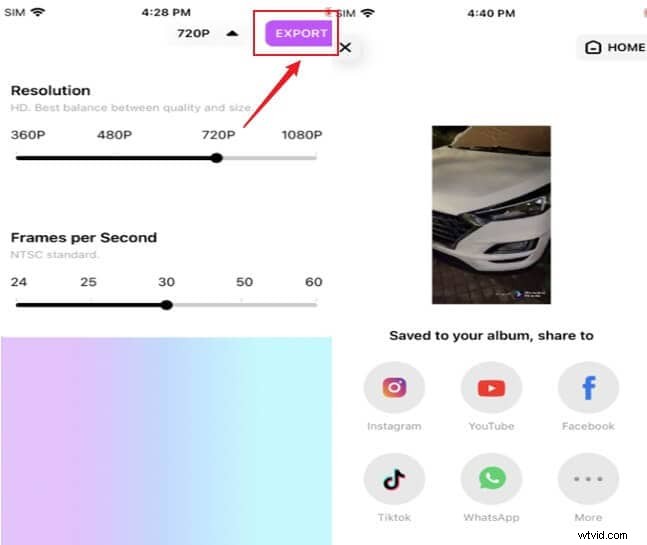
Step 3: Export the Final Video
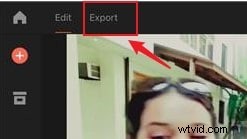
Once satisfied, tap Export, choose your desired resolution, and save the finished video to your iPhone gallery.
How to Merge MP4 and Audio on iPad
The iPad version follows the same workflow, allowing you to merge MP4 files with background music seamlessly.
Step 1: Import a Video
Tap New Project, then import the MP4 clip you want to edit.
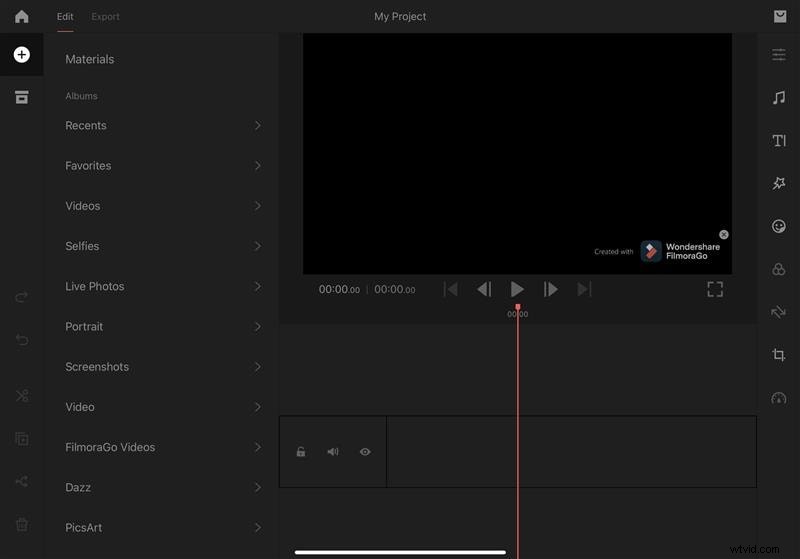
Step 2: Edit and Add Audio
Enhance the clip with effects or transitions if needed. Tap Music to insert your chosen audio track, then preview the combined footage.
Step 3: Export
After previewing, tap Export, set the resolution, and save the video to your iPad’s photo library.
How to Merge Video and Audio on Android Phone
Android users can merge video clips and audio tracks with the same intuitive interface.
Step 1: Create a New Project
Select the videos and audio files you wish to combine. The app supports various formats, so you can mix MP4, MOV, and others.
Step 2: Apply Effects and Synchronize Audio
On the timeline, trim clips, adjust speed, add filters, and place the audio track under the Music section. Preview to ensure smooth synchronization.
Step 3: Export and Save
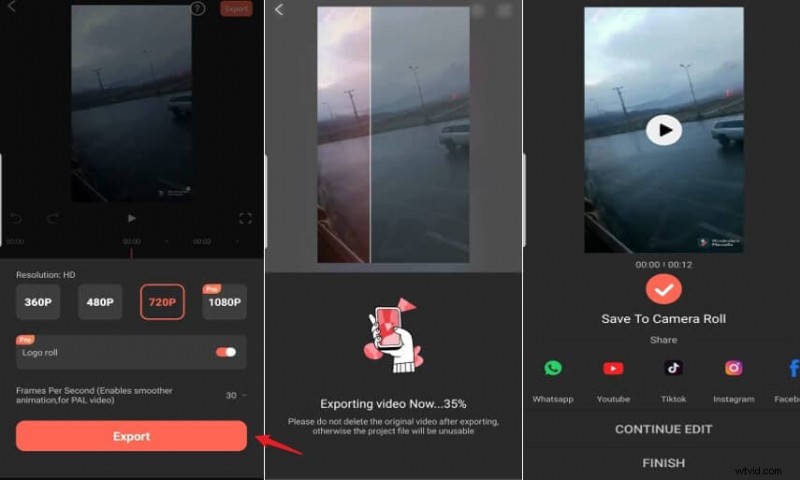
Tap Export in the top‑right corner, choose your resolution, and once rendering is complete, the video will be stored in your Camera Roll.
With Wondershare Filmora for Mobile, merging audio and video is straightforward, whether you’re on iOS or Android. Follow the steps above to create professional‑looking videos in minutes.