
Key takeaways:
- Best AI YouTube video editor: Riverside
- Best YouTube video editor for beginners: iMovie
- Best for intermediate users: Adobe Premiere Pro
- Best for professionals: DaVinci Resolve
- Best for Mac: Final Cut Pro X
- Best for visual effects: HitFilm Express
- Best free options without watermarks: OpenShot & VSDC
- Best mobile apps: CapCut & Premiere Rush
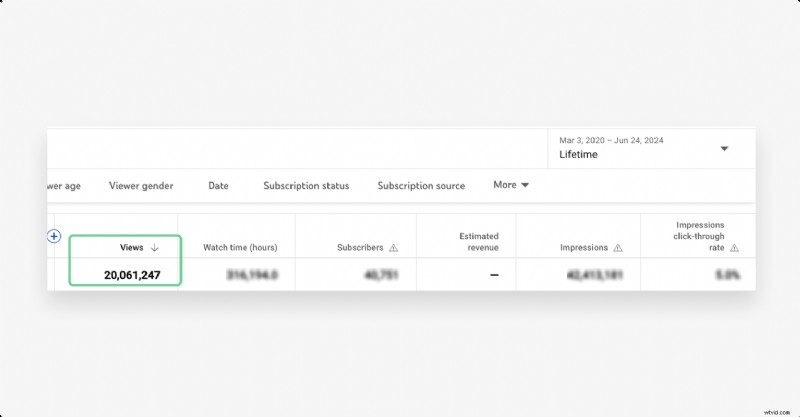
This guide highlights the leading video editing tools that helped me produce over 500 YouTube videos with more than 20 million views.
Whether you’re a seasoned creator or just starting, you can find a solution that fits your workflow without a hefty subscription fee.
Table of Contents
- Key features to evaluate
- Top 10 editors for YouTubers
- Overall best editor: Riverside
- Best for beginners: iMovie
- Best for intermediates: Adobe Premiere Pro
- Best for professionals: DaVinci Resolve
- Best for Mac: Final Cut Pro X
- Best for VFX: HitFilm Express
- Best free editors without watermarks
- Best mobile apps for iOS & Android
- Choosing the right editor for your skill level
- Pro‑level editing practices
- Elevate your content strategy
- FAQs about YouTube video editing software
What video editor do YouTubers use?
Video editing tools are as diverse as the creators who use them. While iMovie, Final Cut Pro, and Adobe Premiere Pro are common, the best choice depends on your workflow and skill level.
Key features to evaluate
Below is a concise checklist to help you select the right software for your channel.
User‑friendly interface
Look for intuitive controls, plenty of tutorials, and a clean workspace that speeds up the learning curve.
Core editing capabilities
Beginner‑friendly options should offer cutting, trimming, and basic transitions. Advanced editors should support motion tracking, multicam, keyframing, and sophisticated color grading.
Export flexibility
Ensure the software supports YouTube‑compatible formats (.mov, .mp4, .avi, etc.) and lets you fine‑tune resolution, frame rate, and compression.
Effects and transitions
High‑quality transitions, speed‑ramping, color correction, motion graphics, and overlay support can elevate viewer engagement.
Multitrack editing
Separating video and audio tracks allows precise volume adjustments and layering without affecting other clips.
Audio refinement
Noise reduction, audio normalization, and sound effects are essential for a professional soundstage.
Performance and stability
Large projects demand smooth playback and rendering; verify system requirements before committing.
Top 10 editors for YouTubers
Overall best editor: Riverside
Multitrack editing: Yes
Export formats: MP4, MP3, WAV, Raw Video (CFR MP4), Aligned Video (CFR MP4)
Ideal for: Creators who record and edit in one place, especially interview and remote‑collab videos.
Pricing: Free tier, paid plans start at $15/month
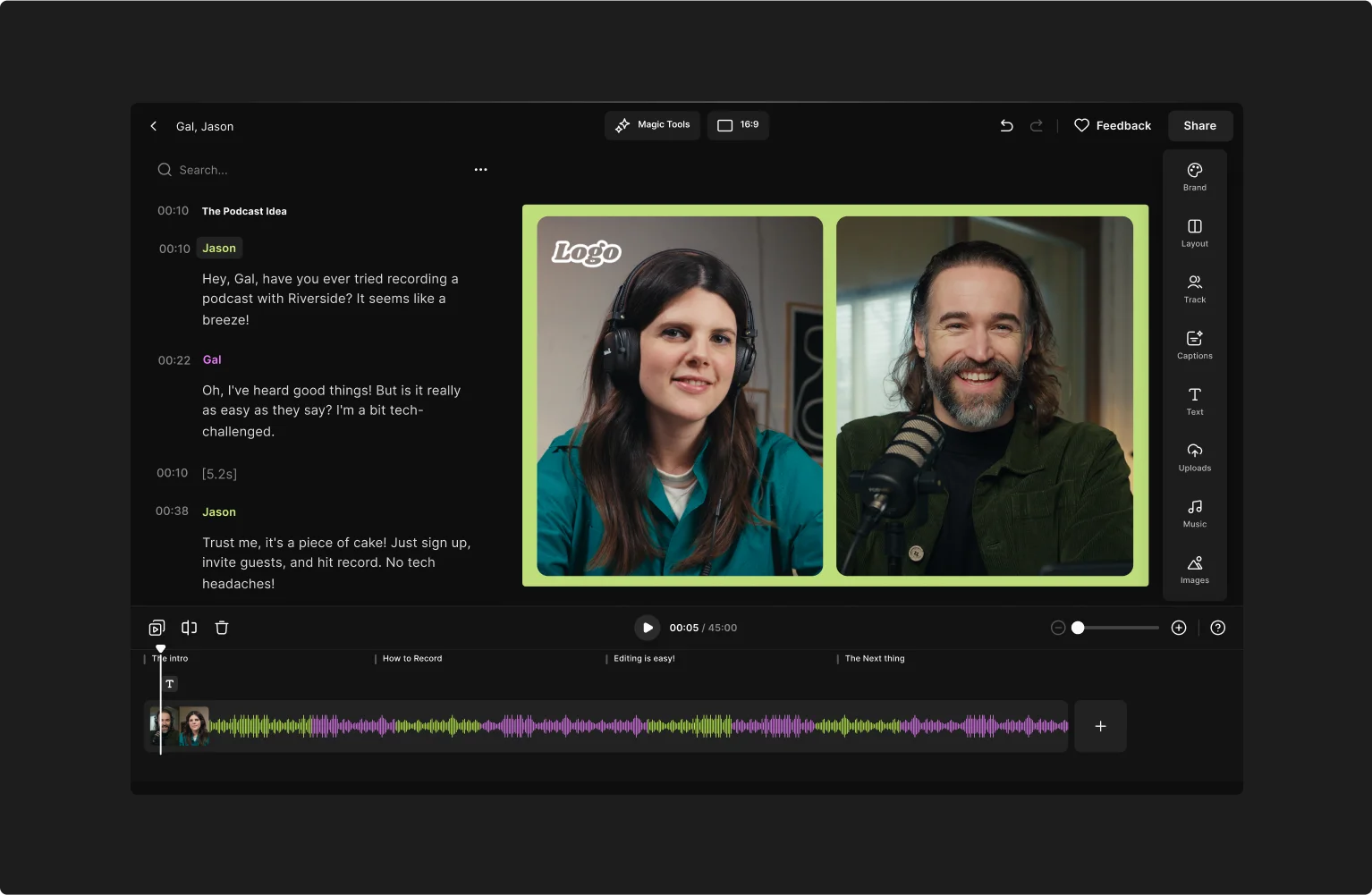
Riverside merges recording, streaming, and editing into a single workflow. Its text‑based editor syncs transcript and video, allowing instant cuts by deleting words. The platform automatically generates chapters, color‑codes speakers, and offers AI‑powered noise removal, captioning, and logo placement. A standout feature is Magic Clips, which turns long‑form content into Shorts with one click.
Best for beginners: iMovie
Multitrack editing: Yes
Export formats: MP4, MOV, M4V
Ideal for: New users and casual editors.
Pricing: Free
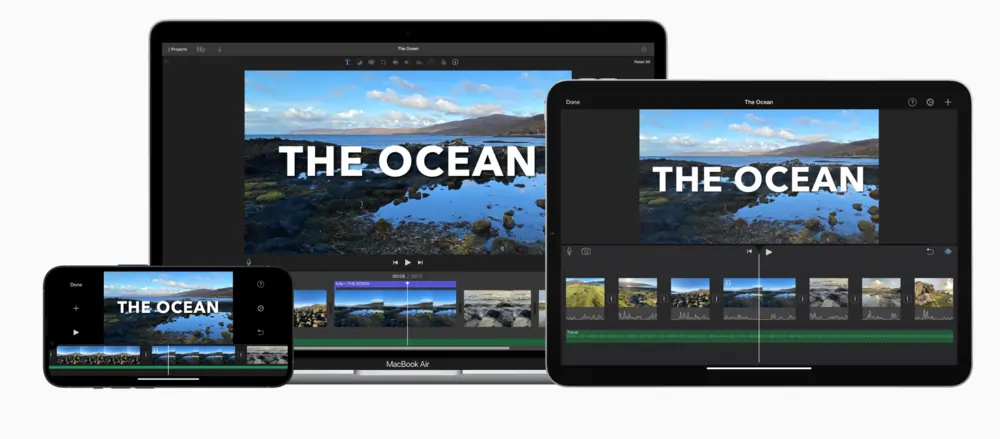
iMovie offers drag‑and‑drop editing, built‑in templates, and a green‑screen effect. Its storyboard library supports 20+ niches, while the cinematic mode adds depth‑of‑field for a professional look.
Best for intermediates: Adobe Premiere Pro
Multitrack editing: Yes
Export formats: MP4, MOV, AVI, WMV, MXF, MPEG‑2, FLV
Ideal for: Experienced editors seeking robust tools.
Pricing: Free tier, paid plans start at $22.99/month
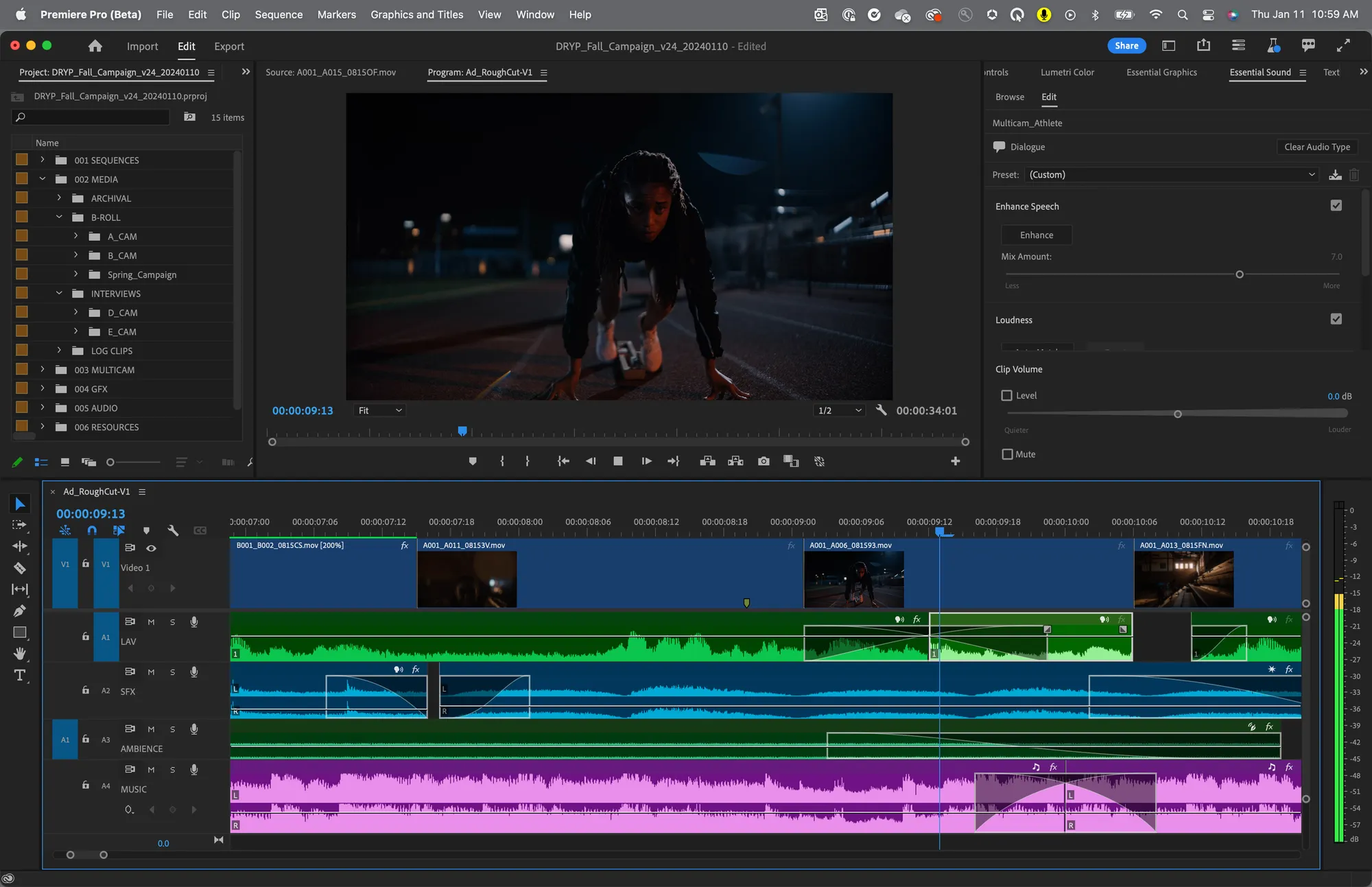
Premiere Pro balances a traditional timeline with a text‑based editor. It integrates with Adobe Audition, supports AI object removal, and offers motion graphics, visual effects, and advanced export presets.
Best for professionals: DaVinci Resolve
Multitrack editing: Yes
Export formats: MP4, MOV, AVI, MXF, MPEG‑4
Ideal for: Teams and high‑budget projects.
Pricing: Free, lifetime license $295
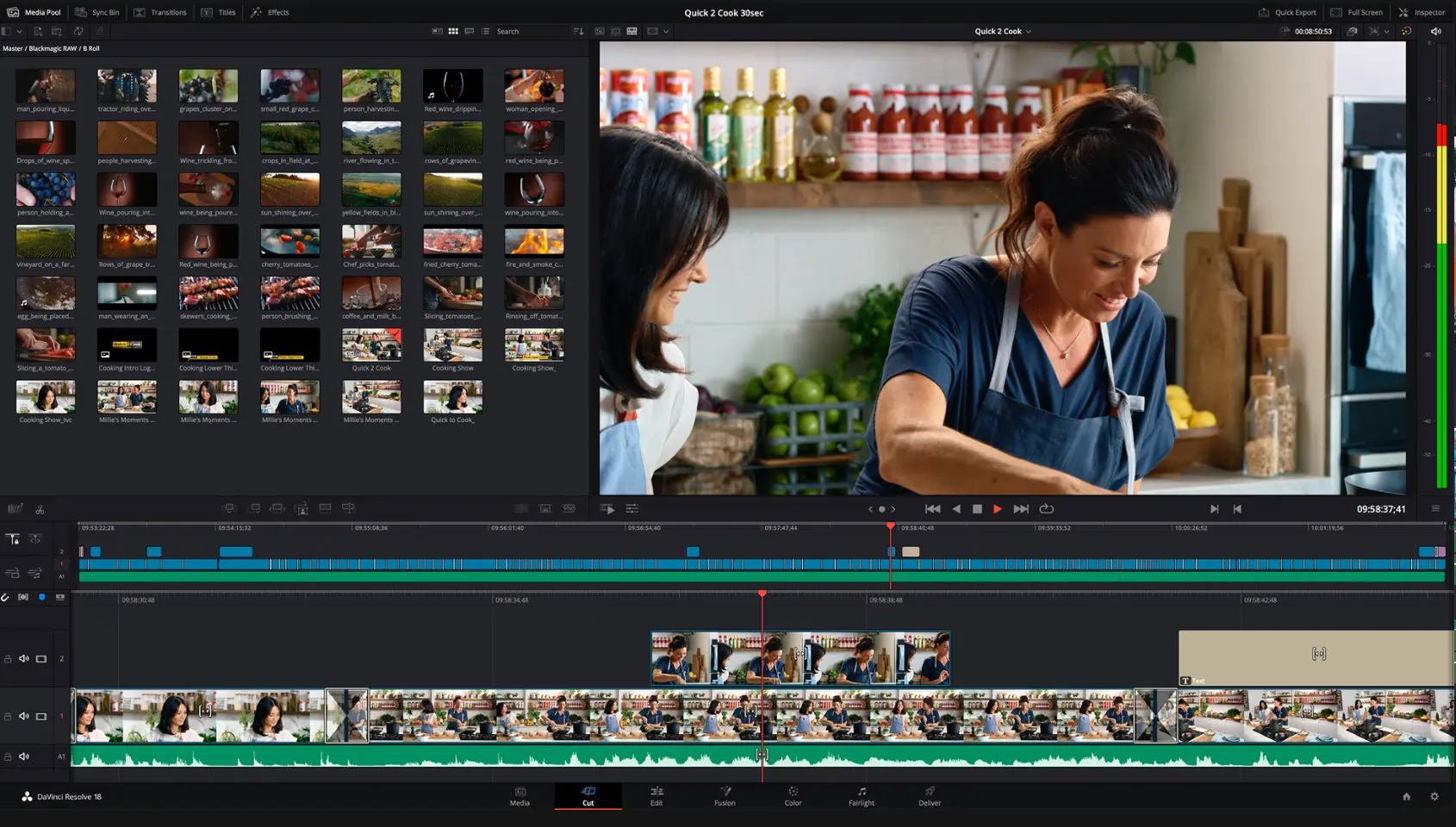
DaVinci Resolve excels in color grading, audio core with up to 2,000 tracks, and 100+ visual effects. Its learning curve is steep, but the payoff is professional‑grade output.
Best for Mac: Final Cut Pro X
Multitrack editing: Yes
Export formats: MOV, MP4, MXF, M4V, AVI
Ideal for: Mac users seeking speed and efficiency.
Pricing: 90‑day trial, lifetime $299.99
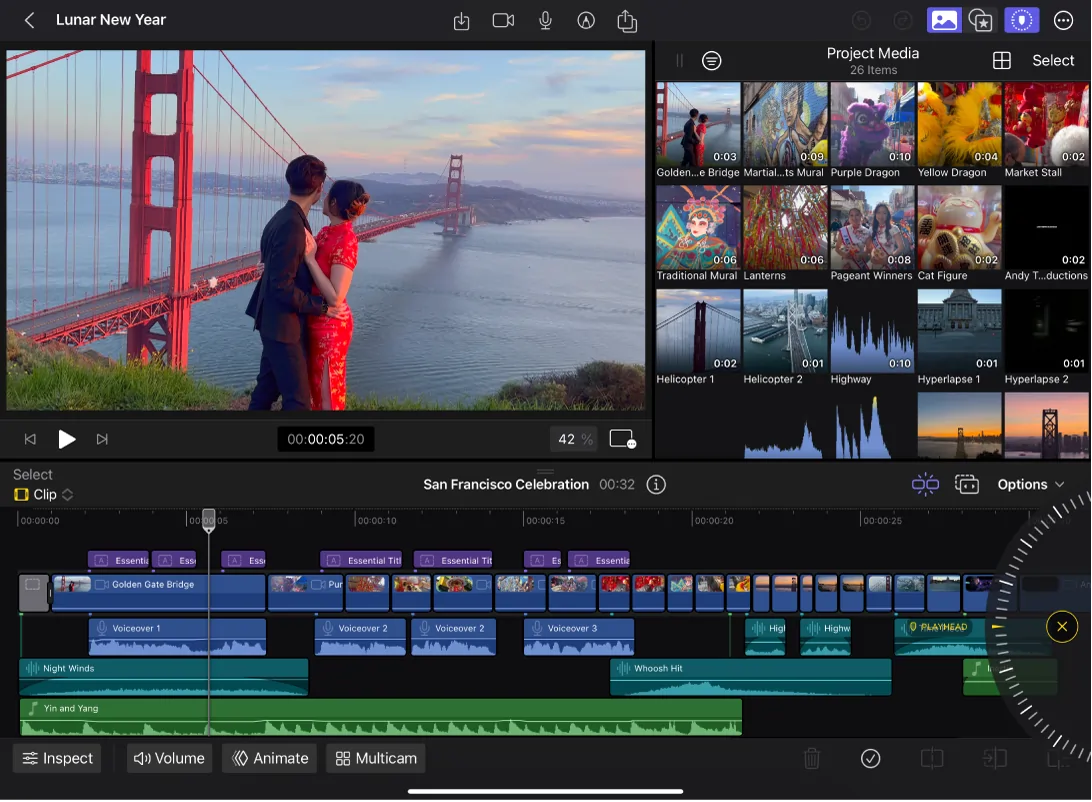
Final Cut’s Magnetic Timeline auto‑removes gaps, and its multicam editor supports up to 64 angles. Features include duplicate detection, motion graphics, and built‑in compression.
Best for VFX: HitFilm Express
Multitrack editing: Yes
Export formats: MP4, AVI, MOV, WMV, MKV
Ideal for: Creators seeking cinematic effects on a budget.
Pricing: Free, paid plans start at $7.99/month
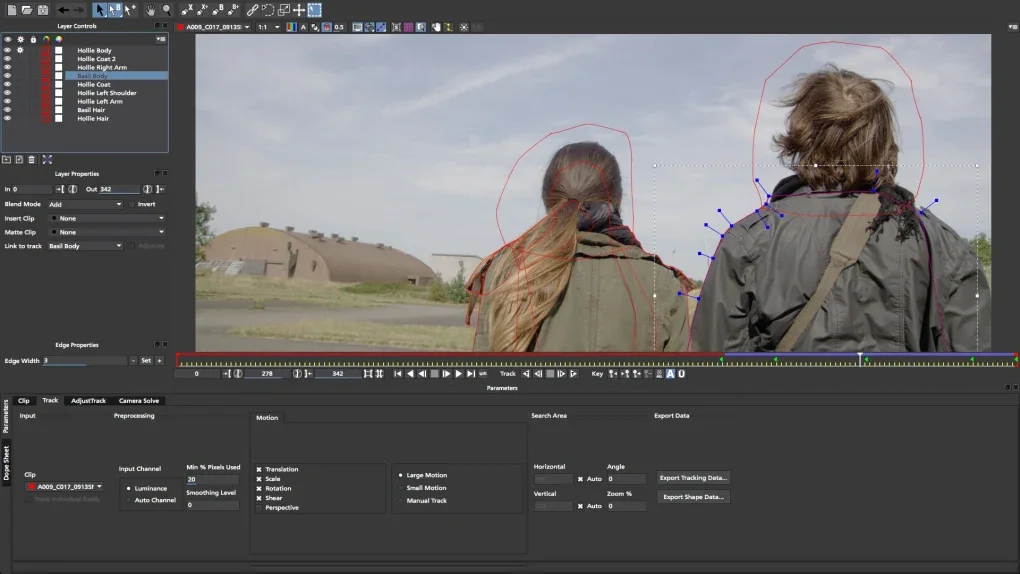
HitFilm Express offers keying, advanced color grading, and an extensive plugin library. While the free tier is limited, the software’s VFX toolbox is unrivaled for intermediate to advanced users.
Best free editors without watermarks
OpenShot
Multitrack editing: Yes
Export formats: AVI, FLV, MOV, MP4, MPG, OGG, WEBM, WMV
Ideal for: Creators needing advanced features at zero cost.
Pricing: Free
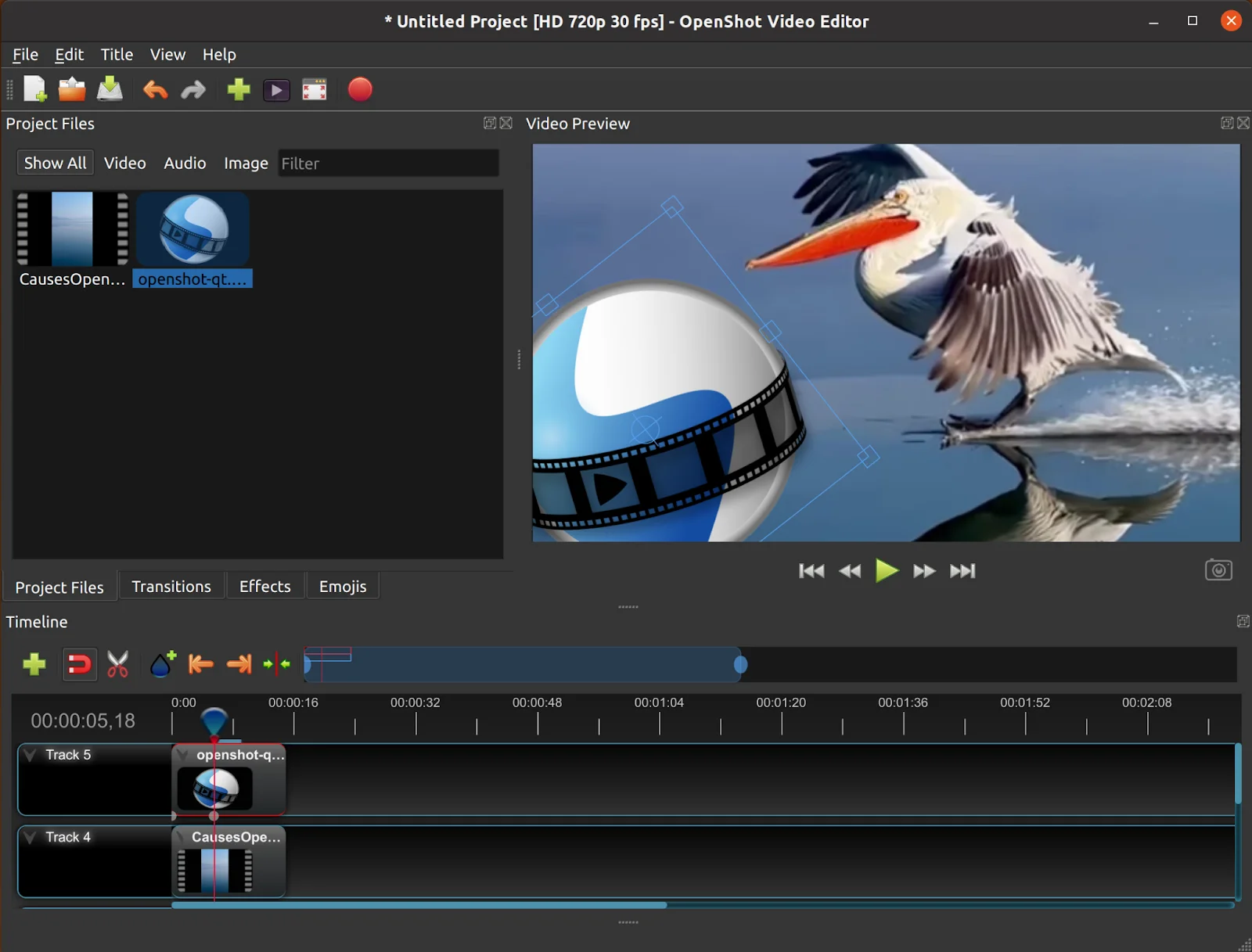
OpenShot’s unlimited track support and drag‑and‑drop timeline allow precise editing. Its time‑mapping, audio mixing, and 3D animation tools give a polished finish without watermarks.
VSDC
Multitrack editing: Yes
Export formats: AVI, MP4, MKV, MPG, WMV, FLV, MOV, RM, SWF
Ideal for: Budget‑conscious beginners.
Pricing: Free tier, paid plans from $19.99/year
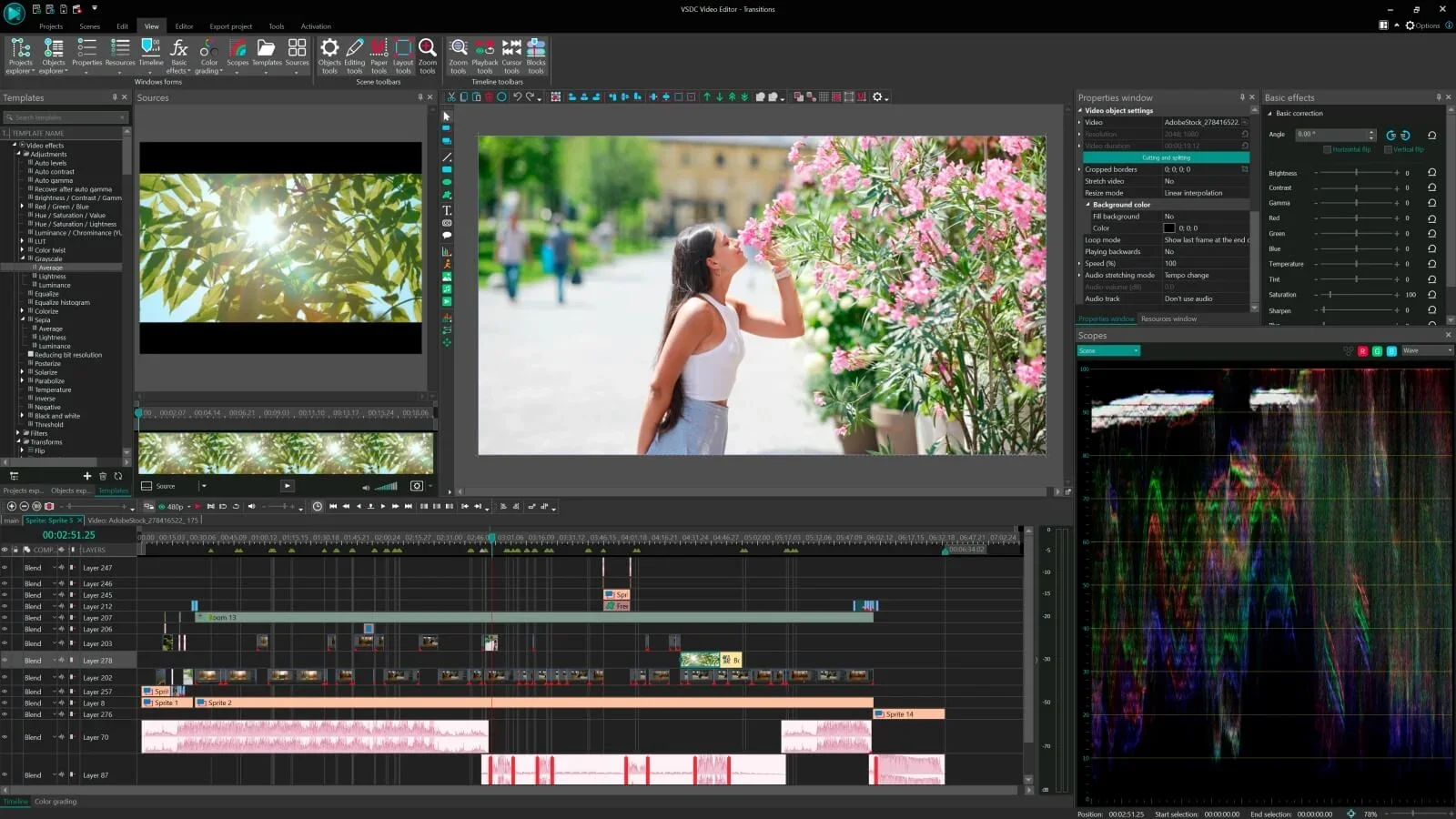
VSDC’s non‑linear editor supports picture‑in‑picture, split‑screen, and voiceover recording. It offers full‑format export and motion tracking, though full‑screen preview is missing.
Best mobile apps for iOS & Android
CapCut
Multitrack editing: Yes
Export formats: MP4, MOV, GIF
Ideal for: Social‑media creators with beginner to intermediate skills.
Pricing: Free, paid plans from $7.99/month
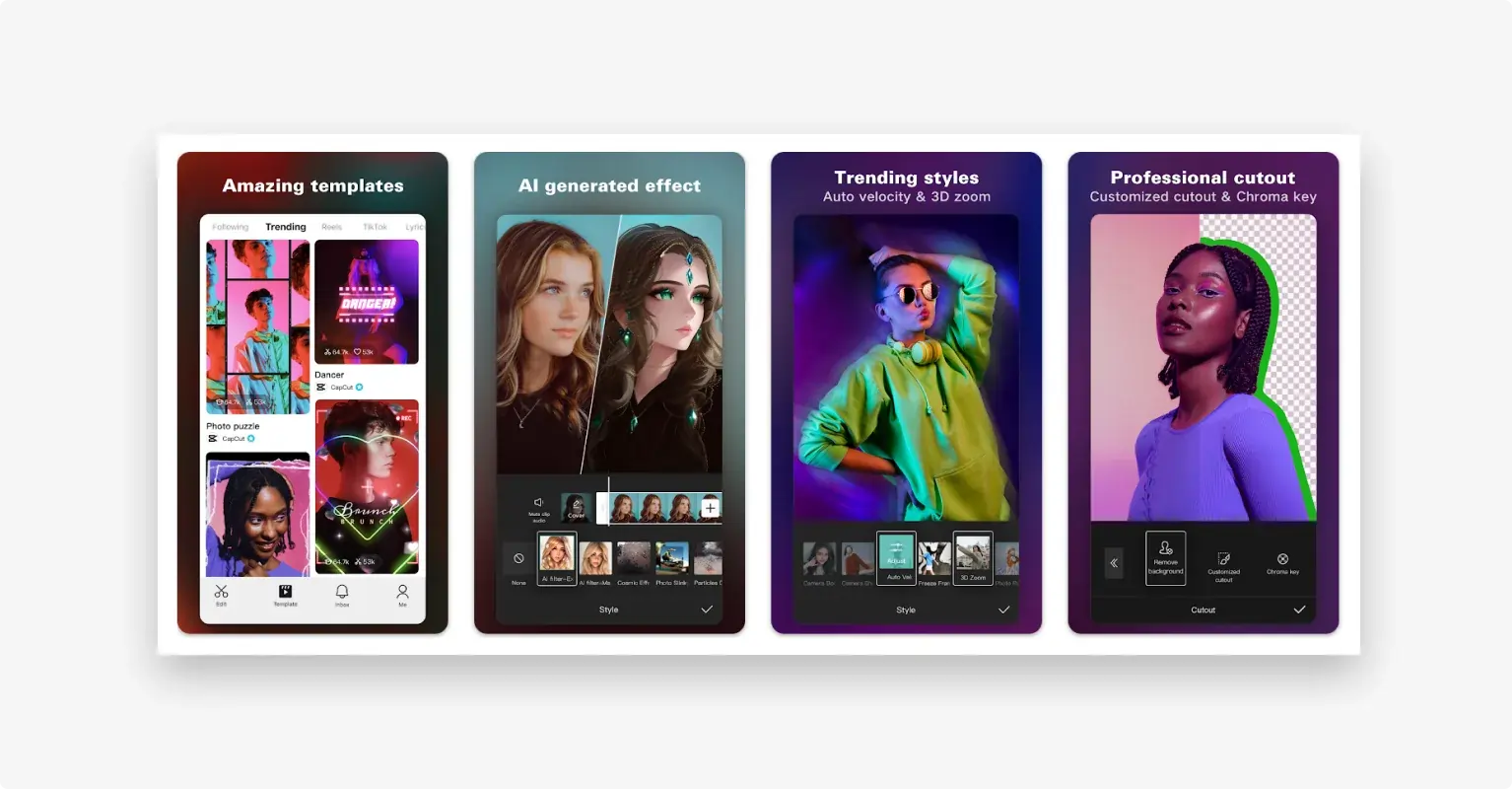
CapCut delivers an intuitive UI, auto‑captions, and a library of filters, AI animation, and 3D effects. It’s optimal for Shorts, while desktop versions suit longer YouTube videos.
Premiere Rush
Multitrack editing: Yes
Export formats: MP4, MOV, GIF, MXF
Ideal for: Intermediate users who need quick uploads.
Pricing: Free
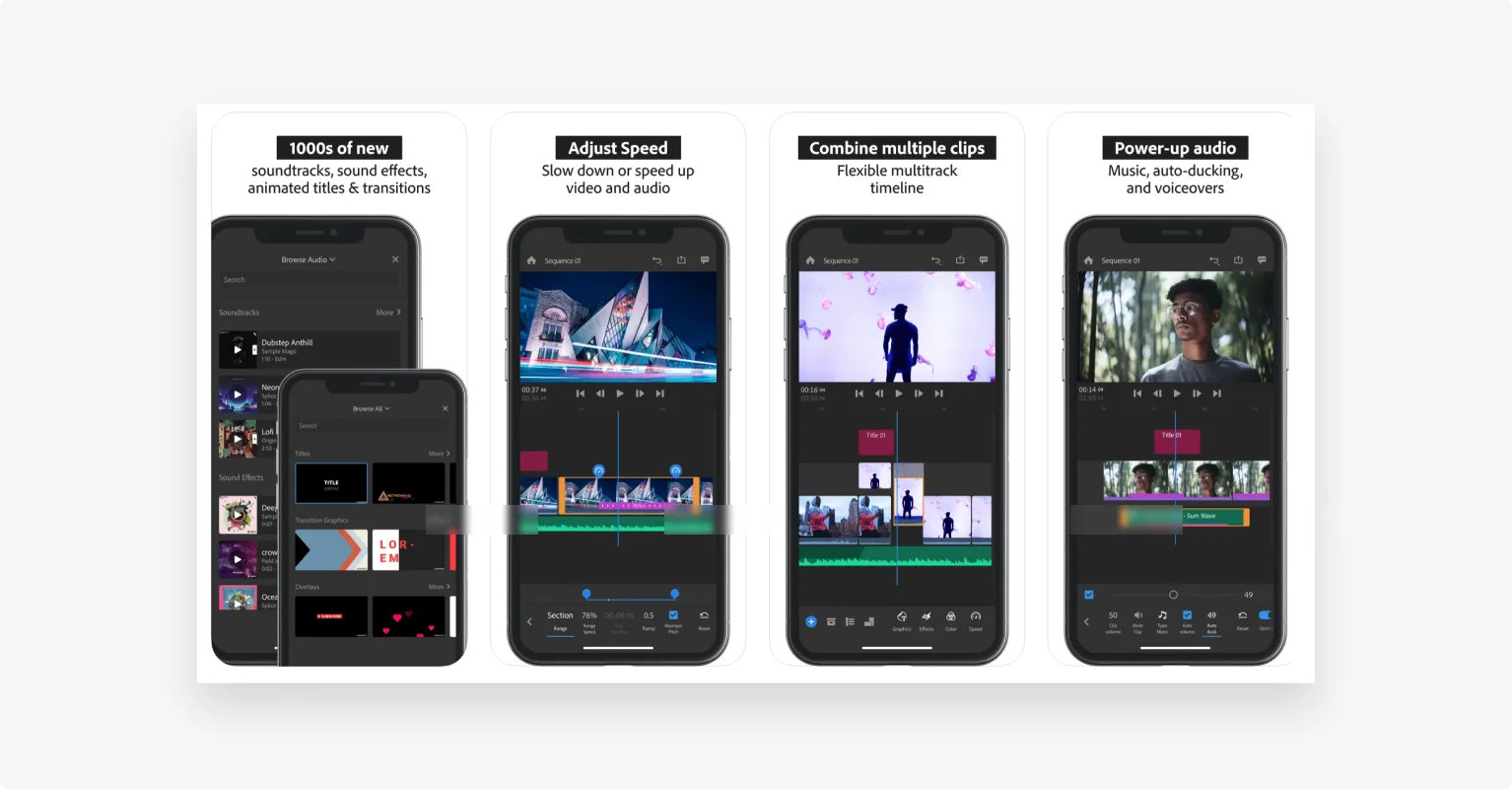
Premiere Rush offers a streamlined workflow, integrated Adobe assets, and the ability to edit on mobile or desktop. Its color correction, audio cleanup, and versatile export make it a solid choice for YouTube Shorts and longer content.
Choosing the right editor for your skill level
Beginners
- Drag‑and‑drop interface
- Template library
- Quick transcription and captions
- Text‑based editing
- AI automation
Recommended: Riverside, iMovie, OpenShot
Intermediate
- Multitrack control
- Color grading
- Motion graphics
- Visual effects
Recommended: HitFilm Express, Shotcut
Professionals
- Deep customization
- Audio mixing and enhancement
- Tool integrations
- Multicam editing
Recommended: Adobe Premiere Pro, Final Cut Pro X, DaVinci Resolve
Pro‑level editing practices
Storyboard your video
Map out shots, narrative flow, and key moments to streamline editing.
Use engaging visual effects
Pattern interrupts, dynamic transitions, and overlays capture attention.
Opt for royalty‑free music
Protect your channel from copyright strikes by using licensed or royalty‑free tracks.
Optimize for YouTube SEO
Incorporate primary keywords in titles, descriptions, file names, and tags; create eye‑catching thumbnails.
Level up your content strategy
Strategic editing can convert casual viewers into loyal subscribers. Invest time in mastering your chosen tool to keep audiences watching to the end.
Start with a free editor—Riverside, OpenShot, or VSDC—and grow into a paid solution as your channel expands.
FAQs about YouTube video editing software
Does YouTube have a free editor?
YouTube Studio offers a basic editor, but most creators prefer dedicated software for richer features.
What do professional YouTubers use?
Many opt for DaVinci Resolve or Adobe Premiere Pro for complex projects, while simpler formats may use Riverside or iMovie.
Why use a video editor for YouTube?
Editing enhances visual appeal, adds captions, and improves audio quality—factors that boost engagement and algorithmic reach.